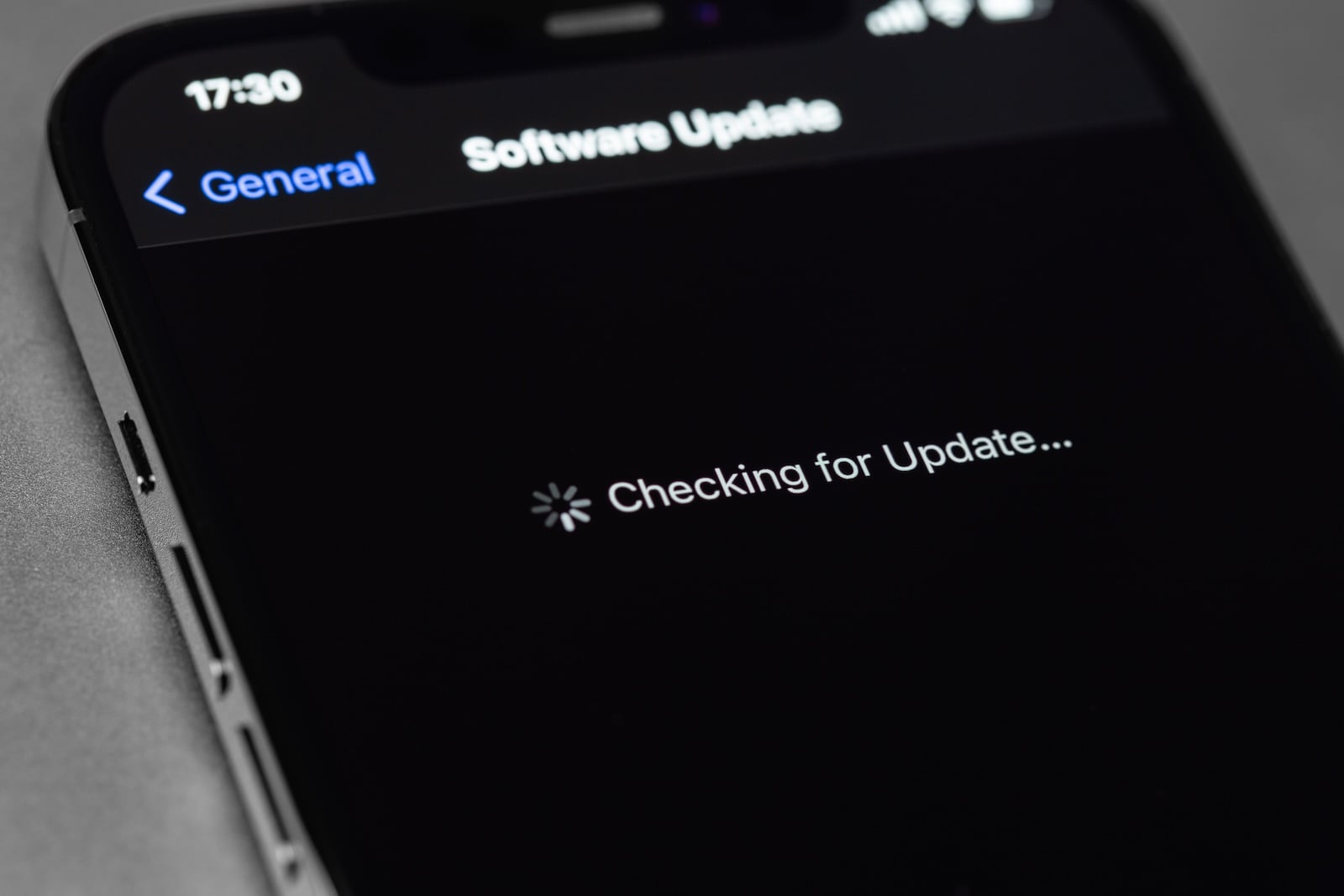
Your iPhone won't update, the progress bar is stuck, or the update search fails – update problems are among the most frequent complaints after every iOS release. This article covers all known scenarios and provides the corresponding solutions, currently applicable to iOS 26 and all supported iPhone models.
Apple releases one major iOS update and several point updates each year. Since the release of iOS 26 in September 2025 alone, several versions have already been released – from iOS 26.0.1 to iOS 26.3 and iOS 26.4. With each of these updates, users report problems: the update gets stuck, the download is interrupted, or the iPhone becomes unresponsive after installation.
The good news: Almost all update problems can be solved without data loss and without a visit to a repair shop. The bad news: The causes are varied and range from overloaded Apple servers to corrupted update files. Those who regularly back up their iPhones are on the safe side – detailed instructions can be found in our article Creating an iPhone Backup: All Methods under iOS 26.
Before we begin: Check the prerequisites
Many update problems arise because basic prerequisites are not met. Before troubleshooting begins, three points should be checked.
Compatibility
Not every iPhone receives every iOS update. iOS 26 supports the iPhone 11, the iPhone SE (2nd generation), and all newer models. The iPhone XS, XS Max, and XR were removed from the update cycle with iOS 26. You can find your exact model under Settings > General > About.
Storage space
iOS updates typically require between 3 and 6 GB of free storage. You can check the available space under Settings > General > iPhone Storage. If you don't have enough storage, try moving unused apps, deleting old photos and videos, or clearing your iPhone's cache.
Battery charging
Apple recommends at least 50 percent battery charge for an update. For best results, keep your iPhone plugged in to charge throughout the entire process. If you generally struggle with short battery life, you can find tips in our article iPhone Battery Drains Quickly.
"Update requested" – Update does not start
The message "Update requested" appears after tapping "Download and install." The iPhone informs Apple's servers that it wants the update and then waits in a queue. Normally, the message disappears after a few minutes. If it remains for more than 30 minutes, there is a problem.
Causes
Immediately after the release of a major iOS update, millions of users download it simultaneously. Apple's servers become overloaded, and iPhones get stuck in the download queue. An unstable Wi-Fi connection or insufficient storage space can also block the download.
Solutions
Check your Wi-Fi connection and switch to a different network if necessary. If you are using a VPN service, you should temporarily disable it – VPNs can slow down or interrupt downloads.
If the message is still displayed after an hour: Go to Settings > General > iPhone Storage, locate the downloaded iOS update file, and tap "Delete Update." Then, go to Settings > General > Software Update and download the update again.
If that doesn't help either, reset the network settings: Settings > General > Transfer/Reset iPhone > Reset > Reset Network Settings. This will delete all saved Wi-Fi passwords.
"The search for updates failed"
Instead of displaying an available update, the iPhone reports "The search for updates failed" or "An error occurred while searching for a software update." The iPhone cannot reach the Apple server or process the response.
Causes
An interrupted internet connection is the most common reason. Overloaded Apple servers, an outdated beta profile, or incorrect DNS settings can also block the search.
Solutions
First, check the Apple system status page. If the "Software Update" service is highlighted in yellow, the problem lies with Apple – in this case, simply wait a few hours.
Activate airplane mode for ten seconds and then deactivate it again. This will re-establish the network connection.
To restart your iPhone: Briefly press the Volume Up button, briefly press the Volume Down button, then press and hold the Side button until the Apple logo appears.
If a beta profile is installed: Under Settings > General > VPN and device management, check if a beta profile is present and remove it if necessary.
iPhone Update download keeps failing or takes forever
The download starts, but then stops after a while, or the progress bar barely moves. In some cases, the error message "Download not possible" appears.
Causes
A slow or unstable internet connection is the main reason. Large iOS updates can be several gigabytes in size – with a weak connection, the download takes a correspondingly long time or even fails. Simultaneous downloads from other apps or background streaming can also slow down the process.
Solutions
Do not download other large files or stream video while the download is in progress. Place the iPhone as close to the router as possible.
If the download repeatedly fails: Delete the update file under Settings > General > iPhone Storage and download it again.
Alternatively, install the update via computer. To do this, connect your iPhone to a Mac using a USB-C or Lightning cable and click "Check for Updates" in Finder (macOS Sequoia or later). On Windows, this process works via the "Apple Devices" app or iTunes.
Progress bar freezes – iPhone hangs during installation
After the download, the installation begins and the iPhone displays the Apple logo with a progress bar. The bar usually moves slowly, but sometimes it remains stuck in one place for minutes or seemingly indefinitely.
Causes
Installing a large update can take 20 to 45 minutes, depending on the iPhone model and the amount of data. What appears to be a stall is often just normal background processing. In rare cases, the update file is actually corrupted or a system error is blocking the process.
Solutions
Patience is the first and most important step. Do not turn off the iPhone or disconnect it from the charger. Wait at least one hour before taking any further action.
If the progress bar still hasn't moved after an hour, perform a forced restart: Briefly press the Volume Up button, briefly press the Volume Down button, then press and hold the Side button until the Apple logo appears. No data will be lost.
If the iPhone starts normally afterwards, repeat the update attempt. If the problem occurs again, install the update via computer.
iPhone no longer starts after Update
After the update, the iPhone only displays the Apple logo and restarts repeatedly (boot loop), or the screen remains completely black.
Causes
Corrupted system files, a failed installation process, or, in rare cases, a hardware defect. In older models, faulty battery connectors can also prevent the device from receiving enough power.
Solutions
First, charge the iPhone for at least 30 minutes. A completely drained battery can cause the same symptoms.
Then try a forced restart: Briefly press the Volume Up button, briefly press the Volume Down button, and hold the Side button until the Apple logo appears. This may take longer than ten seconds.
If the boot loop persists: Use recovery mode. To do this, connect your iPhone to your Mac via cable, perform a forced restart, and hold down the side button until the recovery mode screen appears. Two options will then appear in Finder: "Update" keeps all data and reinstalls the latest iOS version. "Restore" erases all data and resets the iPhone to factory settings – only as a last resort.
Detailed instructions for all reset methods can be found in our article Resetting your iPhone: All reset methods under iOS 26.
iPhone is slow or laggy after the Update
The update installed successfully, but the iPhone feels sluggish afterwards. Apps load more slowly, animations are jerky, and the battery drains faster than usual.
Causes
After a major iOS update, numerous processes run in the background: Spotlight re-indexes all files, photos are re-analyzed, and app caches are updated. Depending on the amount of data, this process can take one to two days and puts a strain on both the processor and the battery.
Solutions
Slight sluggishness is normal for the first 24 to 48 hours after a major update. Leave your iPhone plugged in and connected to Wi-Fi overnight – this is when background processes run most efficiently.
If the iPhone is still slow after three days: Restart it, clear the iPhone cache, and disable unnecessary apps under Settings > General > Background App Refresh.
Wi-Fi, Bluetooth and mobile network are not working after the Update
After installing an update, connection problems occur: The iPhone cannot find Wi-Fi, Bluetooth devices such as AirPods do not connect, or the mobile network shows "No Service".
Causes
Updates can reset network configurations or update driver components, which can temporarily cause connection problems. On dual-SIM devices, the default line may change after an update.
Solutions
Activate airplane mode for ten seconds and then deactivate it again. This is often enough to resolve connection problems.
Wi-Fi: Remove the affected network under Settings > Wi-Fi via "Ignore this network" and reconnect.
Bluetooth: Under Settings > Bluetooth, unpair and reconnect the affected device.
Mobile network: Check if blocking mode is enabled (Settings > Privacy & Security > Blocking mode). This can restrict mobile network connections.
If nothing else works: Settings > General > Transfer/Reset iPhone > Reset > Reset Network Settings. This will delete all Wi-Fi passwords, VPN configurations, and Bluetooth pairings.
iMessage and FaceTime are not working after the Update
After the update, iMessage and FaceTime display the message "Activation failed" or "Waiting for activation", which persists for hours.
Causes
Activating iMessage and FaceTime requires communication with Apple's servers. After major updates, this process can take longer than usual – Apple itself confirms that in rare cases, activation can take up to 24 hours.
Solutions
First, be patient: Activation can actually take several hours. If it's not complete after 24 hours, follow the steps below.
Go to Settings > Messages, disable iMessage, wait ten seconds, and then re-enable it. Do the same for FaceTime under Settings > FaceTime.
If that doesn't help: Go to Settings > tap your name and sign out of your Apple ID. Restart your iPhone and then sign back in.
iPhone Apps crash or freeze after the Update
After installing an iOS update, some apps no longer open, crash on startup, or freeze during use. System apps like Messages, Mail, Phone, and Photos are particularly frequently affected, while third-party apps sometimes function normally.
Causes
Old app caches may conflict with the new system. Some third-party apps haven't yet been optimized for the current iOS version. Insufficient free storage space can also prevent apps from loading enough resources.
Solutions
To force-quit the affected app: Swipe up from the bottom of the screen and hold, then swipe the app away. Then reopen it.
Check the App Store to see if an update is available for the affected app. Many developers release compatibility patches within a few days of a major iOS update.
If the app continues to crash: Delete the app and reinstall it from the App Store. This will remove the app cache and any corrupted data.
If system apps like Messages or Mail crash, a forced restart often helps. If that doesn't work: Settings > General > Transfer/Reset iPhone > Reset > Reset All Settings. This will preserve your personal data, but all settings will be reset to their default values.
iPhone gets hot after Update
After an iOS update, the iPhone heats up noticeably more than usual, even with simple use such as writing messages or listening to music.
Causes
After a major update, intensive processes run in the background: Spotlight re-indexes all files, the photo library is re-analyzed, and Apple Intelligence downloads models to the device. These processes put a strain on the processor and generate heat. This is normal for the first one to two days after the update.
Solutions
Keep your iPhone plugged into a charger and connected to Wi-Fi for the first 48 hours after the update to allow background processes to complete efficiently. Avoid intensive use such as gaming or video editing during this period.
If the heat buildup persists after three days: Check under Settings > Battery to see which apps are using the most power. Disable apps with unusually high background power consumption under Settings > General > Background App Refresh.
Activate power saving mode (Settings > Battery > Power saving mode) until the situation returns to normal.
Install iPhone Updates via Computer – the Emergency Method
If an OTA (over-the-air) update doesn't work, using a computer is often the solution. This bypasses all problems with Wi-Fi, storage space, and the "update requested" queue.
On a Mac (macOS Sequoia or later): Connect your iPhone using a USB-C or Lightning cable. In the Finder, select your iPhone in the sidebar. Click "Check for Updates" and follow the instructions.
On a Windows PC: Use the "Apple Devices" app from the Microsoft Store. Alternatively, iTunes will also work, provided it's still installed. Connect the iPhone via cable, select the device, and click "Check for updates.".
In both cases, the update is downloaded directly to the computer and then transferred to the iPhone. This saves storage space on the iPhone and avoids Wi-Fi problems.
Common error messages and their meaning
In addition to the scenarios already described, there are a number of specific error messages that may appear during an update.
Software update failed – Usually a problem with the internet connection or Apple's servers. Delete the update file, switch networks, and try again.
Mobile network update failed – This message appears after the update and means that the modem firmware was not updated correctly. A restart resolves the issue in most cases.
Error 14 – Indicates a problem with the USB cable or the update file. Use a different cable and repeat the process.
Error 4013 or 4014 – A more serious error that often indicates a hardware problem. First, try a different computer and a different cable. If the error persists, contact Apple Support.
The device is not compatible with the requested build – the iPhone model does not support the desired iOS version. Check the model under Settings > General > About.
Avoid Update Problems: Preparation is everything
Most update problems can be avoided with good preparation. Four steps should become routine before every iOS update.
First: Create a current backup – either in iCloud or on your Mac.
Secondly: Ensure sufficient storage space. At least 5 to 10 GB should be free.
Third: Don't update on the day of release. Waiting one or two days avoids server overload and allows you to benefit from any bug fixes included in the first wave.
Fourth: Keep the iPhone plugged into the charger throughout the entire update and ensure a stable Wi-Fi connection.
The best products for you: Our Amazon storefront offers a wide selection of accessories, including those for HomeKit. (Image: Shutterstock / Primakov)
- Creating an iPhone Backup: All methods under iOS 26
- Transferring Data to a new iPhone: All Methods under iOS 26
- Clear History on iPhone: Safari, Chrome and more
- Disable Audio Zoom on iPhone
- iPhone Battery drains quickly: Here's how to extend Battery Life under iOS 26
- Resetting your iPhone: All reset methods under iOS 26
- iCloud Costs: All storage plans, prices, and which one is worth it
- Recording an iPhone call: What works in Germany – and what doesn't
- Clear iPad Cache: More Storage and better Performance
- Clear iPhone cache: How to make your iPhone fast again
- Search iCloud.com: Activate new search function in iOS 26.4
- Apple Watch Tips: Hidden features you didn't know about
- iPhone storage full? Here's how to instantly free up more space
- Apple Account Purchase History: Review purchases, subscriptions & costs
- Apple Music: How to successfully migrate from Spotify & Co.
- AirTag 2 Factory Reset: How to Perform a Reset
- Apple Games App: Central hub for modern gaming
- Lockdown Mode: Maximum security for iPhone, iPad and Mac
- Apple Music: How to activate translated song lyrics in iOS 26
- Apple Creator Studio: Apps, subscription, and clear AI limits
- Is Apple Music taking up too much storage space? This will help immediately
- AirTag 2: Setting up Precision Finding on the Apple Watch
- How to turn texts into reminders with Apple Intelligence
- Precision Finding on the Apple Watch requires AirTag 2
Frequently Asked Questions: iPhone Update Problems
Apple's servers are overloaded or your internet connection is unstable. Go to Settings > General > iPhone Storage, delete the update file, and download it again. Alternatively, install the update via your Mac or PC.
Depending on internet speed, the download takes 5 to 30 minutes, and the installation takes 20 to 45 minutes. For large updates like iOS 26.0, the entire process can take over an hour.
Perform a forced restart: Briefly press the Volume Up button, briefly press the Volume Down button, and then hold down the Side button until the Apple logo appears. If that doesn't help, use Recovery Mode on your Mac or PC.
No. A forced restart only restarts the system and does not delete any personal data. Only the "Restore" option in recovery mode deletes all content.
After a major iOS update, the system re-indexes all files in the background. This process can take one to two days and puts a strain on the processor and battery. Afterwards, performance returns to normal.
Officially, no. Apple only signs older iOS versions for a short time after a new release. Once signing stops, downgrading is no longer possible.
Via computer: Connect your iPhone to your Mac or PC using a USB cable and click "Check for Update" in Finder or the Apple Devices app. The update will be downloaded via your computer's internet connection.