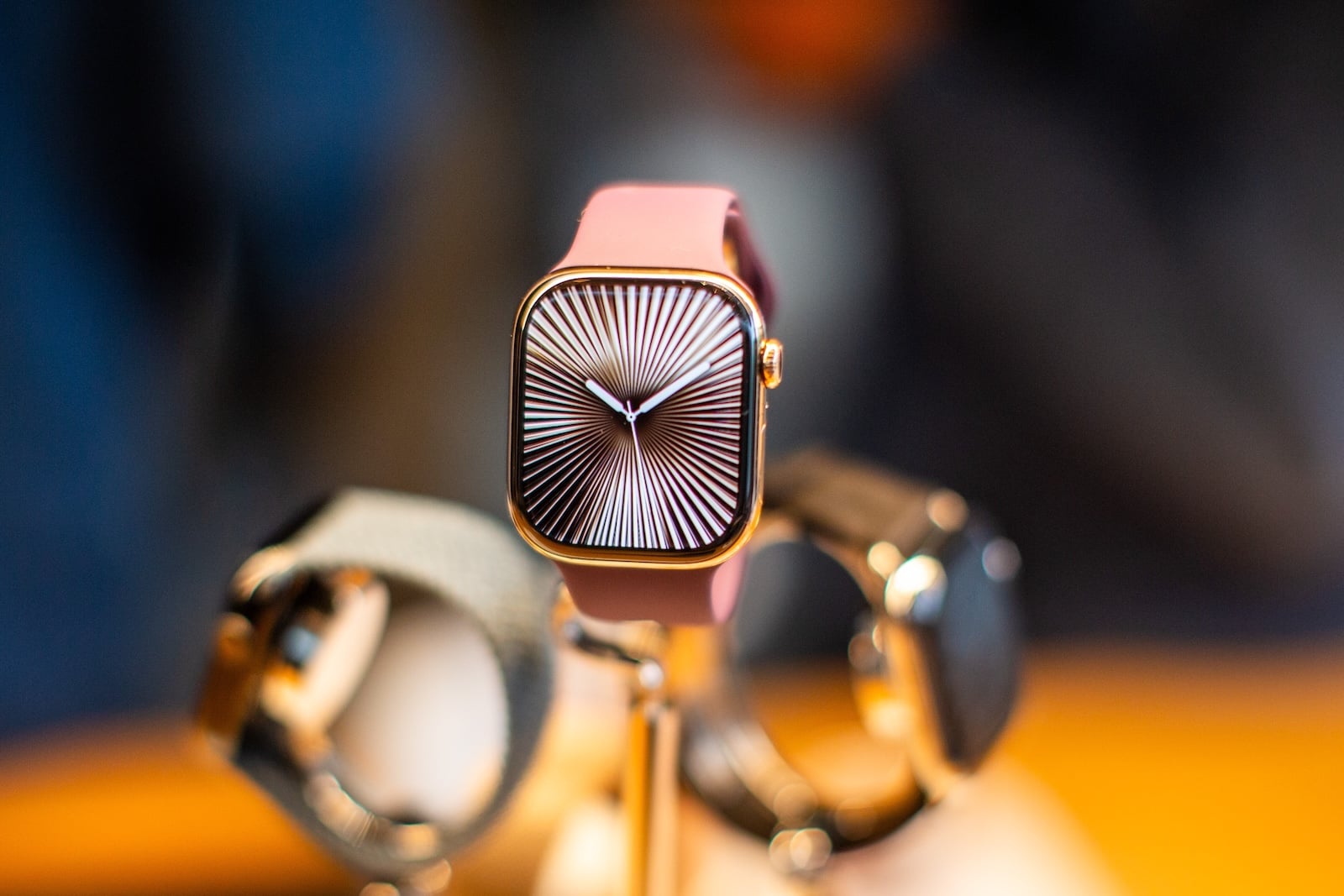
The Apple Watch is much more than just a digital watch face on your wrist. Since its first generation, it has evolved into a serious everyday companion that goes far beyond simply telling the time and displaying notifications. With the eleventh generation, Apple has further refined the device and equipped it with features that aren't immediately obvious. And that's precisely the problem: many users wear their Apple Watch for years without even tapping into a fraction of its potential. Yet this small device on your wrist contains tricks and shortcuts that can noticeably simplify everyday life – provided you know where to look.
This article is for anyone who wants to better understand and use their Apple Watch more efficiently. The following 15 tips cover a wide range of topics: from simple navigation aids and hidden customization options to features that even experienced Apple Watch users are often unaware of. Basic knowledge is deliberately omitted – the features presented here go beyond the obvious and offer real added value in everyday use of the watch.
Switch between two apps
Users who frequently switch between two apps no longer need to navigate through the app menu. Double-tapping the Digital Crown displays all currently open apps. Rotating the Crown allows you to scroll through this overview. A tap on one of the displayed app screens is all it takes to switch directly to that app. To close an app from this view, swipe the corresponding card to the left and tap the red X that appears. This saves time and keeps background processes organized.
Switch app view
By default, the Apple Watch displays all installed apps in a grid. However, this view quickly becomes cluttered for many users, especially when many apps are installed. There's a simple alternative: In the Watch app on your iPhone, under "App View," you can switch the display to "List View." From this point on, pressing the Digital Crown will display all apps in an alphabetically sorted, scrollable list. The list view is clearer and allows you to find specific apps more quickly without having to search through the grid.
Rearrange apps
Those who prefer the grid view don't have to settle for the default app arrangement. By pressing and holding any app, all apps will start to jiggle. Each app can then be dragged and dropped to a new position. This allows you to place your most frequently used apps in the center of the grid for easy access. If you prefer to arrange the apps on the larger iPhone screen, you'll find the same option in the Watch app under "App View" and then "Arrangement.".
Beep the iPhone
If you've misplaced your iPhone but are sure it's nearby, there's no need to rummage through every pillow and drawer. A phone icon can be found in the Apple Watch's Control Center, which is accessed by pressing the side button. A simple tap on this icon makes the iPhone play a sound. A particularly useful feature is pressing and holding the same icon: this also activates the iPhone's camera flash. This is especially helpful if the device is hidden under objects and the sound alone might be too muffled to be heard.
Skip the workout countdown
When starting a workout, the Apple Watch displays a three-second countdown by default before the workout officially begins. If you don't want to waste any time, simply tap the screen as soon as the countdown starts, and the workout begins immediately. For those who regularly do this, there's a permanent solution: In the watch's settings, under "Workout," you can activate the "Precision Start" option. This eliminates the countdown entirely, and the workout begins immediately after tapping the start button.
Adjust vibration intensity
If you regularly miss messages or alerts on your Apple Watch despite having notifications enabled, you should check the haptic settings. Under "Settings" and then "Sounds & Haptics," you can change the haptic intensity from "Standard" to "Distinctive." The difference is noticeable: The "Distinctive" setting adds an additional tapping pattern before each notification. This pattern is much more prominent and harder to miss than the standard vibration, which is particularly helpful in noisy environments or during physical activity.
Precise timing with the Chronograph Pro
The Chronograph Pro watch face is one of the most feature-rich watch faces Apple offers. It transforms the Apple Watch into a fully functional chronograph. By tapping the outer edge around the 12-hour dial, you can adjust the time scale: you can choose between increments of 60, 30, 6, or 3 seconds. In addition, there's a tachymeter scale for calculating speeds. Simply measure the time it takes to travel a known distance, and the scale will display the corresponding speed. For anyone who needs precise timekeeping, this watch face is one of the most useful options on the Apple Watch.
Jump to the top of the page with a tip
If you've scrolled far down in an app and want to quickly return to the top of the page, you don't have to scroll back tediously. A simple tap on the time displayed in the upper corner of the Apple Watch screen jumps directly to the beginning of the current view. This feature works in most native Apple Watch apps and saves a lot of time, especially with long lists or texts. It's one of the lesser-known but most practical tricks the Apple Watch has to offer.
Remove apps directly on the watch
Uninstalling apps doesn't necessarily have to be done via the iPhone. Directly on the Apple Watch, you can activate edit mode in list or grid view by pressing and holding the screen. The apps will then start to wiggle, and a small "x" will appear in the corner of each app icon. Tapping this icon deletes the app immediately. This method works for both third-party apps and most pre-installed system apps.
Customize the control center
The Apple Watch Control Center offers quick access to features like Wi-Fi, battery level, and Do Not Disturb by default. However, many users are unaware that this menu is fully customizable. Tapping the Edit button at the bottom of the Control Center opens the customization mode. Additional features can be added via the "+" icon in the upper left corner. Particularly useful additions include "New Note" and "Brightness." Users who have installed certain third-party apps may also find additional options there that can be integrated into the Control Center.
Have the time announced loudly
Users of the "Mickey Mouse" or "Minnie Mouse" watch face can have the current time read aloud by simply tapping the figure. This requires that sound is enabled on the Apple Watch. Regardless of the watch face used, there's another option: pressing and holding two fingers on the display will prompt Siri to read the current time. Again, sound must be enabled. This feature is particularly useful when you need a quick time check without having to look up.
Personalize intelligent answers
The Smart Replies feature lets you respond to incoming messages with short, predefined texts without having to type or dictate. These default replies are fully customizable. In the Watch app on your iPhone, under "Messages," you'll find the "Default Replies" option, where you can save your own custom texts. When a message arrives on your Apple Watch, simply swipe down to view the preset replies and select one. This is especially useful when you need a quick response.
Pause activity rings
The Apple Watch's Activity rings are a daily source of motivation for many users. However, on days when you're sick or unable to exercise for other reasons, you don't have to sit idly by and watch your progress disappear. In the Activity app, you can pause the rings for a single day or set a break until a date of your choosing, up to 90 days in the future. This way, you maintain your long-term motivation without putting pressure on yourself on bad days.
Create notes directly on the Apple Watch
With watchOS 26, Apple introduced a new Notes app for the Apple Watch. While existing notes can't be edited on the watch itself, creating new ones is possible directly from your wrist. Simply tap the Enter button in the lower right corner of the app and dictate the desired text. Since notes are synced via iCloud, they then automatically appear on your iPhone, iPad, Mac, or Apple Watch Vision Pro. There, you can easily revise, add to, or reorganize them.
Close notifications with a hand gesture
One of the Apple Watch's most practical gestures is also one of the least known: a quick wrist movement closes the current screen and returns you directly to the watch face. The same gesture also works to mute incoming calls, stop timers, and dismiss notifications. This feature is enabled by default and is supported by the third-generation Apple Watch SE, Series 9, Ultra 2, and all later models.
The Apple Watch only reaches its full potential with proper use
The Apple Watch offers far more than meets the eye. Those who take the time to explore beyond the basic functions will quickly discover how thoughtfully designed and versatile watchOS is. The 15 tips presented here are just a glimpse of what's possible, but they cover the most important and useful features that make the biggest difference in everyday life. From precise timekeeping and customizing the Control Center to practical gestures, the Apple Watch rewards anyone willing to delve a little deeper into its capabilities. The best products for you: Our Amazon storefront offers a wide selection of accessories, including those compatible with HomeKit. (Image: Shutterstock / Ringo Chiu)
- iPhone storage full? Here's how to instantly free up more space
- Apple Account Purchase History: Review purchases, subscriptions & costs
- Apple Music: How to successfully migrate from Spotify & Co.
- AirTag 2 Factory Reset: How to Perform a Reset
- Apple Games App: Central hub for modern gaming
- Lockdown Mode: Maximum security for iPhone, iPad and Mac
- Apple Music: How to activate translated song lyrics in iOS 26
- Apple Creator Studio: Apps, subscription, and clear AI limits
- Is Apple Music taking up too much storage space? This will help immediately
- AirTag 2: Setting up Precision Finding on the Apple Watch
- How to turn texts into reminders with Apple Intelligence
- Precision Finding on the Apple Watch requires AirTag 2
- AirTag 2: Which airlines support baggage tracking
- AirTag 1 or AirTag 2: How to tell the difference
- AirTag 2: These iPhones are compatible with improved tracking
- iPhone alarm silent: Why the alarm suddenly stops working
- Safari at 120 Hz: How to activate smoother scrolling
- iOS 26 improves group chats with five new features
- Here's how to create Apple Music playlists with ChatGPT
- iOS 26: Change default apps on your iPhone
- iOS 26 turns photos into impressive 3D spatial scenes
- AirPods: Media no longer continues playing during sleep thanks to iOS 26
Frequently Asked Questions about the Apple Watch
Double-tapping the Digital Crown displays all open apps. From there, you can scroll by rotating the Crown and switch directly to the desired app by simply tapping an app screen.
In the Watch app on the iPhone, under "App View," you can switch the display from grid view to the more organized list view. The apps are then displayed alphabetically in a scrollable list.
Yes. In list or grid view, press and hold the screen until the apps start to wiggle. Then tap the small "x" in the corner of the app icon to delete it. This works for most system apps and all third-party apps.
In the Control Center, tap "Edit" and then add more functions using the "+" icon. Particularly useful additions include "New Note" and "Lighting." Depending on the apps installed, third-party options may also appear there.
Tap the phone icon in the Apple Watch Control Center to make the iPhone play a sound. Pressing and holding the same icon will also make the iPhone's camera flash blink, which is especially helpful if the device is under something.
Under "Settings" and then "Sounds & Haptics", change the haptic intensity from "Standard" to "Distinctive". This setting adds an additional tap pattern before each notification, which is much harder to miss.
The "Chronograph Pro" watch face transforms the Apple Watch into a fully functional chronograph. Tapping the outer edge allows you to adjust the time scale in increments of 60, 30, 6, or 3 seconds. The tachymeter scale also allows you to calculate speeds based on a measured distance.
In the Activity app, select the rings and choose the option to pause for a single day or until a date of your choosing. The pause can be set for up to 90 days in the future.
Yes, since watchOS 26 there's a Notes app on the Apple Watch. New notes can be created using voice input by tapping the Enter button in the lower right corner and dictating the text. However, existing notes cannot be edited on the watch. All notes automatically sync via iCloud with iPhone, iPad, Mac, and Vision Pro.
With a quick flick of the wrist, you can close the current screen and return directly to the watch face. The same gesture also works to mute calls and stop timers. The feature is enabled by default and is supported by the third-generation Apple Watch SE, Series 9, Ultra 2, and all later models.