
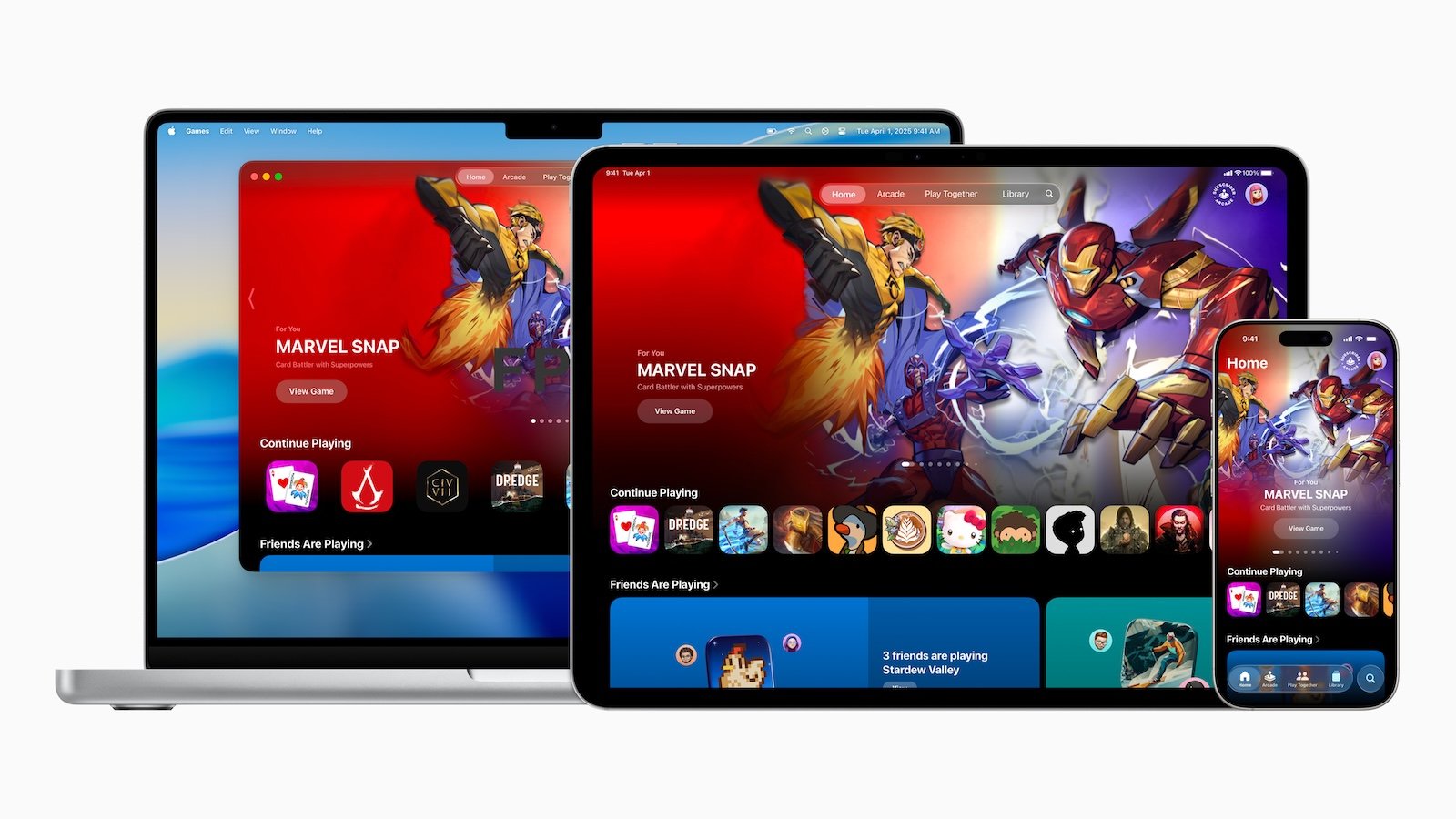
Gaming within the Apple ecosystem has changed dramatically in recent years. What once consisted of individual apps and a relatively simple Game Center is now a cohesive system for cross-device gaming, cloud storage, and social features. Apple's clear goal is to seamlessly connect games across iPhone, iPad, Mac, and Apple TV. Progress, friend lists, and achievements should remain automatically synchronized without requiring constant user intervention.
With the Apple Games app and the revamped Game Center, Apple has restructured its gaming offerings. The Games app is the visible control center, while Game Center works in the background. Together, they form the basis for a unified gaming experience. The system is optionally complemented by Apple Arcade, a subscription model with ad-free games and no in-app purchases. The focus is clearly on convenience, clarity, and ease of use across multiple devices.
Apple Games and Game Center Overview
Apple hasn't abolished the former Game Center, but rather repositioned it. Today, it handles tasks such as profile management, game save synchronization, multiplayer functions, and friend lists. The Apple Games app bundles these features in one place and expands them with recommendations, achievements, and access to Apple Arcade.
The result is a gaming system that largely functions automatically in everyday use. Once set up, synchronization and management mostly run in the background.
Requirements for a smooth gaming experience
For everything to work reliably, some basic requirements are necessary:
- Latest version of iOS, iPadOS, macOS or tvOS
- The same Apple ID on all devices used
- Activated Game Center
- Internet connection
- Optionally enabled iCloud Drive for cloud storage
On Apple TV, the Game Center identity is always linked to the currently active user profile. Switching profiles automatically changes the game account used. This is especially important in households with multiple people.
The Apple Games App in detail
The Apple Games app is the central hub for all games linked to your Apple ID. The interface is largely identical across iPhone, iPad, and Mac, making it easy to navigate. The main sections are:
- Home with new releases and the "Continue playing" section
- Arcade for all content from the Apple Arcade subscription
- Play together or friends for social features, challenges and multiplayer
- Library containing all games ever downloaded or purchased
- Search for targeted game search
The library also displays games that are not currently installed. A cloud icon indicates that a title has been downloaded previously.
Find, download, and manage games
Games can be discovered either through the Apple Games app or directly through the App Store. The detail pages provide information on age ratings, screenshots, controller support, and available Game Center features.
The download is initiated via "Download" or the price button. Games that have already been purchased or downloaded can be reinstalled at any time. Deleting a game frees up storage space. Local game saves may be lost unless the game uses cloud synchronization via iCloud or Game Center.
Apple Arcade as an optional game subscription
Apple Arcade adds a curated library of games to the system, free of ads and in-app purchases. Subscriptions can be purchased through the Apple Games app or via device settings. Many Arcade titles support:
- Cross-device gaming
- Cloud storage
- Offline use
With Family Sharing, the subscription is available to all members of a household. If a game is removed from Apple Arcade, it may no longer be playable. Some titles may later reappear separately in the App Store. Subscription management is done in Settings or System Preferences, depending on the device.
Progress, achievements and leaderboards
The Apple Games app displays progress in all supported games. Achievements mark specific milestones, while leaderboards allow you to compare your performance with friends or players worldwide.
Challenges provide additional motivation. Single-player games can be transformed into friendly competitions by setting time limits or a specific number of attempts.
Play with friends and multiplayer features
Friends can be added via their Game Center nickname or from your contacts. Invitations appear as notifications and can be opened directly in the Games app or within the game itself.
Multiplayer games are typically started via the "Invite Friends" option within the game. Both real-time and turn-based modes are supported. Many games allow asynchronous play, where not all participants need to be online simultaneously. Additional options include:
- "Invitations nearby" via Bluetooth and Wi-Fi
- SharePlay for playing games together during a FaceTime call
- Cross-platform gaming between different Apple devices
Apple TV is particularly well-suited for local multiplayer games with multiple controllers.
Synchronization of game progress and parental controls
Progress synchronization works reliably as long as the same Apple ID is used on all devices. Many games automatically save data via Game Center or iCloud. If a game save is missing, the following steps usually help:
- Check network connection
- Restart game
- Make sure iCloud Drive is enabled
Some older games only save data locally. In these cases, cross-device progress is not possible.
Family Sharing and Screen Time allow you to set clear rules. Parents can define age restrictions, block multiplayer with strangers, disable adding friends, and only allow new games after approval. These settings apply to iPhone, iPad, and Apple TV.
Controllers, accessories and accessibility
Apple devices support numerous Bluetooth controllers, including models from Xbox and PlayStation. Pairing is done via the Bluetooth settings and takes only a few seconds. Whether a game offers controller support is clearly indicated in the Apple Games app.
Additionally, headphones, subtitles, AssistiveTouch and motion reduction options improve comfort and accessibility for many users.
Troubleshooting and typical problems
Most problems are related to the Apple ID, the network, or outdated software. Restarting or signing in again with your Apple ID resolves many issues.
Problems with Apple Arcade often involve subscription recognition or removed titles that can no longer be launched. Controller issues can usually be resolved by disconnecting and reconnecting them. Key points at a glance:
- Apple Arcade is not a requirement for Game Center
- Cloud storage allows game saves to be restored after reinstallation.
- Android and Windows players can only participate if the developer supports crossplay.
- Changing your Apple ID permanently disconnects your progress and friend lists.
The interplay of Apple Games, Game Center and iCloud
Apple's gaming ecosystem is consistently focused on simplicity and integration. Apple Games, Game Center, iCloud, and optionally Apple Arcade work together seamlessly, making cross-device gaming reliable and intuitive. Once everything is set up, the Apple Games app becomes the central hub for games, progress, and social features across all your Apple devices. The best products for you: Our Amazon storefront offers a wide selection of accessories, including those compatible with HomeKit. (Image: Apple)
- Lockdown Mode: Maximum security for iPhone, iPad and Mac
- Apple Music: How to activate translated song lyrics in iOS 26
- Apple Creator Studio: Apps, subscription, and clear AI limits
- Is Apple Music taking up too much storage space? This will help immediately
- AirTag 2: Setting up Precision Finding on the Apple Watch
- How to turn texts into reminders with Apple Intelligence
- Precision Finding on the Apple Watch requires AirTag 2
- AirTag 2: Which airlines support baggage tracking
- AirTag 1 or AirTag 2: How to tell the difference
- AirTag 2: These iPhones are compatible with improved tracking
- iPhone alarm silent: Why the alarm suddenly stops working
- Safari at 120 Hz: How to activate smoother scrolling
- iOS 26 improves group chats with five new features
- Here's how to create Apple Music playlists with ChatGPT
- iOS 26: Change default apps on your iPhone
- iOS 26 turns photos into impressive 3D spatial scenes
- AirPods: Media no longer continues playing during sleep thanks to iOS 26
- Use Apple's Family Sharing to share content together
- iPhone tip: How alternative app distribution channels work
- iPhone tip: Access flight information directly in the system
- iOS 26.2 explained: How the new AirDrop codes work
- iOS 26.2 enhances the Reminders app with alarm functionality
- Here's how to properly create a backup for iPhone and iPad
Frequently asked questions about gaming in the Apple ecosystem
Apple Games is the central app for games in the Apple ecosystem. It brings together the game library, recommendations, achievements, friend features, and access to Apple Arcade in one place. The app serves as the starting point for all games linked to your Apple ID.
Game Center works in the background, handling technical tasks such as profile management, friend lists, multiplayer functions, achievements, and game save synchronization. Apple Games utilizes these functions without requiring manual control.
No. Game Center works independently of Apple Arcade. Even games from the App Store without a subscription can use achievements, multiplayer, and cloud synchronization via Game Center.
Yes, provided the game supports Game Center or iCloud and the same Apple ID is used on all devices. However, some older games only save progress locally and cannot be synced.
If a game is deleted, local data is lost. If the game uses cloud storage via iCloud or Game Center, game saves will be restored upon reinstallation.
Yes. Apple TV uses user profiles. Each profile is linked to its own Apple ID. When you switch profiles, your Game Center identity also changes automatically.
Many games support cross-platform play within the Apple ecosystem. Whether this is possible depends on the specific game and is displayed in the Apple Games app.
Only if the game developer explicitly supports cross-platform play. Game Center itself is limited to Apple devices.
Apple devices support numerous Bluetooth controllers, including many Xbox and PlayStation models. Whether a game offers controller support can be seen in the Apple Games app.
Changing your Apple ID permanently disconnects your progress, achievements, and friend lists. This data cannot be transferred to another Apple ID.
Family Sharing and Screen Time allow you to set age ratings, block multiplayer with strangers, disable friend requests, and require approval for new games. These rules apply to iPhone, iPad, and Apple TV.
In most cases, this is due to connection problems or an incorrectly recognized Apple ID. Restarting, logging in again, or checking the subscription settings often resolves the issue.