A backup secures everything stored on an iPhone or iPad and prevents data loss. Apple offers several ways to protect important content such as photos, messages, and app data. Many rely solely on iCloud, but this doesn't cover all data. A complete backup is only achieved through a combination of sensible methods. This guide explains all the options in detail, outlines their limitations, and describes how to securely protect your iPhone and iPad.
Steve Jobs once mentioned that he never made backups during his time at NeXT. The reason wasn't a lack of importance, but rather an automatic system that backed up all data internally. Apple has adopted this approach and made backups so convenient that many people no longer think about them. When switching to a new iPhone, apps and content reappear automatically, quickly creating the impression that everything is safe. In reality, a reliable backup requires active measures and regular checks. Only then is data truly protected.
Why a backup is important
A backup is a copy of all the data on a device, stored in a separate location. Over time, an iPhone accumulates photos, videos, messages, settings, health data, and much more. If the device fails or is lost, this content cannot be recovered without a backup. At the same time, the storage location must be organized in such a way that restoration is quick and complete. Apple offers iCloud, local backup on a Mac, and synchronization for this purpose.
Backup to iCloud
iCloud backup is the simplest method. It works automatically and wirelessly when the device is charging, connected to Wi-Fi, and locked. Nevertheless, you should regularly check that the function is active.
This is how iCloud backup works
- Open Settings
- Choose your own name
- Open iCloud
- Select iCloud Backup
- Activate Secure This iPhone
- Optionally enable backup via mobile network
- Tap to save now
Once the backup starts, you can continue working. iCloud often displays the message "Estimating time remaining." The duration depends on how much data needs to be uploaded and how much has already been backed up.
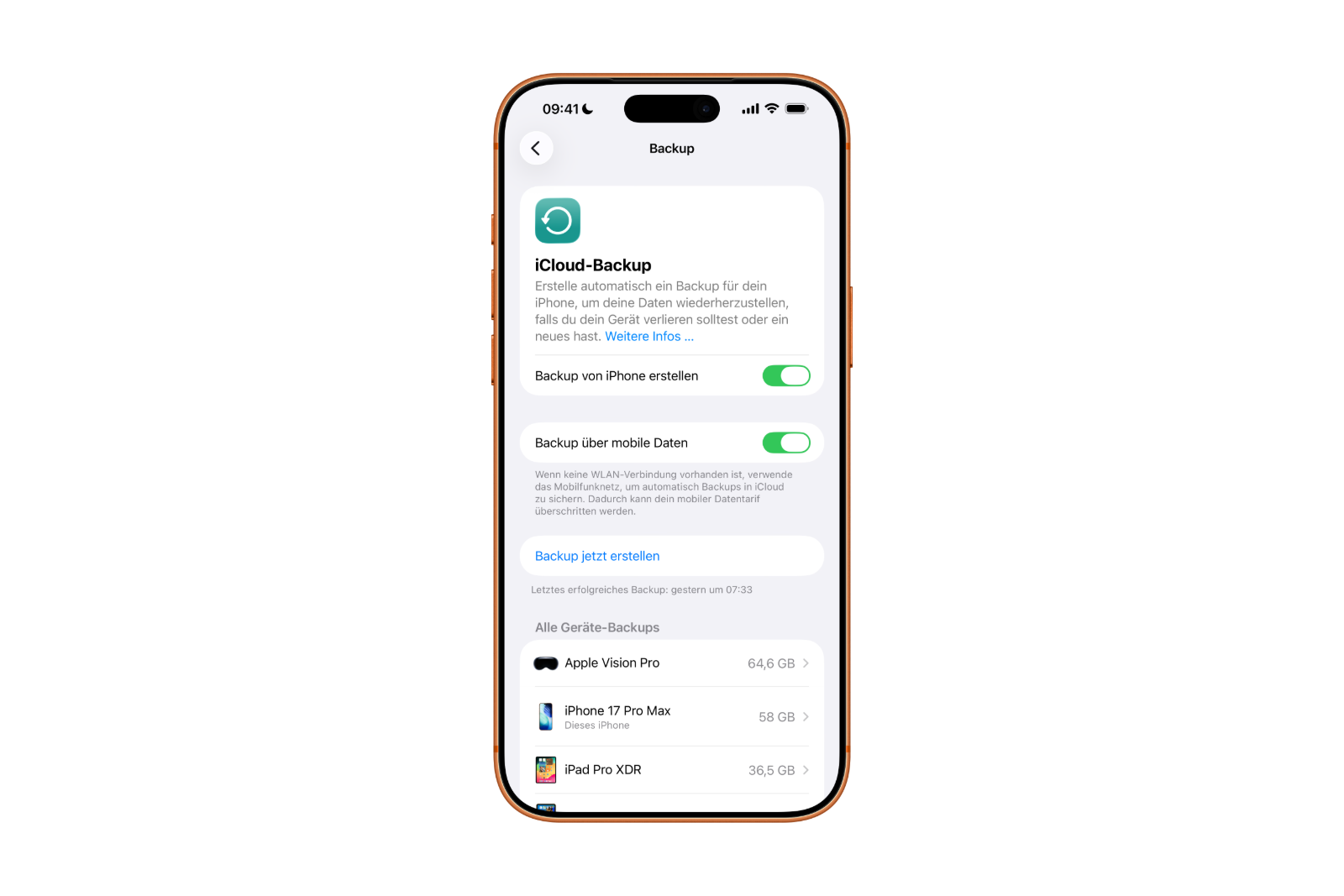
What the iCloud backup contains
At least the following content must be included:
- Photos and videos
- App data
- Messages
- Device settings and preferences
- Apple Watch Backups
- Homescreen layout and app organization
- Purchase history of all Apple services
- Visual Voicemail password, if applicable
The backup also saves all the information necessary to restore a device. It does not include data that is already stored in iCloud, such as contacts, calendars, or notes. It also does not include content from other cloud services like Gmail or Exchange.
Apple also points out that only PDF files downloaded directly from Apple Books are not backed up on a Mac. Whether they are included in iCloud is not clearly documented.
Additionally, if you use an Apple Watch via Family Setup, its contents are automatically backed up to iCloud, even without an iPhone.
Limitations of iCloud Backup
iCloud doesn't store everything. This includes, among other things:
- Apple Pay data
- Face ID and Touch ID configuration
- Some Apple Mail data
- Content from other cloud providers
- Sometimes specific PDF files as well.
- Text messages depending on the configuration
Some content is deliberately excluded, for example for security reasons. Movies and TV shows from the iTunes Store are also not backed up, as they can be downloaded again at any time. In practice, however, content can still disappear, which is why a local backup remains advisable.
Backup on Mac
A backup on a Mac creates a local copy of your iPhone or iPad. It's independent of the internet and contains more data than a simple iCloud backup. This is especially advantageous when dealing with large amounts of data, many photos, or a slow internet connection.
This is how backups work on a Mac
- Connect iPhone via cable
- On the iPhone, select "Trust This Computer".
- Open Finder
- Select iPhone under Storage Locations
- Confirm "Trust" in Finder
- Open the General tab
- Enable Back up all data on this iPhone to this Mac
- Optionally encrypt local backup
- Select Secure now
- After completion, eject and disconnect the device.
On older macOS versions prior to 10.15, backups are performed via iTunes instead of the Finder.
What the Mac doesn't back up
Similar to iCloud, the Mac also does not store certain content:
- Movies and TV series from the iTunes Store
- Apple Pay data
- Face ID and Touch ID settings
- Some email content
- Some content from Apple Books
- Some text messages
The exact list is clearly documented. Therefore, in case of doubt, it should always be assumed that only explicitly mentioned content is backed up.
Synchronization as a third option
Synchronization is another method that creates a nearly complete copy of the device. The difference from a backup is that not only device settings but also content such as movies, music, or books are transferred. This makes the copy more comprehensive and suitable for long-term archiving.
This is how synchronization works.
- Connect iPhone
- Select "Trust this computer" if necessary.
- Open Finder
- Select iPhone
- Open the General tab
- Select synchronize
- Disconnect device after completion
If the Sync button is missing, it usually means the device was previously paired with a different Mac. It will reappear if "Show this iPhone when connected to Wi-Fi" is enabled and then Apply is selected.
Looking at the individual tabs, such as Music or Movies, you can see which categories are being synchronized. Some content, for example music if you have an active Apple Music membership, is not available for selection.
Which backup strategy makes sense?
The best protection comes from a combination of all three methods. A sensible routine could look like this:
- Daily automatic backup to iCloud
- Weekly or monthly local backup on the Mac
- Synchronization every six or twelve months for a particularly complete copy
This creates a permanently up-to-date and almost complete protection of all data.
Why a real backup strategy is indispensable
Backups aren't optional; they're a fundamental part of a secure digital life. Apple has significantly simplified and improved the reliability of its systems over the years, but no single method covers all data. Only the combination of iCloud, local backups, and synchronization provides comprehensive protection. It's better to address this early on than to wait until data is already lost. World Backup Day serves as an annual reminder of how quickly a device can fail or be lost and how crucial a good backup strategy is. The best products for you: Our Amazon storefront offers a wide selection of accessories, including those for HomeKit. (Image: Shutterstock / WML Image)
- Setting up and using Apple Car Key: All functions explained
- New iOS 26.2 feature: Screen flashes for notifications
- Longer battery life with iOS 26 – Adaptive Power explained
- Live translation with AirPods: Here's how the feature works
- iOS 26: The new focus mode „Reduce interruptions“
- iOS 26.1: Reactivate the classic stop button on the alarm clock
- iOS 26.1 brings a new lock screen setting for the iPhone
- iOS 26.1: Liquid Glass effects can be toned down
- watchOS 26 brings hints about the Apple Watch dial
- macOS 26 Update: Hidden Tools and Improvements
- New call history in iOS 26: All conversations at a glance
- iOS 26: iMessage not working? Apple announces the solution
- iOS 26 Tricks: 26 small innovations with a big impact
- iOS 26 solves the Bluetooth problem with AirPods in the car
- iPhone: How the new call waiting feature works in iOS 26
- iPhone gets new feature against spam and advertising calls
- iOS 26: New option saves time and data when sending photos
- iOS 26: Over 10 hidden features everyone needs to know
- iOS 26: Visual intelligence now also for screen content
- iPhone 17: How iOS 26 colors your app icons
- iOS 26: Use polls directly in the Messages app
- Discover and manage games with the Apple Games app
- iPhone 17: Tips for using the Center Stage front camera
- iPhone 17 Dual Capture explained: Using the front and rear cameras
FAQ: Frequently asked questions about backing up iPhone and iPad
A daily iCloud backup is usually sufficient. Additionally, a weekly or monthly backup on your Mac is recommended to ensure all data is protected.
An iCloud backup includes photos, videos, app data, messages, device settings, Apple Watch backups, and app organization on the home screen.
Not included are Apple Pay data, Face ID and Touch ID, Mail content from certain accounts, data from other cloud services, and some PDF files from Apple Books.
Mac backups are local and usually more complete. They don't require an internet connection, include more data, and can be encrypted if desired.
No single method covers all data. Only the combination of iCloud, Mac backup, and synchronization provides truly reliable protection against data loss.
The duration depends on the amount of data. iCloud often takes longer because the transfer happens over the internet. Mac backups are usually faster.
The backup is not completing. Deleting old content or upgrading to iCloud+ with more storage space will resolve the issue.
Yes. iOS displays a warning if no backup has been created for several days or if there is insufficient storage space available.
Yes, but only via cellular data if that option is enabled. Due to the amount of data involved, Wi-Fi is usually more practical for iCloud backups.
Yes. Both iCloud backups and local Mac backups remain and can be restored after replacing or losing the device.