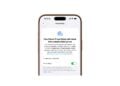

With iOS 26, Apple introduces a new feature designed to help users focus on what matters most: "Reduce Interruptions." This feature is powered by Apple Intelligence, the new AI system integrated directly into the operating system—no separate app or visible assistant required. The goal is to minimize distractions without losing important information. This mode is one of the Focus features available since iOS 15, but it expands upon them with automated control through artificial intelligence.
Apple Intelligence doesn't function like ChatGPT or other AI tools in a separate application. Instead, it works in the background, intervening in various system processes—including notification management. At WWDC, Craig Federighi explained that iPhones running iOS 26 are able to intelligently prioritize notifications, ensuring that only truly relevant messages get through.
Although the feature is presented as something new, it is essentially an extension of a familiar tool: the focus mode. More precisely, "Reduce interruptions" is a new variant of this, which, like the existing focus modes, can be configured in the settings – with one special feature.
What distinguishes "Reduce Interruptions" from other focus modes
The most significant technical difference is that the "Smart Forwarding & Muting" feature cannot be disabled in this mode. In other focus modes, this option can be toggled on or off. In "Reduce Interruptions" mode, it is permanently active. This means that Apple Intelligence automatically decides which notifications have priority and are displayed—and which remain muted.
This decision is based on various factors, such as content, timing, and even wording. A message containing an appointment for the same day is therefore more likely to be delivered than a general newsletter. However, the underlying logic remains hidden. It cannot be directly viewed or influenced.
Activation and setup of the mode
„"Reduce interruptions" can be activated like any other focus mode. It appears as a separate entry in the settings under "Focus." There, the mode can be activated manually, automated via a schedule, or controlled via Siri. Siri takes personal habits into account, such as working hours or locations, and switches the mode on or off accordingly.
Additionally, you can specify which contacts or apps are allowed to send notifications despite the active focus mode. This is done via so-called whitelists.
Set up a whitelist of people
The "People" section is located in the Focus Mode menu. Here you can select whether specific contacts are allowed to send notifications or should be muted. In most cases, the "Allow notifications from" option is more practical. This allows you to select only the most important people instead of blocking everyone else individually.
After tapping "Add People," the contact list appears. Simply tap the names of the people you want to be connected to. This eliminates the need for time-consuming individual decisions.
Configure app whitelist
The same logic applies to apps. In the "Apps" menu, you can select which applications are still allowed to send notifications despite the mode being activated. Here, too, the "Allow notifications from" option is useful. This prevents, for example, the weather app from informing you about light rain or social media apps from sending unnecessary push notifications.
After selecting the "Add apps" option, you can directly specify the desired applications. This ensures that only relevant tools such as calendar, messages, or reminders are included.
Further adjustments and focus filters
In addition to whitelists, visual and functional adjustments can also be made. You can specify which background image is displayed during focus mode, which lock screen is active, and what the home screen looks like. Furthermore, focus filters are available, allowing you to hide notification badges, for example. This prevents red counters on app icons from causing additional pressure or distraction.
The display of unread emails in the inbox can also be deactivated, preventing high numbers in the mail app from distracting your focus. The mode can be configured differently for specific days of the week or times of day – for example, allowing Instagram on weekends but blocking it on weekdays. Individual app notifications can also be restricted to specific time periods.
How much control is really possible
Despite the numerous settings options, part of the decision remains with Apple Intelligence. Which content gets through depends on the system's automatic prioritization – and this isn't entirely transparent. Users can only guess which content Apple Intelligence considers important.
However, what is possible is the targeted exclusion of specific content via whitelists. This allows not only important people and apps to be allowed through, but also to be deliberately blocked. Anyone who doesn't want to receive notifications from a particular app or contact can specify this – regardless of the AI's decision.
Focus meets intelligence: This is how "Reduce Interruptions" works„
With "Reduce Interruptions," iOS 26 introduces a focus feature that combines familiar mechanisms with new system intelligence. Technically, the mode isn't a radical overhaul, but rather an extension of existing functions – with the difference that Apple Intelligence takes an active role.
The combination of automation and manual control ensures greater peace of mind in everyday life without sacrificing control. Those who explore the settings can tailor the mode to their specific needs. This creates a system that helps maintain focus without missing out on important information.
With this feature, iOS 26 demonstrates how artificial intelligence can be used effectively in everyday life – not as a noisy assistant, but as a quiet helper in the background. Discover a whole range of useful tips and tricks about Apple Intelligence! Here you'll find everything you need to make the most of the smart features on your Apple devices – have fun browsing and trying them out! The best products for you: Our Amazon storefront offers a wide selection of accessories, including those for HomeKit. (Image: Shutterstock / Roman Samborskyi)
- iOS 26.1: Reactivate the classic stop button on the alarm clock
- iOS 26.1 brings a new lock screen setting for the iPhone
- iOS 26.1: Liquid Glass effects can be toned down
- watchOS 26 brings hints about the Apple Watch dial
- macOS 26 Update: Hidden Tools and Improvements
- New call history in iOS 26: All conversations at a glance
- iOS 26: iMessage not working? Apple announces the solution
- iOS 26 Tricks: 26 small innovations with a big impact
- iOS 26 solves the Bluetooth problem with AirPods in the car
- iPhone: How the new call waiting feature works in iOS 26
- iPhone gets new feature against spam and advertising calls
- iOS 26: New option saves time and data when sending photos
- iOS 26: Over 10 hidden features everyone needs to know
- iOS 26: Visual intelligence now also for screen content
- iPhone 17: How iOS 26 colors your app icons
- iOS 26: Use polls directly in the Messages app
- New iOS 26 feature: Use live translation with AirPods
- Discover and manage games with the Apple Games app
- iPhone 17: Tips for using the Center Stage front camera
- iPhone 17 Dual Capture explained: Using the front and rear cameras
- iOS 26 Screenshot Disable full screen and enable old view
- iPhone 17: Disable or customize the camera control button
- iPhone Tip: Live Translation in Messages, Phone & FaceTime
- iOS 26: Filter messages, block spam & keep track
- Setting up your iPhone correctly: Check, block, and filter calls
FAQ: iOS 26 and the new Focus feature „Reduce Interruptions“
„Reduce Interruptions“ is a new focus mode in iOS 26 that uses Apple Intelligence to allow only important notifications through and minimize distractions.
Apple Intelligence is an AI system integrated directly into iOS 26. It analyzes content, timing, and context to automatically prioritize notifications.
The focus mode can be activated under "Settings" > "Focus". "Reduce interruptions" appears there as a separate entry with further customization options.
No, the "Smart Passthrough & Mute" option is permanently enabled in this focus mode and cannot be turned off.
Whitelists for contacts and apps can be created, background images customized, and focus filters set up. This keeps the controls flexible.
This can be configured manually. In the settings, you can specifically select apps and contacts that will be allowed through despite focus mode.
Unlike "Do Not Disturb", "Reduce Interruptions" uses AI to decide which notifications are important – the filter is dynamic and capable of learning.
Yes, the mode is available on all compatible devices running Apple Intelligence and iOS 26 (or iPadOS 26, macOS 26).
The AI prioritizes content based on context, for example, deadlines or senders. However, the exact logic is not fully transparent.
It helps you to work or relax undisturbed by displaying only relevant notifications – without having to constantly look at the screen.