
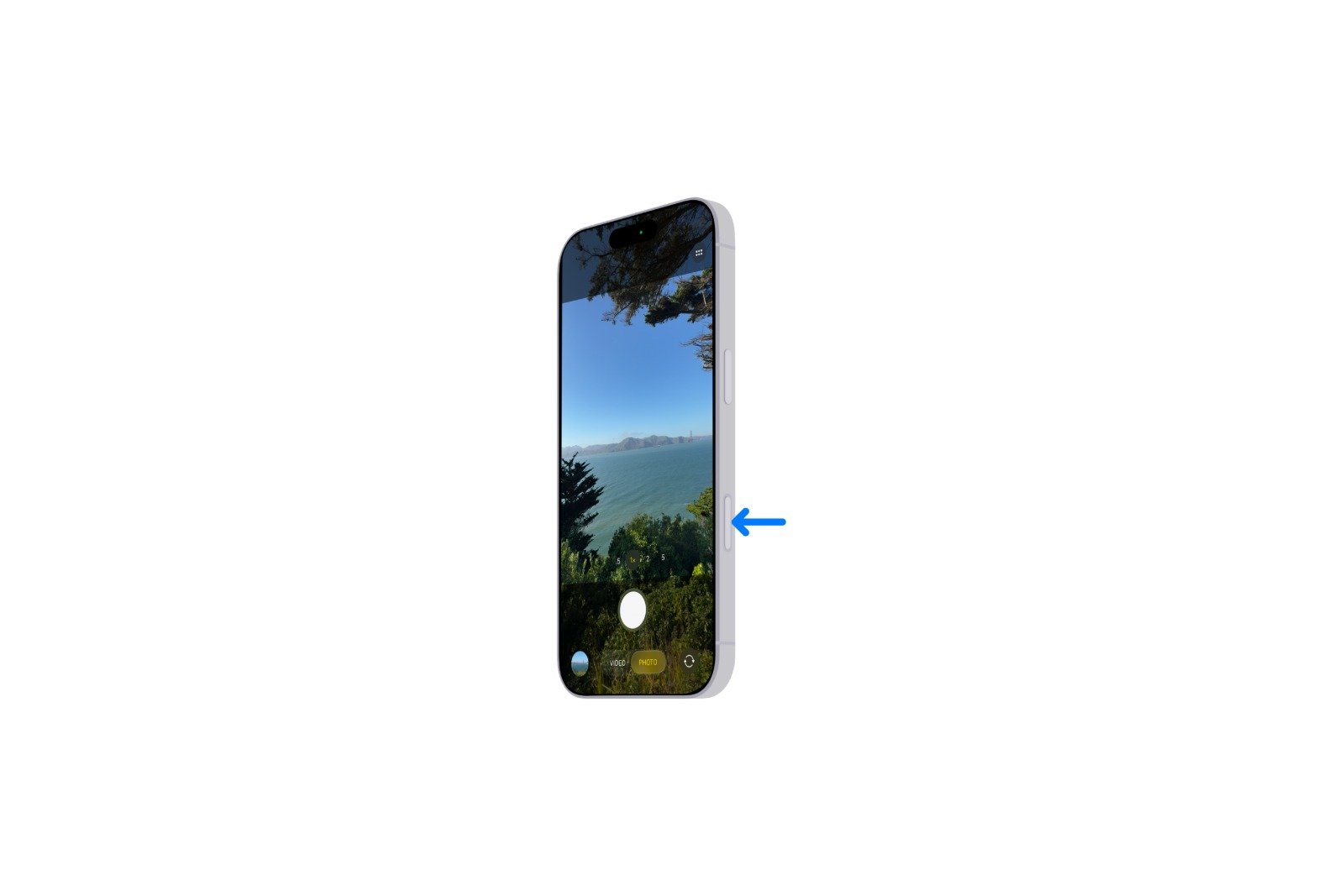
With the iPhone 17, Apple has further developed the camera control button, which was first introduced on the iPhone 16. At first glance, it looks like a simple shutter button, but the button actually hides a flexible function that can be customized in the system settings. If you delve deeper into the options, you'll quickly discover that it can do much more than just take photos or videos.
The camera control button on the iPhone 17 and iPhone 16 is reminiscent of the classic controls on DSLR cameras. A light press produces a tactile click, allowing you to adjust settings like zoom or exposure. By default, a single press launches the camera app, a second press takes a photo, and a longer hold switches to video mode. For many, this is sufficient. But there are good reasons to use the button for other purposes—be it for scanning codes, as a magnifying glass, or to prevent misuse.
Standard functions of the camera control button
By default, the button opens the camera app and acts as a direct shutter release. A quick press takes a photo, while a longer hold immediately records a video. This saves the iPhone 17 valuable seconds and makes spontaneous shots even easier. A light press with the camera app open also activates precise controls. Zoom and exposure can be adjusted like on a DSLR camera, without having to search through the on-screen menus.
Use camera control for the code scanner
In addition to photos and videos, the button can also be configured for the integrated code scanner. While the camera app can read QR codes by default, those who use it regularly will benefit from the hidden code scanner app.
The change is made in the settings:
- Open Settings
- Scroll to the menu item “Camera”
- Select “Camera Control”
- Activate “Code Scanner”
Pressing the button now launches the code scanner app immediately. It recognizes QR codes and other formats, automatically opening the corresponding URL, or displaying the information contained within. If the code doesn't contain an internet address, the app copies the data for further use. Even without pressing the button, the code scanner can be accessed at any time via search by entering "code."
The magnifying glass app as an alternative
Another option is to use the camera control button for the Magnifying Glass app. This is installed by default on every iPhone and is used to enlarge text or objects. It's especially helpful for people with poor eyesight or in poor lighting conditions.
The setting is similar to the code scanner:
- Open Settings
- Select the item “Camera”
- Open “Camera Control”
- Activate “Magnifying Glass”
Pressing the button now launches the magnifying glass app immediately. You can adjust the desired magnification using the pinch-out gesture on the display.
Disable camera control
Not everyone wants to use the button all the time. Especially in case of accidental presses, it can be useful to completely disable camera control. Apple also offers an option for this.
To do this, go to the settings:
- Open Settings
- Select “Accessibility”
- Under “Physical and motor” open the item “Camera control”
- Deactivate the switch
This menu also allows you to adjust the required pressure, allowing you to continue using the key without accidentally pressing it.
Flexible and customizable: How camera control works on the iPhone 17
The iPhone 17's camera control button offers far more possibilities than meets the eye. It can be used not only as a traditional camera shutter button, but also for quickly scanning codes or as a practical everyday magnifying glass. If you prefer, you can simply disable the button or adjust its pressure sensitivity. These options make the iPhone 17—like the iPhone 16, which also features this button—even more flexible and optimally adapt to different needs. Looking for accessories? Our Amazon Storefront is your destination for high-quality products, including HomeKit-compatible ones! (Image: Apple)
- iPhone Tip: Live Translation in Messages, Phone & FaceTime
- iOS 26: Filter messages, block spam & keep track
- Setting up your iPhone correctly: Check, block, and filter calls
- Keep an eye on your blood pressure: How the iPhone Health app helps
- Apple explains Apple Watch high blood pressure warnings
- Setting up Apple Music transitions: AutoMix or Crossfade
- macOS 26: Automatically connect iPhone hotspot
- watchOS 26: Why the Apple Watch sometimes charges slowly
- iOS 26: Reduce transparency for more clarity
- Find and adjust the camera flash in iOS 26 – here's how
- iOS 26 makes Adaptive Power the norm on the iPhone 17 series
- iOS 26 Tip: Unlock iPhone with Apple Vision Pro
- iOS 26: The most important tips for setup and use
- iOS 26: Impact on battery life after the update
- iOS 26: Use spatial scenes directly in the Photos app
- iOS 26 Update: Markdown Import and Export in Notes Explained
- iOS 26: Easily change backgrounds in iMessage
- iOS 26: Trigger iPhone camera with AirPods – here's how
- How to enable transparent iPhone app icons with iOS 26
- iOS 26: Apple Music finally gets folders for playlists
- iOS 26: Capture reminders faster and easier
- Apple Music in iOS 26: Music Pins make access easier
Frequently asked questions about the camera control button on the iPhone 17
By default, the camera control button launches the camera app. A quick press takes a photo, while a longer press starts recording a video.
Yes, the button can be flexibly configured in the system settings. It can be used as a camera shutter button, code scanner, magnifying glass, or not at all.
The code scanner can be selected under "Settings" → "Camera" → "Camera Control." It then starts directly at the touch of a button.
Yes, the camera app automatically recognizes QR codes. However, the built-in code scanner is faster and specialized for recognition.
In the camera settings, you can switch the camera controls to "Magnifying Glass." Pressing this button will launch the Magnifying Glass app for magnification.
Yes, the button can be completely disabled in the Accessibility settings. You can also adjust the required pressure there.
Yes, the iPhone 16 also has this button and offers the same customization options as the iPhone 17.