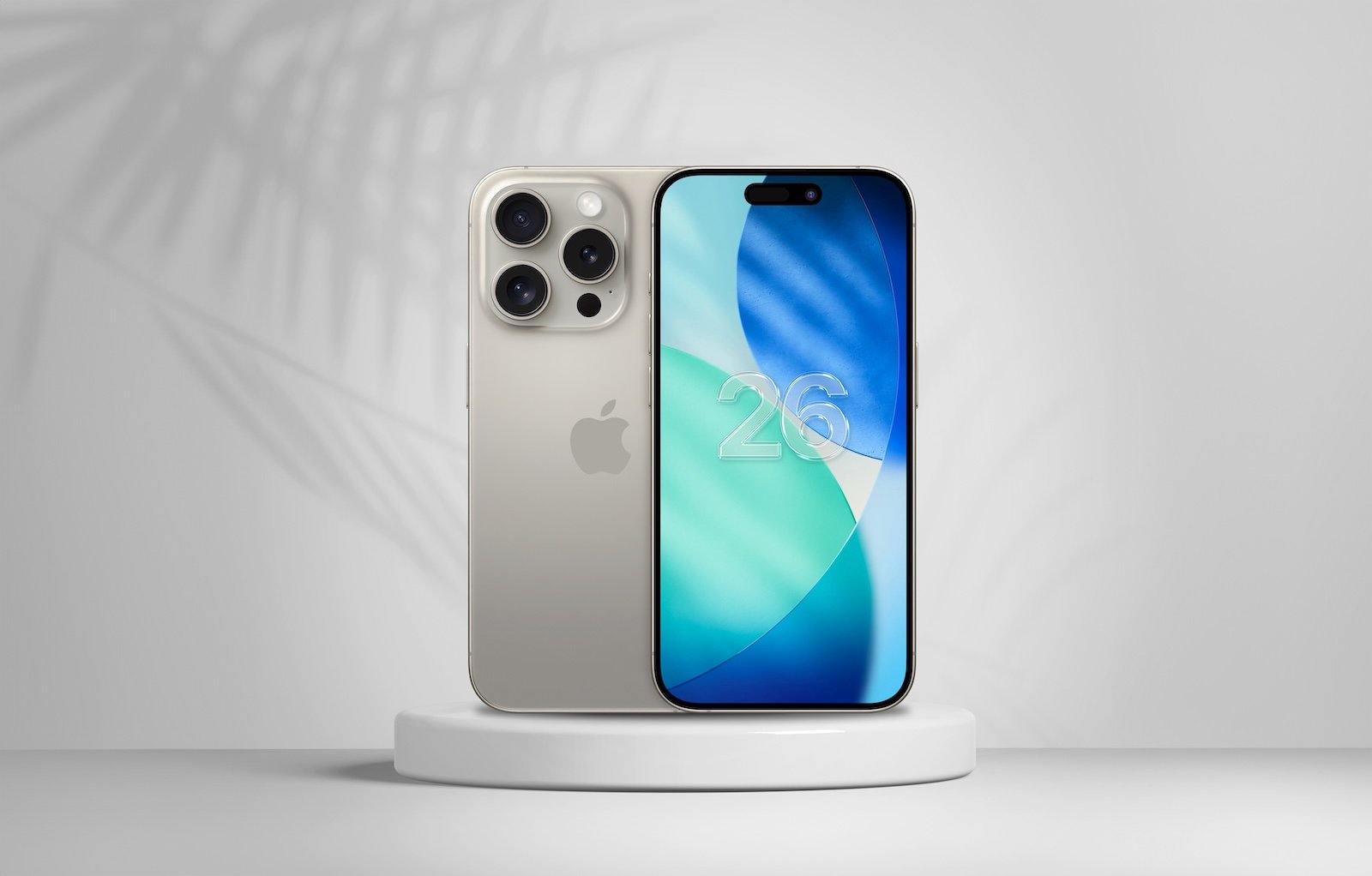
With iOS 26, Apple is fundamentally changing the look of the iPhone. The new design is called Liquid Glass and characterizes the entire user interface. It is based on transparency and light reflections that create depth and give the system a more modern appearance. However, opinions are divided. Some see this as a major improvement, while others find the display cluttered or difficult to read. For those who aren't happy with Liquid Glass, there's a solution: In the iOS 26 settings, the effect can be reduced to give the interface a more familiar feel – similar to iOS 18.
Design changes are among the biggest differences between new iOS versions. In the past, there have been discussions about fonts, icon sizes, and color schemes. However, with iOS 26, Apple is introducing one of the most striking changes in years. Liquid Glass is the central design element and determines the appearance of all menus and controls. However, it is precisely this approach that is causing controversy on social media and in forums. While some users appreciate the modern look, others long for the cleaner and calmer appearance of iOS 18. Apple has responded to this and offers a feature in iOS 26 that improves contrast and reduces transparency.
Liquid Glass in iOS 26
The Liquid Glass design brings a translucent look to all devices running iOS 26. Menus appear glassy, backgrounds shine through, and the entire interface appears fluid. This visual depth is intended to create a modern experience. At the same time, however, the high transparency makes text or icons difficult to read in some situations.
Different reactions
The introduction of Liquid Glass has generated very mixed feedback on social media. Many praise its futuristic character, while others see it as a deterioration in usability. Readability, in particular, is frequently criticized. Those who value clarity find the design too playful.
Solution: Reduce transparency in iOS 26
Apple has integrated a settings option into iOS 26 that doesn't completely disable Liquid Glass, but significantly softens it. The "Reduce Transparency" menu item allows you to adjust the design. This changes the display to be closer to the look of iOS 18.
The steps at a glance:
- Open the Settings app on your iPhone.
- Go to the Accessibility menu.
- Select “Display & Text Size”.
- Enable the “Reduce Transparency” option.
Once activated, iOS 26 appears noticeably calmer. Transparency is reduced, contrast is increased, and text stands out more clearly from the background.
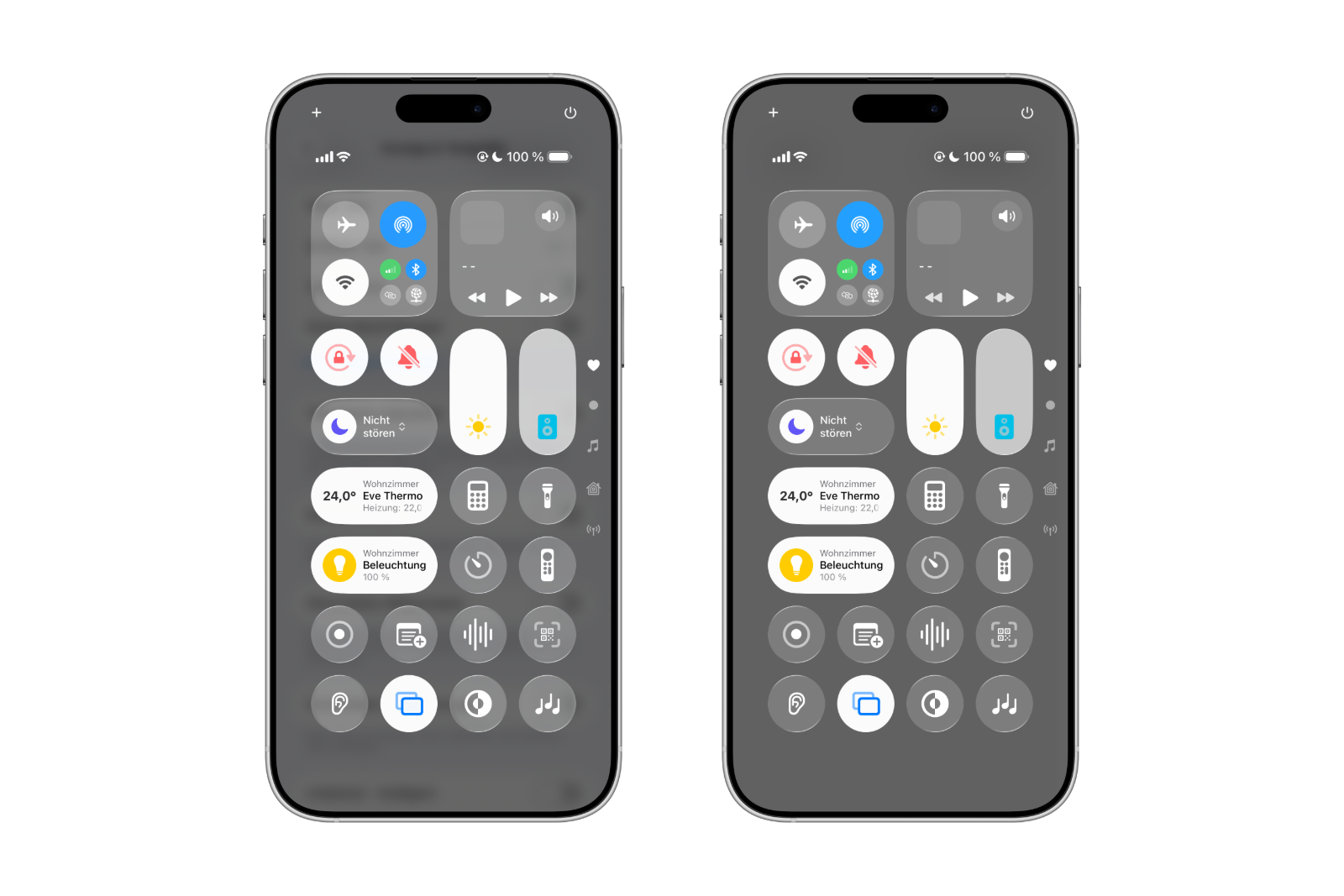
This makes many areas of the user interface more reminiscent of iOS 18, without losing the fundamental design changes of iOS 26.
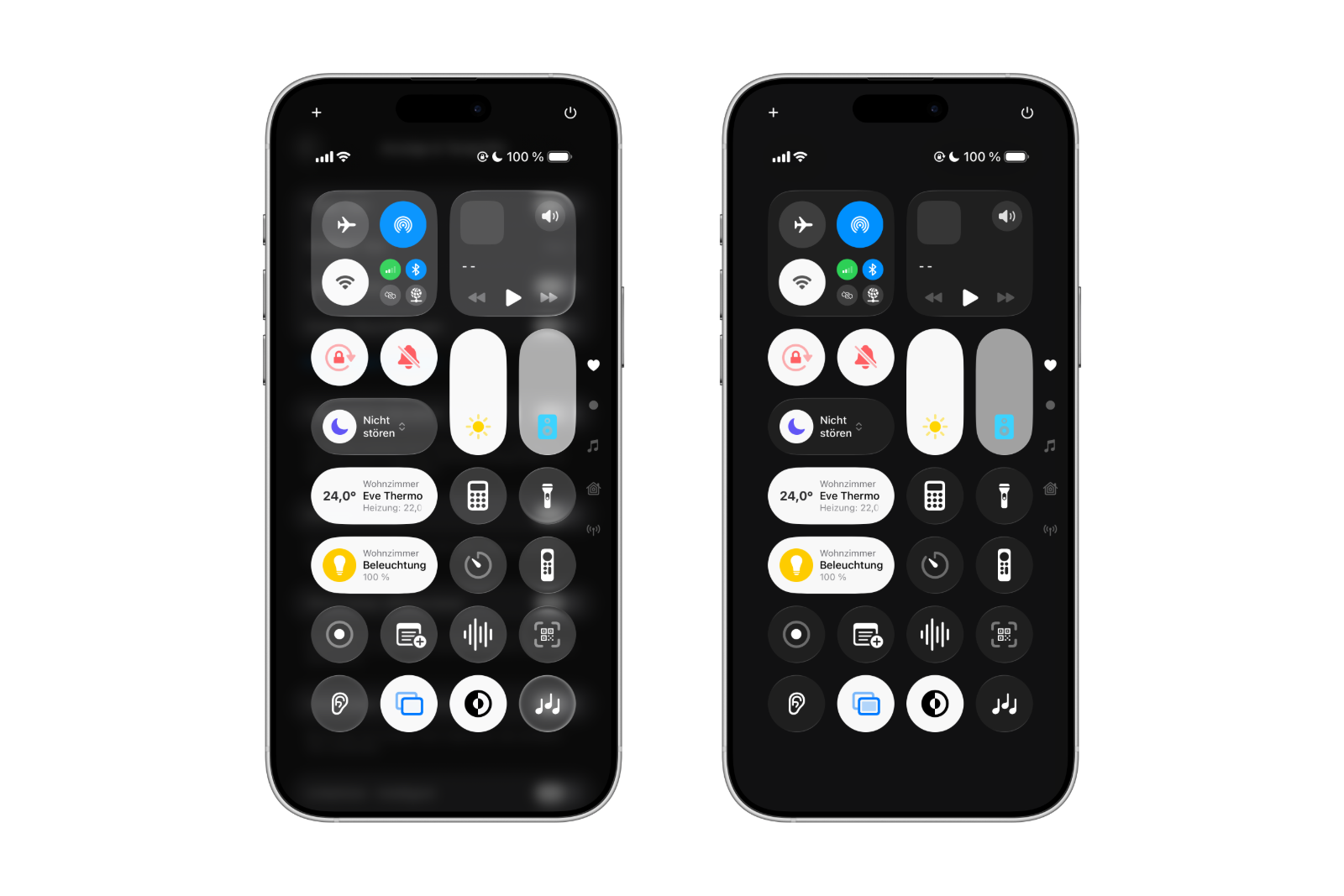
More overview and better readability
The "Reduce Transparency" setting not only creates a more familiar design but also improves usability. Readability increases because content is more clearly defined. For anyone who struggles with Liquid Glass, iOS 26 offers an easy way to make the design more functional and clear.
iOS 26: Soften Liquid Glass and bring back the iOS 18 look
iOS 26 brings a striking new design to the iPhone with Liquid Glass. While many see it as a modern advancement, others criticize it. Thanks to the built-in "Reduce Transparency" option, however, the effect can be adjusted to make the interface appear cleaner and more reminiscent of iOS 18. iOS 26 thus combines the new features with a more familiar look, striking a balance between innovation and usability. The best products for you: Our Amazon Storefront offers a wide selection of accessories, including those for HomeKit. (Image: Shutterstock / Yalcin Sonat)
- Find and adjust the camera flash in iOS 26 – here's how
- iOS 26 makes Adaptive Power the norm on the iPhone 17 series
- iOS 26 Tip: Unlock iPhone with Apple Vision Pro
- iOS 26: The most important tips for setup and use
- iOS 26: Impact on battery life after the update
- iOS 26: Use spatial scenes directly in the Photos app
- iOS 26 Update: Markdown Import and Export in Notes Explained
- iOS 26: Easily change backgrounds in iMessage
- iOS 26: Trigger iPhone camera with AirPods – here's how
- How to enable transparent iPhone app icons with iOS 26
- iOS 26: Apple Music finally gets folders for playlists
- iOS 26: Capture reminders faster and easier
- Apple Music in iOS 26: Music Pins make access easier
Frequently Asked Questions about iOS 26
iOS 26 brings a redesigned design called Liquid Glass, based on transparency and depth effects. It also includes new accessibility features and much more.
Liquid Glass can't be completely turned off. However, the "Reduce Transparency" option can significantly reduce the effect.
Using Settings > Accessibility > Display & Text Size and the Reduce Transparency option, iOS 26 appears clearer and more similar to iOS 18.
Many find the new design modern, while others find it confusing. Readability suffers, especially with high levels of transparency, which is why it has drawn criticism.
The feature increases contrast, makes text easier to read, and provides a smoother interface—ideal for anyone who prefers the look of iOS 18.
No, all features of iOS 26 will remain. Only the visual appearance will be adjusted, making the interface feel more familiar and clearer.