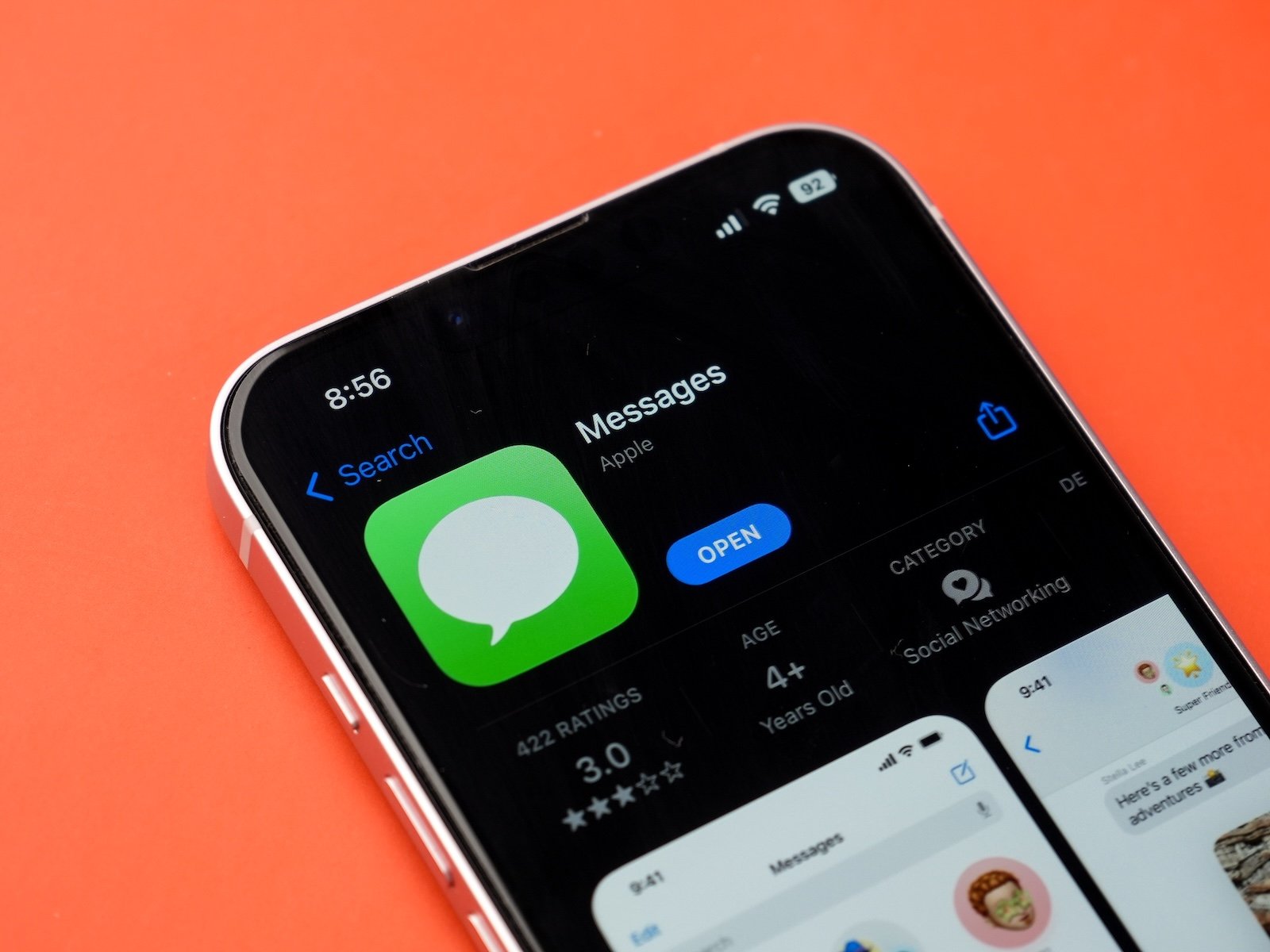
Messages is one of the most frequently used apps on the iPhone, combining classic SMS, iMessage, and now also RCS support for improved communication across different platforms. In addition to text messaging, the app offers several ways to record and send audio. However, this very variety sometimes leads to recordings being started unnoticed. The "Raise to Listen" feature is the most common culprit. Below, we explain in detail how this feature works, why it can lead to unintentional recordings, and how to reliably disable it.
Audio messages play a vital role in news programs. They convey emotions more effectively than text, can be recorded spontaneously, and are particularly helpful for longer explanations or when typing is impractical. At the same time, the news program uses automated processes in the background. Users unfamiliar with these functions may wonder why an audio recording suddenly appears in the draft or is even almost sent. Therefore, it's worthwhile to take a closer look at the mechanics behind the audio functions and how to avoid unintentional recordings.
The most important audio features in news
Messages offers two main ways to create audio messages. The first is manual recording via the plus icon on the left side of the text input field. Tapping it opens a menu where you can choose from Camera, Photos, Stickers, Apple Cash, scheduled messages, and other options. The Audio option is also included in this list. Once selected, the app immediately starts recording, which can then be reviewed and sent.
The second method works automatically. It's based on the "Raise to Listen" feature, which is enabled by default during the initial iPhone setup. It's designed to play audio messages more quickly and allow you to reply directly without actively using the device.
How "Raise to Listen" works
When an audio message arrives, it can be played back using "Raise to Listen" by holding the iPhone to the ear within two minutes of receiving it. The app detects the position and starts playback without waiting for a button press.
When the device is picked up again, Messages automatically starts recording a reply. No action is required on the screen. This method is particularly useful when both hands are occupied or when it's difficult to see the display.
To extend the response time, you can adjust this manually. Open the Apps section in Settings. There you'll find Messages, and under Audio Messages, you'll find the "Expire" option. Selecting "Never" will allow audio messages to be played indefinitely.
Why accidental audio recordings occur
The automatic function behind "Raise to Listen" is sensitive. If a message is listened to and the iPhone is then put down, even the slightest movement can be enough to simulate picking it up again. As a result, the app sometimes starts a recording without the user consciously noticing.
Depending on how the device is held or transported, the Messages app records harmless background noises, snippets of conversation, or footsteps. Recording continues until the iPhone is moved again or the screen is checked. If someone later opens the app, they will find an audio recording in draft form, ready to be sent.
The draft can be played back or deleted. To delete it, tap the message twice until it is selected, then press the delete key. This will prevent the recording from being sent to the recipient.
If an unwanted message has already been sent, the only option is to quickly revoke it. To do this, press and hold the sent message until the "Withdraw" option appears. The recipient may have briefly seen or heard the message, but after revocation, it will no longer be displayed in their app.
When deactivation makes sense
Anyone who doesn't want to risk unnoticed audio recordings or the transmission of unnecessary noise will benefit from disabling "Raise to Listen". All other audio functions remain available. The app simply no longer creates automatic recordings or plays incoming messages without prompting.
This is how to deactivate "Raise to Listen"
Deactivation is quick and easy.
- Open Settings and select the Apps section.
- Select messages and scroll down to audio messages.
- Deactivate the switch for "Raise to Listen".
From this point on, News will only play audio messages when the play button is pressed. Automatic recordings will no longer start.

Security and privacy when handling audio messages
Since audio messages sometimes contain confidential information, it's worth handling them carefully. Using headphones while listening prevents others from overhearing. When recording, it helps to speak quietly if other people are nearby. Regularly deleting old audio messages can also be useful to avoid unnecessarily keeping private information on your device.
Messages app: Avoid automatic recordings and send intentionally
Messages offers many useful features, and audio messages often make communication more personal and efficient. With "Raise to Listen", the app provides a quick way to play back recordings and record replies. However, this automatic feature sometimes leads to unintentional recordings. Users who prefer full control can disable this feature and use the manual options instead. This keeps Messages just as versatile while significantly reducing the risk of accidental audio recordings. The best products for you: Our Amazon storefront offers a wide selection of accessories, including those for HomeKit. (Image: Shutterstock / sdx15)
- iOS 26 turns photos into impressive 3D spatial scenes
- AirPods: Media no longer continues playing during sleep thanks to iOS 26
- Use Apple's Family Sharing to share content together
- iPhone tip: How alternative app distribution channels work
- iPhone tip: Access flight information directly in the system
- iOS 26.2 explained: How the new AirDrop codes work
- iOS 26.2 enhances the Reminders app with alarm functionality
- Here's how to properly create a backup for iPhone and iPad
- Setting up and using Apple Car Key: All functions explained
- New iOS 26.2 feature: Screen flashes for notifications
- Longer battery life with iOS 26 – Adaptive Power explained
- Live translation with AirPods: Here's how the feature works
- iOS 26: The new focus mode „Reduce interruptions“
- iOS 26.1: Reactivate the classic stop button on the alarm clock
- iOS 26.1 brings a new lock screen setting for the iPhone
- iOS 26.1: Liquid Glass effects can be toned down
- watchOS 26 brings hints about the Apple Watch dial
- macOS 26 Update: Hidden Tools and Improvements
- New call history in iOS 26: All conversations at a glance
- iOS 26: iMessage not working? Apple announces the solution
- iOS 26 Tricks: 26 small innovations with a big impact
- iOS 26 solves the Bluetooth problem with AirPods in the car
- iPhone: How the new call waiting feature works in iOS 26
- iPhone gets new feature against spam and advertising calls
- iOS 26: New option saves time and data when sending photos
Frequently asked questions about audio recordings in news reports
The "Listen to Ear" feature automatically starts recording when the iPhone is held to the ear. Even small movements can trigger this process unintentionally.
The automatic recording function can be deactivated in the settings under Apps, Messages and Audio Messages. After that, recordings can only be started manually.
Yes. When "Raise to Listen" is enabled, the app automatically plays audio messages as soon as the iPhone is held to the ear shortly after receiving them.
It appears as a draft in messages. The recording can be played, reviewed, or deleted before it reaches the recipient.
Yes. If the message is held down briefly after sending, the option to withdraw it appears. After that, it will no longer be displayed to the recipient.
Yes. The app simply no longer plays anything automatically or starts automatic recordings. Manual recordings remain fully functional.
The sensors in the iPhone register changes in position very precisely. Even slight movements can signal to the device that it has been brought to the ear.
Yes, but as with all media, caution is advised. Headphones protect against eavesdroppers, and deleting older audio messages increases privacy.
It's designed to simplify operation and enable quick responses. Many people use audio messages frequently, and the automatic function saves time.
Yes. In the settings under Apps, Messages and Audio Messages, the "Expire" option can be changed and set to "Never".