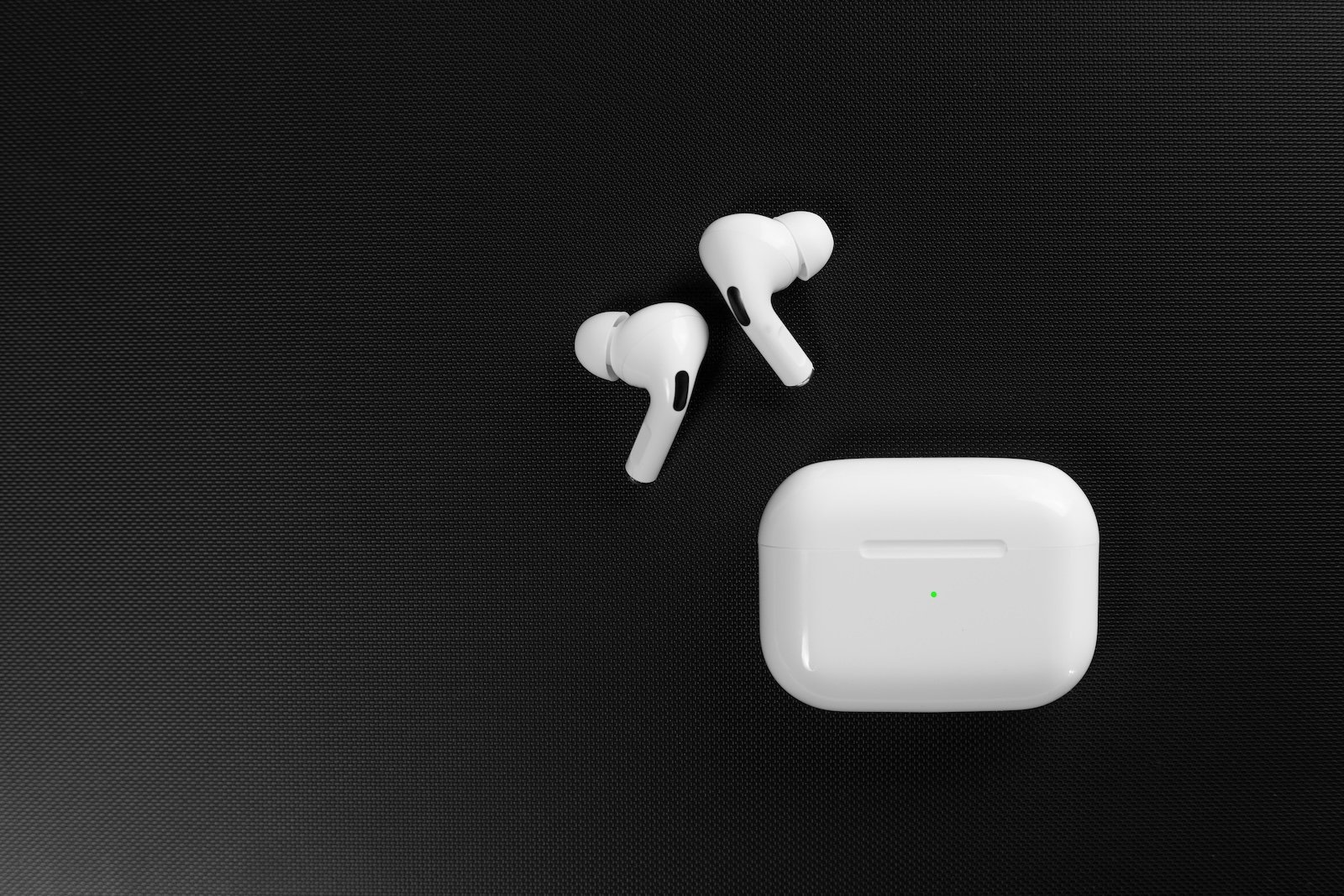
iOS 26 brings a number of new features to AirPods, including a little-known setting specifically designed for situations where you fall asleep while listening to podcasts or audiobooks. AirPods Pro gain a handy tool that automatically stops playback as soon as sleep is detected. This feature ensures that media doesn't continue playing while you're no longer actively using it.
Many users lose their place in audiobooks or podcasts when falling asleep with AirPods. Playback continues for hours, and the next morning it's unclear where the correct spot was. With iOS 26, Apple introduces a feature designed to alleviate this problem. Although Apple hasn't explained it in detail or actively promoted it, it's one of those hidden innovations that can make a noticeable difference in everyday use. The combination of the AirPods Pro sensors and the new capabilities in iOS 26 suggests that sleep stage detection has become more precise, even if Apple hasn't provided any technical details.
The new setting in iOS 26: Pause media when falling asleep
One of the most subtle yet useful new features can be found in the AirPods settings of iOS 26. There, you'll find the option "Pause media when falling asleep." It's disabled by default and doesn't have a further description. Apple simply explains that this feature automatically pauses media playback when inactivity is detected and the AirPods are being used to fall asleep.
It's not officially confirmed how this feature works. However, it's likely that the AirPods' integrated sensors are used. Models like the AirPods Pro 2 and 3 have accelerometers, motion sensors, and orientation sensors that can provide insights into sleep activity. The AirPods Pro 3 also introduced heart rate monitoring, which could theoretically be factored in. Apple hasn't provided any information on this, so it remains unclear whether heart rate is actually part of the sleep analysis.
Why the function is relevant
The new sleep detection feature serves a particularly practical purpose. If you fall asleep while listening to an audiobook or podcast, playback no longer continues for hours. Instead, it stops as soon as no typical movements are detected. This way, the last listening position is saved and doesn't have to be tediously searched for again.
Besides the convenience, this feature offers further advantages. It conserves the battery of the AirPods Pro by preventing long playback sessions while sleeping. It also reduces the battery drain on the connected device. Furthermore, it lowers the risk of accidentally overwriting content for several hours and disrupting playlists.
Supported AirPods models
This feature is not available on all models. It is only available for the following devices:
Not supported:
- AirPods Max
- all older AirPods generations
Only the models mentioned above display the corresponding option in the settings under iOS 26.
Activating Sleep Time on iPhone, iPad and Mac
With AirPods 4, AirPods Pro 2, and AirPods Pro 3, you can set audio playback to automatically stop when you fall asleep. This requires the AirPods to be inserted and connected to an iPhone, iPad, Mac, or Apple TV. On an iPhone or iPad, you activate this feature in Settings by selecting the name of the connected AirPods at the top and turning on the "Pause Media at Sleep" option.
On a Mac, the same setting is found in System Preferences. There, you select the name of the AirPods in the sidebar before activating the function. This pauses playback as soon as no active use is detected.

AirPods Pro: Practical use without additional setup
The introduction of "Pause Media on Sleep" in iOS 26 adds a subtle yet highly useful feature to AirPods Pro. This function stops playback as soon as sleep activity is detected, preventing content from continuing to play in the background. It requires no additional setup beyond enabling the option and works on select AirPods generations. Despite the lack of official details on how it works, it offers real added value in everyday use, ensuring that audiobooks and podcasts resume exactly where they were last listened to. The best products for you: Our Amazon storefront offers a wide selection of accessories, including those compatible with HomeKit. (Image: Shutterstock / Ivan_Shenets)
- Use Apple's Family Sharing to share content together
- iPhone tip: How alternative app distribution channels work
- iPhone tip: Access flight information directly in the system
- iOS 26.2 explained: How the new AirDrop codes work
- iOS 26.2 enhances the Reminders app with alarm functionality
- Here's how to properly create a backup for iPhone and iPad
- Setting up and using Apple Car Key: All functions explained
- New iOS 26.2 feature: Screen flashes for notifications
- Longer battery life with iOS 26 – Adaptive Power explained
- Live translation with AirPods: Here's how the feature works
- iOS 26: The new focus mode „Reduce interruptions“
- iOS 26.1: Reactivate the classic stop button on the alarm clock
- iOS 26.1 brings a new lock screen setting for the iPhone
- iOS 26.1: Liquid Glass effects can be toned down
- watchOS 26 brings hints about the Apple Watch dial
- macOS 26 Update: Hidden Tools and Improvements
- New call history in iOS 26: All conversations at a glance
- iOS 26: iMessage not working? Apple announces the solution
- iOS 26 Tricks: 26 small innovations with a big impact
- iOS 26 solves the Bluetooth problem with AirPods in the car
- iPhone: How the new call waiting feature works in iOS 26
- iPhone gets new feature against spam and advertising calls
- iOS 26: New option saves time and data when sending photos
- iOS 26: Over 10 hidden features everyone needs to know
Frequently asked questions about the new sleep timer for AirPods Pro
The feature detects inactivity using integrated sensors and automatically stops playback. Apple doesn't explain in detail how the detection works technically, but it presumably uses motion data from the AirPods and, in the case of the AirPods Pro 3, possibly also heart rate.
This feature is available for AirPods Pro 3, AirPods Pro 2, and AirPods 4. AirPods Max and older models are not supported.
No. The option is disabled and must be manually enabled in the settings of the respective device.
In the app settings, select the name of the connected AirPods at the top. There you will find the option "Pause media when falling asleep".
In the system settings, select the name of the AirPods in the sidebar. Then, you can activate the "Pause media when going to sleep" option.
The detection is based on movement and activity signals. Accuracy can vary depending on the model, but should be particularly precise with AirPods Pro 3 thanks to advanced sensor technology.
Yes. The prerequisite is that the AirPods 4, AirPods Pro 2, or AirPods Pro 3 are connected to the Apple TV. However, the setting must be configured on an iPhone, iPad, or Mac.
Yes. Playback pauses automatically as soon as sleep is detected and resumes later exactly at the last saved position.
Yes. Since audiobooks, podcasts, or music no longer run in the background for hours, the battery of the AirPods and the connected device is conserved.
Yes. The option can be deactivated at any time in the settings of the respective device.