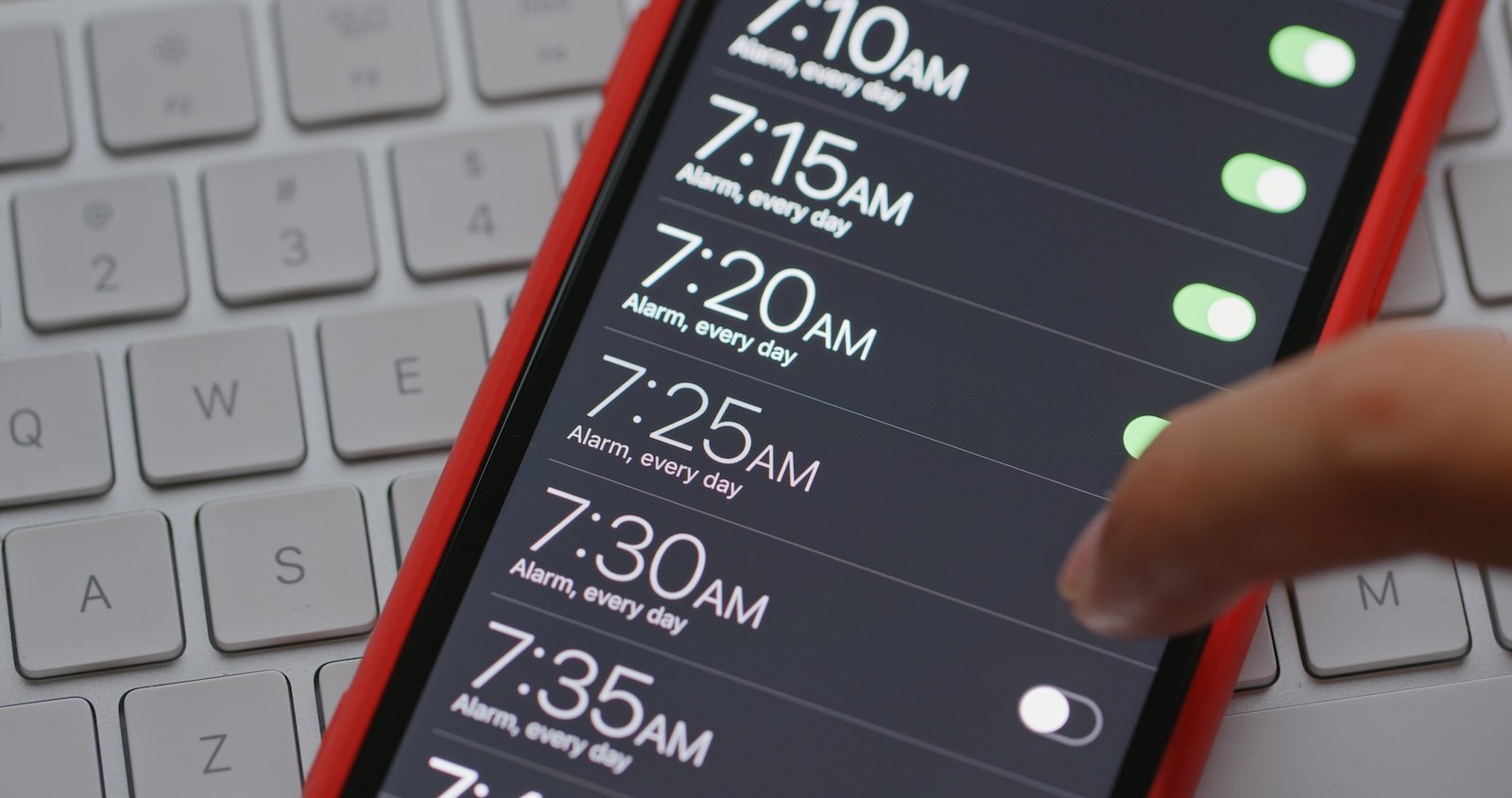
An iPhone alarm is supposed to be simple: set the time, hear the sound, wake up. In practice, however, some users are experiencing an annoying issue: the alarm goes off, but without sound. The iPhone then appears to be trying to wake you up, but remains silent. In many cases, this isn't due to a defect, but rather to settings that have apparently changed unexpectedly.
It's unclear how many users are affected. However, there are reports from several people whose iPhone alarm sound was recently set to "None." In this case, the alarm still goes off at the scheduled time, but remains silent. The reason for this setting resetting is unclear. One possible explanation is that it primarily affects alarm settings linked to older alarms or those using one of the "classic" sound options. One thing is certain: it's worth systematically checking for the cause.
Most frequent trigger: Alarm tone is set to "None"
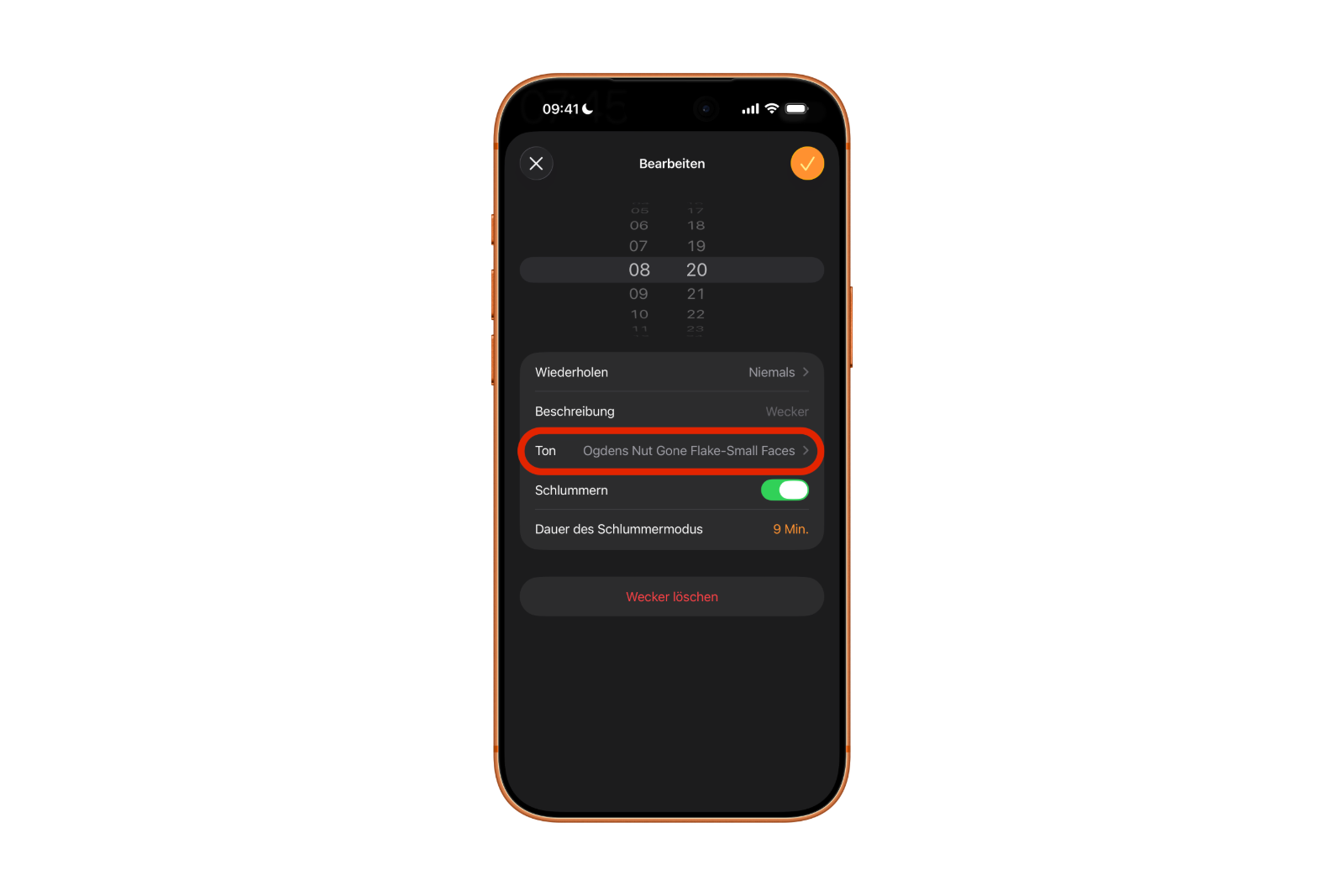
If iPhone alarms go off silently, the first check is simple: Open the Clock app and tap each alarm individually. The sound setting is displayed there. It's crucial that a ringtone is selected and not "None" or "No Sound".
That seems to have happened to some users: The alarm tone was changed to "None" without any conscious action on their part. In this state, the alarm is still running, but it is silent.
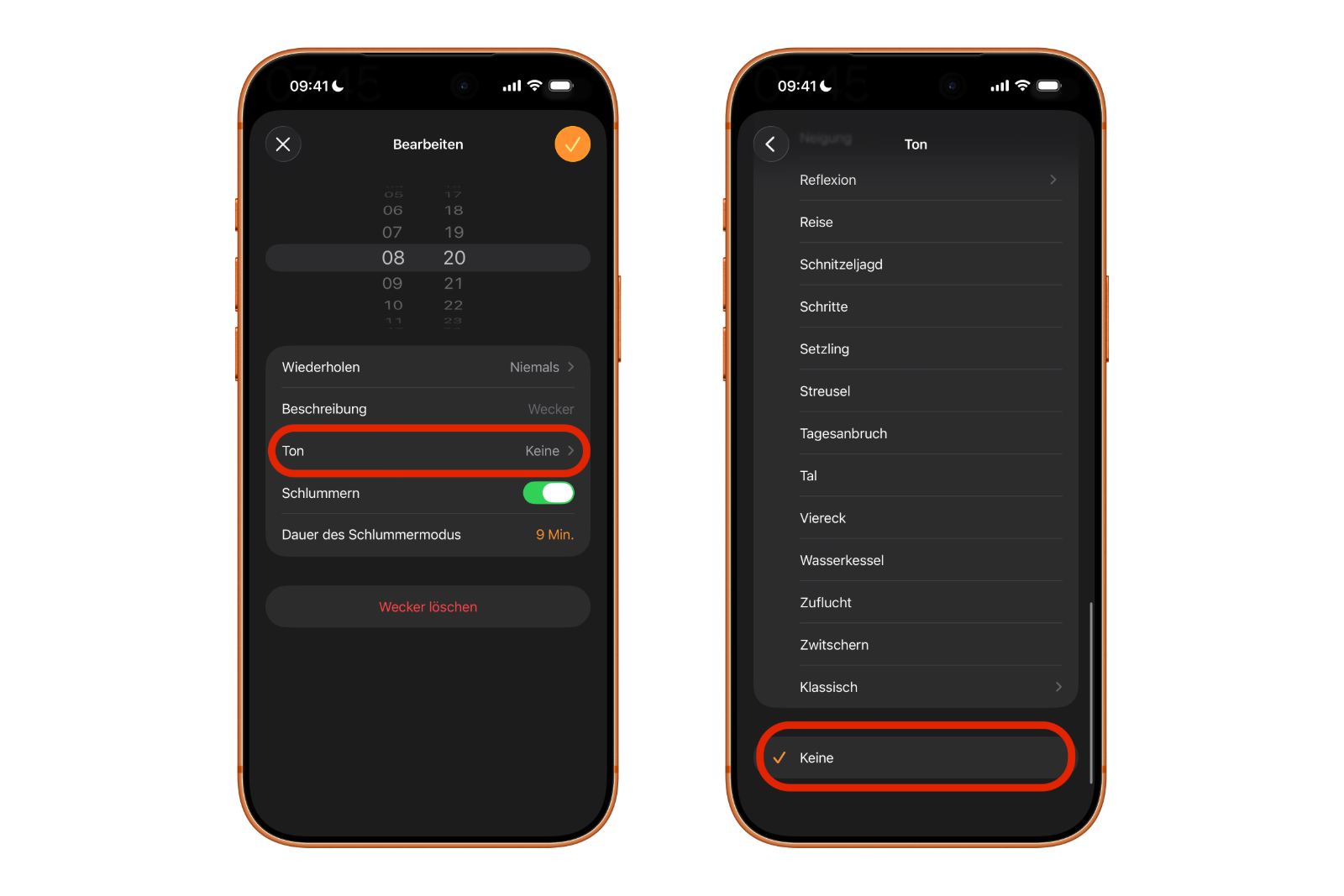
Quick safety test
If the alarm tone is set correctly, the alarm should sound at the specified time even if the iPhone is in silent mode. To quickly check this, a test alarm is helpful: Create a new alarm that will go off in a few minutes and observe whether the sound actually plays.
Alarm volume: The control is located in "Sounds & Haptics"
If the alarm has a sound but is still too quiet, the next step is to adjust the volume. The volume of normal iPhone alarms is controlled in Settings under "Settings" → "Sounds & Haptics." There you'll find a slider that adjusts the volume for ringtones and notification sounds. This slider affects:
- the volume of alarms
- incoming calls
- and some other notifications.
"Change with keys" can make alarms quieter without being noticed
In the same section, there is an option called "Change with buttons." When activated, pressing the physical volume buttons will change this slider. This can unintentionally lower the alarm volume without it being immediately noticeable.
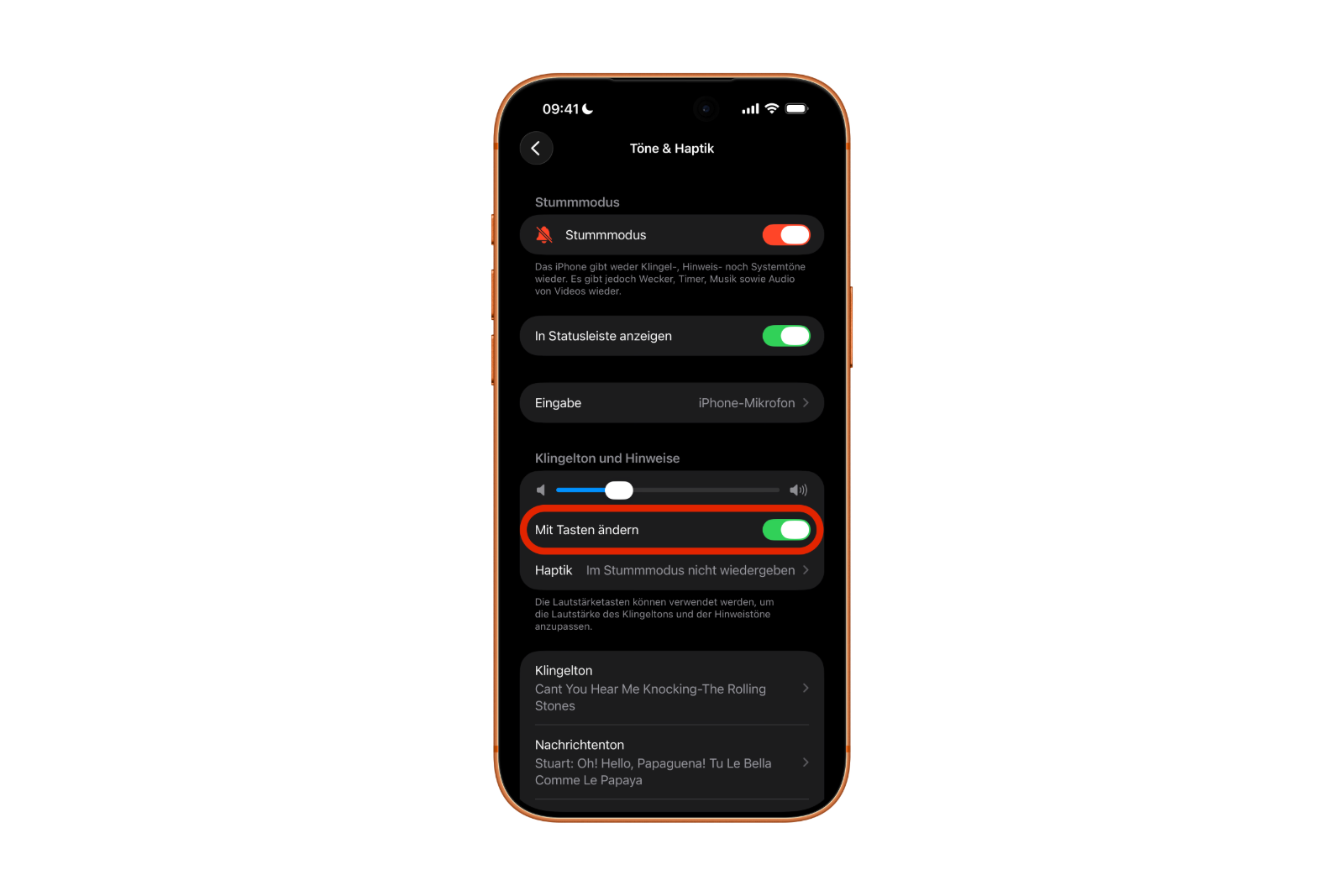
If you want the alarm volume to reliably remain at an audible level, it's advisable to deactivate "Change with buttons". This keeps the control stable and prevents accidental adjustments by the buttons.
Special case: Sleep alarm: Separate tone and volume control
A common stumbling block is the sleep alarm. On the iPhone, this is organized separately and has:
- a custom ringtone
- a separate volume control
This means that even if regular alarms are set correctly and loudly enough, the sleep alarm might still be configured differently. Here's how to find the setting:
- Open the clock app
- Tap the alarm clock
- Sleep / Wake up open
- scroll down
- The sound options are located below the schedule wheel once the alarm option is activated.
If the sleep alarm sounds quiet or inconspicuous, the cause often lies precisely in these separate sound and volume settings.
Face ID Attention: Alarm volume decreases when a face is recognized
On modern iPhones, the Face ID attention detection feature also affects the alarm volume. When this feature is enabled, the alarm tone becomes quieter as soon as the iPhone detects a face looking at the screen.
This doesn't silence the alarm completely, but it can make it significantly quieter. And that's exactly what can happen in practice if the iPhone is next to the bed: While you're sleeping, your face might be accidentally recognized, causing the alarm to automatically lower its volume.
Disable attention detection
If this behavior is not desired, it can be disabled via:
- Settings → Face ID & Passcode → Attention
There, the "Attention detection features" option is deactivated.
iPhone alarm too quiet or muted? Here's what's usually behind it
Silent iPhone alarms are usually not a hardware problem, but rather a mix of settings that have been changed, either accidentally or perhaps through an unclear reset. A particularly noticeable issue is when the alarm sound is suddenly set to "None," causing alarms to go off completely silently. Other common causes for low-volume alarms include the central volume control in "Sounds & Haptics," including the "Change with Buttons" option, the separate settings for the sleep alarm, and Face ID's attention detection, which lowers alarm volume when a face is recognized. Checking these points will cover the most important causes without overlooking anything crucial. If everything is set correctly and the iPhone alarm is still missed, the problem is likely no longer with the device, but simply because sleep sometimes overpowers any technology. The best products for you: Our Amazon storefront offers a wide selection of accessories, including those for HomeKit. (Image: Shutterstock / leungchopan)
- Safari at 120 Hz: How to activate smoother scrolling
- iOS 26 improves group chats with five new features
- Here's how to create Apple Music playlists with ChatGPT
- iOS 26: Change default apps on your iPhone
- Optimize your messaging app: Stop unwanted audio recordings
- iOS 26 turns photos into impressive 3D spatial scenes
- AirPods: Media no longer continues playing during sleep thanks to iOS 26
- Use Apple's Family Sharing to share content together
- iPhone tip: How alternative app distribution channels work
- iPhone tip: Access flight information directly in the system
- iOS 26.2 explained: How the new AirDrop codes work
- iOS 26.2 enhances the Reminders app with alarm functionality
- Here's how to properly create a backup for iPhone and iPad
- Setting up and using Apple Car Key: All functions explained
- New iOS 26.2 feature: Screen flashes for notifications
- Longer battery life with iOS 26 – Adaptive Power explained
- Live translation with AirPods: Here's how the feature works
- iOS 26: The new focus mode „Reduce interruptions“
- iOS 26.1: Reactivate the classic stop button on the alarm clock
- iOS 26.1 brings a new lock screen setting for the iPhone
- iOS 26.1: Liquid Glass effects can be toned down
- watchOS 26 brings hints about the Apple Watch dial
- macOS 26 Update: Hidden Tools and Improvements
- New call history in iOS 26: All conversations at a glance
- iOS 26: iMessage not working? Apple announces the solution
Frequently asked questions about silent iPhone alarms
In most cases, the alarm tone is set to "None". In this case, the alarm is triggered, but remains completely silent. A very low alarm volume or special features like Face ID Attention can also be responsible.
Yes. A correctly configured iPhone alarm will sound regardless of silent mode. If no sound is heard, it's almost always due to the alarm or volume settings.
The exact reason is unclear. There are indications that older alarms or classic ringtones may be affected. A reset of certain settings due to system changes is also possible.
The volume of normal alarms is set under "Settings" → "Sounds & Haptics" using the ringtone and alert tone slider. This slider also affects calls and some notifications.
When this option is enabled, the physical volume buttons change the alarm volume. This can unintentionally make the alarm very quiet. When the option is disabled, the set volume remains constant.
The sleep alarm uses its own ringtone and a separate volume control. Even if normal alarms are loud, the sleep alarm can therefore be set to a low volume.
Yes. When attention detection is enabled, the alarm will get quieter as soon as a face is detected. This can happen especially at night if the iPhone is next to the bed.
No. The volume is reduced, but not completely muted. Even so, the sound can be so quiet that it's easily missed.
The setting can be found under "Settings" → "Face ID & Passcode" → "Attention". There, the "Attention Detection Features" option can be turned off.