
Offline music is part of everyday life for many. Songs, albums, and playlists can be saved directly to the iPhone or iPad and played anytime, even without an internet connection. Over time, however, this can become a problem, as downloaded music quickly takes up several gigabytes of storage space.
Apple Music offers a built-in solution for precisely this scenario. Instead of manually deleting songs or constantly checking storage space, music management can be partially automated. This feature is already available on every iPhone and iPad, but is often overlooked or unused.
Why Apple Music takes up so much storage space
Every downloaded track is stored completely on the device. Playlists with high audio quality or entire albums can quickly add up. Songs that have only been listened to once or have remained untouched for months continue to sit in the device's memory, taking up space that could be used for apps, photos, or system updates.
The "Optimize Storage" function
Apple Music has a "Optimize Storage" option. When enabled, the Music app regularly checks which tracks haven't been played in a long time. These songs are automatically removed from the device as soon as available storage space becomes low. Importantly, the music is only removed locally from the device; it remains in the library and can be downloaded or streamed again at any time.
Activate "Optimize Storage"
Activation is done directly via the device settings:
- Open the Settings app
- Scroll down and select "Music"
- In the "Downloads" section, tap "Optimize storage"
- Activate the "Optimize memory" switch until it turns green.
- Specify a minimum storage capacity that should be permanently reserved for music
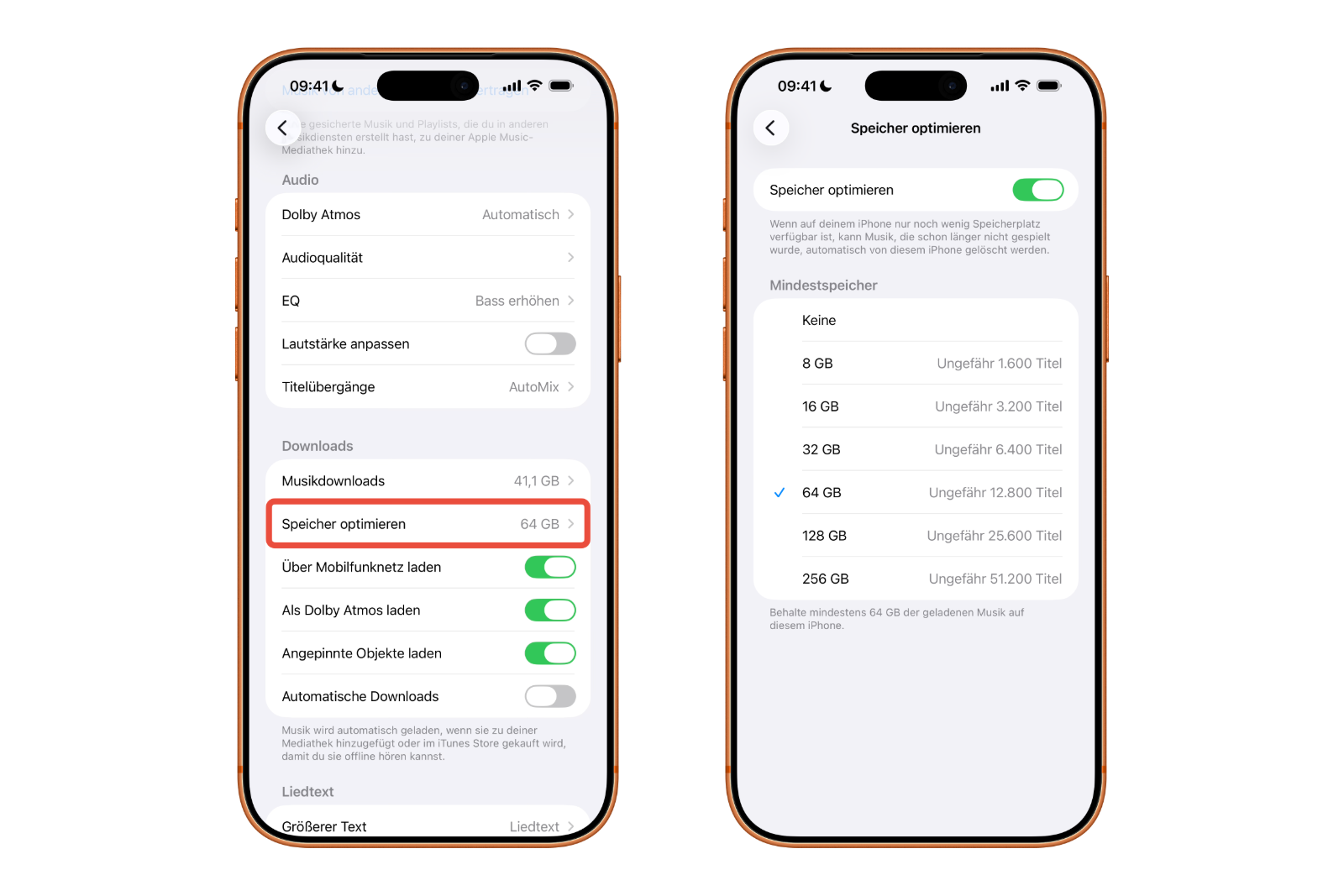
Once the available storage falls below this value, Apple Music automatically removes older downloads.
Alternative options for memory management
In addition to optimized storage, other options are available:
- Disable automatic downloads: New songs will no longer be saved automatically, but only downloaded manually when needed.
- Deleting individual songs or albums: In the Apple Music app, downloads can be selectively removed without deleting the tracks from the media library.
- Check storage space: You can check how much storage Apple Music is currently using at any time via the iOS settings.
These options are useful if automatic management is not desired or if certain content should remain permanently offline.
Apple Music: Control over downloads and storage space
Apple Music provides all the necessary tools to efficiently manage storage space on your iPhone or iPad. Optimized storage automatically removes unused downloads, freeing up space for new content without any music being lost. Combined with manual downloads and targeted deletion, your offline library remains organized and your device storage stays under control. The best products for you: Our Amazon storefront offers a wide selection of accessories, including those compatible with HomeKit. (Image: Shutterstock / mariakray)
- AirTag 2: Setting up Precision Finding on the Apple Watch
- How to turn texts into reminders with Apple Intelligence
- Precision Finding on the Apple Watch requires AirTag 2
- AirTag 2: Which airlines support baggage tracking
- AirTag 1 or AirTag 2: How to tell the difference
- AirTag 2: These iPhones are compatible with improved tracking
- iPhone alarm silent: Why the alarm suddenly stops working
- Safari at 120 Hz: How to activate smoother scrolling
- iOS 26 improves group chats with five new features
- Here's how to create Apple Music playlists with ChatGPT
- iOS 26: Change default apps on your iPhone
- iOS 26 turns photos into impressive 3D spatial scenes
- AirPods: Media no longer continues playing during sleep thanks to iOS 26
- Use Apple's Family Sharing to share content together
- iPhone tip: How alternative app distribution channels work
- iPhone tip: Access flight information directly in the system
- iOS 26.2 explained: How the new AirDrop codes work
- iOS 26.2 enhances the Reminders app with alarm functionality
- Here's how to properly create a backup for iPhone and iPad
- Setting up and using Apple Car Key: All functions explained
- New iOS 26.2 feature: Screen flashes for notifications
- Longer battery life with iOS 26 – Adaptive Power explained
- Live translation with AirPods: Here's how the feature works
Frequently asked questions about storage space and Apple Music
The songs are only deleted from the device, not from the music library. They remain linked to Apple Music and can be downloaded or streamed again at any time.
No. The playlists will remain completely intact. Only individual downloaded tracks within the playlists can be removed locally if they haven't been listened to for a long time.
Yes. You can select a minimum storage capacity in the settings. Apple Music only starts removing older downloads when the free storage falls below this value.
No. Priority is given to removing tracks that haven't been played for a long time. Frequently listened to or recently downloaded songs usually remain on the device.
Yes. Removed songs must be downloaded or streamed again. An active internet connection is required for streaming.
Yes. The feature can be deactivated at any time in the settings. However, songs that have already been deleted will not be automatically re-downloaded.
Automatic downloads download new content directly to the device. "Optimize storage," on the other hand, removes older downloads when storage space is running low. Both functions can be controlled independently.
Yes. In the Apple Music app, individual songs, albums, or playlists can be selectively deleted from the device without removing them from the music library.
The iOS settings under "General" and "iPhone Storage" show how much storage space Apple Music is currently using.
Yes. The feature is available on both iPhone and iPad and is controlled via the same settings.