Switching to Apple Music is a practical decision for many, especially those who have accumulated years of music, albums, and playlists on another streaming service. To ensure this switch doesn't result in the loss of their existing library, Apple Music offers a built-in feature for transferring content from other music services like Spotify, Deezer, and more. This allows users to largely preserve their personal collections and continue using them directly within Apple Music.
Transferring music to Apple Music is clearly structured, subject to certain requirements, and technically implemented in such a way that existing content in your previous music service is not deleted. The actual matching process is handled by a third-party provider, while Apple Music adds the found tracks to its own catalog. It's important to understand the process and its limitations, as not every music file or playlist can be automatically transferred.
Requirements for transferring to Apple Music
Several conditions must be met in order for music and playlists to be transferred from another service to Apple Music:
- An active Apple Music subscription
- An iPhone or iPad with the latest version of iOS or iPadOS, an Android device with the latest version of the Apple Music app, or a device with access to music.apple.com
- The login details for the other music service, i.e., username and password.
- The "Sync Library" feature is enabled on all devices used with Apple Music.
Without these prerequisites, the transfer cannot be started or later synchronized correctly.
Transfer music and playlists from other music services to Apple Music
The transfer can be done either directly in the Apple Music app on mobile devices or via a web browser. Generally, songs, albums, and user-created playlists can be transferred. Which content can actually be transferred depends on the specific music service.
During the transfer, access to the stored content in the original music service remains available. The transfer itself is not performed by Apple, but by a third-party provider.
Transfer to Apple Music on iPhone, iPad or Android device
On mobile devices, the transfer is started via the music settings:
- On iPhone or iPad, the path is via Settings > Apps > Music.
- On Android, open the Apple Music app, then tap the More button and select Settings.
There, the option "Stream music from other music services" is selected. Then, a supported music service is chosen from the list, and login is done with the corresponding access data.
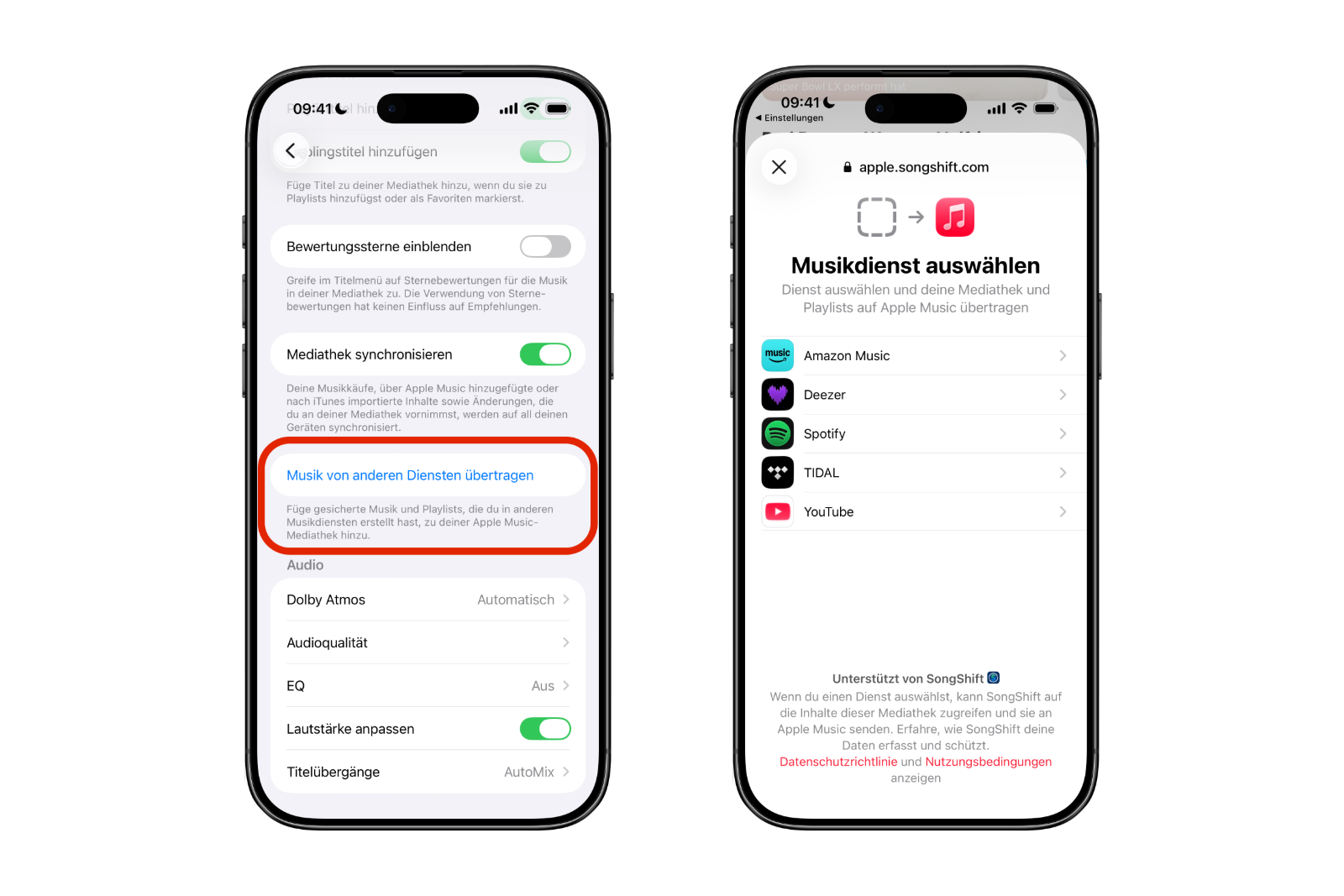
The next step is to specify which content should be transferred. After making your selection, start the process by clicking "Add to media library".
Apple Music then searches its own catalog for matching content. A status message appears once the search is complete.
- Transfer complete: The titles were found in the Apple Music catalog and added to the library.
- Some of the music needs to be checked: For some tracks, no exact matches were found, but similar versions were. These can be manually checked, selected, and saved.
Transfer to Apple Music via the internet
The transfer is also possible via a web browser:
- Visit music.apple.com
- Sign in with the Apple account used for Apple Music
- Click on the photo or monogram in the top right corner and select "Transfer music".
Next, you select which content you want to import. Clicking "Add to Library" starts the synchronization with the Apple Music catalog.
The result of the transfer is displayed at the bottom of the sidebar. Messages such as "Transfer complete" or "Part of the music needs to be checked" will also appear here.
If music was not transmitted completely
Not all music is available in the Apple Music catalog. In these cases, there are several important points to consider.
Checking for music that was not found
If a message indicates that some of the music needs to be reviewed, you have 30 days from the first transfer to select alternative versions and add them to your library. Until this review is complete, no new transfer can be started on the same device.
The verification must be performed on the device on which the transfer was originally initiated:
- iPhone or iPad: Settings > Apps > Music > Check current transfer
- Android: Apple Music app > More button > Settings > Check current stream
- Internet: Click on photo or monogram and select "Verify"
Missing playlists
Only playlists you created yourself will be transferred. Playlists compiled by the original music service will not be transferred to Apple Music and therefore will not appear in your library.
Errors during transmission
If the message "An error has occurred" is displayed, you should first check whether you have a stable internet connection. Then you can repeat the process by clicking "Try again".
Regional restrictions
In certain countries, transferring your media library and playlists to Apple Music is not possible. These include mainland China, Myanmar, and Russia. The described feature is not available in these regions.
- Apple Music: How to activate translated song lyrics in iOS 26
- Is Apple Music taking up too much storage space? This will help immediately
- Here's how to create Apple Music playlists with ChatGPT
Limitations and possibilities of transferring to Apple Music
Transferring music and playlists to Apple Music is a clearly defined process that significantly simplifies switching between streaming services. Those who meet the requirements, carefully select their content, and check alternative versions in a timely manner can integrate almost their entire music collection into Apple Music. Limitations such as missing tracks, non-transferable playlists, or regional restrictions should be considered from the outset. The best products for you: Our Amazon storefront offers a wide selection of accessories, including those compatible with HomeKit. (Image: Mojahid_Mottakin / DepositPhotos.com)
- AirTag 2 Factory Reset: How to Perform a Reset
- Apple Games App: Central hub for modern gaming
- Lockdown Mode: Maximum security for iPhone, iPad and Mac
- Apple Music: How to activate translated song lyrics in iOS 26
- Apple Creator Studio: Apps, subscription, and clear AI limits
- Is Apple Music taking up too much storage space? This will help immediately
- AirTag 2: Setting up Precision Finding on the Apple Watch
- How to turn texts into reminders with Apple Intelligence
- Precision Finding on the Apple Watch requires AirTag 2
- AirTag 2: Which airlines support baggage tracking
- AirTag 1 or AirTag 2: How to tell the difference
- AirTag 2: These iPhones are compatible with improved tracking
- iPhone alarm silent: Why the alarm suddenly stops working
- Safari at 120 Hz: How to activate smoother scrolling
- iOS 26 improves group chats with five new features
- Here's how to create Apple Music playlists with ChatGPT
- iOS 26: Change default apps on your iPhone
- Optimize your messaging app: Stop unwanted audio recordings
- iOS 26 turns photos into impressive 3D spatial scenes
- AirPods: Media no longer continues playing during sleep thanks to iOS 26
- Use Apple's Family Sharing to share content together
- iPhone tip: How alternative app distribution channels work
Frequently Asked Questions about Transferring to Apple Music (FAQ)
You can transfer songs, albums, and playlists that you created yourself. Whether all content is transferred depends on the specific music service and the Apple Music catalog.
Only your own playlists will be transferred. Playlists created by the music service itself will not appear in Apple Music.
Yes. Transferring to Apple Music does not delete any content in your previous music service. You will still have access to it.
If Apple Music cannot find an exact match in its catalog, it will suggest similar versions. These must be manually reviewed and confirmed.
From the first broadcast, there are 30 days available to select alternative versions and add them to the media library.
No. As long as music still needs to be checked, a new transfer cannot be started on the same device.
The transfer is possible on iPhone, iPad, Android devices with the Apple Music app, as well as via the web browser at music.apple.com.
Some titles may not be available in the Apple Music catalog or may not have a suitable match. This content cannot be automatically imported.
First, the internet connection should be checked. Then the process can be restarted via "Try again".
Yes. In mainland China, Myanmar and Russia, the transfer of media library and playlists to Apple Music is not available.