A current backup is the most important insurance for all data on your iPhone. Photos, messages, app data, settings – everything can be restored in an emergency if a backup has been created beforehand. iOS 26 offers two methods for this: iCloud backup (automatic via Wi-Fi) and computer backup (local via Finder or the Apple Device app). This article explains both methods step by step and shows what to keep in mind.
Whether you're switching devices, updating iOS, getting a repair, or simply need a safety net, a backup is one of those things you're best off setting up once and then forgetting about. Ideally, iCloud does this automatically: every night when your iPhone is plugged in and connected to Wi-Fi. If you want more control or don't have an iCloud subscription, you can create a local backup on your Mac or PC. Both methods have advantages and disadvantages – the safest option is a combination of both.
Method 1: iCloud Backup
iCloud backup is the most convenient way. Once set up, it runs automatically in the background – no cables, no computer required.
Enable iCloud Backup
- Settings > [your name] > iCloud > Open iCloud Backup
- Activate backup for this iPhone
- The iPhone now creates an automatic daily backup when it is simultaneously connected to Wi-Fi, plugged into the charger, and locked.
Create a manual Backup
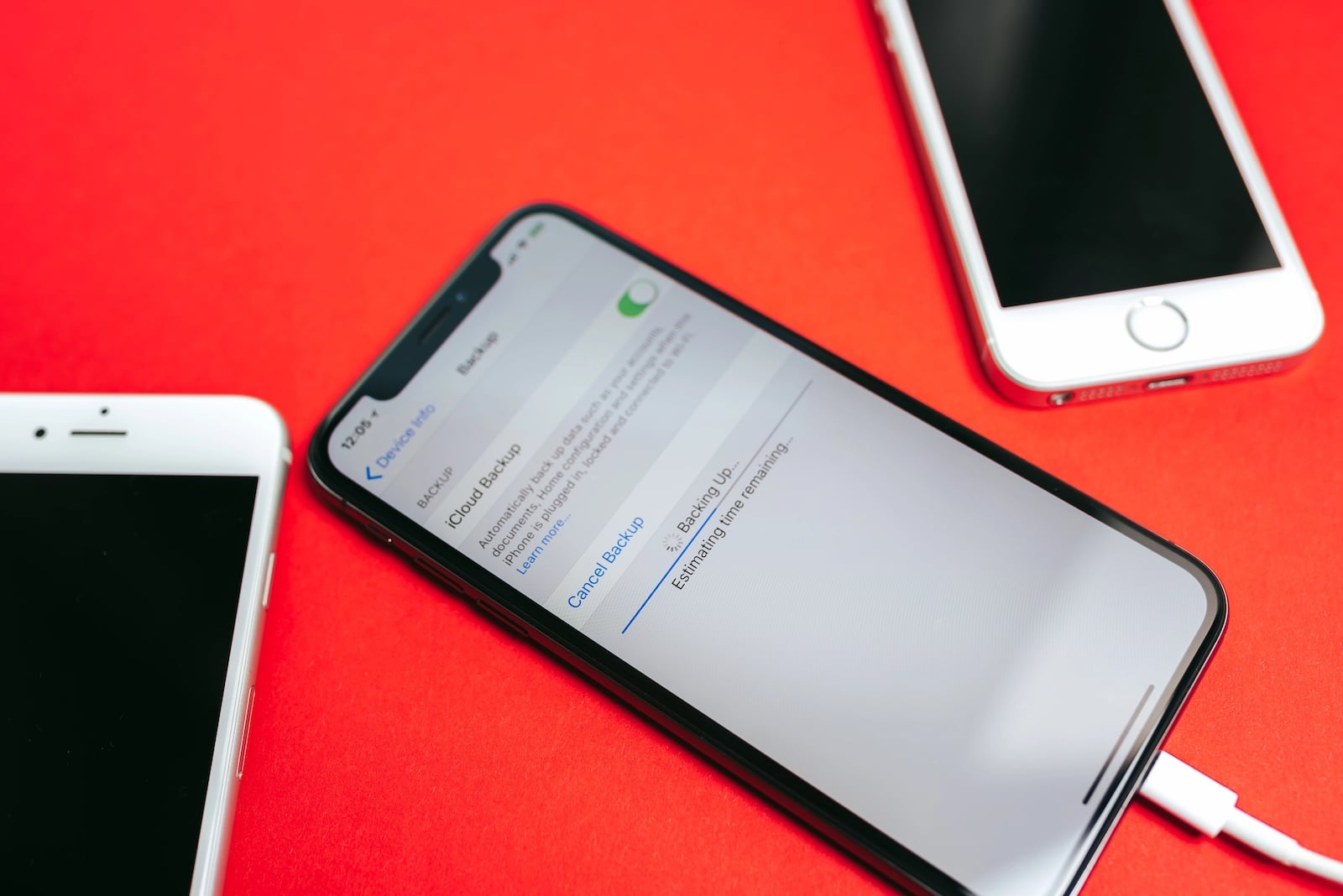
Go to Settings > [your name] > iCloud > iCloud Backup and tap Back Up Now. The date and time of the last backup will be displayed below. A Wi-Fi connection must be maintained throughout the entire process.
On iPhone models with 5G support, backups can also be created using the cellular network. This option can be found under iCloud Backup as "Back up over cellular."
What is stored in the iCloud Backup?
The iCloud backup includes data and settings that are not already synced via iCloud. This includes device settings, home screen layout, app organization, photos (if iCloud Photos is disabled), messages (if Messages in iCloud is disabled), app data, ringtones, and the Apple Watch backup.
Data that is already synchronized via iCloud – such as contacts, calendars, notes, iCloud photos and iCloud Drive – is not part of the backup, as it is stored independently in iCloud.
Check iCloud Storage
The backup requires sufficient iCloud storage. You can see your used and available storage under Settings > [your name] > iCloud. The free 5 GB is usually not enough for a full backup. If you plan to use iCloud backups regularly, you should consider at least the 50 GB plan for €0.99/month. Our article "iCloud Costs" shows all the options and prices.
Reduce Backup size
Under Settings > [your name] > iCloud > iCloud Backup > [this iPhone], you'll find a list of which apps are using how much storage in the backup. Apps whose data doesn't need to be backed up can be individually disabled here. This reduces the backup size and saves iCloud storage.
Method 2: Computer Backup (Finder or Apple Device App)
A local backup saves all data on your Mac or PC – independent of iCloud storage and internet speed. This method is often faster, especially with large amounts of data.
On Mac (Finder)
- Connect the iPhone to the Mac via USB cable
- Open Finder – the iPhone appears in the sidebar.
- If the message Trust this computer? appears on your iPhone: confirm and enter your device passcode.
- Select the iPhone in Finder and open the General tab.
- Click on Create backup now
On PC (Apple device app or iTunes)
- Connect the iPhone to the PC via USB cable
- Open the Apple Devices app (or iTunes on older Windows versions)
- Select the iPhone and choose General in the sidebar.
- Click on Create backup now
Encrypted Backup: Why it's important
By default, computer backups are not encrypted. This means that passwords, health data, Wi-Fi settings, and activity data are not backed up. Only when the Encrypt local backup option is enabled will the backup contain all data.
Here's how to activate it:
- In Finder (Mac) or the Apple Devices app (PC), check the Encrypt local backup option.
- Set a password and keep it safe – without this password, the backup cannot be restored.
- The backup will now be created automatically encrypted.
An encrypted backup is especially recommended before changing devices, as it represents the most complete copy of all data.
iCloud Backup vs. Computer Backup
| iCloud Backup | Computer Backup | |
|---|---|---|
| Storage location | Apple servers (cloud) | Local hard drive |
| Automatically | Yes (daily, when Wi-Fi + power + locked) | No (manual) |
| Cable required | No | Yes (or Wi-Fi sync) |
| Storage space | Limited by iCloud plan | Limited by hard drive |
| Encryption | Always encrypted | Optional (must be activated) |
| Passwords/Health data | Yes | Only with encrypted backup |
| Speed | Depending on Wi-Fi/Internet | Usually faster |
The safest strategy is a combination: iCloud backup for everyday use (automatic, always up-to-date) and an encrypted computer backup before important events such as iOS updates or device changes.
Restore Backup
From iCloud
- Reset your iPhone to factory settings or set up a new iPhone
- During the setup wizard, select Restore from iCloud Backup
- Sign in with your Apple ID and select the desired backup.
- Apps are downloaded from the App Store in the background.
From the computer
- Connect the iPhone to your Mac or PC using a USB cable.
- In Finder or the Apple Devices app, click Restore Backup
- Select the desired backup
- Enter the encryption password for encrypted backups.
Common problems and solutions
Not enough iCloud storage: Go to Settings > [your name] > iCloud > iCloud Backup > [this iPhone] and remove unnecessary apps from the backup. Or upgrade your iCloud storage. When you buy a new iPhone, Apple provides 21 days of free temporary storage.
iCloud backups take a very long time: The first backup can take several hours depending on the amount of data. Subsequent backups are significantly faster, as only changed data is saved. Use a stable Wi-Fi connection and keep your iPhone plugged into the charger.
If the Trust this computer? option doesn't appear, disconnect and reconnect your iPhone and computer. Restart both devices. If problems persist, reset the network settings on your iPhone.
Forgot your encryption password? Without the password, an encrypted backup cannot be restored. You can reset the encryption password under Settings > General > Transfer or Reset iPhone > Reset > Reset All Settings – however, this will reset all settings, although personal data will be retained.
Creating an iPhone Backup – the most important points at a glance
An iCloud backup runs automatically every night when the iPhone is plugged in, locked, and connected to Wi-Fi. A computer backup via Finder (Mac) or the Apple Devices app (PC) provides a local backup without relying on cloud storage. Encrypted computer backups are the most comprehensive protection, as they are the only ones that include passwords and health data. The most secure method is to use both. Always create a current backup before switching devices or updating iOS.
Our article "Transferring Data to a New iPhone" explains how to migrate to a new iPhone. If you want to free up storage space after backing up, you'll find tips under "Clearing the iPhone Cache". The best products for you: Our Amazon storefront offers a wide selection of accessories, including those for HomeKit. (Image: Shutterstock / Afotoeu)
- Transferring Data to a new iPhone: All Methods under iOS 26
- Clear History on iPhone: Safari, Chrome and more
- Disable Audio Zoom on iPhone
- iPhone Battery drains quickly: Here's how to extend Battery Life under iOS 26
- Resetting your iPhone: All reset methods under iOS 26
- iCloud Costs: All storage plans, prices, and which one is worth it
- Recording an iPhone call: What works in Germany – and what doesn't
- Clear iPad Cache: More Storage and better Performance
- Clear iPhone cache: How to make your iPhone fast again
- Search iCloud.com: Activate new search function in iOS 26.4
- Apple Watch Tips: Hidden features you didn't know about
- iPhone storage full? Here's how to instantly free up more space
- Apple Account Purchase History: Review purchases, subscriptions & costs
- Apple Music: How to successfully migrate from Spotify & Co.
- AirTag 2 Factory Reset: How to Perform a Reset
- Apple Games App: Central hub for modern gaming
- Lockdown Mode: Maximum security for iPhone, iPad and Mac
- Apple Music: How to activate translated song lyrics in iOS 26
- Apple Creator Studio: Apps, subscription, and clear AI limits
- Is Apple Music taking up too much storage space? This will help immediately
- AirTag 2: Setting up Precision Finding on the Apple Watch
- How to turn texts into reminders with Apple Intelligence
- Precision Finding on the Apple Watch requires AirTag 2
- AirTag 2: Which airlines support baggage tracking
Frequently Asked Questions: Creating an iPhone Backup
Go to Settings > [your name] > iCloud > iCloud Backup and tap "Back Up Now". Your iPhone must be connected to Wi-Fi. Automatic backups run daily if your iPhone is also plugged into a charger and locked.
Generally not. An iPhone backup can take up several gigabytes, depending on the amount of data. The 50GB plan for €0.99/month is sufficient for most users. When you buy a new iPhone, Apple provides 21 days of free temporary storage.
iCloud backups run automatically over Wi-Fi and are stored on Apple's servers. Computer backups are created manually using Finder (Mac) or the Apple Device app (PC) and saved locally on the hard drive. Both methods back up the data completely – provided the computer backup is encrypted.
Without encryption, passwords, health data, Wi-Fi settings, and activity data will be missing from the backup. Only with the "Encrypt local backup" option enabled will a complete copy be created. Keep the encryption password safe – without it, the backup cannot be restored.
Ideally, back up your device daily – iCloud backups do this automatically. An additional computer backup is recommended before iOS updates, device changes, or repairs. This way, you always have both a current and a local backup.
The first iCloud backup can take several hours, depending on the amount of data and Wi-Fi speed. Subsequent backups are significantly faster because only changed data is saved. Computer backups via USB cable are generally the fastest.
Yes. You can create a full backup locally on your computer using Finder (Mac) or the Apple Devices app (PC) – without iCloud storage and without an internet connection. The iPhone is connected via USB cable.