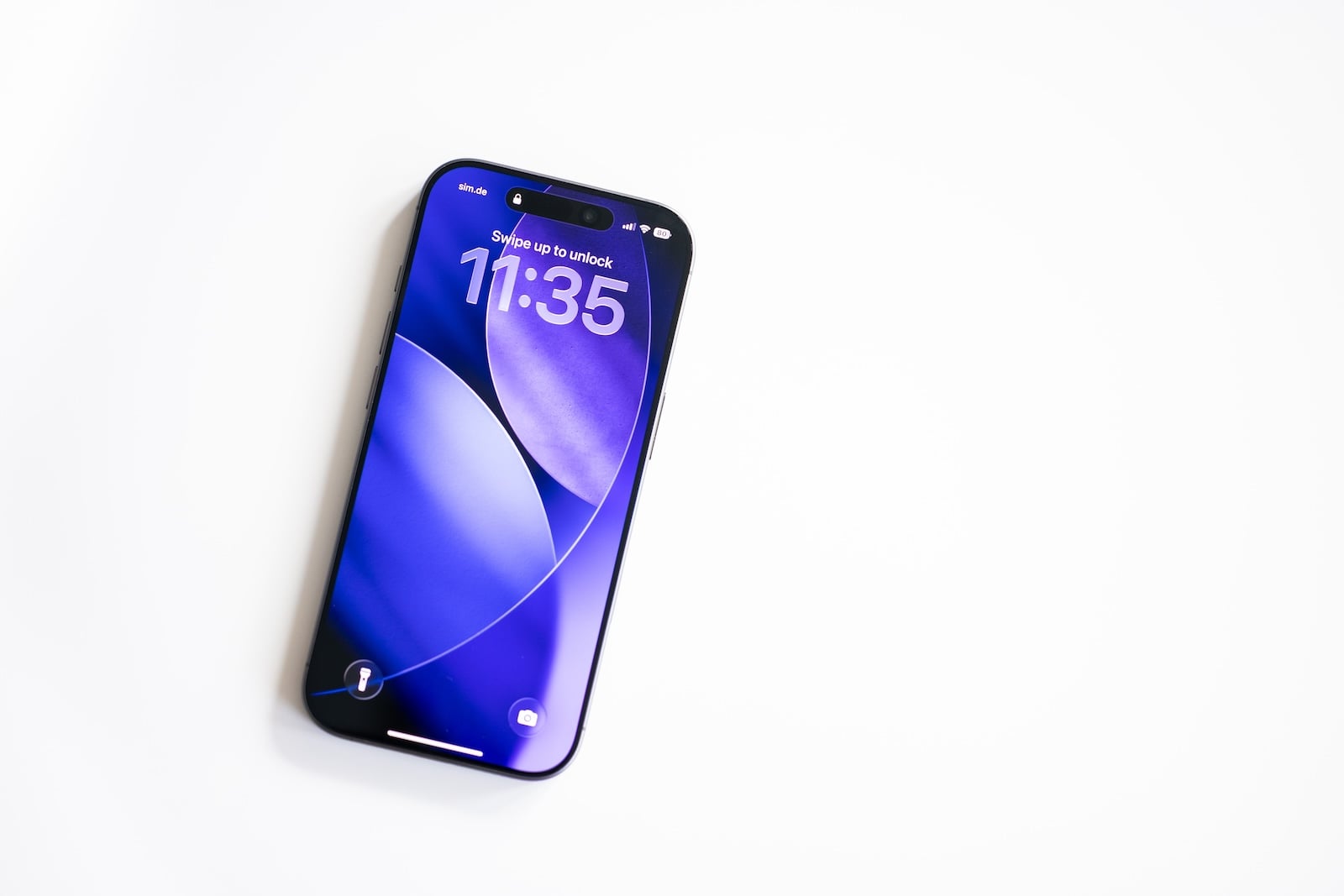
Whether for privacy reasons, due to storage issues, or simply to clean up – deleting browser history on the iPhone is one of the most common tasks. With iOS 26, Apple slightly changed the menu structure in Safari, which has caused confusion for some users. Below, we show all the ways to delete history in Safari, Chrome, and other apps – step by step and up-to-date for iOS 26 or later.
Browser history saves every website visited – useful for finding them again, but also a privacy risk on shared or unsecured devices. In addition to the history, cookies, cache data, and website data accumulate, taking up storage space and making browsing behavior traceable. iOS 26 offers several ways to selectively or completely delete this data. Regularly clearing your history benefits your privacy and often also improves browser performance.
Clear Safari History: Via the Settings
The fastest way to delete your entire Safari history is through the iPhone settings.
- Settings > Apps > Open Safari
- Scroll down and tap on Clear history and website data
- Select the desired time frame : last hour, today, today and yesterday, or entire history
- If Safari profiles are set up: select a specific profile or "All Profiles".
- Tap Delete history
This will delete your browsing history, cookies, and saved website data. Bookmarks, saved passwords, and AutoFill data will be retained. The deletion process is synchronized across all devices using the same Apple ID via iCloud – so your history will also disappear from your iPad and Mac.
If the "Clear history and website data" option is grayed out, this is usually due to active Screen Time restrictions. Under Settings > Screen Time > Content restrictions > Web content, "Unrestricted access" must be selected.
Clear Safari History: Directly in the App
The history can also be deleted directly in Safari – useful if individual entries need to be removed.
- Open Safari
- Tap the bookmark icon (book icon).
- Switch to history (clock icon)
- Tap Delete at the bottom
- Select and confirm the desired time frame.
Individual entries can be removed by swiping left on the respective entry and tapping the trash can icon. This allows you to selectively delete specific pages from your history without deleting everything.
Delete only Website Data – without the History
Sometimes you only want to delete cookies and cache, but keep your browsing history. This is possible via a separate method:
- Settings > Apps > Safari > Advanced > Open website data
- Here, all saved website data is listed, sorted by size.
- Delete individual entries by swiping left or tap Remove all website data at the bottom.
This method is particularly useful if a specific website is not working properly and the cache needs to be cleared.
Delete Chrome History on iPhone
Users who use Chrome instead of Safari will delete their history within the app:
- Open Chrome
- Tap the three dots (bottom right).
- Select Settings, then Privacy and Security
- Tap on Clear browser data
- Select the time period and check the desired data types (browser history, cookies, cache)
- Tap on Clear browser data and confirm
Chrome history is not deleted via iPhone settings – this only works within the Chrome app.
Private browsing: Don't save your Browsing History at all
Anyone who wants to prevent Safari from saving their browsing history at all can use the "Private Browsing" mode.
In Safari, tap the Tab icon, then tap Private and open a new private tab. In private mode, neither history nor cookies are saved. The address bar appears grayed out or displays the word "Private". Since iOS 17, private tabs are automatically locked after a period of inactivity and can only be reopened with Face ID, Touch ID, or the device passcode.
Delete App History and Search History
Besides the browser, other apps also save a history:
Apple Maps: Recently searched places can be deleted directly in the Maps app: scroll down to "Recent," swipe on an entry, and delete it—or tap "Recent" and then "Delete" to remove all. Location history (Significant Places) can be deleted under Settings > Privacy & Security > Location Services > System Services > Significant Places > Clear History.
App Store: You can delete your search history in the App Store by tapping the X next to a search suggestion in the search field or by deleting the entire search history.
Siri Suggestions: Siri learns from your usage patterns and suggests apps, contacts, and websites. You can disable these for individual apps under Settings > Siri > Siri & Search Suggestions. You can remove saved voice requests from Apple's servers via Settings > Siri > Siri & Dictation History > Clear Siri & Dictation History.
Keyboard dictionary: All user-added words and autocorrect entries can be deleted under Settings > General > Transfer or Reset iPhone > Reset > Reset Keyboard Dictionary .
What gets removed when you delete the history – and what doesn't?
| Will be deleted | It will be preserved |
|---|---|
| Visited websites (history) | Bookmark |
| Cookies and website data | Saved passwords |
| Cache and cached files | AutoFill data |
| Recently closed tabs | Reading list |
| Safari search history | Safari profiles |
Important: Deleting your browsing history via iCloud will apply to all devices using the same Apple ID. If you only want to delete your history on one device, you must first disable Safari synchronization under Settings > Apple ID > iCloud > Stored in iCloud > Safari.
Deleting History on your iPhone – the most important points at a glance
Safari history can be deleted in two ways: via Settings (Settings > Apps > Safari) or directly in the Safari app via the History menu. Cookies and cache can also be deleted separately without removing the history. Chrome history is deleted exclusively within the Chrome app. Those who don't want to leave any history at all can use Safari's private browsing mode. History deletion is synced across all connected devices via iCloud.
For more tips on cleaning up your iPhone, see the article Clear iPhone Cache. If you're experiencing persistent problems, you can find help under Reset iPhone. The best products for you: Our Amazon storefront offers a wide selection of accessories, including those for HomeKit. (Image: Shutterstock / photoschmidt)
- Disable Audio Zoom on iPhone
- iPhone Battery drains quickly: Here's how to extend Battery Life under iOS 26
- Resetting your iPhone: All reset methods under iOS 26
- iCloud Costs: All storage plans, prices, and which one is worth it
- Recording an iPhone call: What works in Germany – and what doesn't
- Clear iPad Cache: More Storage and better Performance
- Clear iPhone cache: How to make your iPhone fast again
- Search iCloud.com: Activate new search function in iOS 26.4
- Apple Watch Tips: Hidden features you didn't know about
- iPhone storage full? Here's how to instantly free up more space
- Apple Account Purchase History: Review purchases, subscriptions & costs
- Apple Music: How to successfully migrate from Spotify & Co.
- AirTag 2 Factory Reset: How to Perform a Reset
- Apple Games App: Central hub for modern gaming
- Lockdown Mode: Maximum security for iPhone, iPad and Mac
- Apple Music: How to activate translated song lyrics in iOS 26
- Apple Creator Studio: Apps, subscription, and clear AI limits
- Is Apple Music taking up too much storage space? This will help immediately
- AirTag 2: Setting up Precision Finding on the Apple Watch
- How to turn texts into reminders with Apple Intelligence
- Precision Finding on the Apple Watch requires AirTag 2
- AirTag 2: Which airlines support baggage tracking
- AirTag 1 or AirTag 2: How to tell the difference
Frequently Asked Questions: Deleting History on iPhone
Go to Settings > Apps > Safari, tap "Clear History and Website Data," and select the desired time frame. Alternatively, go directly to Safari via the bookmarks icon > History (clock icon) > Clear.
No. Saved passwords, bookmarks, autofill data, and the reading list will be retained. Only the browsing history, cookies, and cached website data will be deleted.
This is usually due to active Screen Time restrictions. Under Settings > Screen Time > Content restrictions > Web content, "Unrestricted access" must be selected for the option to become available again.
Yes. Deleting your Safari history will sync across all devices using the same Apple ID via iCloud. If you only want to delete the history on one device, you must first disable Safari syncing under Settings > Apple ID > iCloud > Safari.
In Chrome, tap the three dots, then Settings > Privacy and security > Clear browsing data. Select the time period and desired data types, and confirm. Chrome history cannot be deleted via iPhone settings.
Yes. Under Settings > Apps > Safari > Advanced > Website Data, you can selectively delete cookies and cache without removing your browsing history. Individual websites can be deleted by swiping left.
In private browsing mode, Safari saves neither history nor cookies. Tap the tab icon in Safari, then select "Private" and open a new tab. Since iOS 17, private tabs are automatically locked after a period of inactivity using Face ID or your device passcode.