When recording a video with an iPhone and zooming in, you might not notice what's happening in the background – not just visually, but also audibly. Apple automatically activates a feature called Audio Zoom, which focuses the microphone on the zoomed-in object and reduces ambient noise. While this sounds convenient at first, it can make videos sound strangely flat and unnatural because the overall atmosphere is missing. With iOS 26.4, Audio Zoom can finally be turned off.
This article explains exactly what Audio Zoom does, why the feature isn't always desirable, and how to disable automatic audio focusing in iPhone settings since iOS 26.4. We also explain in which situations it's worthwhile to leave Audio Zoom enabled.
What is Audio Zoom and how does it work?
Audio Zoom is a feature that activates automatically in the iPhone's camera app when zooming in while recording video. The microphones focus on the area that is also visually in focus. The result: everything outside the zoomed-in area becomes quieter or almost disappears from the recording.
In certain situations, this is certainly useful – for example, at a concert when you want to specifically capture the stage, or at a sporting event where the commentary of a particular person should be the focus. But there are also situations where the ambient sounds are precisely what makes a video appealing: the sound of the sea on vacation, the atmosphere in a packed stadium, or the general ambiance of a Christmas market. In all these cases, audio zoom causes the recording to lose much of its charm.
New in iOS 26.4: Audio Zoom can be deactivated
Previously, there was no way to manually control audio zoom – the function was simply always active as soon as zooming was enabled. With iOS 26.4, Apple has finally introduced a dedicated toggle for it.
Requirement
For the new setting to be available, the iPhone must be updated to iOS 26.4 or later. The update can be downloaded and installed via Settings → General → Software Update.
Disable Audio Zoom – Step by Step
- Open the settings on your iPhone.
- Scroll down and tap on Camera.
- Select the "Record Sound" option.
- Disable the switch for Audio Zoom.
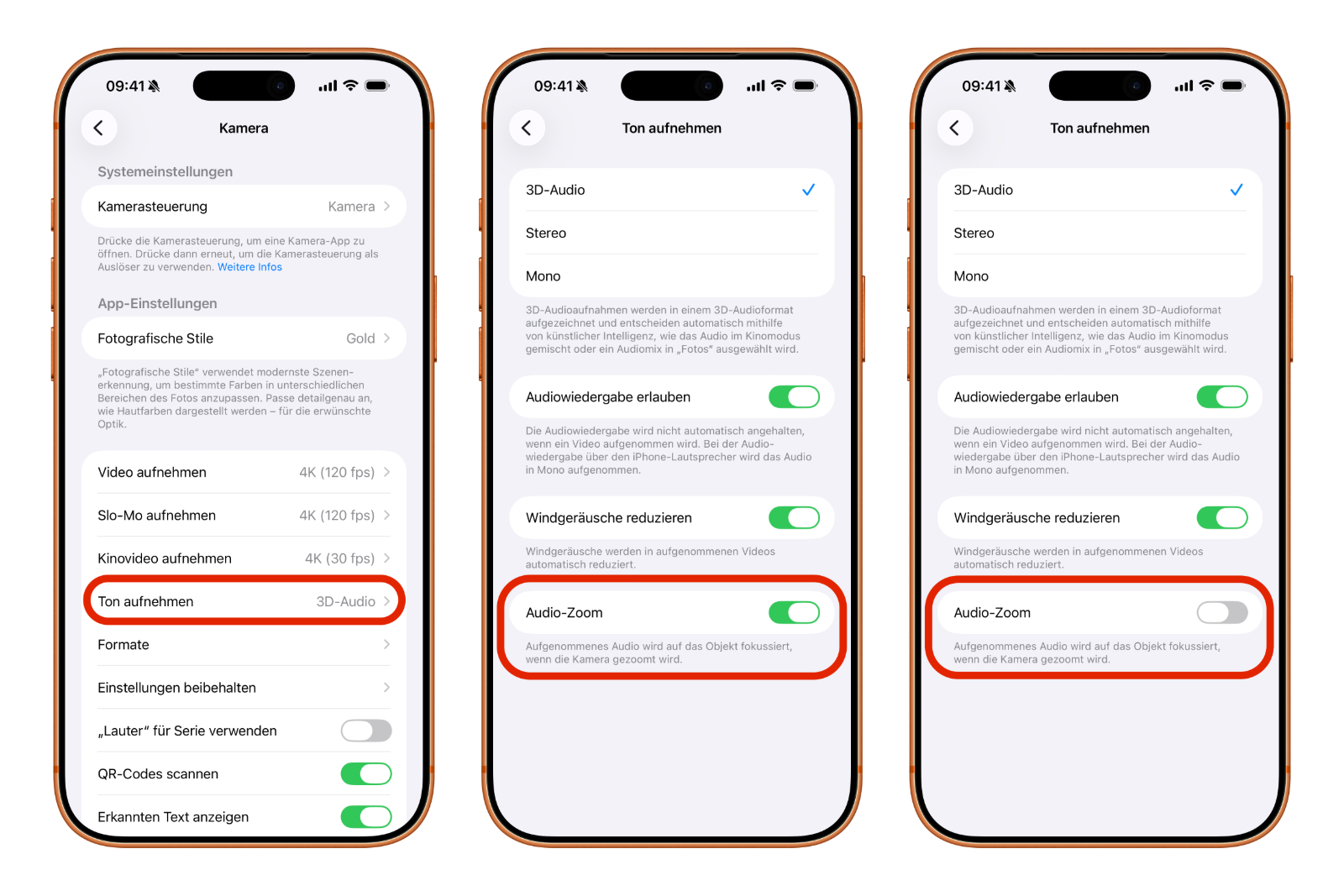
From now on, when zooming in on videos, the iPhone will record the full room sound instead of focusing the microphones on the zoomed area.
Important note: Only compatible with Spatial Audio or Stereo
Audio zoom only works in combination with the recording formats Spatial Audio (3D audio) or Stereo. If you have switched to mono in the camera settings, the audio zoom switch will be grayed out – it cannot be activated or deactivated, as the function is simply not available in mono mode.
When should Audio Zoom stay on?
Despite the new option to disable audio zoom, there are good reasons to leave the function enabled in certain situations. Those who frequently film from a distance and want to capture the sound of a particular subject as clearly as possible will still benefit from it. Typical examples include recording at loud events, sporting events, or situations where distracting background noise would impair the recording.
- iPhone Buying Guide: iPhone 17 vs. Air vs. 17e
- iPhone 17 vs. iPhone 17 Pro: Which model is really worth it?
Disabling Audio Zoom is worthwhile
Audio Zoom is one of those iPhone features that works in the background without you even realizing it—yet still has a noticeable impact on the result. Apple's decision to finally give users the option to choose whether or not to enable autofocus with iOS 26.4 is a small but welcome step. Anyone who likes to capture the full soundscape of a scene should take a quick look in the camera settings and try disabling Audio Zoom. The difference can be surprisingly significant. The best products for you: Our Amazon storefront offers a wide selection of accessories, including those for HomeKit. (Image: Shutterstock / JoshDave)
- iPhone Battery drains quickly: Here's how to extend Battery Life under iOS 26
- Resetting your iPhone: All reset methods under iOS 26
- iCloud Costs: All storage plans, prices, and which one is worth it
- Recording an iPhone call: What works in Germany – and what doesn't
- Clear iPad Cache: More Storage and better Performance
- Clear iPhone cache: How to make your iPhone fast again
- Search iCloud.com: Activate new search function in iOS 26.4
- Apple Watch Tips: Hidden features you didn't know about
- iPhone storage full? Here's how to instantly free up more space
- Apple Account Purchase History: Review purchases, subscriptions & costs
- Apple Music: How to successfully migrate from Spotify & Co.
- AirTag 2 Factory Reset: How to Perform a Reset
- Apple Games App: Central hub for modern gaming
- Lockdown Mode: Maximum security for iPhone, iPad and Mac
- Apple Music: How to activate translated song lyrics in iOS 26
- Apple Creator Studio: Apps, subscription, and clear AI limits
- Is Apple Music taking up too much storage space? This will help immediately
- AirTag 2: Setting up Precision Finding on the Apple Watch
- How to turn texts into reminders with Apple Intelligence
- Precision Finding on the Apple Watch requires AirTag 2
- AirTag 2: Which airlines support baggage tracking
- AirTag 1 or AirTag 2: How to tell the difference
- AirTag 2: These iPhones are compatible with improved tracking
- iPhone alarm silent: Why the alarm suddenly stops working
- Safari at 120 Hz: How to activate smoother scrolling
Frequently Asked Questions about Audio Zoom
Audio Zoom automatically focuses the iPhone's microphones on the zoomed-in area when recording video. Ambient noise is suppressed, so the sound of the focused subject is recorded more clearly.
This is most likely due to Audio Zoom. This function filters out background noise when zooming in. As a result, the natural room acoustics are lost, and the video can sound unnatural.
The option to disable Audio Zoom is available from iOS 26.4 onwards. In older iOS versions, the feature was permanently active and could not be turned off.
The switch is located under Settings → Camera → Record sound → Audio Zoom.
No. Audio Zoom is only available when Spatial Audio or Stereo is selected as the recording format. In Mono mode, the switch is grayed out and unusable.
No. Audio Zoom only affects video recordings, as photos don't record sound. The feature only works when a video mode is active in the camera app.
It depends on the recording situation. If you want to capture the sound of a specific subject, you'll benefit from having audio zoom enabled. However, if you want to preserve the entire soundscape of a scene, you should disable the function.