The battery no longer lasts until evening, the iPhone gets warm, and Low Power Mode seems to be constantly kicking in – a problem familiar to many iPhone users. The causes range from power-hungry apps and incorrect settings to an aging battery. iOS 26 introduces new tools for better monitoring of battery consumption, including "Adaptive Performance" and a redesigned battery overview. This article reveals the biggest power drains and how to noticeably extend battery life.
After every major iOS update, users report increased battery drain. This is normal – after an update, iOS indexes files, synchronizes data, and updates apps in the background. This process can take one to two days. Only then can you assess whether the battery is actually draining faster than before. If you're still experiencing problems after this adjustment period, you'll find the most effective troubleshooting steps here.
Identify power-hungry Devices: Use the Battery Overview
Before changing any settings, it's worth taking a look at the actual battery usage. iOS 26 completely redesigned the battery overview.
Under Settings > Battery, iOS 26 displays a bar chart showing the average battery usage over the past seven days. Below this, the system lists the apps that consumed the most energy, including information on whether an app was active in the foreground or background. New in iOS 26: A comparison feature shows whether current usage is higher, the same, or lower than on normal days. Apps that use more energy than usual are highlighted, with details on whether they ran longer in the background, used more screen time, or sent more notifications.
If a particular app stands out as consuming an excessive amount of battery power, that's the first point to investigate.
iPhone: The most important Settings for longer Battery Life
Screen brightness and auto-brightness
The display is the single biggest power consumer. Excessive brightness significantly reduces battery life. Under Settings > Accessibility > Display & Text Size, "Auto-Brightness" should be enabled – the display will then automatically adjust to the ambient light. Additionally, the brightness can be manually reduced at any time via the Control Center.
Automatic lock
If the display remains active for several minutes after use, it consumes unnecessary energy. Under Settings > Display & Brightness > Auto-lock, the shortest possible time period should be selected – 30 seconds or 1 minute is ideal.
Background update
Many apps update their content in the background, even when they're not open – news apps, social media, weather apps, and more. Under Settings > General > Background App Refresh, you can disable this feature for individual apps or turn it off completely. This is a great feature for apps that don't constantly need updated data.
Restrict location services
GPS is one of the most energy-intensive features. Under Settings > Privacy & Security > Location Services, you can specify for each app individually whether it is allowed to use your location: "Always," "While using the app," or "Never." The "While using the app" option is sufficient for most applications and saves considerable battery power.
Disable Always-On Display
On iPhone models with Always-On Display (iPhone 14 Pro and later), the screen remains active even when locked. Users who need maximum battery life can disable this feature under Settings > Display & Brightness > Always On.
Activate dark mode
On iPhones with OLED displays (iPhone X and later), Dark Mode saves energy because black pixels are actually switched off. Dark Mode can be activated under Settings > Display & Brightness – it can also be scheduled.
Reduce push notifications
Every push notification wakes the display and activates wireless connections. Under Settings > Notifications, you can disable notifications for apps that are not time-critical. Fewer notifications mean fewer display activations and therefore less battery consumption.
Switch email retrieval to manual or hourly
Under Settings > Apps > Mail > Mail Accounts > Fetch Data, you can change the retrieval interval from "Push" to "Hourly" or "Manual." Push means that the iPhone maintains a constant connection to the email server – this consumes battery power.
New iOS 26 features: Adaptive performance and charging limit
Adaptive performance
iOS 26 introduces a new power-saving feature called "Adaptive Performance," which works more intelligently than the classic Low Power Mode. The system analyzes usage patterns over about a week and then automatically adjusts performance if battery consumption is higher than usual. Specifically, Adaptive Performance can slightly reduce screen brightness (by about three percent), limit background activity, and automatically activate Low Power Mode when the battery level drops below 20 percent.
Adaptive performance is not active for tasks that require maximum performance – such as camera use or gaming mode. The feature works in the background and is barely noticeable in everyday use.
Availability: Adaptive Performance is enabled by default on iPhone 17, iPhone 17 Pro, iPhone 17 Pro Max, and iPhone Air. On iPhone 15 Pro, iPhone 15 Pro Max, and the entire iPhone 16 series, it must be turned on manually. Older models do not support this feature.
Activation: Settings > Battery > Power mode > Turn on Adaptive Power.
Charging limit
Under Settings > Battery > Battery Health & Charging, you can set a charging limit between 80 and 100 percent. A lower charging limit is better for the battery in the long run, as lithium-ion batteries age faster when constantly charged at high levels. For everyday use, 80 to 90 percent is often sufficient. If you need full capacity on a particular day, you can temporarily charge to 100 percent using "Allow until tomorrow".
Remaining charging time on the lock screen
Also new in iOS 26: During charging, the iPhone displays the estimated remaining charging time on the lock screen – both to the 80 percent mark and to a full charge. This helps in assessing whether a faster charger is needed.
Power saving mode: When it helps – and when it doesn't
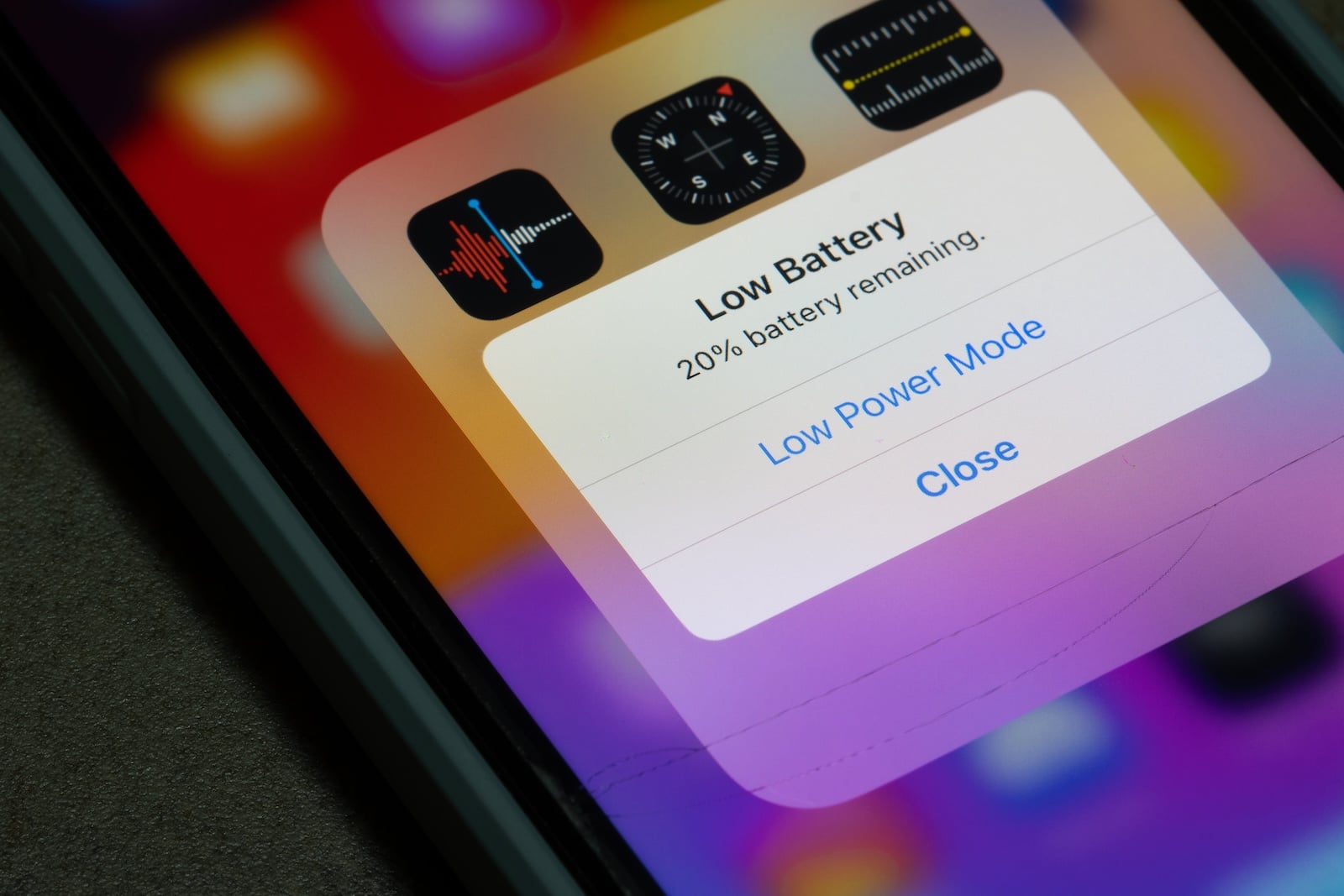
Power saving mode reduces email retrieval, background updates, automatic downloads, and some visual effects. It can be activated under Settings > Battery > Power mode or via the Control Center and is automatically deactivated once the battery charge exceeds 80 percent.
Power saving mode is a quick fix for when you're on the go, but not a permanent solution. For long-term battery optimization, the settings mentioned above are more effective. Combined with Adaptive Performance, this is the most effective way to extend battery life on supported models.
Check iPhone Battery Health: When a Battery replacement is necessary
Under Settings > Battery > Battery Health & Charging, iOS displays the battery's maximum capacity as a percentage. A new battery has 100 percent – this value decreases slowly with each charge cycle. Apple provides the following guidelines:
- iPhone 14 and older: at least 80 percent after 500 charging cycles
- iPhone 15 and newer: at least 80 percent after 1,000 charging cycles
If the maximum capacity is significantly below 80 percent, a battery replacement is advisable. Apple charges between €79 and €135 for this, depending on the model (without AppleCare+). With AppleCare+, the replacement is free if the capacity is below 80 percent.
After an iOS Update: Battery dead – what to do?
After a major update like iOS 26, a temporarily higher battery consumption is normal. Apple officially confirms that after an update, the iPhone performs background processes such as data indexing, app updates, and file synchronization, which put more strain on the battery.
What helps: Give your iPhone one to two days to charge. During this time, leave the device plugged in overnight and avoid using resource-intensive apps. Under Settings > Battery, the entry "Device Setup & Updates" indicates whether any background processes are still running. Only when this entry disappears can you realistically assess the actual battery consumption.
If the battery usage remains significantly elevated even after several days, a restart may help. Our article "Resetting your iPhone" explains how to do this.
iPhone Battery drains quickly – the most important points at a glance
The biggest power drains are an overly bright display, constant background refreshes, and permanently active location services. These three settings alone can extend battery life by hours. iOS 26 introduces Adaptive Performance, a new, intelligent power-saving feature available on iPhone 15 Pro and later. The adjustable charging limit protects the battery in the long run. A temporarily higher power consumption after an iOS update is normal and usually resolves itself after one to two days. If the maximum capacity drops below 80 percent, a battery replacement is necessary.
Which iPhone is best suited for different uses is shown in the iPhone buying guide. Tips on freeing up storage space can be found in the article "Clearing the iPhone Cache". The best products for you: Our Amazon storefront offers a wide selection of accessories, including those for HomeKit. (Image: Shutterstock / Tada Images)
- Resetting your iPhone: All reset methods under iOS 26
- iCloud Costs: All storage plans, prices, and which one is worth it
- Recording an iPhone call: What works in Germany – and what doesn't
- Clear iPad Cache: More Storage and better Performance
- Clear iPhone cache: How to make your iPhone fast again
- Search iCloud.com: Activate new search function in iOS 26.4
- Apple Watch Tips: Hidden features you didn't know about
- iPhone storage full? Here's how to instantly free up more space
- Apple Account Purchase History: Review purchases, subscriptions & costs
- Apple Music: How to successfully migrate from Spotify & Co.
- AirTag 2 Factory Reset: How to Perform a Reset
- Apple Games App: Central hub for modern gaming
- Lockdown Mode: Maximum security for iPhone, iPad and Mac
- Apple Music: How to activate translated song lyrics in iOS 26
- Apple Creator Studio: Apps, subscription, and clear AI limits
- Is Apple Music taking up too much storage space? This will help immediately
- AirTag 2: Setting up Precision Finding on the Apple Watch
- How to turn texts into reminders with Apple Intelligence
- Precision Finding on the Apple Watch requires AirTag 2
- AirTag 2: Which airlines support baggage tracking
- AirTag 1 or AirTag 2: How to tell the difference
- AirTag 2: These iPhones are compatible with improved tracking
- iPhone alarm silent: Why the alarm suddenly stops working
- Safari at 120 Hz: How to activate smoother scrolling
Frequently Asked Questions: iPhone battery drains quickly
After a major update like iOS 26, the iPhone performs background processes such as data indexing and app updates. This temporarily drains the battery. The increased consumption usually returns to normal after one to two days.
Adaptive Performance is a new iOS 26 feature that analyzes usage patterns and automatically saves energy—for example, by slightly reducing screen brightness or limiting background processes. Activate it under Settings > Battery > Power Mode > Adaptive Performance. Available on iPhone 15 Pro and later.
Background app refresh. Many apps update themselves in the background, even when they're not open. You can disable this for individual apps or completely under Settings > General > Background App Refresh. Combining this with reduced screen brightness and limited location services saves the most battery power.
No. Power saving mode restricts functions such as email retrieval, Hey Siri, and background updates. It's suitable as a short-term solution when you're on the go, but it's no substitute for specifically optimizing individual settings.
If the maximum capacity under Settings > Battery > Battery Health & Charging is significantly below 80 percent, Apple charges between €79 and €135 depending on the model. With AppleCare+, the replacement is free once the capacity drops below 80 percent.
Yes. Under Settings > Battery > Battery Health & Charging, you can set a charging limit between 80 and 100 percent. A lower limit is better for the battery in the long run, as lithium-ion batteries age faster when constantly kept at high charges. The sweet spot is between 80 and 90 percent.
Yes, noticeably. On iPhones with OLED displays (iPhone 14 Pro and newer), the screen remains active when locked. Those who need maximum battery life can disable this feature under Settings > Display & Brightness > Always On.