
iOS 26.4 finally makes iCloud.com searchable. Files in iCloud Drive and photos in iCloud Photos can now be found directly in the browser – with encrypted on-device processing. Here's how to activate the feature.
With iOS 26.4, Apple delivered a long-awaited feature: files in iCloud Drive and photos in iCloud Photos can now be searched directly in a browser via iCloud.com. The search function is disabled by default and must first be enabled. Here's how to do it and what's behind it.
What's new at iCloud.com?
Previously, the web version of iCloud was significantly limited compared to the native apps on iPhone, iPad, and Mac. A proper search function was completely lacking. Anyone wanting to access their iCloud data on a Windows PC, an Android device, or another computer had to tediously click through folders and albums.
With iOS 26.4, this changes: Apple has expanded iCloud.com to include a full search function for iCloud Drive and iCloud Photos. When you tap in the search field, suggestions appear immediately – in iCloud Drive for file names, folder names, and document types, and in iCloud Photos for dates, people, and places. If you're generally struggling with limited storage, you'll find further tips in the guide iPhone storage full? Here's how to free up more space immediately.
Here's how to activate iCloud Search
The new search function is disabled by default. To enable it, follow these steps:
- Open the settings on your iPhone.
- Tap your name at the top (more on Apple Account settings).
- Select iCloud .
- Scroll all the way down and tap on iCloud.com .
- Activate the "Allow search" switch.
- Confirm by clicking "Allow" in the pop-up that appears.
Important: The "Allow Search" option only appears if data access to iCloud.com is already enabled. If not, the "Allow Access to Data" switch must first be turned on.
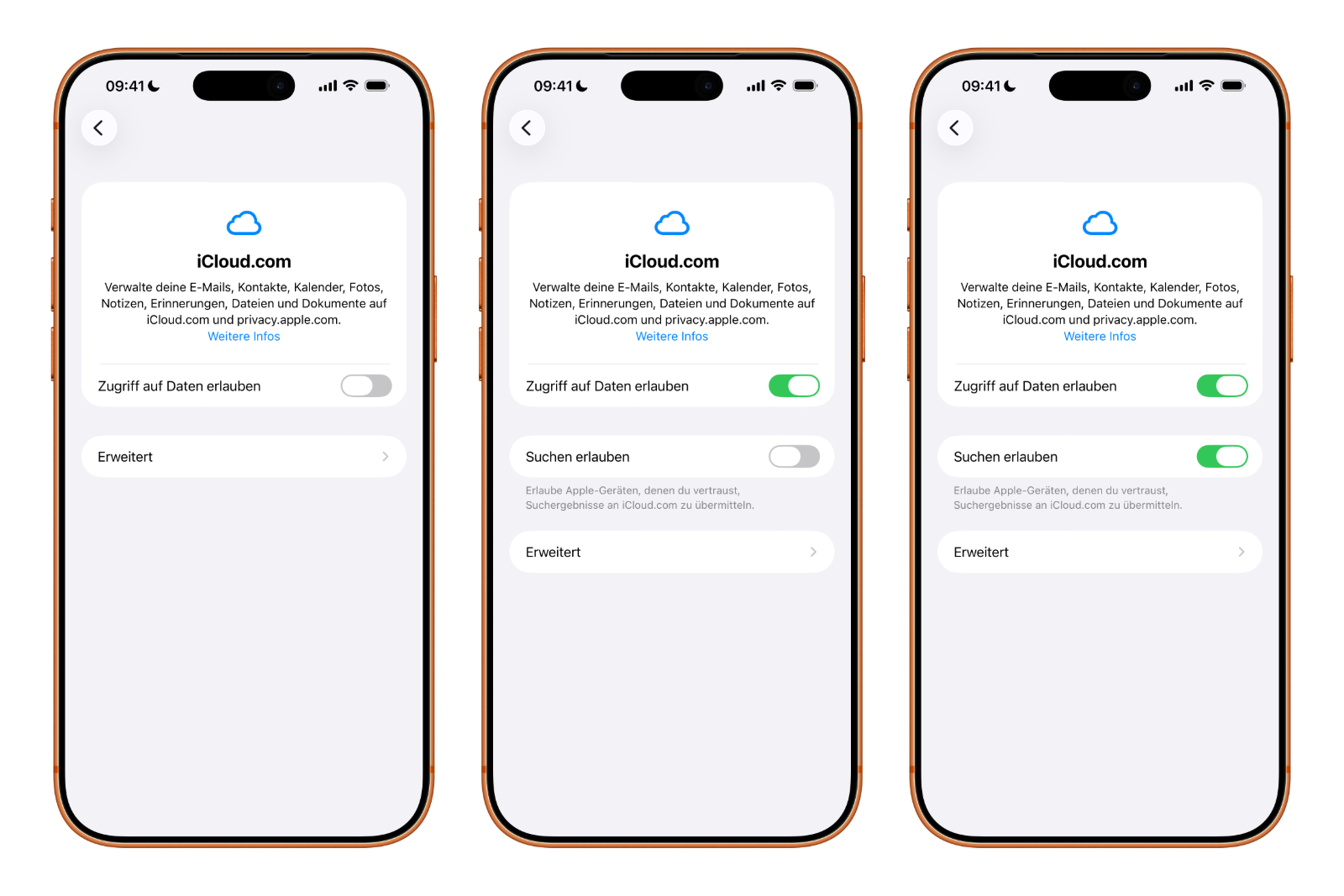
The setting must be activated separately on each device that is to serve as a source for search results. However, for those who sync the same files and photos across all their Apple devices, it is usually sufficient to activate the function only on their iPhone.
Incidentally, this feature is not limited to the iPhone: iPadOS 26.4 and macOS 26.4 also support the new iCloud search function.
Privacy: How Apple protects search queries
Apple has deliberately implemented the search function with privacy in mind. Search queries are transmitted using encryption, and all processing takes place locally on the user's own Apple device – not on Apple's servers. Therefore, no search history is stored by Apple. Anyone generally interested in Apple's privacy features in iCloud should also know why "hiding email" doesn't always offer protection.
Here's how it works: When a search query is submitted via iCloud.com, the browser securely forwards the request to a trusted Apple device. This device searches the local index and returns the results. A search report covering the last 28 days is stored on the device and can be viewed or deleted at any time.
You'll also receive a notification (maximum once a day) when your device is currently providing search results for iCloud.com. If you receive an unexpected notification, you can disable web access or the search function at any time in your iCloud settings. For maximum security on Apple devices, it's also worth taking a look at the blocking mode for iPhone, iPad, and Mac.
Limitations: Those who cannot use the function
There are some cases where the new search function is unavailable. Users of managed Apple accounts—such as those in a business or educational institution—cannot activate "Allow Search." The same applies to Apple accounts linked only to a phone number.
Long overdue improvement for iCloud on the web
The new search function for iCloud.com is a long-overdue update that significantly enhances web access to iCloud. This feature is especially useful for anyone who regularly accesses their files and photos on a Windows PC or other non-Apple device. The privacy-friendly approach with on-device processing aligns well with Apple's philosophy.
Anyone wishing to use this feature should remember to manually activate it in the settings first. At the same time, it is recommended to install the iOS 26.4 update as soon as possible, since Apple has also closed over 35 security vulnerabilities with it.
The best products for you: Our Amazon Storefront offers a wide selection of accessories, including for HomeKit. (Image: Apple)
- Apple Watch Tips: Hidden features you didn't know about
- iPhone storage full? Here's how to instantly free up more space
- Apple Account Purchase History: Review purchases, subscriptions & costs
- Apple Music: How to successfully migrate from Spotify & Co.
- AirTag 2 Factory Reset: How to Perform a Reset
- Apple Games App: Central hub for modern gaming
- Lockdown Mode: Maximum security for iPhone, iPad and Mac
- Apple Music: How to activate translated song lyrics in iOS 26
- Apple Creator Studio: Apps, subscription, and clear AI limits
- Is Apple Music taking up too much storage space? This will help immediately
- AirTag 2: Setting up Precision Finding on the Apple Watch
- How to turn texts into reminders with Apple Intelligence
- Precision Finding on the Apple Watch requires AirTag 2
- AirTag 2: Which airlines support baggage tracking
- AirTag 1 or AirTag 2: How to tell the difference
- AirTag 2: These iPhones are compatible with improved tracking
- iPhone alarm silent: Why the alarm suddenly stops working
- Safari at 120 Hz: How to activate smoother scrolling
- iOS 26 improves group chats with five new features
- Here's how to create Apple Music playlists with ChatGPT
- iOS 26: Change default apps on your iPhone
FAQs – iCloud.com search function in iOS 26.4
Under Settings → your name → iCloud → iCloud.com, activate the "Allow Search" switch and confirm with "Allow".
No. The function is disabled by default and must be manually enabled.
Files in iCloud Drive (by file name, folder name, document type) and photos in iCloud Photos (by date, people, places).
No. The search is transmitted encrypted and processed locally on your own device. No search history is stored on Apple servers.
The device stores a local search report for the last 28 days. This can be viewed or deleted at any time.
Yes. In addition to iOS 26.4, the feature is also supported under iPadOS 26.4 and macOS 26.4.
Yes. The setting applies per device. However, if you synchronize the same data across all devices, activating it on one device is sufficient.
Users with managed Apple accounts (e.g., in companies or educational institutions) as well as accounts that are only linked to a phone number.