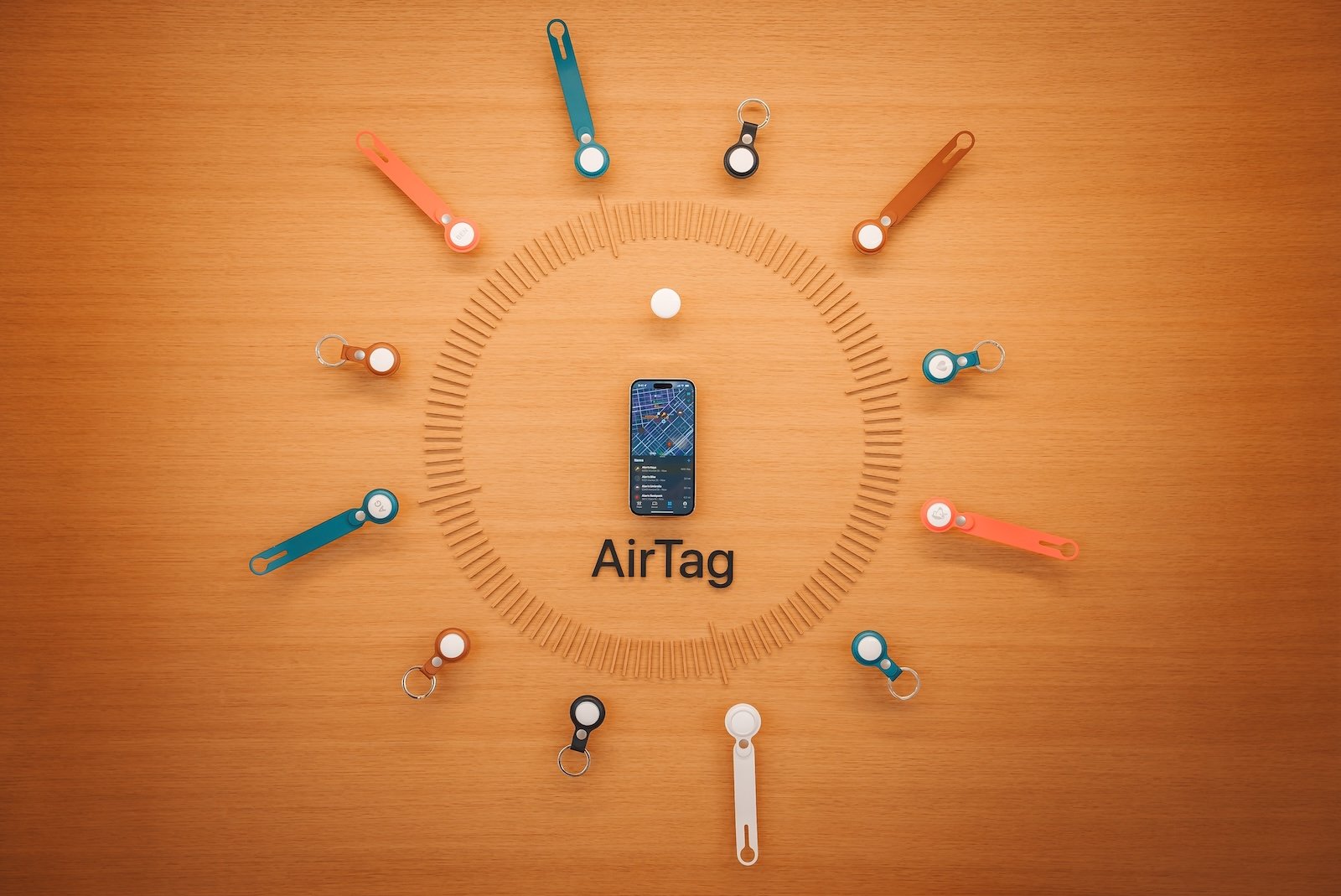
The AirTag 2 is Apple's compact item tracker designed to reliably locate everyday objects. In certain situations, it's necessary to completely reset the AirTag 2. This is especially true when giving the tracker to someone else, using a new iPhone, or experiencing pairing issues. A properly performed reset ensures that the AirTag 2 can be set up again without any limitations.
Each AirTag – including the AirTag 2 – can only be linked to a single Apple account at a time. Therefore, changing ownership or setting it up again is not possible without resetting it. The reset process may seem unusual at first, but it's intentionally designed this way to prevent accidental data loss. The entire process takes only about a minute.
Before resetting, ensure that no small children or pets are in the room. AirTags, and especially the button cell batteries they contain, pose a choking hazard and can cause serious internal injuries if swallowed.
How to properly reset AirTag 2
To reset the AirTag 2 to factory settings, only the battery is used. It is important that the individual steps are followed exactly, otherwise the reset will not be completed.
First, hold the AirTag so that the silver battery cover is facing upwards. Press firmly on the cover with both thumbs and turn it clockwise until it detaches from the casing. Then remove the battery and set it aside for about five seconds.
The battery is then reinserted. A short beep confirms that the AirTag is receiving power and connected. This process – removing the battery, waiting briefly, and reinserting it – is repeated a total of five times.
On the fifth insertion, a different sound will be heard. This indicates that the AirTag 2 has been successfully reset to factory settings. Compared to the original AirTag, it may take longer for this sound to be heard on the AirTag 2. In some cases, a waiting period of up to twelve seconds is required.
After the reset, the battery compartment cover is replaced and turned clockwise with firm pressure until it is securely in place.
Replace battery during reset
If the AirTag 2 has been in use for a while, a battery replacement is also a good idea. The AirTag uses a standard CR2032 coin cell battery. According to Apple, batteries without a bittering coating should be used, as this coating can impair the electrical connection and lead to connectivity problems.
Re-pair AirTag 2
After resetting, the AirTag 2 is in its factory state and must be paired again. An iPhone usually recognizes the AirTag automatically as soon as it is brought nearby.
If automatic detection fails, pairing can be initiated manually. To do this, open the "Find My" app and add a new device using the "Add" button – indicated by a plus sign. After tapping "Connect," the iPhone will guide you through the pairing process step by step until the AirTag 2 is fully operational again.
Detect AirTag generation
If you are unsure which generation of AirTag you have, you can check directly on the device. To do this, turn the AirTag over so that the silver battery cover is visible.
On the AirTag 2, the text on the cover is entirely in capital letters, and the phrase "Designed by Apple in California" is missing. However, if the text features both uppercase and lowercase letters and surrounds the Apple logo, it is the original first-generation AirTag. Regardless of the model, the reset and pairing process is nearly identical.
- AirTag 2: Setting up Precision Finding on the Apple Watch
- AirTag 2 vs. AirTag: All new features & differences at a glance
- AirTag 1 or AirTag 2: How to tell the difference
- AirTag 2: Which airlines support baggage tracking
- AirTag 2: These iPhones are compatible with improved tracking
Completely reset and re-pair AirTag 2
Resetting the AirTag 2 to factory settings is a clearly structured, yet deliberately redundant process. Removing and reinserting the battery exactly five times ensures a reliable reset and subsequent re-pairing of the tracker. This also provides an opportunity to replace the battery and restore the AirTag 2 to a clean, factory-like state. This guarantees that the tracker can be passed on or reused without any limitations. The best products for you: Our Amazon storefront offers a wide selection of accessories, including those compatible with HomeKit. (Image: Shutterstock / NorthSky Films)
- Apple Games App: Central hub for modern gaming
- Lockdown Mode: Maximum security for iPhone, iPad and Mac
- Apple Music: How to activate translated song lyrics in iOS 26
- Apple Creator Studio: Apps, subscription, and clear AI limits
- Is Apple Music taking up too much storage space? This will help immediately
- AirTag 2: Setting up Precision Finding on the Apple Watch
- How to turn texts into reminders with Apple Intelligence
- Precision Finding on the Apple Watch requires AirTag 2
- AirTag 2: Which airlines support baggage tracking
- AirTag 1 or AirTag 2: How to tell the difference
- AirTag 2: These iPhones are compatible with improved tracking
- iPhone alarm silent: Why the alarm suddenly stops working
- Safari at 120 Hz: How to activate smoother scrolling
- iOS 26 improves group chats with five new features
- Here's how to create Apple Music playlists with ChatGPT
- iOS 26: Change default apps on your iPhone
- Optimize your messaging app: Stop unwanted audio recordings
- iOS 26 turns photos into impressive 3D spatial scenes
- AirPods: Media no longer continues playing during sleep thanks to iOS 26
- Use Apple's Family Sharing to share content together
- iPhone tip: How alternative app distribution channels work
- iPhone tip: Access flight information directly in the system
- iOS 26.2 explained: How the new AirDrop codes work
Frequently Asked Questions (FAQ) about the AirTag 2 Reset
Resetting the AirTag 2 completely disconnects it from the previous Apple account. All existing links are deleted, allowing the tracker to be set up again like a new device.
The AirTag 2 can only be linked to one Apple account at a time. Without a reset, it cannot be used by another person, even with a new iPhone.
The entire process usually takes about one minute. It is crucial that the battery is removed and reinserted exactly five times.
The AirTag 2 only recognizes the reset via this specific procedure. If the battery is inserted fewer than five times, the reset process will not be triggered.
The AirTag 2 emits a different sound when the battery is inserted for the fifth time. This signal confirms a successful reset. It can take up to twelve seconds for the sound to occur.
The AirTag 2 uses a CR2032 coin cell battery. Apple recommends batteries without a bittering coating, as these coatings can interfere with the connection.
Yes, after resetting, the AirTag 2 is in its factory state and can be paired again immediately. In most cases, the iPhone recognizes the tracker automatically.
In this case, pairing can be started manually via the "Find My" app. The AirTag 2 can then be reconnected step by step using the "Add" option.
The process is essentially the same. With the AirTag 2, the confirmation signal may be slightly delayed after the fifth battery change.
On the AirTag 2, the text on the battery cover is entirely in capital letters, and the phrase "Designed by Apple in California" is missing. This text is present on the original AirTag.