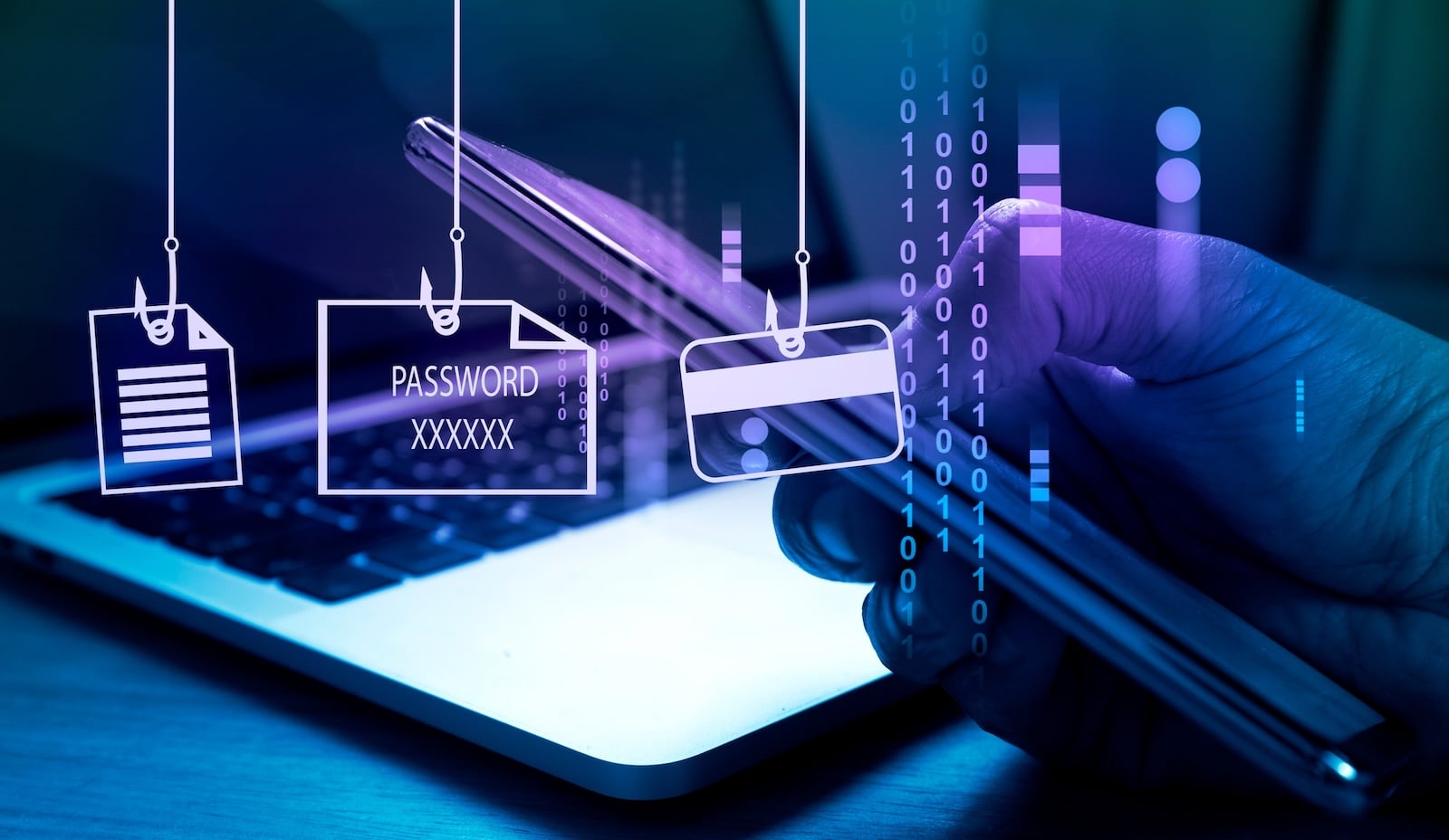
Phishing attacks are more sophisticated than ever. Spelling mistakes and poor design are a thing of the past – modern scams look deceptively real. This guide shows you how to recognize phishing and how to effectively protect yourself on your iPhone, iPad, and Mac.
You receive an email from your bank. The subject line sounds urgent, the logo looks genuine, and the language is flawless. Despite this, the message is a phishing attempt. Welcome to the world of phishing in 2026.
Phishing is one of the most common cyber threats worldwide. According to recent surveys, over 90 percent of all targeted cyberattacks begin with a phishing message. The insidious thing is that, thanks to the use of artificial intelligence, these messages are now so convincingly worded that even experienced users are easily fooled. The old advice to "watch out for spelling mistakes" is no longer sufficient.
This article explains step by step what phishing is, how to recognize it, and what protective measures you can immediately implement on your iPhone, iPad, and Mac. Because one thing is certain: technology alone doesn't protect you. You are your most important tool against phishing.
What is Phishing – and why is it so dangerous?
Phishing refers to the attempt to obtain personal data through fraudulent emails, text messages, websites, or phone calls. The name derives from the English word "fishing" - fraudsters "fish" for passwords, credit card details, login information, or other sensitive data.
The methods are diverse. Classic email phishing remains the most common variant. Other methods include smishing (phishing via SMS), vishing (phishing via telephone), quishing (phishing via QR code), and spear phishing, where attackers specifically target individuals using publicly available information from social networks.
The attackers' goals are almost always the same: to steal login credentials for online banking, email accounts, or cloud services, install malware, or steal money directly. And the numbers speak for themselves: the Anti-Phishing Working Group documented over 4.8 million phishing attacks worldwide in 2024 – a record high.
How to recognize Phishing: 7 warning signs
Even though phishing messages are becoming increasingly sophisticated, there are still clear warning signs. The following seven points will help you reliably identify suspicious messages.
1. The sender's address is incorrect
Don't just look at the displayed name, but the full email address. A message that appears to be from "Apple Support" but comes from an address like support@app1e-verify.xyz is a clear scam. On an iPhone, tap the sender's name in the Mail app to see the real address.
2. Artificial time pressure
Phrases like "Your account will be suspended in 24 hours," "Act immediately," or "Final warning" are typical social engineering tricks. Reputable companies will not put you under time pressure or threaten you with immediate consequences via email.
3. Suspicious links
Before clicking a link, check it. On an iPhone, tap and hold the link – the actual URL will then appear in a preview. On a Mac, hover your mouse cursor over the link and you'll see the destination address in Safari's status bar. If the URL doesn't match the sender's official domain or contains cryptic characters, be cautious.
4. Request for data entry
No reputable company will ever ask for your password, credit card number, or security code via email. If a message redirects you to a form requesting such information, it is highly likely a phishing attempt.
5. Unexpected attachments
Unexpected files with extensions like .zip, .exe, .html, or .docm are a clear warning sign. PDF files with embedded links and SVG files with hidden code are also increasingly being used for attacks. The rule is: Never open attachments you weren't expecting.
6. Impersonal or incorrect form of address
Even though many phishing emails now know your name, others still use generic greetings like "Dear Customer" or "Dear User". Also, pay attention to inconsistencies – for example, if your name is misspelled or the email has an unusual tone.
7. QR codes in emails
Quishing is a relatively new but rapidly growing form of fraud. Attackers embed QR codes in emails that lead to fake websites. The insidious thing is that conventional spam filters don't detect URLs hidden in images. Never scan a QR code from an email without verifying its origin.
Phishing on the iPhone: Specific risks and protective measures
Your iPhone is generally well protected by the closed iOS system. Malware in the classic sense is extremely rare on an unjailbroken iPhone. But phishing doesn't target your operating system, it targets you. And no sandbox model can protect against that.
Enable Safari fraud warning
Safari has a built-in protection feature that warns you about known phishing websites. Make sure it's enabled: Go to Settings > Apps > Safari and turn on the "Fraud Alert" option. Safari will then check whether a page is listed in a database of known phishing sites before loading it.
Report suspicious SMS and iMessages
If you receive a suspicious text message from an unknown number, you can report it directly as junk. To do this, tap "Report Junk" below the message. Apple analyzes these reports to improve its spam filter. You can forward phishing emails that appear to be from Apple to reportphishing@apple.com.
Use two-factor authentication
Two-factor authentication is one of the most important security measures available – and should be enabled wherever it's offered. Even if an attacker steals your password, they can't access your account without the second factor. For your Apple account, you can activate it under Settings > [Your Name] > Login & Security. But you should also enable 2FA with your bank, email services, social networks, and cloud storage providers whenever the option is offered.
Use Apple's Passwords App
Since iOS 18, Apple has offered a standalone Passwords app. It generates strong, unique passwords for each service and fills them in automatically – but only on the legitimate website. This is an underestimated phishing protection: If the Passwords app doesn't automatically recognize a login field, it could be a sign of a fake site.
What to do if you've fallen victim to phishing?
It can happen to anyone. If you've clicked on a phishing link or entered data, quick action is crucial.
Change all affected passwords immediately. Start with your most important account—usually your email account and your Apple account. Enable two-factor authentication if you haven't already. Check your accounts for suspicious activity, especially unknown logins or transactions.
If you have entered your bank details, contact your bank immediately and have the affected card blocked. File a police report – this is important for potential claims settlement and helps the authorities identify fraud patterns.
On your iPhone, you should also clear your Safari history and website data. To do this, go to Settings > Apps > Safari and tap "Clear History and Website Data." Also, check under Settings > General > VPN & Device Management to see if any unknown configuration profiles have been installed.
Phishing Protection on Mac
Macs also have effective built-in tools to protect against phishing. In Safari, under Safari > Preferences > Security, you'll find the option "Warn me about fraudulent content." Enable it if it isn't already.
In Apple Mail on your Mac, you can view the full email header to verify the actual sender address. To do this, select View > Mail > All Headers. There you will see, among other things, the sender's IP address and the actual route the message was taken.
Enhanced data protection for iCloud is also a worthwhile addition. End-to-end encryption ensures that even in the event of a data breach in the cloud, your backups, notes, and photos remain protected.
The most common phishing scams in Germany
Certain types of fraud are particularly widespread in Germany. The consumer protection agency continuously documents new cases in its phishing radar. Among the most common scams are fake emails from banks such as Sparkasse, Commerzbank, or Volksbanken, requesting alleged security updates or account verification. Also prevalent are fake package notifications via SMS, bogus Apple invoices or subscription confirmations, and messages claiming to be from PayPal, Amazon, or Netflix.
The golden rule is: Always resolve account issues directly within the account itself – not via links in emails. Manually open the official website in your browser or use the corresponding app.
Your data privacy as a protective shield
Phishing works better the more attackers know about you. That's why data privacy on your iPhone is a crucial part of your defense. Regularly check which apps are accessing your data and activate email privacy protection in the Mail app. This blocks tracking pixels and prevents senders from knowing whether you've opened an email.
iCloud Private Relay also helps to mask your IP address when browsing with Safari. And for those who want to go a step further, a VPN offers additional protection – especially on public Wi-Fi networks.
Phishing Protection starts with you
Phishing isn't going away – on the contrary, attacks are becoming increasingly convincing thanks to AI and automated tools. The best protection remains a combination of technical measures and healthy skepticism. Activate the security features on your iPhone and Mac, use strong and unique passwords, and take a moment to think before clicking on any unexpected message.
Ultimately, it's not the technology that determines whether a phishing attack is successful – it's your behavior. The best products for you: Our Amazon storefront offers a wide selection of accessories, including those for HomeKit. (Image: Shutterstock / janews)
- Creating, Changing, and Deleting an Apple ID: The complete Overview
- Activate iPhone Call forwarding: All Methods under iOS 26
- iPhone vibrates for no Reason: Causes and Solutions under iOS 26
- Connecting and resetting AirPods: Instructions for all Models
- AirDrop not working: All Solutions for iOS 26
- iPhone loading slowly: Causes and Solutions under iOS 26
- iPhone Screen Recording: Instructions for iOS 26
- How to view your Wi-Fi Password on your iPhone: All Methods under iOS 26
- iPhone Update Problems: All Solutions for iOS 26
- Creating an iPhone Backup: All methods under iOS 26
- Transferring Data to a new iPhone: All Methods under iOS 26
- Clear History on iPhone: Safari, Chrome and more
- Disable Audio Zoom on iPhone
- iPhone Battery drains quickly: Here's how to extend Battery Life under iOS 26
- Resetting your iPhone: All reset methods under iOS 26
- iCloud Costs: All storage plans, prices, and which one is worth it
- Recording an iPhone call: What works in Germany – and what doesn't
- Clear iPad Cache: More Storage and better Performance
- Clear iPhone cache: How to make your iPhone fast again
- Search iCloud.com: Activate new search function in iOS 26.4
- Apple Watch Tips: Hidden features you didn't know about
- iPhone storage full? Here's how to instantly free up more space
- Apple Account Purchase History: Review purchases, subscriptions & costs
- Apple Music: How to successfully migrate from Spotify & Co.
Frequently Asked Questions: How to Recognize Phishing
If your iPhone is running the latest iOS version, the risk from simply clicking on a phishing link is very low. While there have been isolated security vulnerabilities in the past that allowed users to cause harm simply by visiting a website, Apple usually closes these gaps quickly with an update. The real danger arises when you enter personal information on the target page. Nevertheless, after an accidental click, you should clear your Safari history and change your passwords as a precaution.
Check the sender's full email address – it must match the official Apple domain. Apple never asks you via email to disable security features, enter passwords via a link, or share verification codes. If in doubt, don't click on any link; instead, open the Apple website or the Settings app directly. You can forward suspicious emails to reportphishing@apple.com.
Quishing refers to QR code phishing. This involves placing QR codes in emails, on posters, or in letters that lead to fake websites. This method bypasses traditional email security filters because the malicious link is encoded in an image.
A VPN encrypts your internet connection and protects your data from eavesdropping, especially on public networks. However, a VPN only offers limited protection against phishing itself – it doesn't prevent you from clicking on a fake link. It's a useful addition, but no substitute for vigilance.
Contact your bank immediately and have the affected card or access blocked. Change your online banking password. File a police report and document everything – take screenshots of the suspicious email and website, if possible.
Yes. Forward suspicious emails that appear to be from Apple to reportphishing@apple.com. On a Mac, you can forward the message via Message > Forward as Attachment to include the header information. You can report suspicious text messages as junk directly in the Messages app.
Modern phishing emails are created using AI and constantly change their structure, links, and sender addresses. Traditional filters work with known patterns and signatures – polymorphic attacks, which look different on every occasion, can bypass these filters. That's why your own vigilance remains the most important protection.