AirPods are among Apple's most popular products – until the connection suddenly stops working, only one earbud plays sound, or the iPhone fails to recognize the AirPods. This article shows how to connect AirPods to an iPhone, pair them manually, and reset them if problems occur – currently for all models including AirPods 4, AirPods Pro 3, and AirPods Max 2.
Apple designed the initial setup of AirPods to be as simple as possible: hold the case next to the iPhone, open the cover, and tap "Connect." In practice, however, there are situations where this automatic process doesn't work—after an iOS update, with used AirPods, or when Bluetooth is malfunctioning.
Since iOS 26, the basic pairing process hasn't changed, but the AirPods firmware is updated more frequently, and outdated firmware can cause connection problems. Additionally, the reset method differs depending on the AirPods model: Newer models like AirPods 4 and AirPods Pro 3 no longer have a physical setup button, but instead use a double-tap on the front of the case.
Connecting AirPods for the first time
The initial setup process works on the same principle for all AirPods models.
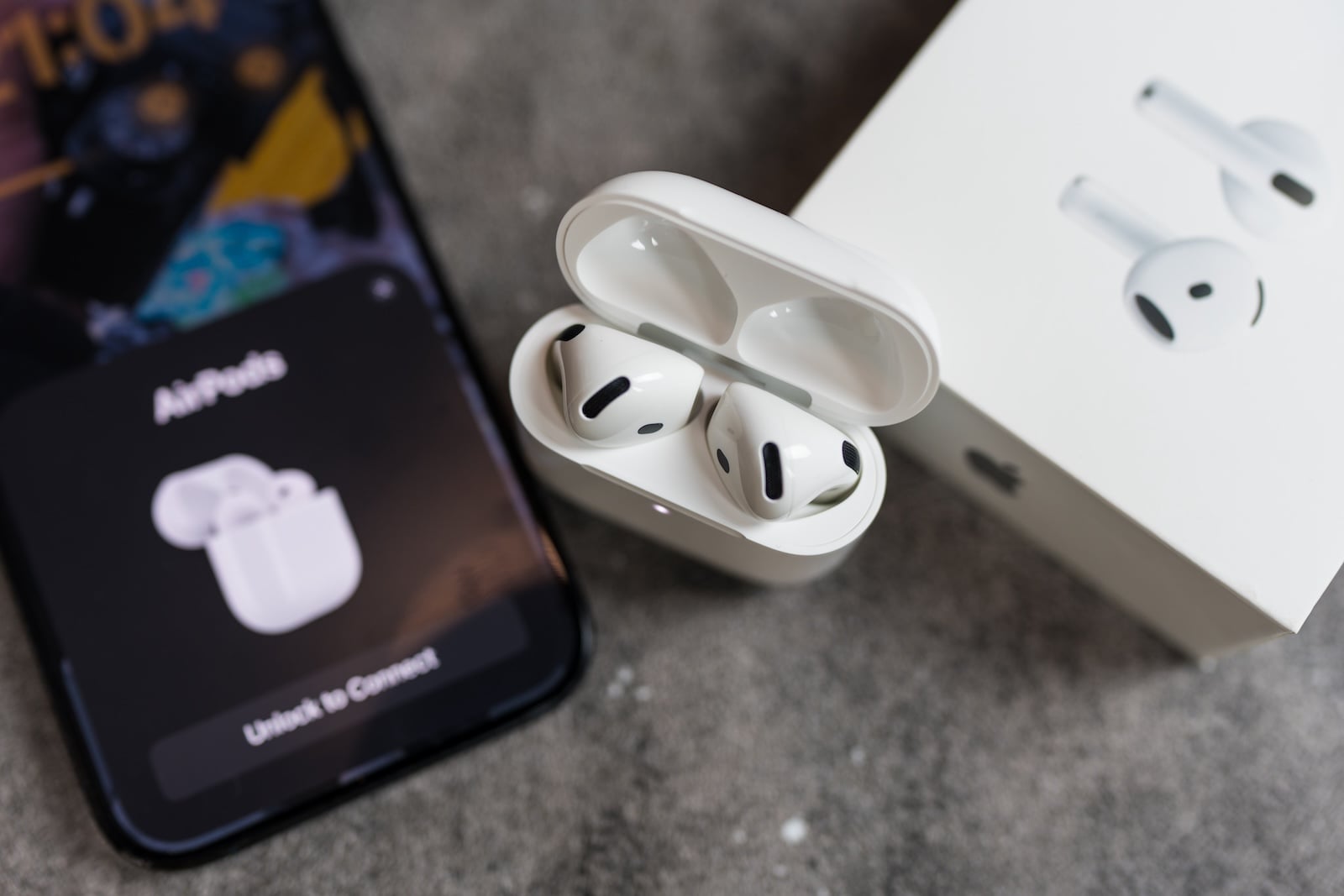
Make sure your iPhone is running the latest version of iOS and that Bluetooth is enabled. Hold the charging case with the AirPods inside next to your iPhone and open the lid. A setup animation will appear on your iPhone. Tap "Connect" and follow the on-screen instructions.
Once set up, the AirPods automatically connect to all Apple devices signed in with the same Apple ID – including iPad, Mac and Apple Watch.
Manually connect AirPods
If the setup animation does not appear, the AirPods can also be paired manually.
On your iPhone, open Settings > Bluetooth and make sure Bluetooth is enabled. Then proceed according to your model:
AirPods 1, 2, 3 and AirPods Pro 1 or 2: Open the charging case lid while the AirPods are inside. Press and hold the setup button on the back of the case until the status light flashes white.
AirPods 4 (both models) and AirPods Pro 3: Open the charging case lid. Double-tap the front of the case until the status light flashes white.
AirPods Max: Press and hold the "Listening Mode" button for about five seconds until the status light flashes white. Alternatively, AirPods Max 1 (USB-C) and AirPods Max 2 can be connected directly to the iPhone using a USB-C cable.
In all cases, the AirPods will then appear in the Bluetooth list on your iPhone. Tap them to establish the connection.
AirPods won't connect – Troubleshooting
If the AirPods are not recognized despite following the correct steps, or if the connection keeps dropping, there are several possible causes.
Charging AirPods
A frequently overlooked reason: The AirPods or the case are not sufficiently charged. Place both AirPods in the case, close the lid, and charge for at least 15 minutes. The status indicator on the case shows the charge level – green means fully charged, yellow means below 20 percent.
Restart Bluetooth
On your iPhone, go to Settings > Bluetooth, turn Bluetooth off, wait ten seconds, and turn it back on. Alternatively, briefly activate and then deactivate airplane mode.
Check firmware
Outdated AirPods firmware can cause connection problems. Go to Settings > Bluetooth, tap the information icon (ⓘ) next to your AirPods, and check the firmware version. AirPods update automatically when they're in their case, the lid is closed, and the case is plugged into the charger near your iPhone. If you want to start the process manually, you can find instructions in our article How to update your AirPods firmware.
Disconnect other Bluetooth devices
Too many active Bluetooth connections can interfere with pairing. Check under Settings > Bluetooth to see if other Bluetooth devices are connected and temporarily disconnect them.
Restarting the iPhone
A restart often fixes temporary Bluetooth problems: Press and hold the side button and a volume button, slide the power off switch, wait 30 seconds and turn the iPhone back on.
Reset AirPods to factory settings
If all other steps fail, a factory reset is the last resort. This will erase all AirPods settings, and they can then be set up like new AirPods.
Step 1: Unpair AirPods from iPhone
Go to Settings > Bluetooth, tap the information icon (ⓘ) next to your AirPods, and then tap "Forget This Device." Confirm. This will remove the AirPods from all devices signed in with the same Apple ID.
If the AirPods do not appear in the Bluetooth list, skip this step and proceed directly to the reset.
Step 2: Restore factory settings
The reset method differs depending on the model:
AirPods 1, 2, 3 and AirPods Pro 1 or 2: Place both AirPods in the case and close the lid. Wait 30 seconds. Open the lid and press and hold the setup button on the back of the case for about 15 seconds. The status light will blink yellow, then white – the reset is complete.
AirPods 4 (both models) and AirPods Pro 3: Place both AirPods in the case and close the lid. Wait 30 seconds. Open the lid and double-tap the front of the case three times – the indicator will light up the first time, blink white the second time, and blink faster the third time. When the indicator blinks yellow and then white, the reset is complete.
AirPods Max: On the right earbud, simultaneously press and hold the Digital Crown and the Listening Mode button for about 15 seconds, until the status indicator flashes yellow and then white.
Step 3: Reconnect
After resetting, hold the case with the AirPods inside next to the iPhone and open the lid. The setup animation will appear, and the AirPods can be set up like new devices.
Only one AirPod connects
A common problem: music only plays from one earbud, the other remains silent. This can be due to a charging issue, dirt, or a faulty Bluetooth connection.
Place both AirPods in the case and close the lid. Wait 30 seconds, then open the lid and remove both AirPods. Check under Settings > Bluetooth to see if both AirPods are shown as connected.
If only one AirPod is connected: Clean the charging contacts in the case and on the AirPods themselves with a dry, lint-free cloth. A dirty contact can prevent an AirPod from charging and being recognized correctly.
If that doesn't help either, reset the AirPods to factory settings (see above) and reconnect them.
Connecting AirPods to a new iPhone
After purchasing a new iPhone, the AirPods do not need to be manually set up again. If the same Apple ID is used on the new iPhone and iCloud Keychain is enabled, the AirPods will connect automatically.
If automatic connection doesn't work: Connect the AirPods to the new iPhone using manual pairing (see above). A reset is not necessary in this case – the AirPods can be paired with the new device without manually disconnecting from the old one beforehand. For tips on transferring data to a new iPhone, see our article Transferring iPhone Data to a New iPhone.
Connecting used AirPods
Used AirPods can only be connected to a new iPhone if the previous owner has removed them from their Apple account. As long as the AirPods are still linked to another Apple ID, the initial setup on a different device cannot be completed.
If the previous owner didn't unpair the AirPods, they can do so retroactively via the "Find My" app or iCloud.com. Without this authorization, the AirPods will remain locked.
Connecting AirPods to non-Apple devices
AirPods can also be used with Android smartphones, Windows PCs and other Bluetooth devices – however, without Apple-specific features such as automatic device switching, Siri or the setup animation.
Put the AirPods into pairing mode (press and hold the setup button or double-tap the front of the case, depending on the model, until the status light flashes white). On the non-Apple device, open Bluetooth settings and search for available devices. Select the AirPods and connect.
The AirPods then function as normal Bluetooth headphones with basic functions such as play, pause, and volume control. The best products for you: Our Amazon storefront offers a wide selection of accessories, including those compatible with HomeKit. (Image: Shutterstock / Dontree_M)
- AirDrop not working: All Solutions for iOS 26
- iPhone loading slowly: Causes and Solutions under iOS 26
- iPhone Screen Recording: Instructions for iOS 26
- How to view your Wi-Fi Password on your iPhone: All Methods under iOS 26
- iPhone Update Problems: All Solutions for iOS 26
- Creating an iPhone Backup: All methods under iOS 26
- Transferring Data to a new iPhone: All Methods under iOS 26
- Clear History on iPhone: Safari, Chrome and more
- Disable Audio Zoom on iPhone
- iPhone Battery drains quickly: Here's how to extend Battery Life under iOS 26
- Resetting your iPhone: All reset methods under iOS 26
- iCloud Costs: All storage plans, prices, and which one is worth it
- Recording an iPhone call: What works in Germany – and what doesn't
- Clear iPad Cache: More Storage and better Performance
- Clear iPhone cache: How to make your iPhone fast again
- Search iCloud.com: Activate new search function in iOS 26.4
- Apple Watch Tips: Hidden features you didn't know about
- iPhone storage full? Here's how to instantly free up more space
- Apple Account Purchase History: Review purchases, subscriptions & costs
- Apple Music: How to successfully migrate from Spotify & Co.
- AirTag 2 Factory Reset: How to Perform a Reset
- Apple Games App: Central hub for modern gaming
- Lockdown Mode: Maximum security for iPhone, iPad and Mac
Frequently Asked Questions: Connecting and resetting AirPods
Hold the charging case with the AirPods inside next to your iPhone and open the lid. The setup animation will appear automatically. Tap "Connect" and follow the instructions. The AirPods will then automatically sync with all Apple devices signed in with the same Apple ID.
To manually pair AirPods: For older models, press and hold the setup button on the back of the case until the indicator flashes white. For AirPods 4 and AirPods Pro 3, double-tap the front of the case. Then, under Settings > Bluetooth, select AirPods.
Place the AirPods in the case, close the lid, and wait 30 seconds. For AirPods 1–3 and Pro 1–2, hold the setup button on the back for 15 seconds. For AirPods 4 and Pro 3, double-tap the front of the case three times. The status light will blink amber, then white.
The most common cause: A dirty charging contact prevents one of the AirPods from charging correctly. Clean the contacts in the case and on the AirPods with a dry, lint-free cloth. If that doesn't help, reset the AirPods and reconnect them.
Yes, as regular Bluetooth headphones. Put the AirPods into pairing mode and select them in the Bluetooth settings on your Android device. Apple-specific features such as automatic device switching, Siri, or the setup animation are not available.
The previous owner must first remove the AirPods from their Apple account – via the "Find My" app or iCloud.com. Without this authorization, the AirPods will remain locked and cannot be set up again.
Yes. The firmware is installed automatically when the AirPods are in their closed case, the case is connected to the charger, and the case is near your iPhone. You can check the current firmware version under Settings > Bluetooth > About icon next to the AirPods.