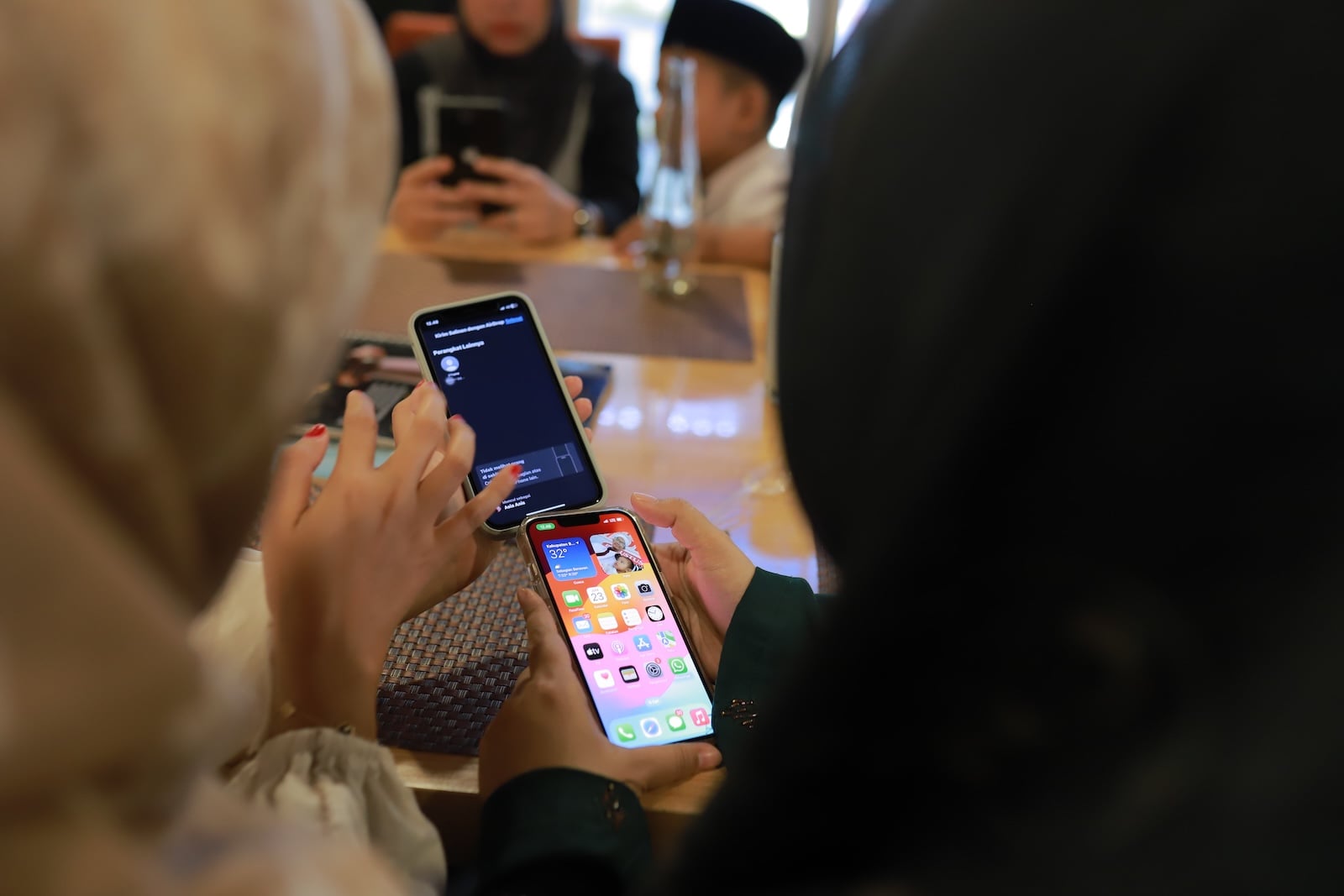
AirDrop is the fastest way to share photos, videos, and files between Apple devices—until it suddenly stops working. The receiving device doesn't appear, the transfer is interrupted, or it gets stuck in "Waiting" mode. The causes range from incorrect settings and wireless issues to iOS bugs after updates. This article systematically addresses all the problems and provides the corresponding solutions.
AirDrop uses Bluetooth for device discovery and Wi-Fi for the actual data transfer. Both wireless connections must be active on both the sender and receiver, the devices must be unlocked and within range, and the receiver settings must be correct. Sounds simple, but in practice there are many pitfalls.
Since iOS 16.2, Apple has changed AirDrop visibility: The "Everyone" option is limited to ten minutes and then automatically reverts to "Contacts Only." iOS 26.2 also introduced the AirDrop passcode feature, which allows PIN-based pairing for 30 days. These changes resolve some existing issues but also create new confusion. For those who want to set up and optimally use AirDrop, our article Using iPhone AirDrop Effectively – 6 Simple Tips provides an overview.
The recipient is not displayed
The most common problem: The device to which the file is to be sent does not appear in the AirDrop list. There are several possible reasons for this.
Check reception Settings
On the receiving device, open the Control Center and press and hold the network widget (Wi-Fi, Bluetooth, Airplane Mode). Tap the AirDrop icon and check which option is active.
Turn off reception – the device is not visible to anyone. Switch to "Contacts only" or "10 minutes for everyone".
Contacts only – The device is only visible to people saved in your contacts. Important: Not only the name must be saved, but also the sender's Apple account email address or phone number. If this is missing, AirDrop will not recognize the contact.
10 minutes for everyone – The device is visible to everyone within range, but only for ten minutes. After that, iOS automatically switches back to "Contacts only". Anyone sending messages for longer must reactivate the option.
Device unlocked and Display on
AirDrop only works if the receiving device is unlocked and the display is active. An iPhone in sleep mode or with a locked screen is invisible to AirDrop. This also applies to Macs in sleep mode.
Distance and obstacles
Bluetooth has a practical range of about nine meters. Thick walls, metal surfaces, and other sources of interference can impair the connection. For stable transmission, the devices should be within a radius of no more than three to five meters.
The transmission is interrupted or gets stuck on "Waiting"
The transfer starts, but the progress bar doesn't move or the connection drops after a few seconds.
Restart Bluetooth and Wi-Fi
On both devices, briefly turn off Bluetooth and Wi-Fi via the control center, wait ten seconds, and then turn them back on. Alternatively, activate airplane mode for ten seconds and then deactivate it again – this resets both wireless connections simultaneously.
Disable Personal Hotspot
The personal hotspot and AirDrop can interfere with each other because they both use the Wi-Fi interface. If the hotspot is active on one of the devices, deactivate it under Settings > Personal Hotspot.
Disable VPN
An active VPN redirects all network traffic and can interfere with AirDrop's direct peer-to-peer connection. Temporarily disable VPN connections before transferring.
Reduce data volume
Theoretically, there's no limit to the number of files that can be sent via AirDrop. In practice, however, a very large amount of data can make the transfer unstable. If the transfer fails when sending many photos or videos, try sending the files in smaller groups.
AirDrop between iPhone and Mac is not working
Problems between iPhone and Mac often have specific causes that do not occur when transferring data between two iPhones.
Check the firewall on your Mac
On macOS, the firewall can block AirDrop connections. Go to System Preferences > Network > Firewall > Options and check that "Block all incoming connections" is not enabled. If this option is enabled, AirDrop requests will be rejected.
Make AirDrop visible in Finder
On your Mac, open a Finder window and click "AirDrop" in the sidebar. At the bottom of the window, check that "I'm visible to" is set to either "Everyone" or "Contacts Only." If AirDrop doesn't appear in the sidebar, enable the "AirDrop" option under Finder > Preferences > Sidebar.
Use the same Apple ID on your own devices
If both devices are signed in with the same Apple ID, "Contacts only" should be sufficient. If that doesn't work, make sure your Apple ID email address is entered in the contacts on both devices.
AirDrop doesn't work after iOS Update
After a major iOS update – especially after switching to a new major version like iOS 26 – temporary AirDrop problems often occur. Several users reported connection issues after iOS 26.2.
Restart both devices
Turn both devices off completely, wait 30 seconds, and turn them back on. A restart will terminate any stuck processes and clear the RAM.
Reset network Settings
If restarting doesn't help: Settings > General > Transfer/Reset iPhone > Reset > Reset Network Settings. This will delete all saved Wi-Fi passwords, VPN configurations, and Bluetooth pairings – but AirDrop problems are often resolved afterward. Our article Resetting your iPhone: All reset methods in iOS 26 explains all other reset methods.
Sign out of iCloud and sign back in
In rare cases, tapping your name in Settings > Sign out of your Apple ID, restarting your iPhone, and then signing back in can help. AirDrop uses your Apple ID for contact recognition – logging in again can correct incorrect pairings.
Check for iOS Update
Apple regularly fixes AirDrop bugs in point updates. Check for a new version under Settings > General > Software Update. For update problems, see our article iPhone Update Problems: All Solutions under iOS 26.
"10 Minutes for Everyone" is expiring
Since iOS 16.2, the "View Everyone" option automatically reverts to "Contacts Only" after ten minutes. Anyone attempting to send a file to someone not in their contacts after that time will no longer see the device. This is not a bug, but rather Apple's privacy design.
The solution: Reactivate the "10 Minutes for Everyone" option on the receiving device. Alternatively, iOS 26.2 offers the AirDrop code feature: The recipient displays a PIN code, which the sender enters. Afterward, both devices are visible to each other for 30 days – without having to use the "For Everyone" option. Learn more in our article iOS 26.2: Beta reveals planned AirDrop update.
Focus mode blocks AirDrop
When a focus mode like "Do Not Disturb" is active, AirDrop requests may be suppressed. In this case, the receiving device will not display a notification about incoming transmissions.
Try disabling all focus modes: Open Control Center and tap the focus icon to turn off the active mode. If AirDrop works again afterward, the problem was related to the focus mode.
Test NameDrop as an alternative
NameDrop has been available since iOS 17: Simply hold two iPhones camera-side together to transfer contact information or photos. NameDrop uses the same technology as AirDrop. If NameDrop is working, the underlying AirDrop connection is intact – the problem likely lies with the receiving settings or visibility.
If NameDrop is not working, check the function under Settings > General > AirDrop > "Hold devices together" and make sure it is enabled.
AirDrop: Quick Checklist
For those who don't want to go through each step individually, the following sequence resolves most AirDrop problems in under two minutes. Activate airplane mode on both devices for ten seconds and then deactivate it again. On the receiving device, set AirDrop to "10 minutes for everyone." Ensure both devices are unlocked and the screen is on. Disable personal hotspot and VPN. Place the devices within a distance of three to five meters. If it still doesn't work: Restart both devices completely and try again.
If the problems persist after all steps, resetting your network settings or installing a pending iOS update might solve the problem. For a more comprehensive overview of AirDrop and how to set it up optimally, see our article Using iPhone AirDrop Effectively – 6 Simple Tips. The best products for you: Our Amazon storefront offers a wide selection of accessories, including those for HomeKit. (Image: Shutterstock / Aan Herman Yulianto)
- iPhone loading slowly: Causes and Solutions under iOS 26
- iPhone Screen Recording: Instructions for iOS 26
- How to view your Wi-Fi Password on your iPhone: All Methods under iOS 26
- iPhone Update Problems: All Solutions for iOS 26
- Creating an iPhone Backup: All methods under iOS 26
- Transferring Data to a new iPhone: All Methods under iOS 26
- Clear History on iPhone: Safari, Chrome and more
- Disable Audio Zoom on iPhone
- iPhone Battery drains quickly: Here's how to extend Battery Life under iOS 26
- Resetting your iPhone: All reset methods under iOS 26
- iCloud Costs: All storage plans, prices, and which one is worth it
- Recording an iPhone call: What works in Germany – and what doesn't
- Clear iPad Cache: More Storage and better Performance
- Clear iPhone cache: How to make your iPhone fast again
- Search iCloud.com: Activate new search function in iOS 26.4
- Apple Watch Tips: Hidden features you didn't know about
- iPhone storage full? Here's how to instantly free up more space
- Apple Account Purchase History: Review purchases, subscriptions & costs
- Apple Music: How to successfully migrate from Spotify & Co.
- AirTag 2 Factory Reset: How to Perform a Reset
- Apple Games App: Central hub for modern gaming
- Lockdown Mode: Maximum security for iPhone, iPad and Mac
Frequently Asked Questions: AirDrop is not working
The most common culprit is the receiving setting. On the receiving device, check in the Control Center whether AirDrop is set to "Contacts Only" or "10 Minutes for Everyone." The device must also be unlocked and the screen active.
Since iOS 16.2, the "Share with everyone" option is limited to ten minutes. After that, AirDrop automatically switches to "Contacts only." This is not a bug, but a privacy feature by Apple.
With the "Contacts Only" setting, the sender's Apple ID email or phone number must be saved in the recipient's contacts. The name alone is not sufficient. Alternatively, activate "10 Minutes for Everyone".
Restart both devices, turn Bluetooth and Wi-Fi off and on again, and check for a new iOS update. If problems persist, reset the network settings.
Yes. An active VPN redirects network traffic and can interfere with AirDrop's direct peer-to-peer connection. Deactivate the VPN before transferring.
Bluetooth has a theoretical range of nine meters. In practice, for a stable connection, devices should be no more than three to five meters apart. Thick walls and metal surfaces can reduce the range.
Since iOS 26.2, the recipient can view a PIN code entered by the sender. Afterwards, both devices are visible to each other for 30 days – without having to save the devices as contacts.