Three USB-C cables in the drawer, all looking identical – yet only one transfers data at full speed, the second merely charges, and the third won't drive a monitor. Which cable your Mac really needs comes down less to the connector than to the standard behind it. That's exactly where it's decided whether a 120 Gbit/s MacBook ends up crawling along at USB 2 speed.
Since Apple switched the Mac entirely to USB-C, every port looks the same: the oval connector fits MacBook Air, Mac Studio, and MacBook Neo alike. What runs over this identical connector, however, differs drastically – sometimes it's 120 Gbit/s via Thunderbolt 5, sometimes 40 Gbit/s via USB 4, sometimes just 10 Gbit/s via plain USB 3. The same principle is familiar from the question of how many external displays a Mac can actually drive: there, too, it's not the port that sets the pace but the chip inside. With the cable, a second factor comes into play, because even the fastest Mac stays slow if the cable doesn't support the standard. This overview lays out which USB-C cable suits which Mac – for data, for charging, and for display.
The Connector Is the Same, the Standard Behind It Isn't
USB-C initially describes only the connector shape. Which protocol runs over it is an entirely different question. Three performance classes are in circulation on modern Macs: Thunderbolt 5 with up to 120 Gbit/s, Thunderbolt 4 or USB 4 with up to 40 Gbit/s, and plain USB 3 with up to 10 Gbit/s. Below that sits the oldest standard, USB 2.0, which manages just 480 Mbit/s – relevant mainly for simple charging cables.
The good news: the standards are backward compatible. A Thunderbolt 5 cable also works on a Thunderbolt 4 Mac – just at that machine's top speed. The bad news: only the spec sheet reveals which standard is actually inside the housing. Much like the question of how much memory an Apple silicon Mac really needs, going by looks alone is misleading here.
Which Port Class Is Inside Your Mac
Apple assigns every model to exactly one class. Thunderbolt 5 is reserved for the more powerful devices of the recent generations, while most base Macs rely on 40 Gbit/s.
| Port Class | Maximum Speed | Example Macs |
|---|---|---|
| Thunderbolt 5 | 120 Gbit/s | 14" MacBook Pro with Pro/Max chip (2024 and later), 16" MacBook Pro (2024 and later), Mac mini M4 Pro, Mac Studio (2025 and later) |
| Thunderbolt 4 / USB 4 | 40 Gbit/s | MacBook Air (all Apple silicon models), MacBook Pro with base chip (M4, M5), iMac, Mac mini base models, earlier Mac Studio (2022–2023), Mac Pro |
| USB 3 (no Thunderbolt) | 10 Gbit/s | MacBook Neo |
The MacBook Neo deliberately breaks the mold, as it lacks Thunderbolt entirely. Its two USB-C ports aren't equal, either: the left one runs at USB 3 (up to 10 Gbit/s) and is the only port that outputs a video signal, while the right one manages only USB 2 (up to 480 Mbit/s). The fact that, by design, the device drives only a single external monitor anyway fits the picture of a chip that originates from iPhone development. A Thunderbolt cable therefore offers no advantage here – it only runs at USB speed, and the notebook doesn't even recognize Thunderbolt-only devices.
Another quirk concerns the Mac mini: there, the two front USB-C ports are slower than the rear ones. The front offers USB 3 at 10 Gbit/s, while the full Thunderbolt speed is available only at the rear ports.
Data Rates: How the Cables Compare
With the cable itself, what matters most is which standard it can carry. Apple offers two pro cables for this, plus the simple charging cable that comes with many devices.
| Cable | Maximum Data Rate | Charging | Video Signal |
|---|---|---|---|
| Thunderbolt 5 Pro Cable | 120 Gbit/s (TB5) · 10 Gbit/s (USB 3.2 Gen 2) | up to 240 W | Yes – DisplayPort 2.1 |
| Thunderbolt 4 Pro Cable | 40 Gbit/s (TB4/TB3/USB 4) · 10 Gbit/s (USB 3.2 Gen 2) | up to 100 W | Yes – DisplayPort HBR3 |
| USB-C Charging Cable | 480 Mbit/s (USB 2.0) | Yes, with a USB-C power adapter | no |
The decisive rule is that of the weakest link: the actual speed always depends on the slowest party among Mac, cable, and connected device. A Thunderbolt 5 cable on a Thunderbolt 4 Mac delivers a maximum of 40 Gbit/s, on the MacBook Neo only 10 Gbit/s via USB 3. Conversely, a simple USB 2 cable slows even the fastest Mac down to 480 Mbit/s.
Length plays a role, too. Passive USB-C cables lose speed as distance increases, which is why cheap off-the-roll cable often doesn't hold the full speed. Apple's pro cables are designed for their respective lengths; the Thunderbolt 4 Pro Cable, for instance, maintains its 40 Gbit/s as an active cable even over three meters.
Charging: What Matters in a Cable
For charging, every current MacBook Air and MacBook Pro comes with a USB-C to MagSafe 3 cable, so that the actual charging port is separate and the USB-C ports stay free. Charging works just as well over the USB-C ports, though – with any power adapter that supports USB Power Delivery (USB PD). A higher- or lower-rated power adapter is no problem here; the Mac always draws only as much as it can handle.
With the cable, the rated power is what counts. The Thunderbolt 5 Pro Cable passes through up to 240 watts, the Thunderbolt 4 Pro Cable up to 100 watts, and even the simple USB-C charging cable charges reliably. The difference becomes important with the 16-inch MacBook Pro: when fast charging, it draws up to 140 watts – more than a Thunderbolt 4 Pro Cable can pass through at all. Here, the way to go is the bundled USB-C to MagSafe 3 cable or a USB-C cable that is explicitly rated for the full power.
Display: Which Cable Drives a Monitor
Whether a cable transmits an image at all is the most frequently underestimated question. The Thunderbolt Pro cables output a DisplayPort video signal and thus drive demanding monitors like the Apple Studio Display or the Pro Display XDR. The simple USB-C charging cable, on the other hand, carries no video – anyone connecting a monitor with it is left staring at a black screen.
An ordinary USB-C cable transmits an image only if it supports what's known as DisplayPort Alt Mode. With the MacBook Neo, the previously mentioned peculiarity comes on top of that: only the left USB-C port outputs a signal, and Thunderbolt-only displays don't work with the device.
Which Cable for Which Purpose
From all of this, a clear approach emerges for everyday use. If you just want to charge a MacBook Air or Pro, the bundled USB-C to MagSafe 3 cable has you fully covered; for travel, a simple USB-C charging cable is enough. When it comes to fast external SSDs or a dock, the cable should match your Mac's class: on a Thunderbolt 5 Mac, only a Thunderbolt 5 cable unlocks the full 120 Gbit/s, while for a Thunderbolt 4 or USB 4 Mac, a Thunderbolt 4 cable is perfectly sufficient. For an external monitor, you need a cable with DisplayPort Alt Mode or a Thunderbolt cable – and on the Neo, the left port.
For the MacBook Neo, an expensive Thunderbolt cable isn't worth it – a high-quality USB 3 cable on the left port is enough for data and display. Apple also recommends using the right port for charging, so that the faster left one stays free for a display or accessories.
A selection of cables organized by these classes can be found in our Amazon storefront.
The Most Common Pitfalls
A charging cable isn't the same as a data cable. The thin USB-C cable that comes with many devices often only transmits USB 2.0 at 480 Mbit/s and outputs no video signal. For a fast SSD or a monitor, it's the wrong choice.
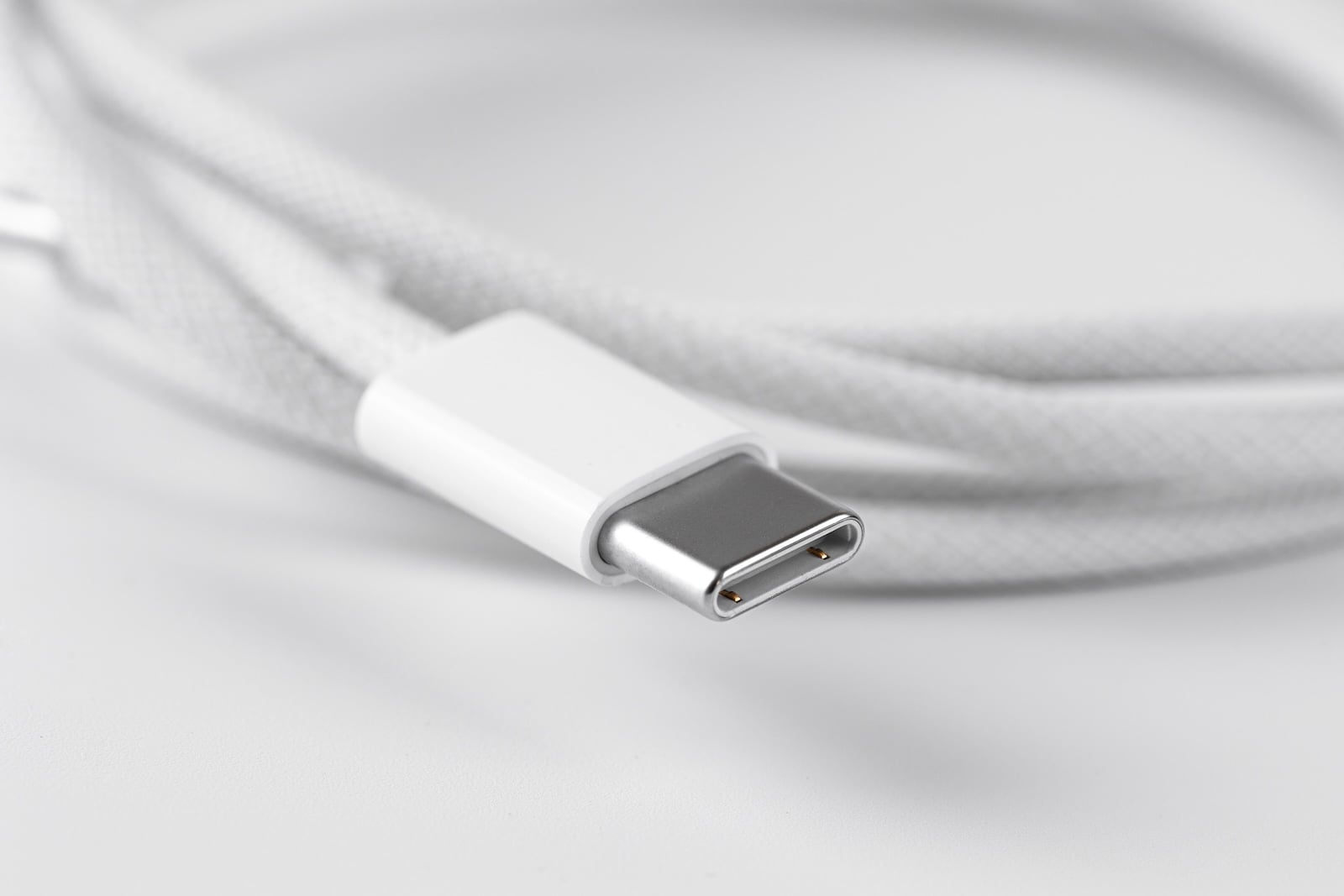
Same look, different speed. Two visually identical cables can be worlds apart – from 40 Gbit/s down to 480 Mbit/s. You can spot Thunderbolt cables by the small lightning symbol on the connector.
Cheap no-name products. Very inexpensive cables reliably deliver neither performance nor safety. Anyone wanting to charge over the cable should look for a specific wattage rating.
Length costs speed. The longer a passive cable, the more likely it is to fall short of the full speed. Active cables are made for greater distances, like Apple's three-meter Thunderbolt 4 Pro Cable.
Thunderbolt on the wrong device. On the MacBook Neo, a Thunderbolt cable offers no advantage, because the notebook lacks Thunderbolt entirely. The front USB-C ports of the Mac mini, too, only carry USB 3 – the full speed is available at the rear ports.
USB-C Cables on Mac – The Key Points at a Glance
The connector is the same everywhere, but the Mac decides on the standard behind it: Thunderbolt 5 at 120 Gbit/s, Thunderbolt 4 or USB 4 at 40 Gbit/s, or plain USB 3 at 10 Gbit/s on the MacBook Neo. The cable has to match this class and the purpose – for charging, the bundled MagSafe cable is enough; for a fast SSD, you need the right Thunderbolt cable; and a monitor only works over DisplayPort Alt Mode or Thunderbolt. Bringing speed, charging power, and display together gets you the maximum the hardware allows – but not even the best cable can do more than the chip class permits. (Image: Shutterstock / Primakov)
- Apple Silicon: How Much RAM Do You Really Need?
- How many external displays does your Mac support?
- iOS 27: Finally Set Alarm and Notification Volumes Separately
- Create a Pass in iOS 27: Create Your Own Wallet Passes
- iOS 27, iPadOS 27 and macOS Golden Gate: These Apple devices are compatible
- How to install the iOS 27 Developer Beta: guide, risks and troubleshooting
- Setting Up Apple Family Sharing Securely: What Parents Need to Know
- iCloud Private Relay vs. VPN: What Actually Protects You?
- How to protect Apple devices from malware
- Configuration Profiles on the iPhone: When They Help, When They Become Dangerous
- HomePod Plays Music on Its Own: How to Stop Ghost Touches
- Selling Your iPhone Safely: How to Prepare Your Device the Right Way
- Using Apple Pay Safely: How the iPhone Protects Your Payments
- Data Leak Check on iPhone: How to Find Compromised Passwords
- Spotting a Hacked iPhone: Real Warning Signs, Common False Alarms and the Right Steps
- Advanced Data Protection for iCloud: How to Use Apple's Strongest Encryption Tier
- NameDrop on iPhone and Apple Watch: How to Use It Right
- Two-Factor Authentication for the Apple Account: Setup Guide, Options and Security Levels
- Using Passkeys on Apple Devices: How Passwordless Sign-In Works
- Activate and properly use Stolen Device Protection on iPhone
- Pegasus and Commercial Spyware on iPhone: What Users Really Need to Know
- Secure email usage on the iPhone
Frequently Asked Questions: USB-C Cables on Mac
By the small lightning symbol on every connector. Simple USB-C or charging cables don't carry it – but otherwise they look identical.
For charging alone, yes, provided the power adapter supports USB Power Delivery. Simple charging cables, however, transfer hardly any data (USB 2.0) and no image. With the 16-inch MacBook Pro at up to 140 watts, the cable should be rated for that power.
Pure charging cables output no video signal. A cable has to support DisplayPort Alt Mode or Thunderbolt for an external screen to receive a signal.
Not beyond the Mac's maximum – on a Thunderbolt 4 Mac it stays at 40 Gbit/s. The cable is backward compatible and so does no harm, but it costs more than necessary.
No Thunderbolt, since the device lacks it entirely. A high-quality USB 3 cable with USB-C connectors is enough; an image is available only on the left port.
Passive cables lose speed as their length increases. For the full 40 Gbit/s over three meters, you need an active cable, like Apple's Thunderbolt 4 Pro Cable in the 3-meter version.
Both reach up to 40 Gbit/s. Thunderbolt 4 additionally guarantees fixed minimum standards for display output, daisy-chaining, and minimum speed – in everyday use, the two are equally fast.