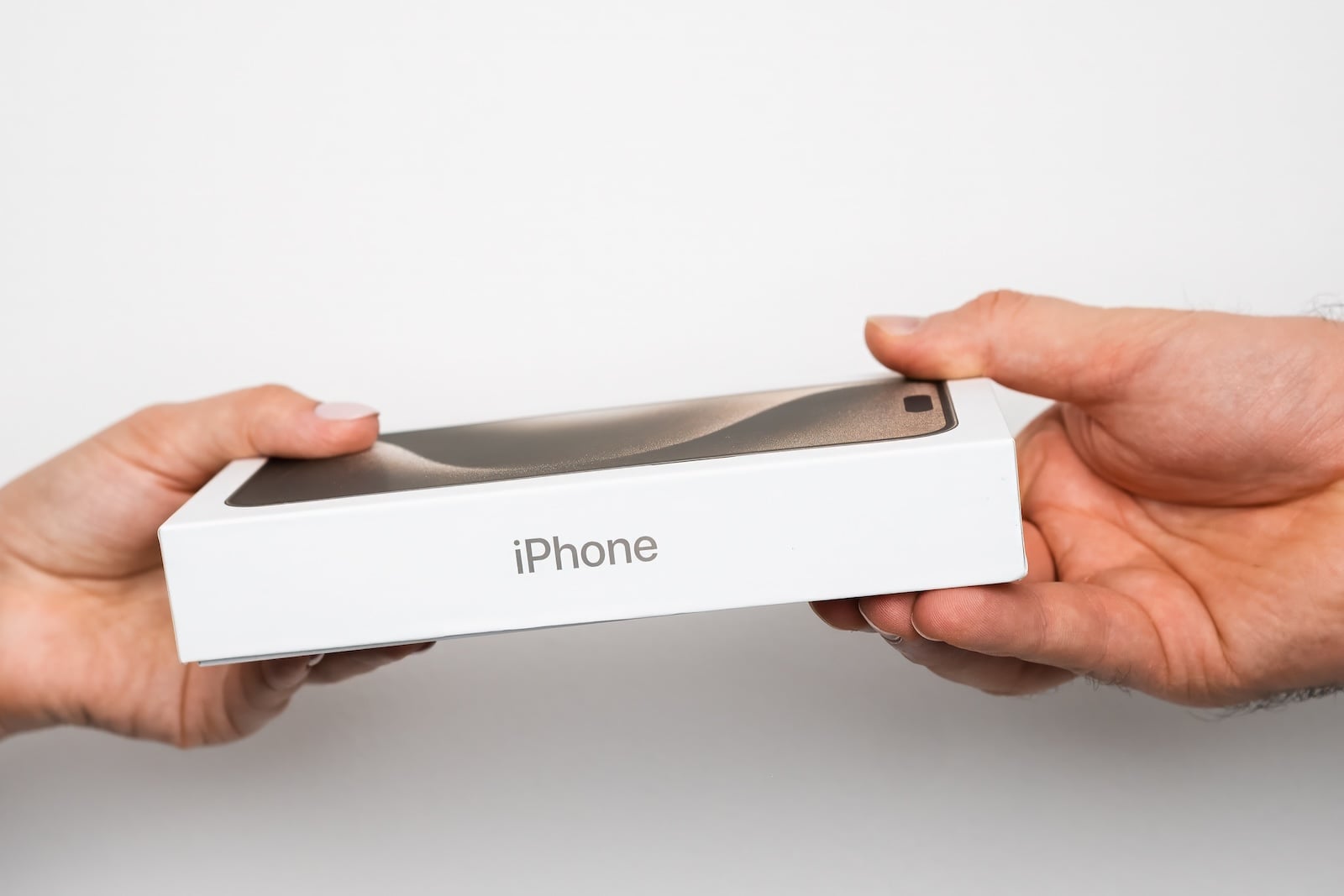
Selling an old iPhone sounds like a quick job: wipe the data, dig out the box, post the listing. In reality, the order of the individual steps is what matters – skip one or get it wrong, and you either compromise your privacy or hand the buyer an unusable device locked behind Activation Lock. This guide walks through every step in the right order, just as Apple itself recommends.
A surprising amount of sensitive data builds up on an iPhone over the years: photos, messages, location history, saved passwords, banking apps, health metrics and biometric templates. Anyone selling, trading in or giving away their device needs to remove this data reliably – and at the same time make sure that the iPhone is signed out of their Apple Account. Otherwise Activation Lock kicks in, and the new owner ends up with a device they cannot set up. The most important foundation for all of this is an up-to-date iPhone backup, because without a clean backup, you can neither transfer data to the new device nor restore it in an emergency.
Step 1: Create a Backup
Before you erase anything or sign the iPhone out, a complete backup belongs at the start of any sales preparation. It is the only insurance against losing photos, notes, messages or app data during the handover.
Backup via iCloud
In Settings, tap your name at the top, then choose "iCloud" and "iCloud Backup". Tap "Back Up Now" to start the process – provided that you have enough iCloud storage. Otherwise iOS will prompt you automatically. Regularly checking whether the backup is actually up to date helps avoid nasty surprises. If the free 5 GB of storage is not enough, it is worth taking a timely look at the iCloud storage plans and prices, or alternatively transferring the backup to a computer. By the way, anyone who has bought a new iPhone gets temporary iCloud storage from Apple for free – if your own 5 GB are not enough for a backup, you can bridge the transition at no cost.
Backup via Computer
If you prefer to store data locally, connect the iPhone to a Mac or Windows PC via cable. On the Mac, open Finder and select the iPhone in the sidebar; on a Windows PC, this runs through the Apple Devices app or iTunes. The "Encrypt local backup" option should be active – only then are passwords, health data and Keychain data backed up as well. The encrypted backup is password-protected, and anyone who forgets this password can no longer access the data.
Step 2: Transfer Data to the New iPhone
If a new iPhone is already on hand, it is worth doing a direct transfer via Quick Start before erasing the old device. Place both iPhones next to each other and turn on the new one – the Quick Start dialog will appear automatically on the old one. Apple offers detailed options for direct device transfer; for a side-by-side comparison, there is a complete overview of all methods for transferring data to a new iPhone.
Step 3: Check the Parts and Service History
A step that is often overlooked but especially important when trading in via Apple Trade In: the parts and service history. Apple shows whether any component in the iPhone has ever been replaced – and whether the repair was properly completed. If the notice "Complete Repair" appears next to a part, this process needs to be finished before trading in. Otherwise Apple will reject the device. You will find the history under Settings → "General" → "About" → "Parts and Service History". For a private sale, this step is not strictly required, but it is useful information for the buyer.
Step 4: Unpair the Apple Watch
An Apple Watch paired with the iPhone is easily overlooked when selling – with unpleasant consequences. As long as the old iPhone is signed out and the Apple Watch has not been unpaired, the watch remains tied to the old connection and is difficult to set up again later with a new iPhone.
In the Watch app on the iPhone, open the "My Watch" tab and tap "All Watches". Next to the watch you want to unpair, tap the "i" icon and select "Unpair Apple Watch". For an Apple Watch with cellular (GPS + Cellular), the iPhone will ask whether to keep or remove the cellular plan on the watch – when selling to an unknown buyer, removing it is the right choice, otherwise your own phone number stays on the stranger's device. Then enter your Apple Account password; this simultaneously disables Activation Lock on the watch. Before the actual unpairing, the iPhone automatically creates a backup of the watch that can later be restored to a new Apple Watch.
Step 5: Check Your AppleCare Plan
If you still have AppleCare or AppleCare+ coverage for the device, you should decide what to do with it before selling. There are two options: cancel the contract or transfer it to the new owner. Both run through mysupport.apple.com. Transferring it can increase the sales price because it is an argument for buyers – while cancelling makes more sense when switching to a new iPhone with its own coverage.
Step 6: Prepare Stolen Device Protection
Since iOS 26.4, Stolen Device Protection has been enabled by default – Apple turned the feature into the default with the update on March 25, 2026. In unfamiliar locations, it enforces a one-hour security delay for key actions such as signing out of your Apple Account, performing a reset or disabling Stolen Device Protection itself. Apple therefore explicitly recommends turning the protection off before selling the device.
If you prepare the iPhone for sale at home, you will usually not be affected by the delay, because home is stored as a trusted location. You will find the toggle under Settings → "Face ID & Passcode" (or "Touch ID & Passcode") → "Stolen Device Protection". If you plan to carry out the process in an Apple Store or on the go, you should turn the protection off at home beforehand – otherwise the security delays will unnecessarily drag out the sale.
Step 7: Sign Out of Your Apple Account (iOS 26 or Later)
This is by far the most important step. Skip it and you leave the buyer with a device locked behind Activation Lock that cannot be set up without the original Apple Account sign-in. Signing out also automatically disables "Find My iPhone", so that Activation Lock can be lifted during the later erase without needing the Apple Account password.
Sign-Out Process on iOS 26 or Later
In Settings, tap your name at the top, scroll all the way down, and choose "Sign Out". iOS 26 will then ask you directly to choose one of two options: "Erase This iPhone" immediately removes all data and signs you out of your Apple Account. "Sign Out But Don't Erase" only severs the account connection without removing local data.
For a sale, "Erase This iPhone" is the recommended path, because sign-out and data erasure are handled in a single process. If you still want to make local adjustments or check apps, choose "Sign Out But Don't Erase" – the separate erase then follows in the next step. If asked which account to sign out of, choose "Sign out of iCloud and Store".
Sign-Out Process on iOS 18 or Earlier
If you still have an older iPhone with iOS 18 or earlier, you will see a different dialog when signing out. Here you enter your Apple Account password and tap "Turn Off" – this disables "Find My iPhone" and removes the iPhone from your Apple Account. The separate reset then follows.
Step 8: Deregister iMessage (Only When Switching to a Non-Apple Smartphone)
Anyone switching to an Android device should actively deregister iMessage. Otherwise, messages from other iPhone users will continue to be routed through the iMessage system and never reach the new Android smartphone.
As long as the old iPhone is still available, the clean route is directly on the device: Settings → "Apps" → "Messages" → turn off iMessage. Then also Settings → "Apps" → "FaceTime" → turn off FaceTime, because FaceTime is also tied to the phone number. Important: the SIM should still be in the iPhone and cellular service should be active, so that Apple correctly processes the deregistration of the number.
If the iPhone is already gone, Apple offers a web-based deregistration: on selfsolve.apple.com/deregister-imessage, enter your own phone number and confirm via the code delivered by SMS. When switching to a new iPhone, this step is not necessary – iMessage moves over automatically.
Step 9: Erase All Content and Settings
If you chose "Erase This iPhone" in the sign-out dialog in Step 7, you can skip this step – iOS 26 or later has already handled it in one go. For everyone else, the actual reset follows now.
In Settings, go to "General" → "Transfer or Reset iPhone" → "Erase All Content and Settings". After entering your device passcode, iOS confirms the process; if the device was not signed out beforehand, iOS will additionally ask for the Apple Account password. With eSIM in use, you will be asked whether the eSIM profile should also be erased – when selling, please confirm so that the new owner can use the device completely freely. A full overview of the reset options can be found in our article on the different methods for resetting an iPhone.
During the erase, "Find My iPhone" and Activation Lock are automatically disabled. The device then starts up as if it were being unboxed for the first time – ready for the new owner to set up.
Step 10: SIM Card and Carrier
If you are selling your iPhone with a physical SIM card, remove the card before handing it over. When selling an iPhone with eSIM, you already have the choice during the reset to delete the eSIM profile – anyone transferring the mobile plan to a new device should clarify this with the carrier in advance. Some carriers allow the eSIM transfer directly in the customer portal, others require a phone call or a QR code to be sent.
Step 11: Remove the Device from the List of Trusted Devices
The final check happens at account.apple.com. In the "Devices" section, check whether the sold iPhone is still listed – if so, choose "Remove from Account". This ensures that the device can no longer receive two-factor verification codes for your Apple Account and no longer counts as a trusted device.
What to Do When the iPhone Has Already Been Sold
If the iPhone has already left the house and only then it turns out that a step was forgotten, there are still ways to react. The device can be erased remotely via iCloud.com/find, provided it goes online. Then remove it from the trusted devices in the device overview in your Apple Account.
Changing the Apple Account password is also advisable – this ensures that the new owner cannot delete or alter any data stored in iCloud, even if the device has not yet been signed out. Anyone using Apple Pay should additionally remove the cards in Wallet remotely. In this case, it also helps to take a second look at the current overview of warning signs for a compromised iPhone, along with a data leak check of the saved passwords, in case account credentials were stored on the old device.
Risks When Buying a Used iPhone
The other side of the coin: anyone buying a used iPhone themselves should have the seller carry out the sign-out and reset process on the spot. An iPhone that is still being sold in an Activation Lock state is effectively worthless – not even a factory reset will help, because the device will continue to ask for the original Apple Account sign-in afterwards.
A warning sign is an iPhone that has already been reset but shows Activation Lock directly when turned on. In such cases, the purchase should be called off – in the worst case, it is a stolen device.
A Clean Sale Is a Matter of Order
Apple has significantly simplified the sign-out and reset process under iOS 26 and later – but even the best mechanism only works in the right order. Backup, transfer, service check, unpair the Watch, check AppleCare, turn off Stolen Device Protection, sign out of the Apple Account, deregister iMessage (only when switching to Android), erase the device, sort out the SIM card and remove it from your trusted devices. Anyone who works through these steps cleanly hands over a fully prepared iPhone and leaves no sensitive data or open security connections behind.
The best products for you: our Amazon storefront offers a wide selection of accessories, including for HomeKit. (Image: Shutterstock / Vladimka production)
- Using Apple Pay Safely: How the iPhone Protects Your Payments
- Data Leak Check on iPhone: How to Find Compromised Passwords
- Spotting a Hacked iPhone: Real Warning Signs, Common False Alarms and the Right Steps
- Advanced Data Protection for iCloud: How to Use Apple's Strongest Encryption Tier
- NameDrop on iPhone and Apple Watch: How to Use It Right
- Two-Factor Authentication for the Apple Account: Setup Guide, Options and Security Levels
- Using Passkeys on Apple Devices: How Passwordless Sign-In Works
- Activate and properly use Stolen Device Protection on iPhone
- Pegasus and Commercial Spyware on iPhone: What Users Really Need to Know
- Secure email usage on the iPhone
- AI makes your iPhone more secure – what that really means for you
- Apple Security Updates: How Apple protects your Devices
- Ransomware explained: Could my iPhone be affected?
- Identity theft: What to do if your Data has been stolen?
- Recognizing Social Engineering: How to Protect Yourself from Manipulation
- Detecting AI fraud: Deepfakes, fake voices and how to protect yourself
- Recognizing Quishing: How to protect yourself from QR code fraud
- Use public Wi-Fi safely: How to protect your iPhone
- iOS 26.4: Show Hotspot Data usage per Device
- Recognizing Smishing: How to protect yourself from SMS fraud
- Create and manage secure passwords: The Apple guide
- WhatsApp hacked: How to protect your Account
- Recognizing Phishing: How to protect yourself from fraud
- Creating, Changing, and Deleting an Apple ID: The complete Overview
Frequently Asked Questions: Selling Your iPhone Safely
The iPhone stays tied to your Apple Account via Activation Lock. The buyer cannot set up the device and will see a prompt at startup asking for your Apple Account credentials. If that has already happened, you can erase the iPhone remotely via iCloud.com/find and then remove it from your devices at account.apple.com.
No. "Erase All Content and Settings" removes the data, but if you have not previously signed out of your Apple Account, iOS will ask for your Apple Account password during the reset. Under iOS 26 and later, Apple handles sign-out and erasure in a single step if you choose "Erase This iPhone" in the sign-out dialog.
No, not under iOS 26 anymore. The feature is automatically turned off as soon as you sign out of your Apple Account and reset the device via "Erase All Content and Settings". Only on an iPhone running iOS 18 or earlier do you need to additionally enter your Apple Account password during the sign-out process and tap "Turn Off".
Apple explicitly recommends doing so, especially for sales in an Apple Store. Since iOS 26.4, the protection has been active by default and, in unfamiliar locations, enforces a one-hour security delay for sign-out and reset. You will find the toggle under Settings → Face ID & Passcode → "Stolen Device Protection". At home, in a trusted location, the delay does not kick in.
Only if you are switching to a non-Apple smartphone. Otherwise iMessage messages will continue to be routed through Apple's system and will not arrive on your new Android device. On the iPhone, this works via Settings → Apps → Messages, and additionally Settings → Apps → FaceTime, turning off both. When switching to a new iPhone, this step is not necessary – iMessage moves over automatically with your Apple Account.
Tapping "Erase All Content and Settings" automatically removes Apple Pay cards from the device; they remain linked to your Apple Account and are immediately available again on a new iPhone. With an eSIM in use, iOS asks whether the eSIM profile should also be deleted – when selling, you should agree so the new owner can insert their own SIM. Clarify the eSIM transfer to a new device with your carrier beforehand.
Have the seller reset the iPhone in front of you. After the reset, the setup assistant should start in the original language – without prompting you to enter an old Apple Account sign-in. If this prompt appears, Activation Lock is still active. In that case, walk away from the purchase; in the worst case, it could be a stolen device.