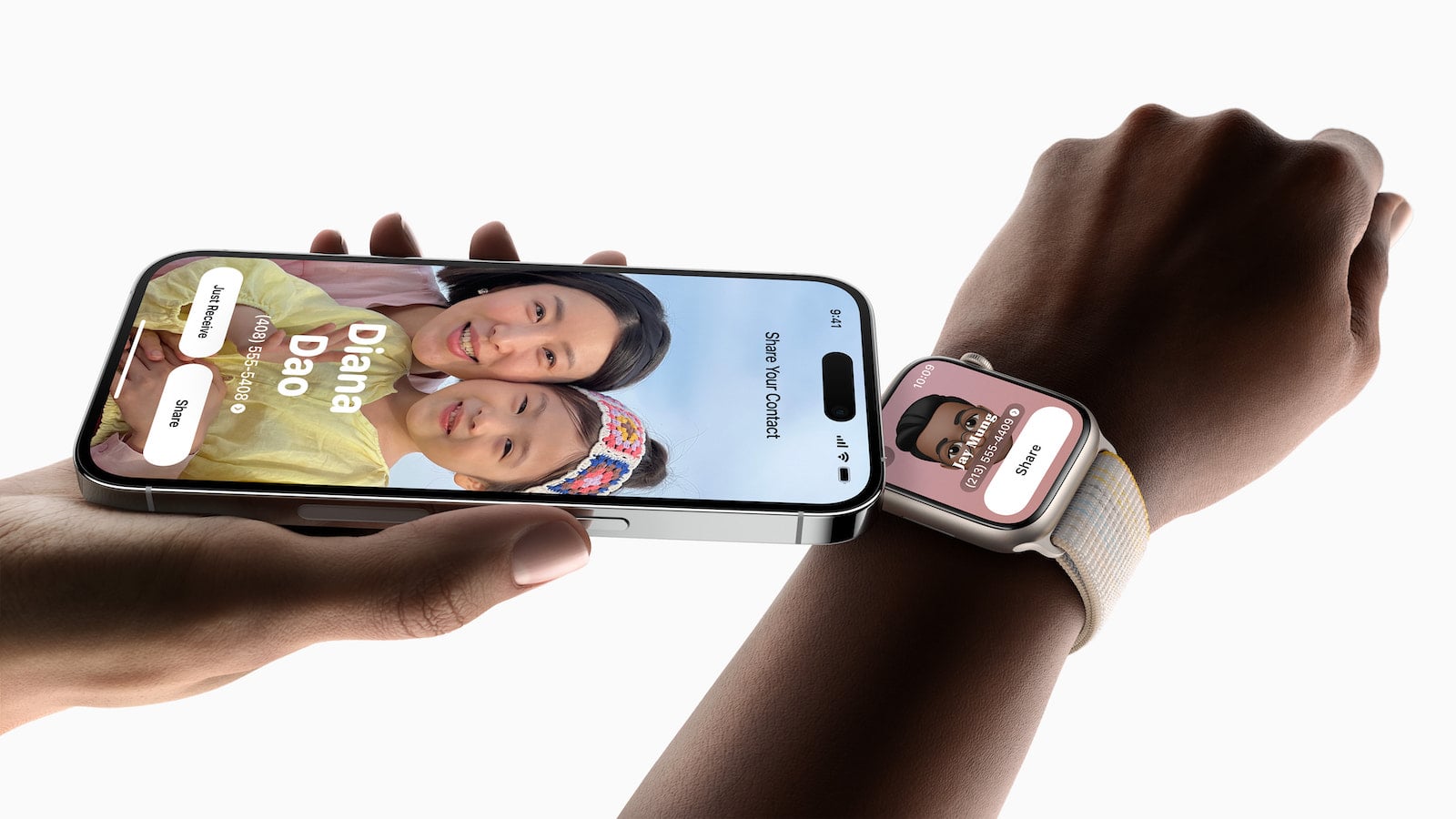
Exchanging contact details without typing a single number – with NameDrop, a brief gesture between two Apple devices is all it takes. Behind the elegant animation sits a well-thought-out system of AirDrop, Contact Poster, and fine-grained sharing controls. Once the mechanism clicks, phone numbers and email addresses change hands in seconds – and only those that should actually go out.
NameDrop arrived on the iPhone with iOS 17 and has been a fixed part of the Apple ecosystem ever since – long established by now and available unchanged in iOS 26. The feature is part of AirDrop and draws on the Contact Poster that many users already see during incoming calls. Anyone who came away disappointed from the first attempt because nothing happened was usually not dealing with a bug, but with a small detail in the settings or the wrong way of holding the devices. When it comes to contact data, a precise look pays off – much like with secure email use on the iPhone, it's the configuration that decides what actually ends up going out.
Requirements for NameDrop
For the exchange to work, both sides need to meet a short list of conditions. The iPhone requires iOS 17.1 or newer, the Apple Watch needs watchOS 10.1 or newer. On the watch, NameDrop is available starting with the Apple Watch Series 7, the Apple Watch SE 2nd generation, and all Apple Watch Ultra models – older generations are left out.
On top of that, Bluetooth and Wi-Fi need to be active. NameDrop technically runs on the same wireless layers as AirDrop, which is why the gesture usually fails silently if either of the two is switched off in Control Center. The case is rarely an issue: modern iPhone cases are built so that NFC and the other wireless connections pass through without interference.
One important note up front: NameDrop only sends new contact information. Existing contacts cannot be updated this way – anyone who wants to replace an old number on an existing entry will have to go the manual route through the Contacts app.
How NameDrop Works Between Two iPhones
The actual procedure is quickly explained. Both iPhones should be unlocked and showing a screen that isn't trying to share anything else at the moment – so the Home Screen or Lock Screen, not a webpage or a photo.
- Hold the top edge of your iPhone a few centimeters above the top edge of the other device.
- Wait a moment until both displays respond with an animation and show the word "NameDrop".
- A preview of the Contact Poster appears along with two options: share and receive contact cards – or receive only.
- Once the choice is made, the devices are allowed a bit of distance again. They only need to stay close together long enough for the transfer to start.
Locking one of the iPhones too early, turning off Bluetooth or Wi-Fi, or pulling the devices apart right after the animation appears cancels the process. By default, only the name, Contact Poster, and the primary phone number or email address are transferred – nothing more.
NameDrop Between iPhone and Apple Watch
The Apple Watch works on the same principle, just in two directions. To send from the wrist to an iPhone, the front of the watch is held close to the top edge of the other person's iPhone – a few centimeters of distance is enough.
Going from Apple Watch to Apple Watch, the start runs through the Contacts app: tap your own profile picture in the top right, select "Share", and then bring the watches together. Both watches respond with a glow and a short vibration as soon as the connection is established. On the small display, only the options "Continue" and "Receive Only" appear – the full Contact Poster preview remains reserved for the iPhone.
The watch variant is especially handy when the iPhone is currently tucked away in a pocket or backpack. A quick tap at the wrist, contact details exchanged, done.
Before the First NameDrop: Check Your Own Contact Poster
Before the feature comes into play for the first time, a look at your own contact card is worthwhile. The circular avatar and the large Contact Poster are what the other person sees first – an old photo or a too-personal nickname will otherwise land on someone else's Lock Screen.
Here's how to adjust your own poster:
- Open the "Contacts" app.
- Tap "My Card" at the very top.
- Select "Edit" and tap the contact photo.
- Choose a new photo or poster and adjust the design.
- Turn on "Name & Photo Sharing" if the look should also come along when calling or sending messages.
- Decide whether sharing should run automatically with saved contacts or whether you want to be asked each time.
The Contact Poster is more than a pretty gimmick by now. It works like a system-wide profile picture for your Apple Account and shows up in many places throughout iOS – a good reason not to fall back on that selfie from last summer.
What Gets Shared Can Be Controlled With Every Handover
Anyone who manages multiple phone numbers or email addresses rarely wants to share them all at once. NameDrop offers a small but important feature for precisely this purpose. A ">" symbol is located directly next to the displayed number or email address. Tapping it opens a list of all saved fields with checkboxes.
That's where the decision can be made deliberately: work email instead of personal, mobile number instead of landline, both or just one. After confirming with "Save", iOS remembers the selection for the next NameDrop. So anyone who once set the business variant at a networking event doesn't have to reconfigure for every new contact.
One central safeguard stays untouched in all of this: pronouns, address, and birthday are not transferred via NameDrop, even if they're stored in your own card. It's strictly about name, selected phone numbers or email addresses, and the Contact Poster.
When AirDrop or SharePlay Shows Up Instead of NameDrop
The close-device gesture isn't reserved exclusively for NameDrop. iOS also uses it for AirDrop and SharePlay – and decides depending on context which mode starts.
If a photo, a link, or a file is currently in the foreground on the iPhone, the system interprets the approach as an AirDrop request. If music, a video, or a SharePlay-compatible app is running, the suggestion may instead be to continue playback together. Neither is a bug – it's a consequence of the same technical foundation.
When NameDrop simply refuses to start, a simple routine usually helps: briefly lock both devices, unlock them again, switch to the Home Screen or Lock Screen, and try once more. That way, any competing content drops out of the picture that might otherwise steer iOS in a different direction.
Turning Off NameDrop – When It Just Doesn't Fit
Despite all the safeguards, there are plenty of scenarios where the feature gets in the way or simply isn't wanted. Apple has deliberately tucked the control deep inside the AirDrop area, since NameDrop is conceived as an extension of AirDrop.
The path to the switch:
- Open the "Settings" app.
- Tap "General".
- Select "AirDrop".
- Turn off "Bringing Devices Together".
Standard AirDrop receiving stays untouched – files, photos, and links can still be exchanged, as long as the other AirDrop settings allow it. Only the trigger that activates when two devices come close together drops out. Anyone who wants to switch NameDrop back on later finds the toggle in exactly the same spot.
NameDrop in Practice
The strength of NameDrop lies in removing the typical friction of a first contact exchange – no fumbling with typed-out business card details, no "What was the ending of your email again?". At the same time, control stays with both sides: without unlocking, without confirmation, and without active proximity, nothing leaves the device. That's the decisive difference from the initial media uproar around the feature's launch, when various US police departments warned of supposed risks – which don't exist in that form.
Anyone who keeps their own Contact Poster well maintained and configures the field selection sensibly once gets exactly what the feature promises out of NameDrop: fast, clean contact exchange in seconds – and that on a platform which makes practically every tip for everyday Apple use more accessible.
Time for fresh accessories? Visit our Amazon Storefront and discover a wide selection of products from leading manufacturers, also for HomeKit! (Image: Apple)
- Two-Factor Authentication for the Apple Account: Setup Guide, Options and Security Levels
- Using Passkeys on Apple Devices: How Passwordless Sign-In Works
- Activate and properly use Stolen Device Protection on iPhone
- Pegasus and Commercial Spyware on iPhone: What Users Really Need to Know
- Secure email usage on the iPhone
- AI makes your iPhone more secure – what that really means for you
- Apple Security Updates: How Apple protects your Devices
- Ransomware explained: Could my iPhone be affected?
- Identity theft: What to do if your Data has been stolen?
- Recognizing Social Engineering: How to Protect Yourself from Manipulation
- Detecting AI fraud: Deepfakes, fake voices and how to protect yourself
- Recognizing Quishing: How to protect yourself from QR code fraud
- Use public Wi-Fi safely: How to protect your iPhone
- iOS 26.4: Show Hotspot Data usage per Device
- Recognizing Smishing: How to protect yourself from SMS fraud
- Create and manage secure passwords: The Apple guide
- WhatsApp hacked: How to protect your Account
- Recognizing Phishing: How to protect yourself from fraud
- Creating, Changing, and Deleting an Apple ID: The complete Overview
- Activate iPhone Call forwarding: All Methods under iOS 26
- iPhone vibrates for no Reason: Causes and Solutions under iOS 26
- Connecting and resetting AirPods: Instructions for all Models
Frequently Asked Questions: NameDrop on iPhone and Apple Watch
NameDrop works starting with iOS 17.1 on the iPhone and watchOS 10.1 on the Apple Watch. On the watch, the feature is limited to Apple Watch Series 7 and newer, Apple Watch SE 2nd generation, and all Apple Watch Ultra models.
No. By default, only the name, Contact Poster, and the primary phone number or email address go out. Address, birthday, and pronouns are never transferred via NameDrop, even if they're stored in the contact card.
No. Both devices have to be unlocked, held close together, and the transfer requires active confirmation on the display. Without that step, nothing is sent.
During the NameDrop process, a ">" symbol appears next to the displayed number or email address. A tap opens a list of all stored fields, where the items to be shared can be selected deliberately. The selection stays saved for future NameDrop sessions.
iOS uses the same proximity gesture for several features. If a photo, a link, or media is currently active on the screen, iOS interprets the gesture as an AirDrop or SharePlay request. Before attempting NameDrop, switch to the Home Screen or Lock Screen.
In the vast majority of cases, yes. Modern cases are designed so that NFC and the other wireless connections pass through without interference. With particularly thick or metallic cases, occasional dropouts can occur.
Via "Settings → General → AirDrop → Bringing Devices Together". When the toggle is switched off, regular AirDrop receiving remains available – only the proximity-based trigger for NameDrop is turned off.