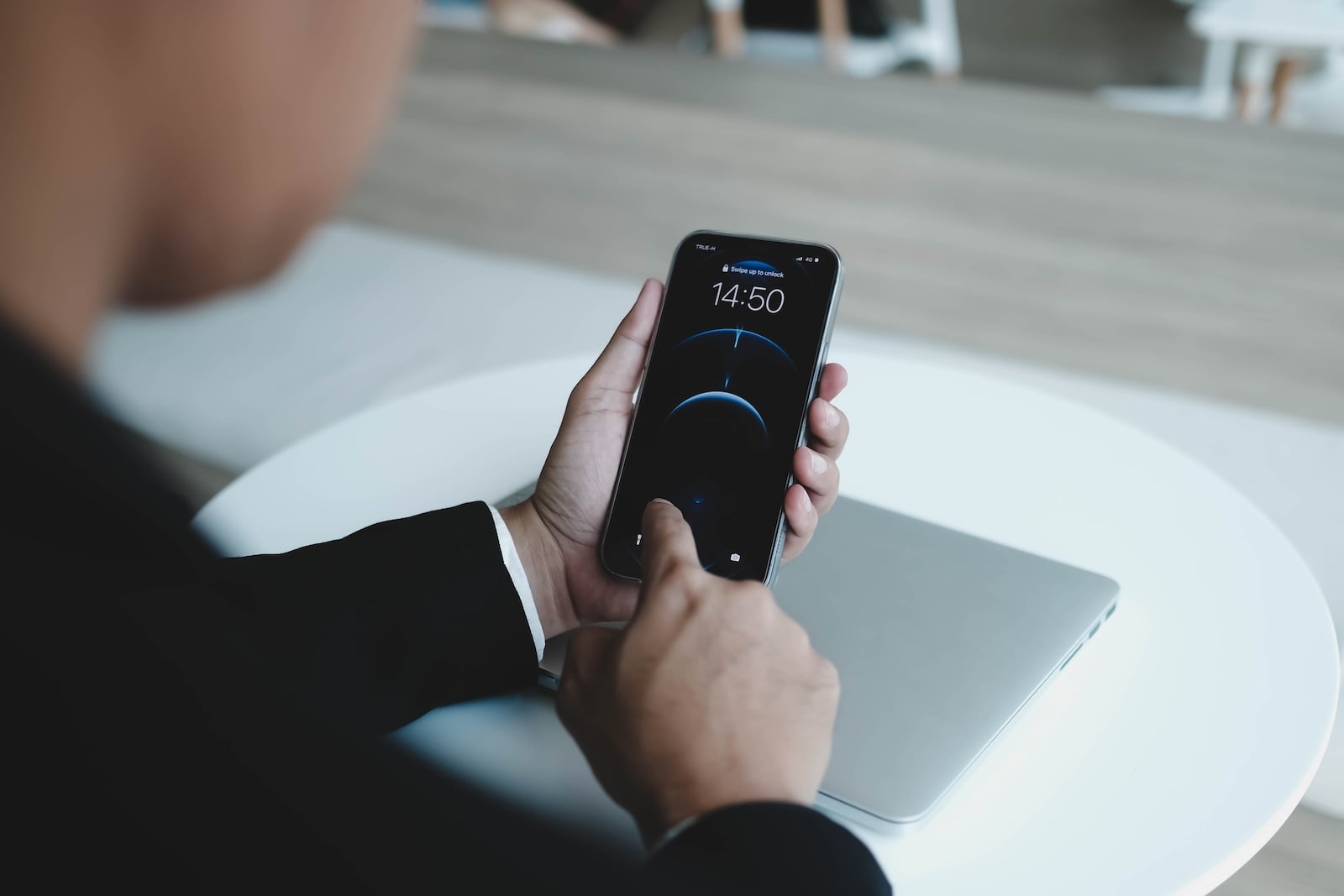
Stolen Device Protection is the most important iPhone security feature against an insidious theft scheme: criminals observe the passcode, steal the device and take over the entire Apple Account within minutes. With iOS 17.3, Apple closed this gap, and with iOS 26.4 the protection is automatically enabled on new iPhones. Anyone who wants to know how the feature works, which requirements are needed and which actions it specifically blocks will find the full overview here.
An iPhone today protects far more than just photos and messages. The Apple Account holds emails, banking access, saved cards, passwords and your entire digital identity stack. The classic security gap was long the six-digit passcode: anyone who observed it and then stole the iPhone could previously change the Apple Account password, read out saved credentials and remove the device from Find My. Stolen Device Protection blocks exactly this attack vector – and adds a decisive layer to iPhone's already strong security features. The complementary Lockdown Mode is aimed at people with an elevated threat profile, whereas Stolen Device Protection is a standard feature for all iPhone users.
What Stolen Device Protection does exactly
Stolen Device Protection adds an extra security layer as soon as the iPhone is not at a familiar location such as home or work. The logic behind it: outside these zones, the likelihood of theft is higher, so stricter rules apply.
Specifically, two mechanisms come into play:
- Biometric authentication without passcode fallback: Certain actions can only be authorized with Face ID or Touch ID. Entering the passcode as an alternative is no longer possible. Anyone who knows the passcode but cannot imitate the owner's face fails immediately.
- One-hour Security Delay: For especially critical changes such as the Apple Account password, biometric authentication is required first, followed by a one-hour waiting period and then a second biometric confirmation. This hour gives the owner time to mark the device as lost via Find My and to block access.
At familiar locations, these additional steps do not apply by default. Anyone who wants maximum security can configure the protection so that the Security Delay is always active – even at home or at the office.
Requirements for Activation
Before Stolen Device Protection works, several features must be set up on the iPhone:
- Two-Factor Authentication for the Apple Account
- A passcode
- Face ID or Touch ID
- "Significant Locations" in Location Services
- Find My enabled (cannot be turned off while the protection is active)
"Significant Locations" is an option within Location Services and controls which places the system classifies as familiar. To review or reset the list, go to Settings → Privacy & Security → Location Services → System Services → Significant Locations & Routes.
Activate Stolen Device Protection
Activation takes just a few steps:
- Open Settings
- Tap "Face ID & Passcode" (on older iPhones: "Touch ID & Passcode")
- Enter the device passcode
- Tap "Stolen Device Protection"
- Turn on the switch
Starting with iOS 26.4, the feature is enabled by default on personal iPhones as soon as the technical requirements are met. With iOS 26.4.1, Apple is extending the default activation to company iPhones as well, which are managed via Mobile Device Management.
These actions require biometric confirmation
Away from familiar locations, iOS strictly requires Face ID or Touch ID for a range of sensitive operations. The passcode alone is then no longer sufficient:
- Use passwords or passkeys stored in the Keychain
- Autofill payment methods saved in Safari
- Turn off Lost Mode
- Open a locked app
- Erase All Content and Settings
- Apply for a new Apple Card (available only in the US)
- View the virtual card number of your Apple Card or Apple Cash
- Perform certain Apple Cash and Savings actions in Wallet
- Set up a new device with your iPhone, for example via Quick Start
- Set up or transfer an eSIM
For Apple Pay purchases, the passcode remains valid – everyday use is not affected.
These actions require the one-hour delay
For particularly critical changes, even a single biometric confirmation is not enough. Instead, a one-hour waiting period starts after the first authentication, followed by a second biometric confirmation. Only then does the change take effect:
- Change the Apple Account password
- Sign out of the Apple Account
- Change Apple Account security settings, such as adding or removing trusted devices, a recovery key or recovery contacts
- Add or remove Face ID or Touch ID
- Change the passcode
- Reset all settings
- Enroll in Mobile Device Management
- Turn off Stolen Device Protection itself
If the iPhone detects that you have returned to a familiar location, the Security Delay may end early.
Always require Security Delay
By default, the additional barriers only apply away from familiar locations – in the Apple menu this is the "Away from Familiar Locations" option. Anyone who wants the maximum level of protection at home or at the workplace as well can change this setting:
- Open Settings → Face ID & Passcode
- Tap "Stolen Device Protection"
- Under "Require Security Delay", select the "Always" option
With this setting, the biometric requirements and the one-hour delay apply at all times, regardless of location.
What to consider when selling or transferring your iPhone
Before selling, giving away or trading in an iPhone, Stolen Device Protection must be turned off. Anyone who forgets to do so and is not at a familiar location will run into the Security Delay – disabling it then takes an hour. Anyone setting up the iPhone from scratch or transferring data from an old device keeps the protection automatically. However, it may take some time before the new iPhone correctly recognizes familiar locations.
Apple's consistent move toward more default security
Stolen Device Protection is one of the most effective iPhone security features of recent years. It costs virtually no operating time in everyday use, yet closes exactly the gap that thieves specifically exploit: the observed passcode. With the default activation in iOS 26.4, Apple turns an optional layer of protection into a binding security foundation. Anyone who does not yet have the protection active should switch it on immediately – the 30 seconds in the settings are the most valuable investment in protecting your Apple Account. Time for fresh accessories? Visit our Amazon Storefront and discover a wide selection of products from leading manufacturers, including for HomeKit! (Image: Shutterstock / Thaspol Sangsee)
- Pegasus and Commercial Spyware on iPhone: What Users Really Need to Know
- Secure email usage on the iPhone
- AI makes your iPhone more secure – what that really means for you
- Apple Security Updates: How Apple protects your Devices
- Ransomware explained: Could my iPhone be affected?
- Identity theft: What to do if your Data has been stolen?
- Recognizing Social Engineering: How to Protect Yourself from Manipulation
- Detecting AI fraud: Deepfakes, fake voices and how to protect yourself
- Recognizing Quishing: How to protect yourself from QR code fraud
- Use public Wi-Fi safely: How to protect your iPhone
- iOS 26.4: Show Hotspot Data usage per Device
- Recognizing Smishing: How to protect yourself from SMS fraud
- Create and manage secure passwords: The Apple guide
- WhatsApp hacked: How to protect your Account
- Recognizing Phishing: How to protect yourself from fraud
- Creating, Changing, and Deleting an Apple ID: The complete Overview
- Activate iPhone Call forwarding: All Methods under iOS 26
- iPhone vibrates for no Reason: Causes and Solutions under iOS 26
- Connecting and resetting AirPods: Instructions for all Models
- AirDrop not working: All Solutions for iOS 26
- iPhone loading slowly: Causes and Solutions under iOS 26
- iPhone Screen Recording: Instructions for iOS 26
- How to view your Wi-Fi Password on your iPhone: All Methods under iOS 26
Frequently Asked Questions about Stolen Device Protection
The feature is available from iOS 17.3 onwards. With iOS 26.4, it is enabled by default on personal iPhones, and with iOS 26.4.1 it is also enabled by default on company iPhones managed via MDM.
No. Locating a device is handled by Find My. Stolen Device Protection only prevents a thief who knows your passcode from making critical changes to your device or Apple Account.
Without working biometric authentication, the protected actions cannot be performed away from familiar locations. At a familiar location, you can still disable the protection using your passcode as usual.
Yes. Apple Pay purchases remain available with the passcode. Only access to saved payment methods in Safari is affected by the biometric-only requirement.
Significant Locations are stored on your device with end-to-end encryption only. Apple itself has no access to this data.
No, the feature is exclusive to iPhone. For iPad and Mac, other security mechanisms such as Lockdown Mode are available.