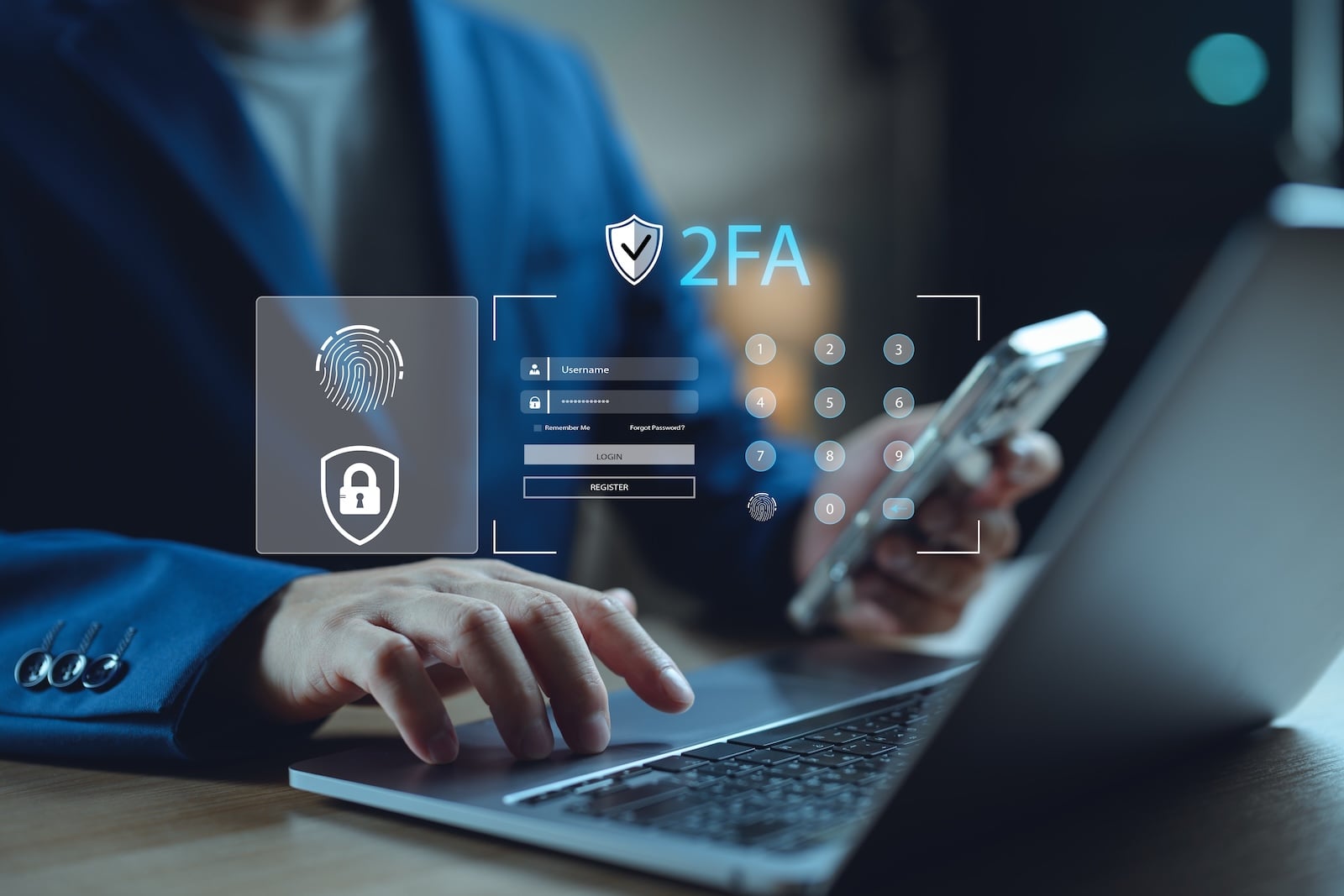
Two-factor authentication protects the Apple Account even if the password falls into the wrong hands. Apple now activates it automatically for new accounts, yet many users are unaware of all the available options: trusted phone numbers, recovery contacts, recovery keys and hardware security keys. Anyone who really wants to lock down the Apple Account should know all of these building blocks – and their pitfalls. The complete overview with every security level.
The Apple Account is the central identity for iPhone, iPad, Mac, iCloud, App Store purchases, Apple Wallet, health data and the entire Apple ecosystem. Anyone who loses access potentially loses everything – from the family photo archive to Apple Pay. Two-factor authentication is therefore the single most important protection that Apple users can enable. It supplements the password with a second factor: a six-digit code that appears on trusted devices or is sent to a trusted phone number. Combined with a secure Apple Account password, this covers the baseline. For more, recovery contacts, recovery keys and hardware security keys add further layers – up to Lockdown Mode, Apple offers a tiered range of security options.
How two-factor authentication works at Apple
Apple's 2FA system differs from classic SMS-based two-factor authentication. When signing in on a new device or in a browser, the user needs two things:
- The Apple Account password
- A six-digit verification code
The code primarily appears as a push notification on an Apple device that is already signed in – including location information for the sign-in attempt. Only after the user taps "Allow" there is the code displayed and ready to be entered on the new device. SMS and phone calls are only backups, in case no trusted device is reachable.
This push-first model is an important security advantage: while classic SMS codes can be intercepted via SIM swapping (attackers take over the mobile number at the carrier), Apple's standard code delivery runs encrypted via the Apple push network, which cannot be compromised through SIM cards. The SMS delivery as an emergency option, however, remains vulnerable – an important point that becomes relevant further below.
After the first sign-in on a device, the code is no longer requested – unless the user signs out completely, erases the device or has to change the password for security reasons.
Enable Two-Factor Authentication
Most Apple Accounts already have 2FA active, because Apple enforces it for all accounts created from iOS 13.4, iPadOS 13.4 or macOS 10.15.4 onward. Anyone using an older account or who has previously declined the feature can enable it after the fact:
On iPhone or iPad:
- Open Settings
- Tap your name
- Select "Sign-In & Security"
- Enable "Two-Factor Authentication" and follow the instructions
On Mac:
- Apple menu → System Settings
- Click your name
- Select "Sign-In & Security"
- Enable Two-Factor Authentication
In the browser:
- Sign in at account.apple.com
- Select "Upgrade Account Security"
- Follow the instructions
Important: Once 2FA has been activated for an account, it can no longer be permanently removed. Apple only grants a two-week window after the initial activation during which the security level can be lowered again. After that, the decision is final.
Understanding trusted devices and phone numbers
The concept of "trusted devices" is central to Apple's 2FA. A device is considered trusted once the user has signed in to it at least once using 2FA. Apple then knows that the device belongs to the account holder and uses it to display verification codes or to confirm important account changes.
The following Apple devices can serve as trusted devices:
- iPhone and iPad
- Mac
- Apple Watch (watchOS 6 or later)
- Apple Vision Pro
The Apple Watch displays verification codes automatically, which makes it a useful backup in case the iPhone has been lost or stolen – provided the watch is linked to the same Apple Account.
Trusted phone numbers serve as a backup if no device is available. At least one number must be on file. Apple expressly recommends adding a second phone number that is not linked to the iPhone – for example a landline number or that of a trusted family member. Anyone who only stores their own iPhone number and then loses the iPhone can no longer receive a backup code.
Managing trusted devices
Anyone who regularly checks which devices are listed as trusted closes a frequently overlooked security gap. Old devices that have long been sold or given away should no longer appear in the account.
On iPhone or iPad: Settings → your name. All active trusted devices are shown in the device list. Tapping an individual device allows it to be removed from the account if needed.
In the browser: Sign in at account.apple.com, review all listed devices under "Devices" and remove the ones no longer in use.
When selling an Apple device, it is essential to sign out of the Apple Account before performing the reset and to remove the device from the list afterwards.
Recovery contact: the safety net via trusted people
Anyone who forgets their Apple Account password and has no access to trusted devices or phone numbers faces a problem without a recovery contact: standard account recovery through Apple can take several days to weeks, depending on the available identity proofs.
A recovery contact is a trusted person who can generate a recovery code in an emergency and pass it on to the account holder. Up to five contacts are possible. Important: the contact does not gain any access to data or the account – they can only relay a code.
Requirements for recovery contacts:
- Minimum age: 13 years
- Device with iOS 15, iPadOS 15 or macOS Monterey or later
- Two-factor authentication enabled on their own Apple Account
- Passcode set up on the device
- iMessage enabled
Setup:
- Settings → your name → "Sign-In & Security"
- Select "Recovery Contacts"
- Tap "Add Recovery Contact"
- Authenticate with Face ID, Touch ID or passcode
- Select a contact – members of a Family Sharing group are added automatically, other contacts must confirm the request via iMessage
For privacy reasons, Apple does not know which recovery contacts have been chosen. Only when recovery is actually triggered does Apple learn an anonymous ID of the contact. The process is secured end-to-end via CloudKit containers and the SPAKE2+ protocol.
Recovery key: the power-user option with risk
A recovery key is a randomly generated 28-character code that replaces Apple's standard account recovery process. Anyone who activates it takes full control of their own account security – with all the advantages and drawbacks that come with it.
Advantage: Attackers can no longer slip into the account through Apple's standard recovery. Even someone who knows the Apple Account password cannot reset access without the recovery key or a trusted device.
Risk: If the recovery key is lost and all trusted devices are unavailable at the same time, the account is permanently locked. In that case Apple can no longer help – not even support. Anyone who activates the recovery key takes on full responsibility.
Requirements: iOS 14, iPadOS 14 or macOS Big Sur or later, two-factor authentication enabled.
Setup:
- Settings → your name → "Sign-In & Security"
- Select "Recovery Key"
- Enable "Use Recovery Key"
- Enter the device passcode
- Note down the 28-character code and keep it in a safe place
- Re-enter the code to confirm
Important storage rules according to Apple: Never store the recovery key in the Passwords app, in iCloud Photos, in the Notes app or in iCloud Drive. If account access is lost, these apps can no longer be opened. Instead, keep the key printed on paper in several safe places or give it to a trusted family member.
Mandatory combination with Advanced Data Protection: Anyone who enables Advanced Data Protection for iCloud (Apple's end-to-end encryption for almost all iCloud data) must set up at least a recovery key or a recovery contact. Apple then no longer has access to the encryption keys, which means standard recovery by Apple is no longer possible anyway.
Hardware security keys: the highest security level
Since iOS 16.3, iPadOS 16.3 and macOS Ventura 13.2, Apple supports physical security keys as a second factor – small USB or NFC hardware tokens that look like a USB stick and operate according to the FIDO standard. This makes it possible to secure the Apple Account against the most advanced phishing attacks, because neither the password nor an intercepted SMS code is enough to sign in. Without the physical key, no one can get into the account.
Requirements:
- At least two FIDO-certified security keys (Apple allows up to six)
- iOS 16.3, iPadOS 16.3 or macOS Ventura 13.2 on all devices linked to the Apple Account
- Two-factor authentication must be active
- A modern web browser for browser-based logins
Apple explicitly recommends the following compatible models:
- YubiKey 5C NFC (NFC + USB-C, compatible with most iPhone and Mac models)
- YubiKey 5Ci (Lightning + USB-C, for older iPhones)
- FEITIAN ePass K9 NFC USB-A (for older Mac models)
The YubiKey range from Yubico is available on Amazon in several variants, depending on which connectors make sense for your own Apple devices. Other FIDO-certified keys also work, provided they have a compatible connector – the FIDO Alliance maintains a complete list at passkeys.directory.
Why two keys are mandatory: Apple requires at least two keys, because if a single key is lost, a second must still be available for authentication. Apple's recommendation: keep one key at home and carry one to work or while traveling. Anyone who loses all security keys AND all trusted devices is permanently locked out of the account – here too, Apple cannot step in.
Limitations: Security keys are not available for every account. They cannot be set up on Apple Accounts for children, on managed Apple Accounts (such as company or school accounts) or when using iCloud for Windows in versions prior to 15.
Who is this level worth it for? Apple explicitly aims security keys at groups facing elevated risk: journalists, activists, prominent figures, politicians, senior executives. For the average user, the combination of 2FA, a recovery contact and a strong password is usually sufficient.
What to do if all devices are lost
Anyone who loses all trusted devices and has not set up a recovery contact or recovery key can use Apple's standard account recovery. The process runs through iforgot.apple.com:
- Enter the Apple Account email
- Provide identity proofs as completely as possible (previous passwords, devices linked to the account, payment methods, answers to security questions)
- Wait out the waiting period – it ranges from a few days to several weeks, depending on the quality of the identity proofs
Apple does not allow this process to be sped up. A call to support won't change that either. This deliberate delay is a security feature: it prevents attackers from taking over the account using forged identity proofs.
Passkeys, 2FA and the Apple Account itself
A common point of confusion: while passkeys replace passwords with many third-party services, the Apple Account itself is not passkey-based. Apple still requires a password plus two-factor authentication for its own login. The Apple Account is the foundation for iCloud Keychain, where all passkeys are stored – if it worked via a passkey itself, there would be a chicken-and-egg problem when first setting up a device. The mechanics behind this architecture and switching between providers are covered in detail in our separate guide on passkeys on Apple devices.
Which security level makes sense for whom
The options can be roughly divided into four levels:
Level 1 – Baseline protection (for all users):
- 2FA enabled
- Strong, unique Apple Account password
- At least one trusted phone number
Level 2 – Solid protection (recommended for most users):
- Level 1 plus
- Two trusted phone numbers (one of them not tied to your own iPhone)
- At least one recovery contact
- Review the list of trusted devices regularly
Level 3 – Enhanced protection (for security-conscious users):
- Level 2 plus
- Recovery key (with secure storage)
- Activation of Stolen Device Protection on the iPhone
Level 4 – Maximum protection (for high-risk profiles):
- Level 3 plus
- At least two FIDO-certified hardware security keys
- Advanced Data Protection for iCloud
- Lockdown Mode on all Apple devices
Which level makes sense depends on the risk profile. Journalists, activists, politicians and senior executives benefit from Level 4. Anyone with a normal private account is usually well served with Level 2.
Time for fresh accessories? Visit our Amazon Storefront and discover a wide selection of products from leading manufacturers, including for HomeKit! (Image: Shutterstock / LookerStudio)
- Using Passkeys on Apple Devices: How Passwordless Sign-In Works
- Activate and properly use Stolen Device Protection on iPhone
- Pegasus and Commercial Spyware on iPhone: What Users Really Need to Know
- Secure email usage on the iPhone
- AI makes your iPhone more secure – what that really means for you
- Apple Security Updates: How Apple protects your Devices
- Ransomware explained: Could my iPhone be affected?
- Identity theft: What to do if your Data has been stolen?
- Recognizing Social Engineering: How to Protect Yourself from Manipulation
- Detecting AI fraud: Deepfakes, fake voices and how to protect yourself
- Recognizing Quishing: How to protect yourself from QR code fraud
- Use public Wi-Fi safely: How to protect your iPhone
- iOS 26.4: Show Hotspot Data usage per Device
- Recognizing Smishing: How to protect yourself from SMS fraud
- Create and manage secure passwords: The Apple guide
- WhatsApp hacked: How to protect your Account
- Recognizing Phishing: How to protect yourself from fraud
- Creating, Changing, and Deleting an Apple ID: The complete Overview
- Activate iPhone Call forwarding: All Methods under iOS 26
- iPhone vibrates for no Reason: Causes and Solutions under iOS 26
- Connecting and resetting AirPods: Instructions for all Models
- AirDrop not working: All Solutions for iOS 26
- iPhone loading slowly: Causes and Solutions under iOS 26
Frequently Asked Questions about Two-Factor Authentication
For accounts created from iOS 13.4, iPadOS 13.4 or macOS 10.15.4 onward, 2FA is permanently active and cannot be removed. For older accounts, there is a two-week window after the initial activation during which the feature can still be turned off. After that, the decision is final.
The stored number can be changed in Settings under "Sign-In & Security" → "Two-Factor Authentication." Apple recommends making sure that at least one second number is on file before making the change, so that access is not lost in the transition.
In the normal case, yes: verification codes primarily run as push notifications through trusted Apple devices and not via SMS. SMS delivery is only a backup. Security-conscious users should also set up an additional account PIN with their mobile carrier that is required for contract changes – this makes SIM swapping considerably harder.
A recovery contact is a trusted person who can generate and relay a recovery code. The contact does not gain access to the account themselves. A recovery key is a 28-character code that the account holder keeps themselves – the key completely replaces Apple's standard account recovery.
Yes, both features can be combined. Apple even recommends additionally setting up a recovery key when using security keys, in order to layer the account safeguards.
The Apple Account automatically notices when a recovery contact is no longer available and notifies the user. In that case, a new contact should be added immediately to keep the safeguard logic intact.
Partially. Verification codes via SMS or phone call also work without internet access, as long as mobile reception is available. Push notifications on trusted devices, on the other hand, require an active internet connection. Anyone working offline can also generate a code manually via the "Sign-In & Security" menu on an Apple device they are already signed in to.