Passkeys replace the password with a cryptographic key pair – more secure, faster and phishing-resistant. Apple has integrated the feature deeply into iOS, iPadOS and macOS: anyone who sets up Face ID or Touch ID and activates iCloud Keychain can sign in to supported services without entering a password. What passkeys technically are, how they sync between Apple devices and where they already work is covered in our complete overview.
Passwords have become the weakest link in digital security in recent years. Those who can't remember them recycle them across services. Those who can remember them use ones that are too simple. Phishing attackers intercept them by the millions, data leaks expose billions of credentials. Passkeys solve this problem fundamentally: instead of a shared secret between user and server, an asymmetric key pair comes into play. On Apple devices, the technology has been integrated since iOS 16, and with iOS 26 Apple has additionally implemented the Credential Exchange Protocol, which makes switching between password managers seamless for the first time. Anyone who wants to use passkeys properly should also pay attention to strong Apple Account passwords and two-factor authentication – both remain the foundation for iCloud Keychain, where all passkeys are securely stored.
What Passkeys Are and Why They Are More Secure Than Passwords
A passkey is a standards-based sign-in method built on the WebAuthentication standard (WebAuthn) and public-key cryptography. The technology was developed by the FIDO Alliance, whose members include Apple, Google and Microsoft.
When you create a passkey, the Apple device automatically generates a unique key pair:
- The public key is stored on the provider's server. It is not secret and is not sufficient on its own to sign in.
- The private key remains encrypted on the user's devices. It never leaves them and is never transmitted to the server.
During sign-in, the server sends a cryptographic challenge that the Apple device signs with the private key. Only after successful authentication via Face ID or Touch ID is the response sent back. Three properties make passkeys significantly more secure than passwords:
- Phishing-resistant through domain binding: Passkeys only work on the original domain for which they were created. A fake sign-in page cannot even invoke the passkey in the first place.
- No shared secrets: Since the server only knows the public key, a data leak gets the attacker nowhere.
- Unique per account: A separate key pair is generated for each service. Reuse is technically impossible.
This eliminates the three most common attack vectors against passwords: phishing, credential stuffing from leaked databases and the guessing of weak passwords.
Requirements on Apple devices
To use passkeys, three features must be active:
- An Apple Account with two-factor authentication enabled
- iCloud Keychain enabled
- Up-to-date iOS, iPadOS or macOS version
iCloud Keychain is the key technology behind passkey synchronization. It is end-to-end encrypted with 256-bit AES – its contents are readable to no one, not even Apple. Anyone who has not yet enabled the keychain can do so in Settings:
- Open Settings
- Tap your name, then select "iCloud"
- Under "Saved to iCloud," tap "Passwords"
- Enable "Sync this iPhone"
On older iOS versions, the menu item is called "Passwords & Keychain." On the Mac, the path runs through System Settings → Apple Account → iCloud → Passwords.
Creating a passkey on iPhone
Most supported services automatically suggest creating a passkey during account registration or after a regular sign-in. The process is similar everywhere:
- Enter the username on the sign-in page
- When the option "Save passkey" or similar appears, tap "Continue"
- Confirm with Face ID or Touch ID
The passkey is automatically saved in the Passwords app and synced via iCloud Keychain to all Apple devices on which the same Apple Account is active. If the option to create a passkey does not appear, the service in question does not yet support the technology. In that case, the password remains the only sign-in option.
Anyone who would rather store a passkey on a hardware security key will usually find the option "Save on another device" under "Other options" in the dialog.
Creating a passkey on Mac
On macOS, the process works analogously, with additional options for Macs with Touch ID:
- Enter the username on the sign-in page
- In the dialog box for saving the passkey, select an option:
- Touch ID on the Mac: Place finger on sensor
- Nearby iPhone or iPad: „More options“ → „Passkey from nearby device“ → Scan QR code with mobile device
- External security key: „Follow the instructions under "More options" → "Security key".
For the QR-code option, Bluetooth must be enabled on both devices. Once the passkey has been created, it appears in the Passwords app and syncs automatically.
Signing in with a passkey
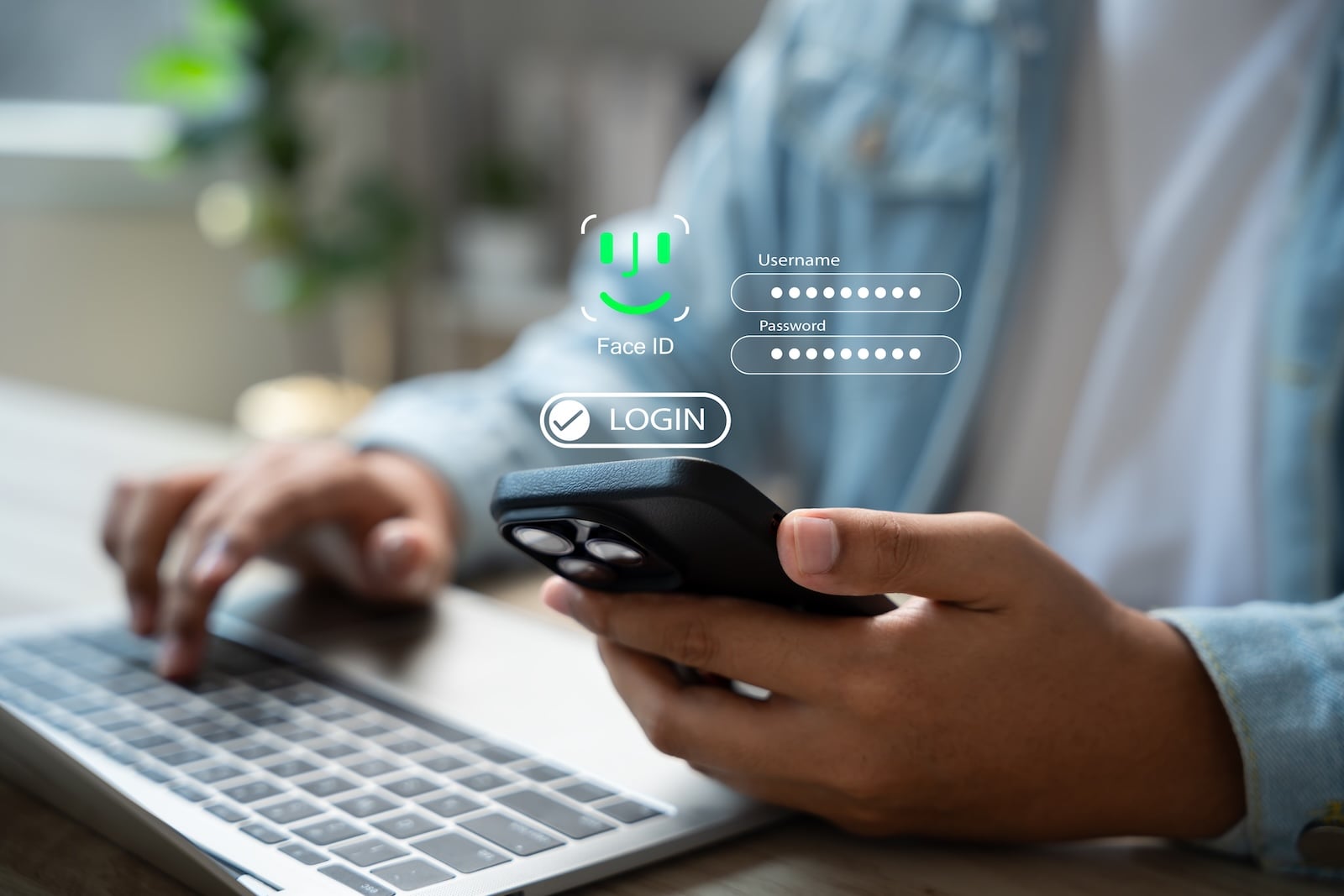
On every subsequent login to a website or app for which a passkey exists, the system recognizes the stored credentials and offers passkey sign-in. Instead of a password field, a prompt for biometric confirmation appears. Face ID or Touch ID, a quick glance or fingerprint touch – done. Sign-in typically takes less than two seconds.
For automatic filling to work, the option "AutoFill passwords and passkeys" must be enabled under Settings → "General" → "AutoFill & Passwords." On the Mac, the corresponding setting for Safari is found in System Settings. In third-party browsers on the Mac, the feature is available through a browser extension.
Using passkeys across platforms
A common concern: do passkeys also work outside the Apple ecosystem? The answer is yes, in several variants:
- On other devices via QR code: Anyone wanting to sign in on a Windows PC, Android smartphone or a public computer selects "Other options" → "Passkey from a nearby device" on the sign-in page. The other computer displays a QR code, the iPhone scans it, confirms via Face ID or Touch ID – and the sign-in goes through. The transfer runs end-to-end encrypted over Bluetooth.
- With iOS 26 (September 2025): Apple has implemented the Credential Exchange Protocol developed by the FIDO Alliance. For the first time, this allows passkeys and passwords to be moved directly between Apple Passwords and third-party managers such as 1Password, Bitwarden or Dashlane – end-to-end encrypted, without insecure CSV exports.
- With third-party password managers: Anyone using 1Password, Bitwarden or another provider can set them as the default passkey manager on iPhone since iOS 17. A direct feature comparison is available in the password manager comparison of Apple, 1Password and Bitwarden.
The FIDO Alliance estimates that more than five billion passkeys are already in circulation worldwide. Microsoft has been making passkeys the default sign-in for new Microsoft accounts since May 2025, and Google counts over 800 million active passkey accounts.
Which services already support passkeys
Passkey support is spreading quickly but is not yet available everywhere. As of early 2026, roughly half of the hundred most-used websites support passkeys, while among the top 1,000 websites the figure is around a quarter. Anyone who wants to check whether a specific service is on board has three options:
- Check the account settings: Under "Security" or "Sign-in," look for terms such as "Passkey," "Security key" or "passwordless sign-in."
- Use the FIDO directory: At passkeys.directory, the FIDO Alliance maintains a community-curated list of all passkey-enabled services.
- Look out on the sign-in page: Some services display a key icon next to the password field when passkeys are available.
Practically all major platforms are represented today: Apple Account, Google, Microsoft, Amazon, eBay, PayPal, GitHub, X (formerly Twitter), TikTok, WhatsApp and many others. In the banking sector, adoption is moving more slowly, as additional regulatory requirements apply here. Anyone whose bank does not yet offer passkeys should until then use a strong password plus two-factor authentication.
If all Apple devices are lost
One of the biggest concerns around passkeys: what happens if the only device is gone? Apple has built a multi-stage recovery logic for this, which is documented in the Apple support document on passkey security.
iCloud Keychain recovery works via an escrow service. Apple stores a copy of the keychain but cannot read its contents due to the end-to-end encryption. To restore the keychain on a new device, the following steps are required:
- Sign in with the Apple Account
- Respond to an SMS sent to the registered phone number
- Enter the device passcode of a previous Apple device
iOS and macOS allow ten authentication attempts, after which the escrow record is permanently deleted. Anyone who does not want to rely on this or wants additional security can set up a recovery contact – a trusted person who can help with account recovery in an emergency.
What passkeys do not replace
For all the enthusiasm about the technology, passkeys do not solve every problem. Certain risks are not addressed by the technology, or only indirectly:
- Targeted spyware attacks on high-value targets remain relevant. Anyone at elevated risk for professional reasons should additionally activate Apple's Lockdown Mode.
- Social engineering remains possible – anyone who voluntarily unlocks their iPhone and gives a caller access does not have a password problem, but a phishing problem. The key warning signs are described in our separate guide to phishing methods.
- Account takeover via recovery paths: The Apple Account password and phone number remain critical factors. The recommendations for a secure Apple Account password therefore remain relevant.
Passkeys therefore do not replace security hygiene – they improve one of its most important building blocks.
The end of the password is drawing closer
Passkeys are not hype but a technological shift that Apple, Google, Microsoft and the entire FIDO Alliance are driving forward together. For users, this means less to remember, less attack surface and significantly faster sign-ins. Setup in the Apple ecosystem is minimal, synchronization runs in the background, and with the Credential Exchange Protocol in iOS 26 even switching between providers is finally possible without any hassle. Anyone who starts creating one passkey after another today is building a secure sign-in architecture step by step – without sacrificing their own convenience in the process.
The best products for you: Our Amazon storefront offers a wide selection of accessories, including those for HomeKit. (Image: Shutterstock / GamePixel)
- Activate and properly use Stolen Device Protection on iPhone
- Pegasus and Commercial Spyware on iPhone: What Users Really Need to Know
- Secure email usage on the iPhone
- AI makes your iPhone more secure – what that really means for you
- Apple Security Updates: How Apple protects your Devices
- Ransomware explained: Could my iPhone be affected?
- Identity theft: What to do if your Data has been stolen?
- Recognizing Social Engineering: How to Protect Yourself from Manipulation
- Detecting AI fraud: Deepfakes, fake voices and how to protect yourself
- Recognizing Quishing: How to protect yourself from QR code fraud
- Use public Wi-Fi safely: How to protect your iPhone
- iOS 26.4: Show Hotspot Data usage per Device
- Recognizing Smishing: How to protect yourself from SMS fraud
- Create and manage secure passwords: The Apple guide
- WhatsApp hacked: How to protect your Account
- Recognizing Phishing: How to protect yourself from fraud
- Creating, Changing, and Deleting an Apple ID: The complete Overview
- Activate iPhone Call forwarding: All Methods under iOS 26
- iPhone vibrates for no Reason: Causes and Solutions under iOS 26
- Connecting and resetting AirPods: Instructions for all Models
- AirDrop not working: All Solutions for iOS 26
- iPhone loading slowly: Causes and Solutions under iOS 26
Frequently Asked Questions about Passkeys on Apple Devices
As long as the Mac is signed in with the same Apple Account and iCloud Keychain was enabled, the passkeys will be available there. Additionally, the keychain can be restored via the escrow service as soon as a new iPhone has been set up.
Yes, in two ways. First, the iPhone can be used as an authentication device – via QR-code scan and Face ID. Second, third-party managers such as 1Password or Bitwarden support passkeys across platforms, including synchronization between Apple and non-Apple devices.
Since iOS 26, yes. Apple has implemented the Credential Exchange Protocol developed by the FIDO Alliance. This allows passkeys to be transferred in encrypted form to other password managers such as Bitwarden, 1Password or Dashlane.
Passkeys are more secure. They are phishing-resistant through domain binding, transmit no shared secrets and combine possession (device) with biometrics (Face ID/Touch ID) in a single step. A classic password plus SMS code, on the other hand, can be bypassed via SIM swapping or well-crafted phishing pages.
Yes. The Apple Account itself still uses a password plus two-factor authentication, since it is the foundation for iCloud Keychain and passkey synchronization. Passkeys replace passwords with third-party services, not with Apple itself.
No. iCloud Keychain is end-to-end encrypted with 256-bit AES. Apple does store the encrypted data, but cannot technically decrypt it. Apple confirms this in several security documents on the iCloud Keychain architecture.