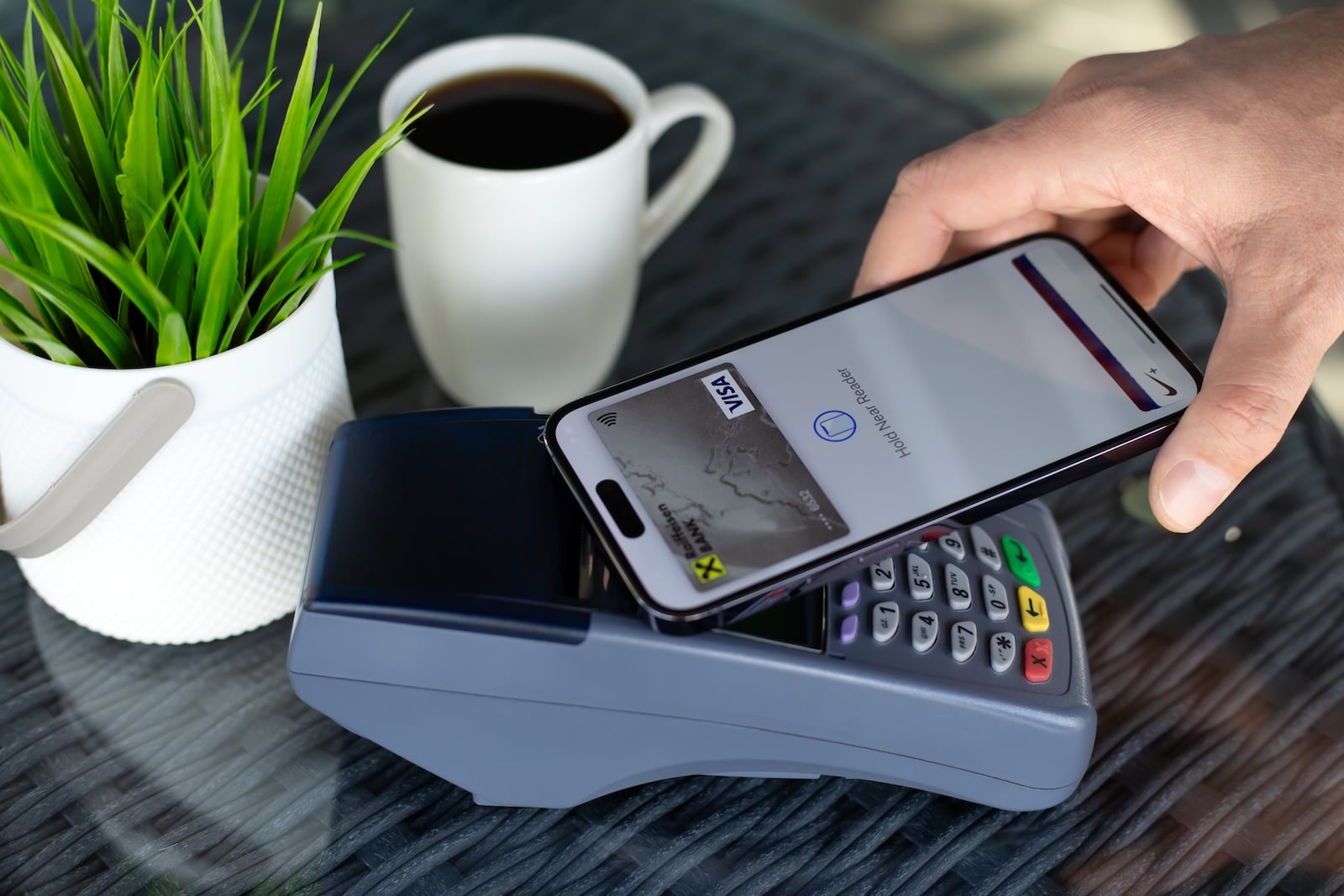
Apple Pay is considered one of the most secure payment systems available – safer than the traditional credit card, and often even safer than contactless payments made with one. The reason: your real card number never leaves the iPhone. Instead, the Secure Element passes only a device-specific pseudo number and a one-time code to the payment terminal. Even so, there are points where users can do their part to make sure the protection actually holds up in daily use.
Apple Pay is among the most widely used mobile payment systems in the world and, at the same time, one of the most technically secure. Unlike a traditional credit card, where magnetic stripes or skimming at manipulated terminals are enough to copy card data, Apple Pay is designed so that neither merchants nor potential attackers ever see the actual card number. For this protection to hold up when it matters most – for example, with a lost or stolen iPhone – a few prerequisites have to be in place. An activated Stolen Device Protection is one of them, along with a few deliberate decisions when adding and using cards.
How Apple Pay Works Technically
To understand why Apple Pay is safer than a contactless credit card, it helps to take a brief look at the technical foundation. Three components work together: the Secure Element, tokenization via the Device Account Number, and biometric authentication.
Secure Element and Device Account Number
When you add a card in the Wallet app, the card number is transmitted to your bank or card issuer. The bank then creates a device-specific Device Account Number (DAN) – a 16-digit pseudo card number – and encrypts it in such a way that not even Apple can decrypt it. This DAN is then stored in the Secure Element, a certified chip that is isolated from the iPhone's main processor and is exclusively responsible for security-critical operations. Your real card number is stored neither on the iPhone nor on Apple's servers.
Dynamic Security Code per Transaction
With every payment, the Secure Element generates a one-time, transaction-specific security code in addition to the DAN. This so-called dynamic security code is calculated using a transaction counter and a secret key that is known only to the payment network and the card issuer. Even if an attacker could eavesdrop on the NFC transmission at the terminal, the intercepted code would be worthless for any further transaction – reusing it is technically ruled out.
NFC with Short Range
The transmission itself runs over Near Field Communication, which only bridges a few centimeters. This rules out classic skimming attacks, where card data is copied from several meters away. Online payments in apps or in the browser take a different route: here, the Secure Element encrypts the payment data against the merchant certificate of the respective website, so that not even Apple has access to the transaction details.
Authentication: The Point Where You Yourself Count
The cryptographic architecture is of little use if just anyone could pay at the terminal with your iPhone. This is exactly where authentication comes in – and without it, no transaction goes through.
Face ID, Touch ID or Passcode
With every payment, the iPhone requires confirmation – via Face ID, Touch ID or the device passcode. With Face ID, you press the side button twice and glance briefly at the display; with Touch ID, you place your finger on the sensor. Only after successful authentication does the Secure Enclave give the Secure Element the green light for the payment. After three failed attempts with Touch ID or two with Face ID, the iPhone switches to passcode entry; after five failed attempts, a passcode is mandatory.
What This Means in a Theft Scenario
Whoever gets hold of your iPhone can't simply pay contactlessly with it. Without biometric confirmation or a passcode, nothing happens. Unlike a stolen contactless credit or debit card, where in Germany amounts up to 50 euros are usually waved through without a PIN, authentication protects every Apple Pay payment – whether it's one euro or a thousand euros.
Express Mode: Convenient, But Use It Deliberately
There is one exception to the authentication requirement: Express Mode, which is intended exclusively for certain transit cards, student IDs, home keys and other compatible cards. Here it's enough to hold the iPhone up to the terminal – no Face ID, no Touch ID, no passcode, even with the display locked. That's convenient during the daily commute, but it has a consequence: whoever gets hold of your iPhone can theoretically use public transport with it or use another Express card without authenticating.
In Germany, Apple Pay's Express transit integration with public transport is still very limited. Classic Express Transit examples include New York (MTA OMNY), London (Transport for London), Tokyo (Suica/PASMO) or Paris (NaviGo). In Germany, there are only isolated pilot projects; a nationwide Express transit system is missing due to the large number of regional transit associations. You can reach the Express Mode setting via the Settings app under "Wallet & Apple Pay" → "Express Transit Card". For regular credit and debit cards at classic checkout terminals, Express Mode cannot be enabled – these payments always require authentication.
If the iPhone Is Lost or Stolen
If your iPhone goes missing, you have several ways to block the cards stored on it. The good news: the blocking works even when the device is offline – meaning it no longer has a Wi-Fi or cellular connection.
Lost Mode via "Find My"
The fastest path is via the "Find My" app on another Apple device or via iCloud.com/find in the browser. There you select your iPhone, tap "Mark As Lost" and follow the instructions. The device is then locked, an optional contact message is shown on the lock screen – and all Apple Pay cards are automatically deactivated. Once you turn off Lost Mode later and sign back in to your Apple Account, the cards are reactivated.
Removing Cards via the Apple Account
Alternatively, you can sign in at account.apple.com with your Apple Account, select the lost device in the "Devices" section, and click "Remove Items" under "Wallet & Apple Pay". The cards will be blocked in Apple Pay by the card issuer in the payment network, even if the device is offline and not connected to a cellular or Wi-Fi network.
Block the Physical Card Separately
Important to know: if you only block the Apple Pay cards, your physical plastic card keeps working. The DAN is device-specific, but your actual card number is not. So anyone who suspects that the physical card has also gone missing should have it blocked at the bank independently of the iPhone. For German cards, the central blocking hotline is 116 116 (free of charge from within Germany, paid from abroad).
Security Building Blocks That Flank Apple Pay
Apple Pay is only as secure as the iPhone it runs on. Several complementary settings noticeably reinforce the protection – and can be activated in just a few minutes.
Stolen Device Protection
With Stolen Device Protection, iOS makes sensitive actions in unfamiliar environments considerably harder – such as password changes or turning off Lost Mode. This feature has been available since iOS 17.3 and should be active on every iPhone that is used outside the home, even occasionally.
Two-Factor Authentication for the Apple Account
For Apple Pay cards to sync between multiple devices (such as iPhone and Apple Watch) within the same Apple Account, two-factor authentication on the Apple Account must be enabled. Independently of that, 2FA protects against attackers using the device passcode alone to make significant changes to the Apple Account on a stolen iPhone.
Strong Apple Account Passwords
Since the Apple Account is the central hub for Wallet, "Find My" and Apple Pay, it's worth taking a look in the Passwords app to check whether the account password has shown up in a data leak. A compromised Apple Account password can, in the worst case, undermine all other protection mechanisms.
Watch Out for Apple Pay Phishing
A scam that keeps showing up: emails or text messages that supposedly come from Apple Pay or the bank, claiming that a payment has failed or that an account needs to be verified. The links they contain lead to fake sign-in pages designed to capture Apple Account credentials. Apple itself never asks via email or text message for Apple Pay data to be entered. Anyone who wants a closer look at the warning signs will find the most important indicators in our overview of how to spot phishing attempts.
What Apple Actually Sees During Transactions – and What It Doesn't
A common misconception: many users assume that Apple reads along on every transaction. That's not the case. With in-store payments, Apple sees nothing at all – communication runs directly between the Secure Element, the terminal and the bank's payment network. With in-app or web payments, Apple receives anonymized metadata such as the time and approximate location of the transaction, but neither the card number nor the specific merchant context. According to Apple's privacy notices, this data is used solely to improve Apple Pay and is not passed on to advertising networks for profiling purposes.
Using Apple Pay Safely Isn't Rocket Science
The technology behind it is complex, but the practical protection is surprisingly simple: consistently use Face ID or Touch ID, set a strong device passcode, activate Stolen Device Protection, and open "Find My" at the first sign of a lost iPhone. With these four building blocks, Apple Pay is not only one of the most convenient but also one of the most secure payment systems currently available – considerably safer than any plastic card in your wallet.
The best products for you: our Amazon storefront offers a wide selection of accessories, including for HomeKit. (Image: Shutterstock / DenPhotos)
- Data Leak Check on iPhone: How to Find Compromised Passwords
- Spotting a Hacked iPhone: Real Warning Signs, Common False Alarms and the Right Steps
- Advanced Data Protection for iCloud: How to Use Apple's Strongest Encryption Tier
- NameDrop on iPhone and Apple Watch: How to Use It Right
- Two-Factor Authentication for the Apple Account: Setup Guide, Options and Security Levels
- Using Passkeys on Apple Devices: How Passwordless Sign-In Works
- Activate and properly use Stolen Device Protection on iPhone
- Pegasus and Commercial Spyware on iPhone: What Users Really Need to Know
- Secure email usage on the iPhone
- AI makes your iPhone more secure – what that really means for you
- Apple Security Updates: How Apple protects your Devices
- Ransomware explained: Could my iPhone be affected?
- Identity theft: What to do if your Data has been stolen?
- Recognizing Social Engineering: How to Protect Yourself from Manipulation
- Detecting AI fraud: Deepfakes, fake voices and how to protect yourself
- Recognizing Quishing: How to protect yourself from QR code fraud
- Use public Wi-Fi safely: How to protect your iPhone
- iOS 26.4: Show Hotspot Data usage per Device
- Recognizing Smishing: How to protect yourself from SMS fraud
- Create and manage secure passwords: The Apple guide
- WhatsApp hacked: How to protect your Account
- Recognizing Phishing: How to protect yourself from fraud
- Creating, Changing, and Deleting an Apple ID: The complete Overview
- Activate iPhone Call forwarding: All Methods under iOS 26
Frequently Asked Questions: Using Apple Pay Safely
Yes. Apple Pay never transmits your real card number, but a device-specific Device Account Number plus a one-time code per transaction. In addition, every payment is tied to Face ID, Touch ID or a passcode – unlike a contactless credit card or debit card, with which amounts up to 50 euros in Germany are waved through without a PIN.
Without Face ID, Touch ID or a passcode, no payment goes through. After just a few failed attempts, the iPhone requires the passcode, and after five failed attempts at the latest, it becomes mandatory. Anyone who has also enabled Stolen Device Protection is protected even if someone happens to know the passcode – critical actions then require Face ID or Touch ID.
The fastest way is through the "Find My" app on another Apple device or via `iCloud.com/find`. Select the iPhone there and tap "Mark As Lost" – Apple Pay is deactivated immediately, even if the device is offline. Alternatively, you can sign in at `account.apple.com`, select the device under "Devices", and click "Remove Items" in the "Wallet & Apple Pay" section.
No, not necessarily – if only the iPhone has gone missing, blocking the Apple Pay cards is enough. Your physical card keeps working because it has a different number than the Device Account Number in the Secure Element. Things are different if the wallet is also missing: in that case, block it separately via the bank or the central blocking hotline 116 116.
Express Mode allows payments without Face ID, Touch ID or a passcode – but only for certain transit cards, student IDs and similar compatible cards, not for regular credit or debit cards. In Germany, Express transit integration is still very limited; it is in widespread use in places like New York, London or Tokyo. Express cards can also be blocked via Lost Mode.
Not with in-store payments – those run directly between the iPhone, the terminal and the bank. With in-app or web payments, Apple receives anonymized metadata such as time and approximate location, but neither the card number nor merchant details are used for advertising purposes. The real card number is never accessible to Apple, as it is cryptographically isolated in the Secure Element.
Ignore it and don't click the link. Apple never asks via email or text message for Apple Pay or Apple Account data to be entered. You can forward suspicious emails to `reportphishing [at] apple.com`. You always see real Apple Pay activity directly in the Wallet app.