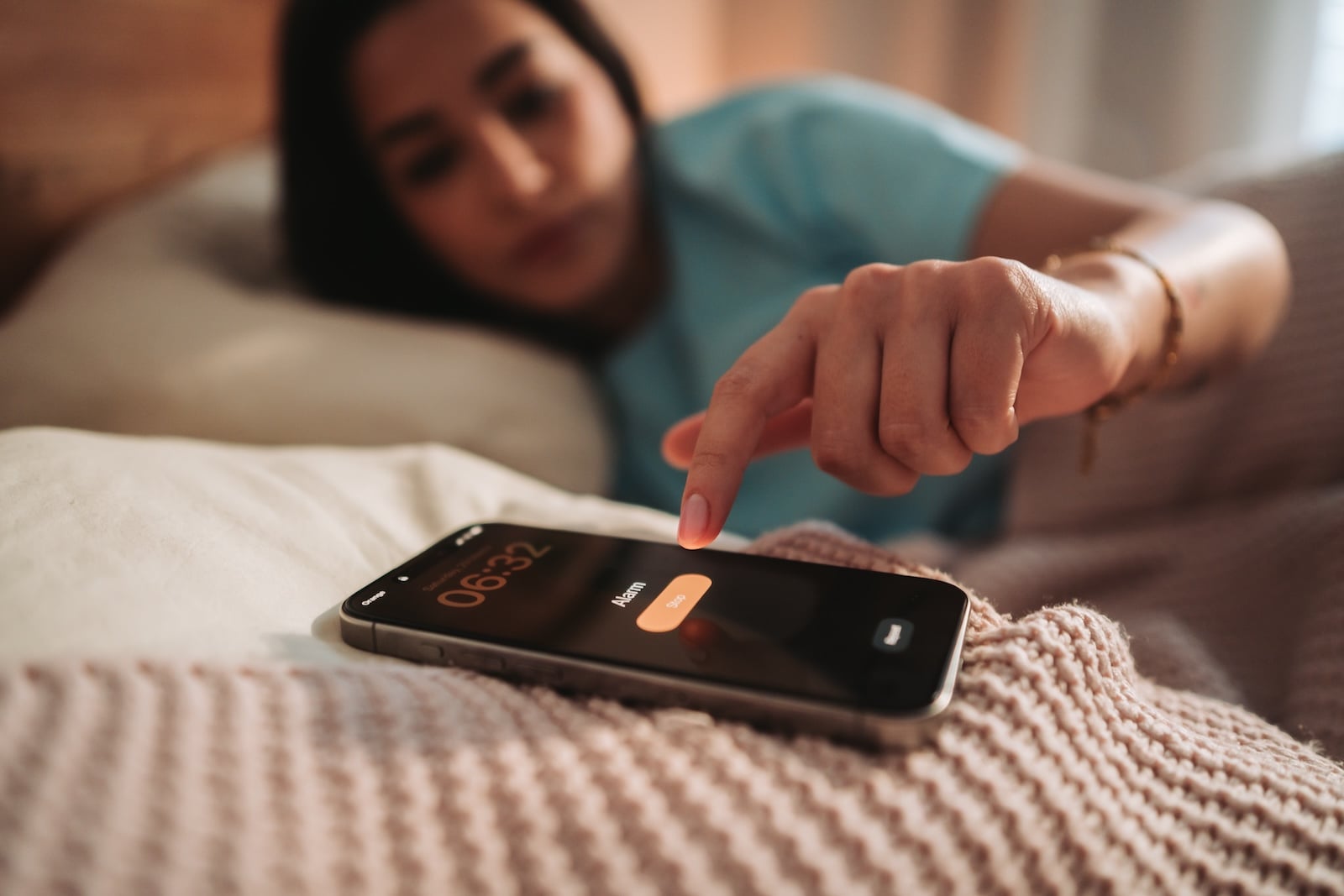
A quiet notification sound, but an alarm that reliably jolts you out of sleep — for years, those two didn't go together on the iPhone. iOS 27 finally separates these volumes from one another, and with a few taps you can set each type of sound individually.
For almost the entire history of the iPhone, the ringtone, alarms, timers, and notifications all ran through the same volume slider. Turning down the notification sound often quietly turned down the alarm as well — a conflict of priorities that could previously only be solved through compromise. Until now, the alarm's volume could only be adjusted together with the ringtone via "Sounds & Haptics". With iOS 27, Apple introduces new sound and haptics controls that break apart this rigid coupling. As a result, alarms, timers, and alert sounds can now be adjusted independently of one another.
What's Changing with the Sounds
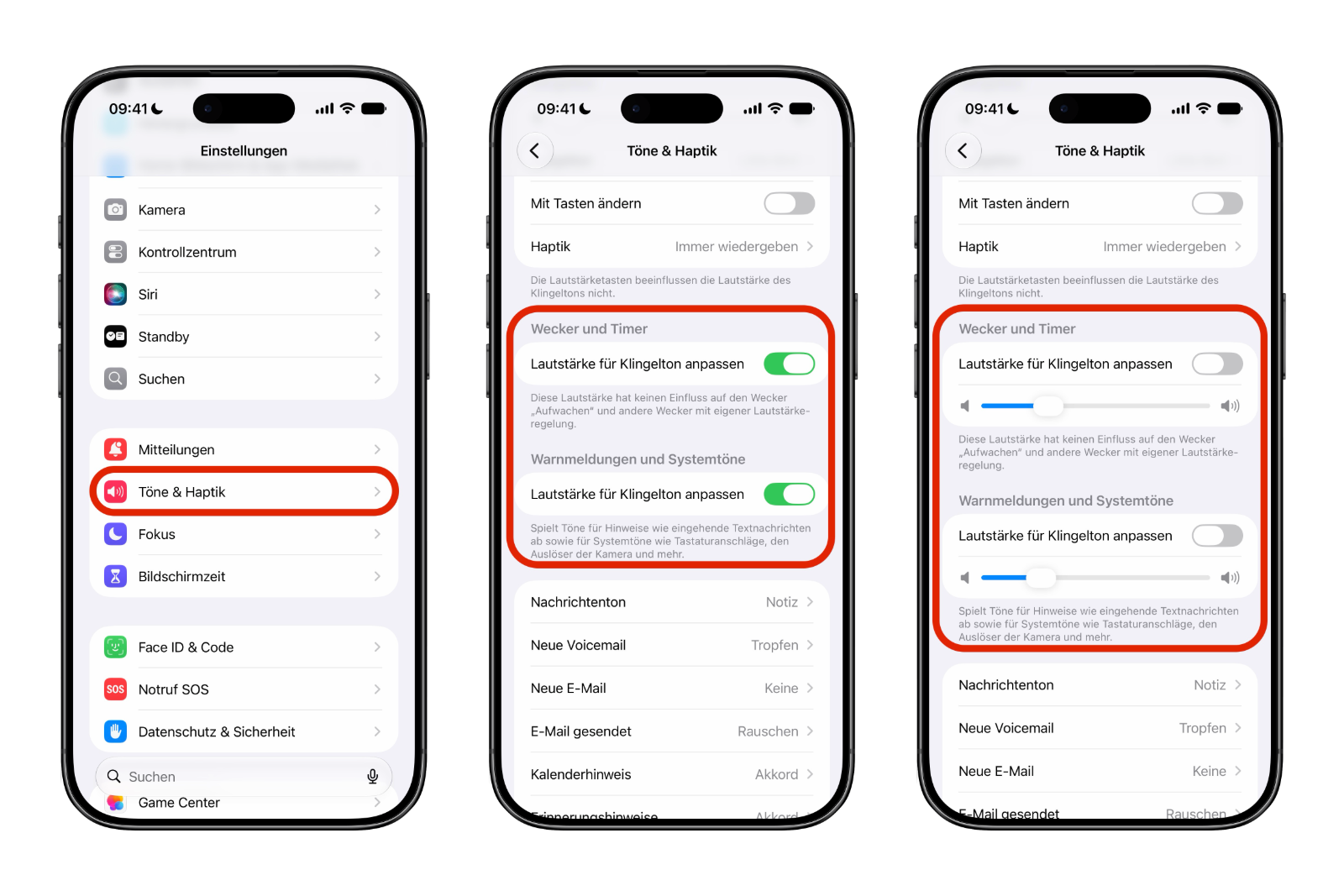
In iOS 27, the "Sounds & Haptics" section is divided into three separate areas: Ringtone, Alarms and Timers, and Alerts and System Sounds. With this, Apple acknowledges that a morning alarm, a kitchen timer, and an incoming text message serve different purposes — and may therefore be set to different volumes.
An everyday example: a kitchen timer may need to be audible from the next room while dinner is cooking. A keyboard click or the camera shutter sound, on the other hand, hardly needs the same volume. Instead of lumping all of this together, iOS 27 now treats these sounds separately.
Step by Step to Separate Volumes
The separation is hidden behind a toggle for each category. Here's how to enable it:
- Open Settings on your iPhone running iOS 27.
- Tap "Sounds & Haptics."
- Select "Alarms and Timers" or "Alerts and System Sounds."
- Turn off the "Match Ringtone Volume" option.
- Set the now-unlocked slider to the volume you want.
- Repeat this for any other category you want to control independently.
Each category includes the "Match Ringtone Volume" option. If it stays enabled, the category remains tied to the ringtone volume — just as before. Only turning it off unlocks a separate volume slider. So anyone who wants everything to stay the way it was simply leaves the toggle on and won't notice the change at all.
Which Sounds Fall into Which Category
The categorization is worth a closer look so that the sliders do what you'd expect. "Alerts and System Sounds" covers text notifications, keyboard clicks, the camera shutter sound, and other interface sounds. The "Alarms and Timers" setting, on the other hand, controls timer alerts and most alarm sounds.
There is, however, one important exception: the Wake Up alarm tied to Sleep Focus, as well as alarms with their own built-in volume controls, remain unaffected by the new settings. These continue to be managed separately via the Sleep or Bedtime settings — a note that iOS 27 points out in the interface itself.
The system isn't quite as fine-grained as it might sound, though: iOS 27 doesn't offer individual sliders for truly every sound. Apple still groups the sounds into broader categories rather than providing a separate slider for every app, every alarm, or every type of notification.
A Small Change with a Big Everyday Impact
At WWDC, almost everything revolved around Apple Intelligence and AI features, and separate volume sliders will hardly get the same attention. In everyday use, however, many iPhone users are likely to encounter them far more often than some headline feature. Anyone who relies on alarms, timers, medication reminders, and other recurring alerts will notice the added flexibility right away. Incidentally, you can also set a dedicated, fitting volume for the default notification sound, so the iPhone's soundscape can now be configured far more precisely than before.
Separate Volumes in iOS 27 — The Key Takeaways at a Glance
iOS 27 clears away a limitation that shaped the iPhone's sound settings for years. Via "Sounds & Haptics," the ringtone, alarms and timers, and alerts and system sounds can be controlled separately, as soon as the "Match Ringtone Volume" option is turned off in the respective category. The Wake Up alarm tied to Sleep Focus is exempt from this and continues to be controlled via the Bedtime settings. Anyone who wants to combine quiet notifications with a loud alarm no longer has to make a compromise.
The best products for you: Our Amazon storefront offers a wide selection of accessories, including those for HomeKit. (Image: Shutterstock / Big Shot Theory)
- Create a Pass in iOS 27: Create Your Own Wallet Passes
- iOS 27, iPadOS 27 and macOS Golden Gate: These Apple devices are compatible
- How to install the iOS 27 Developer Beta: guide, risks and troubleshooting
- Setting Up Apple Family Sharing Securely: What Parents Need to Know
- iCloud Private Relay vs. VPN: What Actually Protects You?
- How to protect Apple devices from malware
- Configuration Profiles on the iPhone: When They Help, When They Become Dangerous
- HomePod Plays Music on Its Own: How to Stop Ghost Touches
- Selling Your iPhone Safely: How to Prepare Your Device the Right Way
- Using Apple Pay Safely: How the iPhone Protects Your Payments
- Data Leak Check on iPhone: How to Find Compromised Passwords
- Spotting a Hacked iPhone: Real Warning Signs, Common False Alarms and the Right Steps
- Advanced Data Protection for iCloud: How to Use Apple's Strongest Encryption Tier
- NameDrop on iPhone and Apple Watch: How to Use It Right
- Two-Factor Authentication for the Apple Account: Setup Guide, Options and Security Levels
- Using Passkeys on Apple Devices: How Passwordless Sign-In Works
- Activate and properly use Stolen Device Protection on iPhone
- Pegasus and Commercial Spyware on iPhone: What Users Really Need to Know
- Secure email usage on the iPhone
- AI makes your iPhone more secure – what that really means for you
- Apple Security Updates: How Apple protects your Devices
- Ransomware explained: Could my iPhone be affected?
- Identity theft: What to do if your Data has been stolen?
Frequently Asked Questions: Separate Volumes in iOS 27
Yes. iOS 27 separates the volumes of the ringtone, alarms/timers, and alerts and system sounds. As soon as you turn off the "Match Ringtone Volume" option in a category, you get a separate slider for it.
Under Settings → "Sounds & Haptics." There, the areas for Ringtone, Alarms and Timers, and Alerts and System Sounds are listed separately.
In "Sounds & Haptics," open the category you want and turn off "Match Ringtone Volume." A separate volume slider then appears, which you can set freely.
These include text notifications, keyboard clicks, the camera shutter sound, and other interface sounds. Alarms and timers, by contrast, have their own category.
No. The Wake Up alarm tied to Sleep Focus, as well as alarms with their own built-in volume controls, remain exempt and continue to be managed via the Bedtime settings.
Then everything stays as before. As long as "Match Ringtone Volume" is enabled, the respective category continues to follow the ringtone volume.
No. iOS 27 groups the sounds into broader categories. The system doesn't offer individual sliders for every app, every alarm, or every type of notification.