In the middle of the night, music suddenly starts, the volume jumps up, or Siri pipes up even though no one called it. This ghostly behavior comes down to so-called ghost touches – and in most cases the problem can be brought under control without an expensive repair.
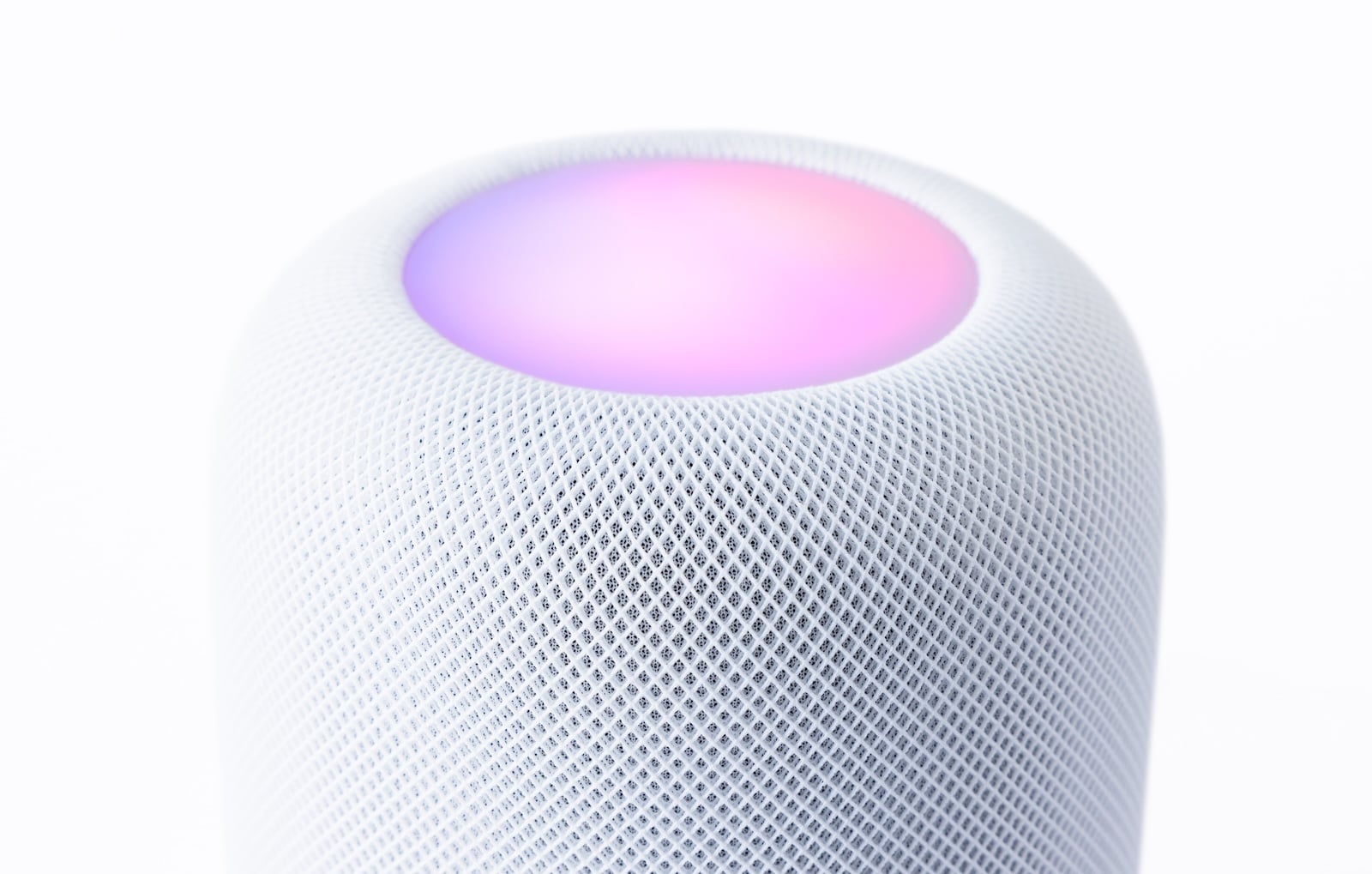
The HomePod and HomePod mini are largely hands-free devices: they are controlled by voice through Siri, through the Home app and HomeKit, or via AirPlay from an iPhone, iPad, or Mac. The touch-sensitive surface on top of the speaker serves as an additional control – a quick tap pauses playback, while resting your finger for a moment longer summons Siri. This very surface is standard equipment on every HomePod and, according to the rumors so far, will remain so on the upcoming generation as well. On some devices, however, this touch panel registers inputs that never happened. The result is random behavior that can't be reliably fixed by a restart or even a full reset. The good news: for most of those affected, there's an effective solution in the settings.
What's Behind the Ghost Touches
A ghost touch is when the touch surface registers an input even though no one has touched it. The HomePod then behaves as if its top were being tapped over and over by an invisible hand: playback starts and stops on its own, tracks get skipped, the volume changes, or Siri switches on for no reason.
There isn't a single cause, and it likely varies from model to model. Notably, the likelihood seems to increase with the age of the devices – so the reports aren't limited to the odd Monday-morning unit, but run across older HomePods and HomePod minis alike. Those who contact Apple Support are often told that there's a hardware defect. Before going down the road of a replacement or a paid repair, however, it's worth looking at several measures that often defuse the problem in practice.
First Quick Steps
Before you dive deeper into the settings, two simple steps are worth a try.
First, clean the surface. If the HomePod sits in one spot for a long time, a fine layer of dust builds up on top, which can already be enough to trigger a false touch. A lightly dampened, soft cloth does the trick – then wipe it dry right away so no residual moisture is left behind.
For the second-generation full-size HomePod in particular, some users report an unusual but uncomplicated trick: a magnet on top – such as a fridge magnet or the magnet ring of a MagSafe charger – is said to affect the touch panel enough that the phantom inputs disappear. The idea behind it is that the magnetic field overrides the faulty detection. There's no guarantee it works; it does the job for some and not for others – but trying it costs nothing.
The Most Effective Software Fix: Touch Accommodations and Hold Duration
If that doesn't help, the most reliable route is through Accessibility in the Home app. There you can set the HomePod to respond only to deliberately long touches and simply ignore brief, random inputs.
- Open the Home app on your iPhone or iPad.
- Tap and hold the affected HomePod until the settings open.
- Tap the gear icon to open the settings.
- Scroll down to "Accessibility."
- Select "Touch Accommodations" and turn the feature on.
- Turn on "Hold Duration" and use the plus and minus buttons to set the time to the maximum of four seconds.
From now on, the HomePod ignores any touch shorter than the set hold duration. Random micro-touches no longer trigger anything. The trade-off: anyone who wants to control the speaker deliberately by touch now has to rest their finger for the full duration instead of just tapping briefly.
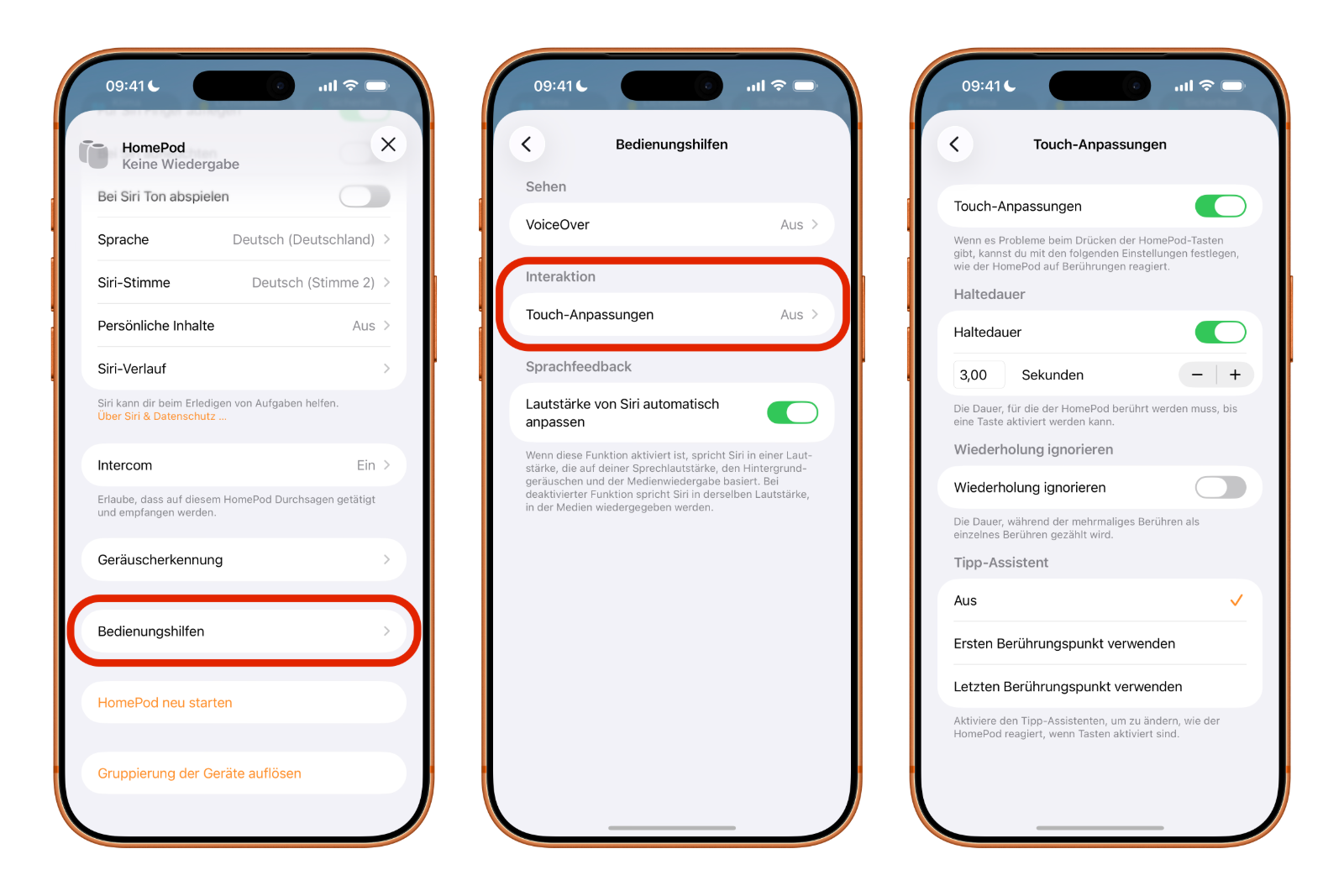
Two more options in the same menu round out the protection. "Ignore Repeat" ensures that several touches in quick succession are counted as a single one. And "Tap Assistance" helps when accidental swipes are registered instead of clean taps – here you can set whether the HomePod responds to the first or the last touch point.
Handy side effect: if you have cats or small children in the household who like to tap away at the top, a long hold duration brings peace and quiet there too.
Turning Off Touch Activation for Siri
On top of that, you can prevent a touch from activating Siri in the first place. The setting for this sits in the Home app, in the HomePod settings under the "Siri" section.
There you turn off the "Touch and Hold for Siri" option. After that, the speaker no longer responds with the assistant when you rest your finger on it. Important to know: this setting only affects summoning Siri by touch – the normal playback control via the surface remains unaffected. That's why the hold duration is the stronger lever against music starting or stopping at random; turning off the Siri gesture mainly prevents the assistant from piping up for no reason. By voice command via "Hey Siri" or "Siri," it remains available as before.
When Software Isn't Enough: The Risky Hardware Route
If the settings bring no improvement, all that's left is a considerably more involved procedure – and it's not for the faint of heart. Technically, the touch panel can be disconnected from the device entirely, so that it can no longer register any inputs at all. To do this, however, the HomePod has to be opened up.
On the full-size HomePod of the first and second generation, that means detaching the firmly glued display from the top. On the HomePod mini, the base has to be removed, the outer shell pulled off, and the device taken apart before the right cable can be unplugged. In both cases the fabric covering takes a hit, and in the worst case more ends up broken than before.
This route therefore only makes sense at most for devices whose warranty has expired anyway – and even then, we advise against doing it yourself. Anyone looking for a professional solution faces a problem in Germany: while a specialized repair service in the US has already geared up for exactly this phenomenon, no comparable offering is known here. That leaves a trip to the Apple Store, which, however, comes with the cost of an out-of-warranty repair or a replacement device.
HomePod Ghost Touches – Key Takeaways at a Glance
A step-by-step approach makes sense, from the simplest to the most involved measure:
- Clean the surface – rule out dust and moisture as simple triggers.
- Try the magnet trick – worth a shot on the full-size HomePod (2nd gen).
- Increase the hold duration – via "Accessibility" and "Touch Accommodations," the most effective measure against random inputs.
- Turn off the Siri touch gesture – prevents the assistant from piping up for no reason.
- Hardware intervention – only out of warranty and with the risk of permanent damage.
In the vast majority of cases, the combination of a clean surface and a longer hold duration is enough to keep the HomePod permanently quiet.
The best products for you: Our Amazon Storefront offers a wide range of accessories, including for HomeKit. (Image: Shutterstock / Kaspars Grinvalds)
- Selling Your iPhone Safely: How to Prepare Your Device the Right Way
- Using Apple Pay Safely: How the iPhone Protects Your Payments
- Data Leak Check on iPhone: How to Find Compromised Passwords
- Spotting a Hacked iPhone: Real Warning Signs, Common False Alarms and the Right Steps
- Advanced Data Protection for iCloud: How to Use Apple's Strongest Encryption Tier
- NameDrop on iPhone and Apple Watch: How to Use It Right
- Two-Factor Authentication for the Apple Account: Setup Guide, Options and Security Levels
- Using Passkeys on Apple Devices: How Passwordless Sign-In Works
- Activate and properly use Stolen Device Protection on iPhone
- Pegasus and Commercial Spyware on iPhone: What Users Really Need to Know
- Secure email usage on the iPhone
- AI makes your iPhone more secure – what that really means for you
- Apple Security Updates: How Apple protects your Devices
- Ransomware explained: Could my iPhone be affected?
- Identity theft: What to do if your Data has been stolen?
- Recognizing Social Engineering: How to Protect Yourself from Manipulation
- Detecting AI fraud: Deepfakes, fake voices and how to protect yourself
- Recognizing Quishing: How to protect yourself from QR code fraud
- Use public Wi-Fi safely: How to protect your iPhone
- iOS 26.4: Show Hotspot Data usage per Device
- Recognizing Smishing: How to protect yourself from SMS fraud
- Create and manage secure passwords: The Apple guide
- WhatsApp hacked: How to protect your Account
Frequently Asked Questions: HomePod Plays Music on Its Own
Because the touch-sensitive surface on top of the HomePod registers inputs that never happened – so-called ghost or phantom touches. The speaker then behaves as if it were being tapped constantly and starts playback without any command. There isn't a single cause; it ranges from dust on the surface to aging effects in the hardware.
A ghost or phantom touch is an input that the touch panel registers even though no one has touched the device. The result is random behavior: music starts or stops, tracks get skipped, the volume changes, or Siri pipes up for no reason.
Usually not for good. Neither a restart nor a full reset and reconfiguration generally fixes the behavior. Adjusting the hold duration in the Accessibility settings works more reliably.
In the Home app, press and hold the HomePod, open the gear icon, scroll to "Accessibility," turn on "Touch Accommodations," and enable "Hold Duration" there. Using the plus and minus buttons, the time can be increased to a maximum of four seconds – the HomePod then ignores shorter touches entirely.
It prevents a touch on the top from summoning Siri. The normal playback control by touch remains unaffected, which is why the hold duration is the more effective lever against music starting at random. Via "Hey Siri" or "Siri," the assistant remains available as before.
No. It's reported mainly for the second-generation full-size HomePod, and it doesn't work reliably – on some devices the phantom inputs disappear, on others they don't. It's still worth a try, since it costs nothing.
Not necessarily. While Apple Support often suspects a hardware defect, on many devices the behavior can be eliminated entirely through cleaning and Touch Accommodations, without a repair being necessary.