
An Apple account is central to all Apple services. It allows access to iCloud, the App Store, Apple Music, purchases, and personal data across various devices. To keep this access secure, it's advisable to update your password regularly. The following article shows you step-by-step how to change your Apple account password via iPhone, iPad, Apple Watch, Apple Vision Pro, Mac, or the Apple Account website. It also explains how to change the password for children in a Family Sharing setup.
The most efficient way to obtain a new password is via a trusted device. With two-factor authentication enabled, Apple automatically recognizes such devices. This increases security and speeds up the entire process. The following sections describe the complete process.
Change password on iPhone, iPad, Apple Watch or Apple Vision Pro
The process is the same on all the devices mentioned.
- First, open the settings and choose your own name.
- Then open the Login & Security section and select Change Password.
- Then enter your existing password or device code.
- Next, set a new password and confirm. The final step, "Change," saves the new password.
- This process works particularly reliably when a device that is already registered and verified is used.
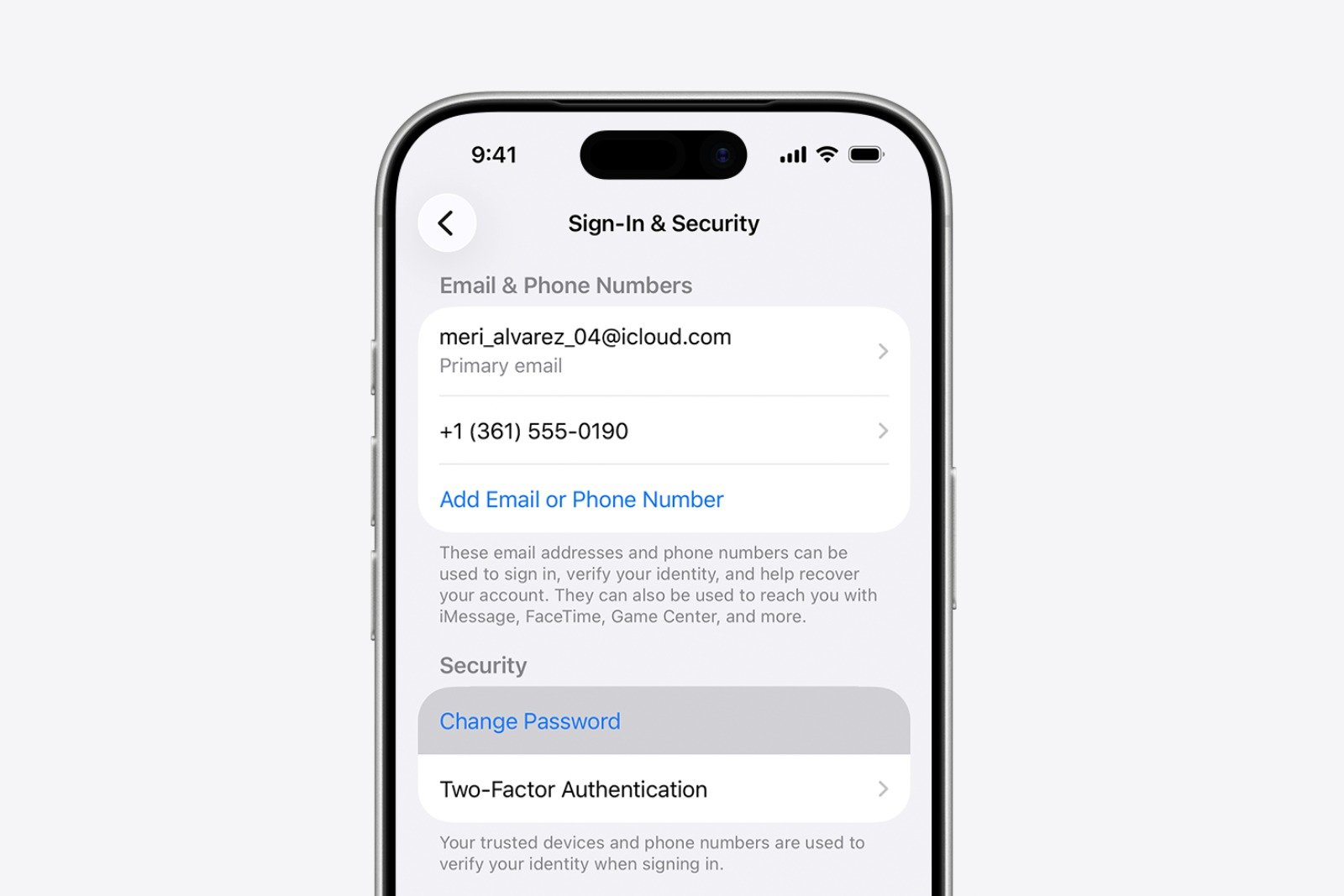
Change your Apple account password on your Mac
- On a Mac, the change is initiated via the Apple menu.
- Open system settings there and select your own name.
- Then switch to the Registration & Security section.
- The process starts when you change the password.
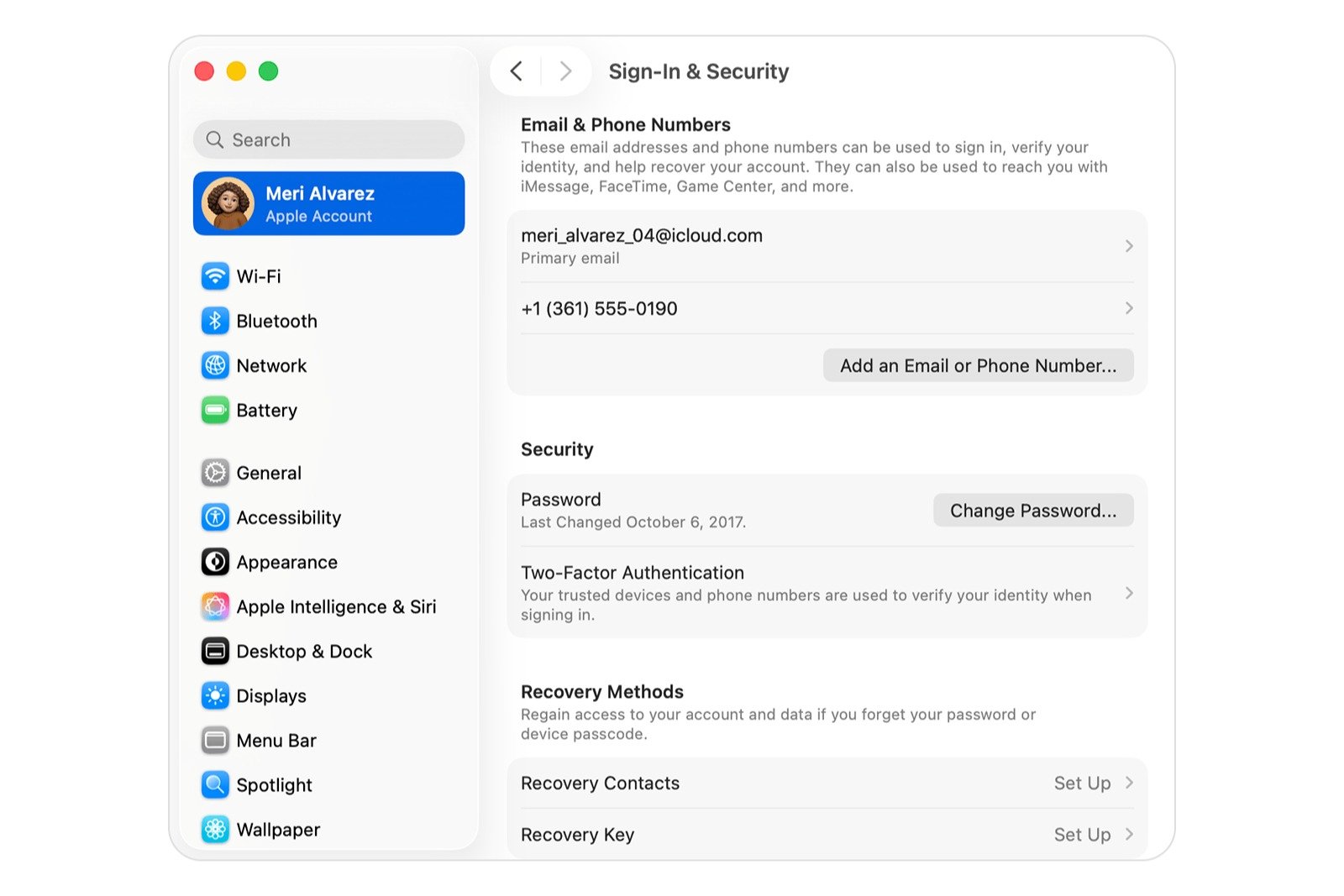
To change your Apple account password, you must first enter your Mac password. Then you can set and confirm your new password. Your Mac will also serve as a trusted device during this process.
Change your password on the internet
If no trusted Apple device is available, the change can be made via the Apple Account website.
To do this, go to account.apple.com and log in. Then go to the Sign In & Security section and choose a password. If possible, the website will redirect you to a trusted device. If no such device exists, the change may still succeed as long as the existing security mechanisms allow for identity verification.
Change the password for a child's Apple account
In a Family Sharing setup, the password for a child's account can be changed using a device with the latest version of iOS, iPadOS, or visionOS. Two-factor authentication must be enabled for the user's own Apple account.
- To do this, open the Family section in the settings and select the relevant child account.
- Then select your Apple account and password.
- Then select "Change password for [child's name]".
- The device code must be entered, then the instructions will follow on the screen.
- This allows children's accounts to be managed and updated directly if necessary.
Apple Account: Overview of all ways to change your password
Changing your Apple account password is straightforward on every Apple device. The process is simple and can be completed easily on a trusted device. Full options are also available on Macs and via the Apple account website. In Family Sharing, you can also manage children's passwords directly. An up-to-date password increases account security and reliably protects all stored data. The best products for you: Our Amazon storefront offers a wide selection of accessories, including those for HomeKit. (Image: Apple)
- Create an Apple account for children & use Family Sharing
- Family Sharing offers clear control over purchases made by children
- Use Family Sharing to share apps and purchases
- Adjust family sharing and expand access to subscriptions
- Use Apple's Family Sharing to share content together
- iPhone tip: How alternative app distribution channels work
- iPhone tip: Access flight information directly in the system
- Family Sharing explained: Easily share and manage iCloud+
- Quickly set up Family Sharing on iPhone, iPad, and Mac
- iOS 26.2 explained: How the new AirDrop codes work
- iOS 26.2 enhances the Reminders app with alarm functionality
- Here's how to properly create a backup for iPhone and iPad
- Setting up and using Apple Car Key: All functions explained
- New iOS 26.2 feature: Screen flashes for notifications
- Longer battery life with iOS 26 – Adaptive Power explained
- Live translation with AirPods: Here's how the feature works
- iOS 26: The new focus mode „Reduce interruptions“
- iOS 26.1: Reactivate the classic stop button on the alarm clock
- iOS 26.1 brings a new lock screen setting for the iPhone
- iOS 26.1: Liquid Glass effects can be toned down
- watchOS 26 brings hints about the Apple Watch dial
- macOS 26 Update: Hidden Tools and Improvements
- New call history in iOS 26: All conversations at a glance
- iOS 26: iMessage not working? Apple announces the solution
- iOS 26 Tricks: 26 small innovations with a big impact
- iOS 26 solves the Bluetooth problem with AirPods in the car
Frequently asked questions about Apple accounts
The change can be made via a trusted device in Settings under Sign-in & Security. Alternatively, the process can be initiated via account.apple.com.
A trusted device with two-factor authentication enabled, or access to the Apple account website. Additionally, the device passcode or current password is required.
Yes. The process can be started via account.apple.com. If possible, you will be redirected to a trusted device.
In Settings, under Family, select the child account and initiate the change via Apple Account & Password. A device with the latest system version and two-factor authentication is required.
The change can be attempted online. The provided security checks must be successfully completed to confirm your identity.
The password must comply with Apple's security rules, such as minimum length and secure character combinations.
Regular updates improve security and protect stored data, purchases, and device access.