
Family Sharing offers a simple way to share iCloud+. Storage space and features like Private Relay, hiding email addresses, and HomeKit Secure Video can be bundled within a group without exposing personal data. Each member uses their own Apple account, while the benefits of iCloud+ are managed centrally.
iCloud+ is becoming increasingly important in everyday life because photos, backups, and files require more and more storage space. With Family Sharing, this storage is not only shared but also efficiently organized. All members can use up to 12 TB and have access to the advanced iCloud+ features. The organizer of Family Sharing doesn't have to be the same person who shares the storage plan. Responsibility can be easily transferred to another member.
Share iCloud+ with Family Sharing
The prerequisite is a configured Family Sharing setting. After that, the iCloud+ plan can be shared on iPhone, iPad, or Mac.
On iPhone or iPad
- Open settings and tap on Family.
- Select subscriptions and open iCloud+
- Share the existing plan and follow the instructions.
On the Mac
- Open the Apple menu and select System Preferences.
- Click on Family
- Open Subscriptions and select iCloud+
- Select "Share with family" and follow the steps.
The storage space is shared, but personal content remains separate. Everyone keeps their photos, documents, and backups private.
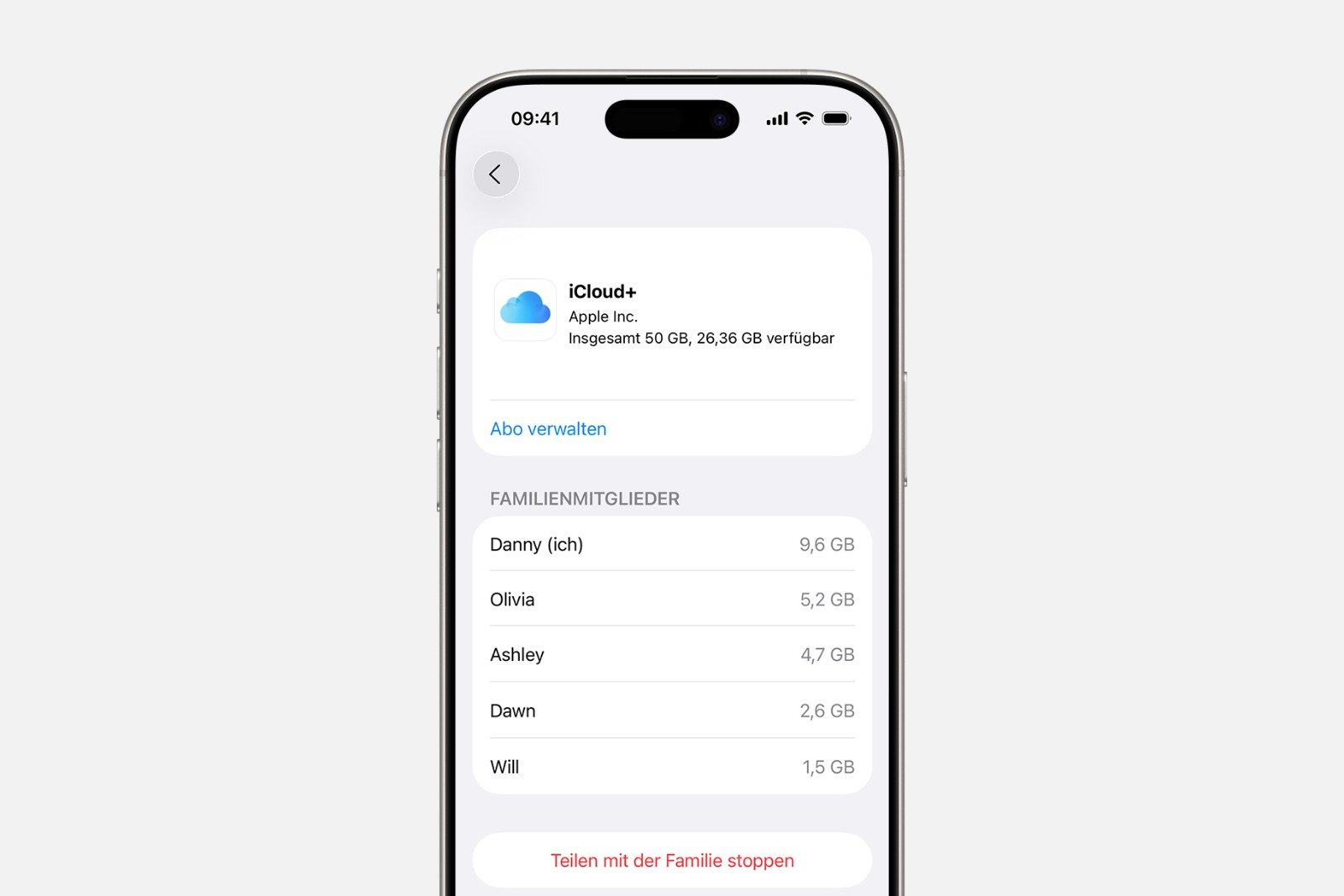
Check storage usage of Family Sharing
If shared storage space becomes low, all members will receive a notification. The organizer or the person who purchased the plan can upgrade at any time. Up to 12 TB is possible.
On iPhone or iPad
- Open settings and select Family
- Open Subscriptions and tap iCloud+
- Manage this subscription, select it and purchase additional storage.
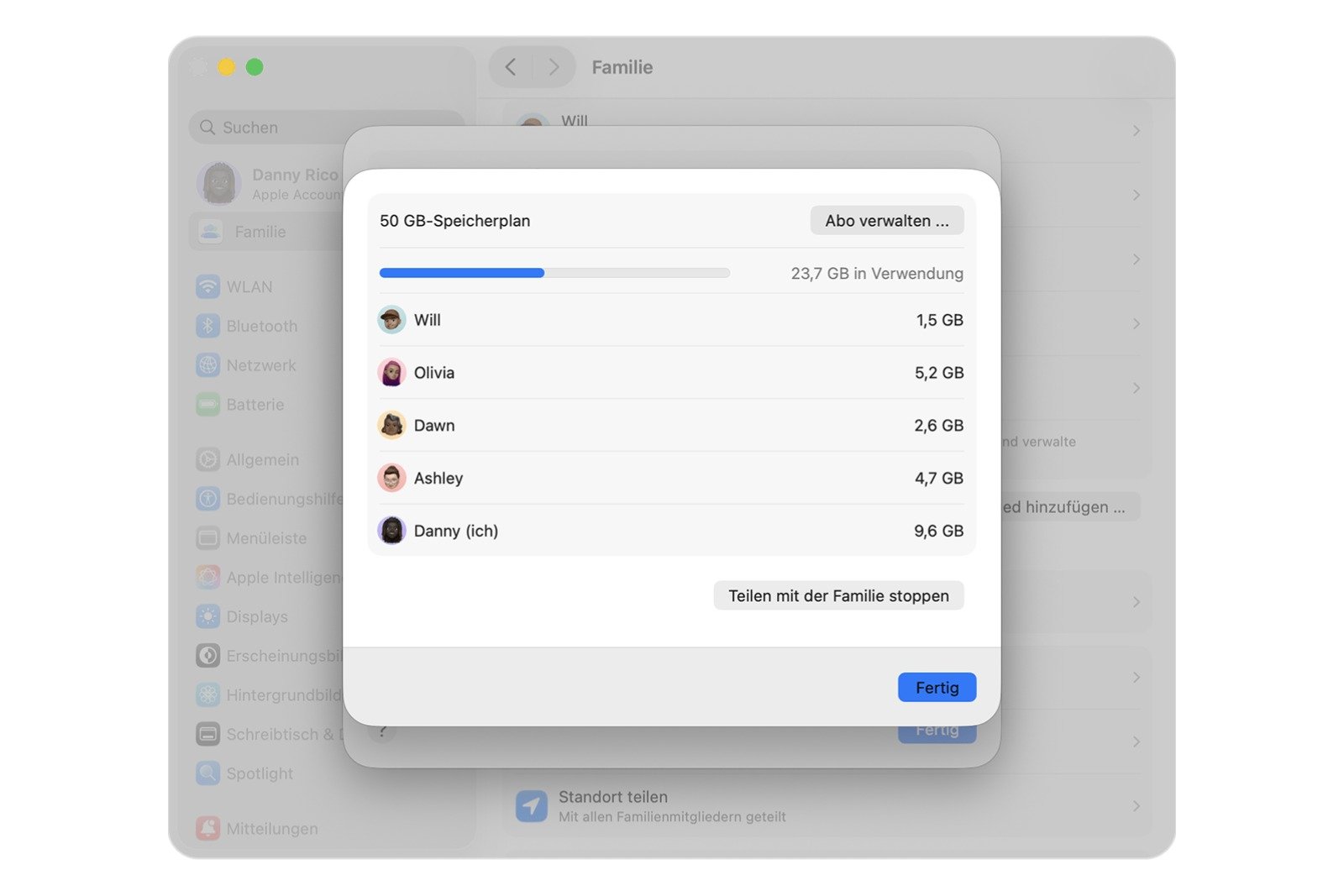
On the Mac
- Open Apple Menu
- Select system settings
- Click on Family
- Open Subscriptions and select iCloud+
Switch from your personal iCloud+ plan to your family plan
With Family Sharing, all members who are only using the 5 GB free version are automatically added to the family plan.
- If a member already uses iCloud+, there are two options to choose from:
- Your own plan remains in place or
- Change to the family plan
Important: If you switch plans, you will receive a refund for the remaining term of your personal plan. It is not possible to use both plans simultaneously.
On iPhone or iPad
- Open settings and select Family
- Select subscriptions and open iCloud+
- Tap to use family storage
On the Mac
- Open system settings and select Family.
- Open Subscriptions and select iCloud+
- Use shared plan
Request more storage from a family member
If storage space on a shared plan becomes limited, any member can request an upgrade from the person paying for the iCloud+ plan. Alternatively, files can be deleted or optimized to free up storage space.
Change responsibility for iCloud+ sharing
The role of the member sharing the iCloud+ plan with the group can be changed at any time. This is useful if another member has a larger plan or wants to upgrade.
Steps for the current member
- Open Settings
- Choose your own name
- Open iCloud and select storage.
- Open family use
- Stop sharing with family
Steps for the new member
- Purchase an iCloud+ plan or upgrade an existing plan
- Open Settings
- Choose your own name
- Open iCloud and select storage.
- Share with family and follow the instructions
What happens if family sharing ends or a member leaves the group?
If you leave Family Sharing and your storage usage exceeds 5 GB, you will need your own iCloud+ plan. Without a plan, you will no longer be able to upload new photos or videos. iCloud Drive will no longer accept new files, and device backups will stop. Content will remain stored, but new uploads will not be possible.
Overview of shared iCloud+ benefits within the group
Family Sharing offers a clear and flexible way to share iCloud+. Storage and features are available to all members without exposing personal data. With up to 12 TB, simple management options, and clear rules for responsibilities, iCloud+ can be used efficiently by a group. The structure remains clear and storage is optimally distributed, regardless of whether multiple devices, large photo collections, or HomeKit cameras are in use. The best products for you: Our Amazon Storefront offers a wide selection of accessories, including those for HomeKit. (Image: Apple)
- Quickly set up Family Sharing on iPhone, iPad, and Mac
- iOS 26.2 explained: How the new AirDrop codes work
- iOS 26.2 enhances the Reminders app with alarm functionality
- Here's how to properly create a backup for iPhone and iPad
- Setting up and using Apple Car Key: All functions explained
- New iOS 26.2 feature: Screen flashes for notifications
- Longer battery life with iOS 26 – Adaptive Power explained
- Live translation with AirPods: Here's how the feature works
- iOS 26: The new focus mode „Reduce interruptions“
- iOS 26.1: Reactivate the classic stop button on the alarm clock
- iOS 26.1 brings a new lock screen setting for the iPhone
- iOS 26.1: Liquid Glass effects can be toned down
- watchOS 26 brings hints about the Apple Watch dial
- macOS 26 Update: Hidden Tools and Improvements
- New call history in iOS 26: All conversations at a glance
- iOS 26: iMessage not working? Apple announces the solution
- iOS 26 Tricks: 26 small innovations with a big impact
- iOS 26 solves the Bluetooth problem with AirPods in the car
- iPhone: How the new call waiting feature works in iOS 26
- iPhone gets new feature against spam and advertising calls
- iOS 26: New option saves time and data when sending photos
- iOS 26: Over 10 hidden features everyone needs to know
- iOS 26: Visual intelligence now also for screen content
FAQs about Family Sharing and iCloud+
Family Sharing allows you to share an iCloud+ plan with up to five other people. Everyone keeps their own Apple account, while storage and iCloud+ features are shared. Personal data remains completely private.
Depending on the plan, up to 12 TB of iCloud storage can be shared. If storage becomes scarce, the plan purchaser can upgrade at any time.
Yes. Members with their own iCloud+ plan can continue using it. Alternatively, they can switch to the shared family plan, in which case the remaining amount of the individual subscription will be refunded.
Storage usage can be viewed at any time in the settings on iPhone, iPad, and Mac. As soon as available storage is running low, everyone receives a notification.
Yes. Photos, documents, backups, and files always remain private, as each member uses their own Apple account. Only storage and features are shared.
Yes. The member sharing the plan can stop sharing. Another member can then purchase or upgrade their own iCloud+ plan and make it available to the group.
If you leave the group and use more than 5 GB of storage, you will need your own iCloud+ plan. Without your own plan, uploads, backups, and syncing will no longer be possible.
Yes. Any member can ask a paying member to upgrade their plan. Alternatively, storage space can be freed up by deleting or optimizing data.
On iPhone and iPad, sharing is done via Settings > Family > Subscriptions. On Mac, it's done via System Preferences > Family > Subscriptions.
Any adult with an Apple ID can create a Family Sharing group and invite other members. The organizer doesn't have to be the person sharing iCloud+.