
Family Sharing offers an easy way to share content and services within a family. It allows access to subscriptions like Apple Music, Apple TV, iCloud+, and other offerings without having to share a single Apple account. It also includes features like location sharing, purchase requests, and managing children's devices. This guide shows you all the steps and explains all the options.
Properly configured Family Sharing brings structure to everyday life with Apple devices. It makes sharing services easier, simplifies purchases, and ensures that children's devices have appropriate settings.
Family Sharing features
Family Sharing connects up to six people. Services and subscriptions are available to everyone without merging accounts. It also makes it possible to locate lost devices belonging to other family members, share location, and manage screen time and parental controls for children. If Purchase Sharing is enabled, the family organizer covers the cost of purchases for all members and requires a valid payment method.
Setting up Family Sharing
On iPhone or iPad
Open Settings and select your own name. Then open the Family section and tap Next. Follow the instructions to create the family and invite members.

On the Mac
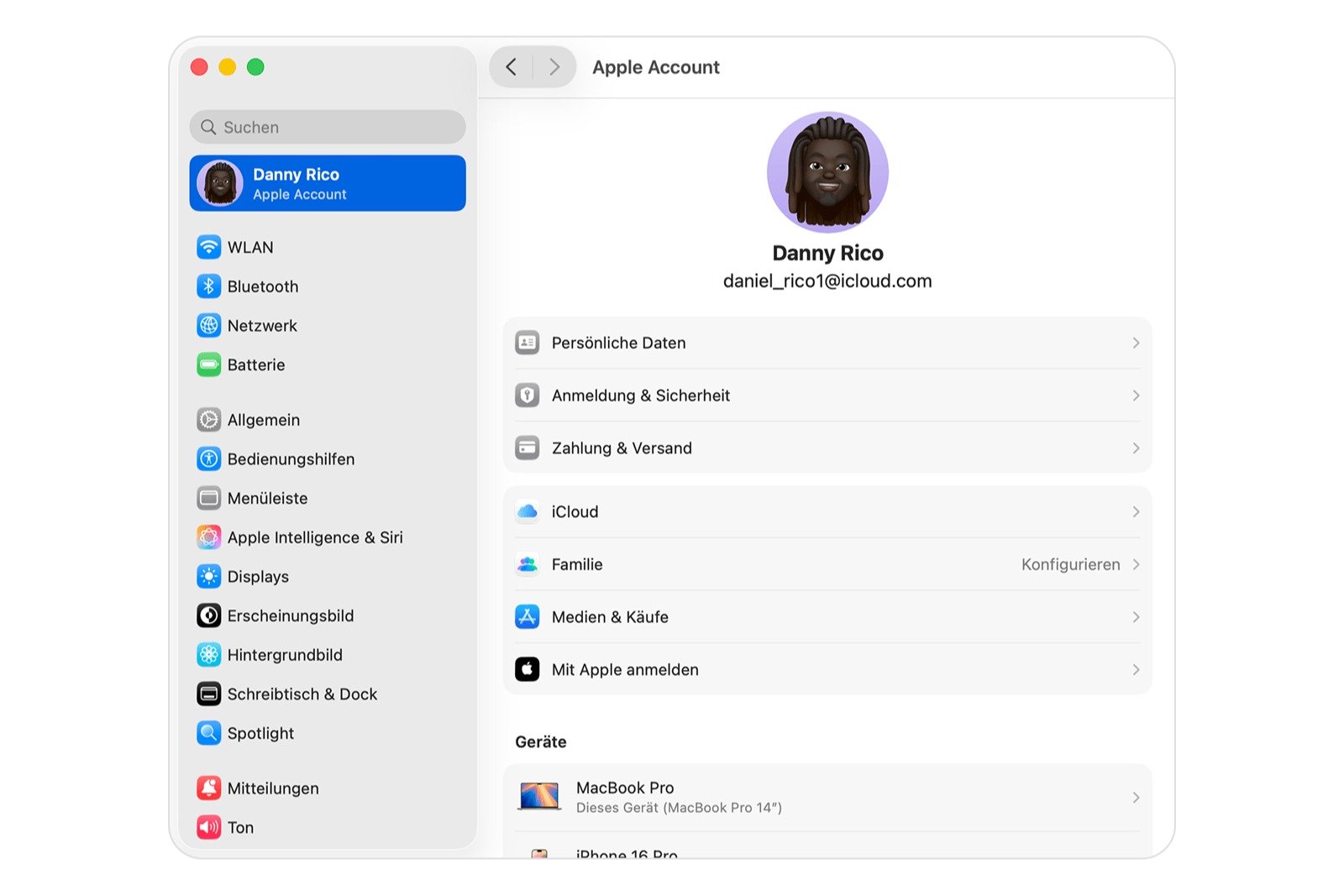
Open System Preferences via the Apple menu. Select your name and then the Family section. Click Set Up and follow the steps to create Family Sharing and send invitations.
Invite members to Family Sharing
Invitations can be added later. They can be sent via the Messages app or by email. If multiple Apple accounts are used, additional accounts can also be invited to share purchases with everyone.
On iPhone or iPad
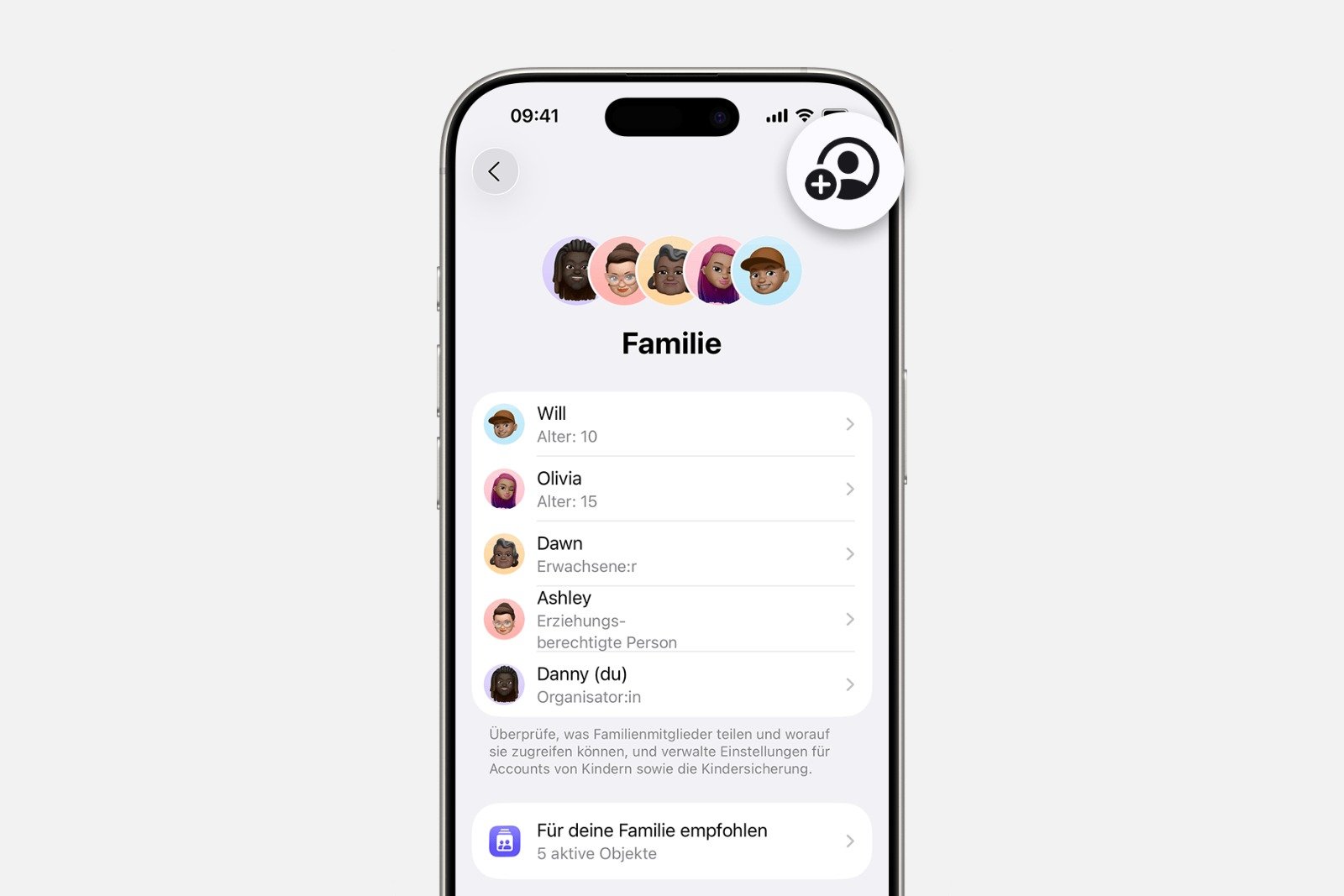
Open Settings and select Family. Select the Add member option. You can create a separate account for children. For existing accounts, select Invite people. Then follow the instructions to set up parental controls, location sharing, and other settings.
On the Mac
Open system settings, select Family, and click Add member. Follow the instructions.
Check invitation status
On iPhone or iPad
Open Settings and select the Family section. Tap the invited person's name to see the current status. If necessary, select Resend Invitation.
On the Mac
Open system settings, click on Family, and select the relevant member. There you can view the status or resend the invitation.
Join a Family Sharing Group
Invitations arrive via email or text message. If the message is missed, the invitation can be accessed directly on the device.
On iPhone or iPad
Open settings, tap on your own name and select Invitations.
On the Mac
Open system settings and select Family. Follow the on-screen steps to accept the invitation.
- Important: When joining, you may be asked to confirm your Apple Account information or activate services already set up in Family Sharing. Being part of a group is always exclusive. Only one Family Sharing group can be active at a time. Switching to a different group is only possible once per year.
Problems accepting
If accepting an invitation fails, it's often because the Apple account is already actively participating in another Family Sharing group. Only one switch is allowed per year. Simultaneous membership is not possible.
Connect a child's device
When a new iPhone or iPad is set up for a child and an age group is selected, age-appropriate default settings are automatically activated. To allow a child to download apps, use iCloud storage, or access other features, the device is later linked to Family Sharing.
On the child's iPhone or iPad
Open Settings and select the "Connect with Family" option. Follow the on-screen instructions to create an Apple account for the child.
Designate parent or guardian
Any adult member of the group can be designated as a parent/guardian. This role allows them to create child accounts, adjust parental controls, and process purchase requests.
On iPhone or iPad
Open Settings and select Family. Choose the member's name and activate "Designate as parent".
On the Mac
Open system settings and select Family. Click on the desired member and select "Set as parent or guardian".
Setting up Family Sharing: Clear structure for services, purchases, and devices
Family Sharing offers a functional and clear way to centrally organize content and settings within a family. Following the steps described, it can be fully set up, managed, and customized to individual needs. Services, purchases, devices, and parental controls are thus managed clearly and reliably without the need to share an account. The best products for you: Our Amazon Storefront offers a wide selection of accessories, including those for HomeKit. (Image: Shutterstock / PeopleImages)
- iOS 26.2 explained: How the new AirDrop codes work
- iOS 26.2 enhances the Reminders app with alarm functionality
- Here's how to properly create a backup for iPhone and iPad
- Setting up and using Apple Car Key: All functions explained
- New iOS 26.2 feature: Screen flashes for notifications
- Longer battery life with iOS 26 – Adaptive Power explained
- Live translation with AirPods: Here's how the feature works
- iOS 26: The new focus mode „Reduce interruptions“
- iOS 26.1: Reactivate the classic stop button on the alarm clock
- iOS 26.1 brings a new lock screen setting for the iPhone
- iOS 26.1: Liquid Glass effects can be toned down
- watchOS 26 brings hints about the Apple Watch dial
- macOS 26 Update: Hidden Tools and Improvements
- New call history in iOS 26: All conversations at a glance
- iOS 26: iMessage not working? Apple announces the solution
- iOS 26 Tricks: 26 small innovations with a big impact
- iOS 26 solves the Bluetooth problem with AirPods in the car
- iPhone: How the new call waiting feature works in iOS 26
- iPhone gets new feature against spam and advertising calls
- iOS 26: New option saves time and data when sending photos
- iOS 26: Over 10 hidden features everyone needs to know
- iOS 26: Visual intelligence now also for screen content
FAQ about Family Sharing
Up to six people can be connected together in a Family Sharing account. Each person keeps their own Apple account but shares selected services.
Apple Music, Apple TV+, iCloud+, Apple Arcade, Apple Fitness+, Apple Books purchases, App Store purchases and more can be shared.
The family organizer, i.e., an adult member, manages invitations and uses the payment method on file for joint purchases.
Yes. You can create separate Apple accounts for children. These include parental controls, screen time limits, location sharing, and purchase requests.
Invitations can be sent via the settings on iPhone, iPad, or Mac. Acceptance is possible via email, SMS, or directly on the device.
The account is often already active in another family sharing group. Switching is only possible once per year.
Yes, but only with the consent of a parent or guardian and in compliance with the annual transfer restrictions.
On the child's device, open the settings and select Connect with family. Then follow the steps to create or connect the account.
Yes, additional personal accounts can be invited so that previous purchases can also be shared.
Yes. The organizer can designate any adult member as a parent or guardian so that tasks can be managed jointly.