
A separate Apple account for a child ensures clear boundaries, greater security, and better control over digital content. Family Sharing is the central tool for this, as it conveniently connects all of a family's devices and services. A child's account allows access to apps, messages, iCloud, Game Center, and many other features without exposing the personal data of other family members.
Many families share a single account for convenience. This can lead to problems because children often gain unintentional access to photos, contacts, messages, or saved passwords. A separate account prevents this and makes it easier to set age-appropriate rules. Family Sharing also ensures that purchases can be shared, purchases require approval, and content control is maintained. A child's account is therefore a sensible step towards balancing safety and independence.
Important requirements and age limits
Apple does not allow children under 13 to create their own accounts. Setup must be done by an adult who is listed as an organizer, parent, or guardian in Family Sharing. A credit card may be required to verify age. If a digital ID card is available in the Wallet app, that can also be used.
The age limits vary depending on the country or region:
- Under 14 years of age in Bulgaria, mainland China, Israel, Italy, Lithuania, Austria, Spain, South Korea and Cyprus
- Under 15 years old in France, Greece, Peru, Slovenia and the Czech Republic
- Under 16 years of age in Brazil, Germany, Ireland, Kosovo, Croatia, Liechtenstein, Luxembourg, Malaysia, Netherlands, Philippines, Poland, Romania, Singapore, Slovakia and Hungary
- Under 13 years of age in all other countries and regions
These guidelines determine when an account can be created independently and when adult consent is required.
Create an Apple account for a child on an iPhone or iPad
The setup is done directly via the settings.
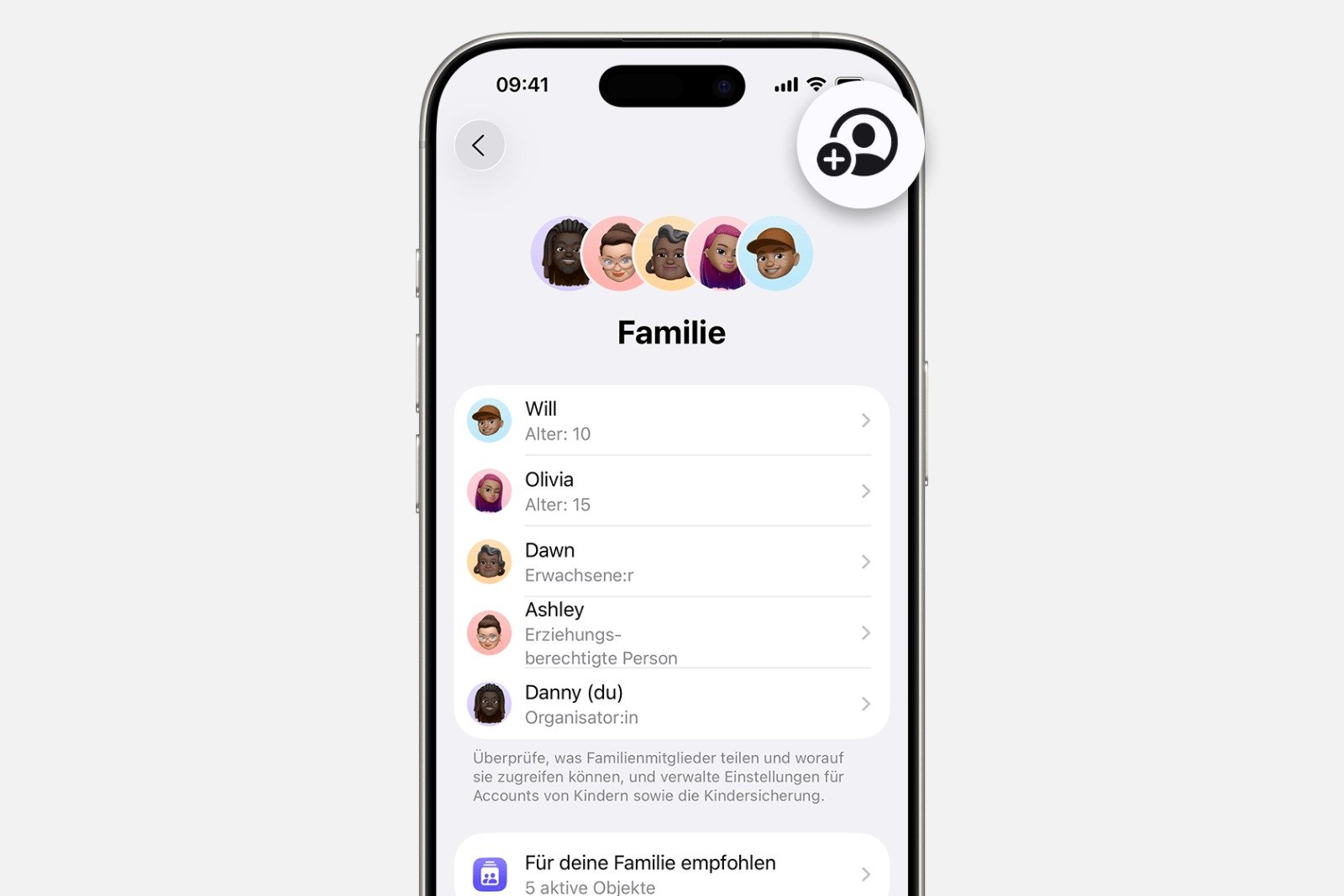
- Open settings and select the Family section.
- Tap on „Add member“
- Select "Create child account" and continue with "Next".
- Enter name and date of birth; the correct date of birth is important as it controls the available functions.
- Follow the instructions and specify an email address. You can use the child's existing address or a suggested icloud.com address.
- Once completed, the account will be automatically added to Family Sharing.
Creating a child account on a Mac
The process is also structured on a Mac.
- Open the Apple menu and select System Preferences.
- Switch to the Family section
- „Select "Add member"
- Click "Create child account"
- Follow the guided steps, enter data and select a suitable address.
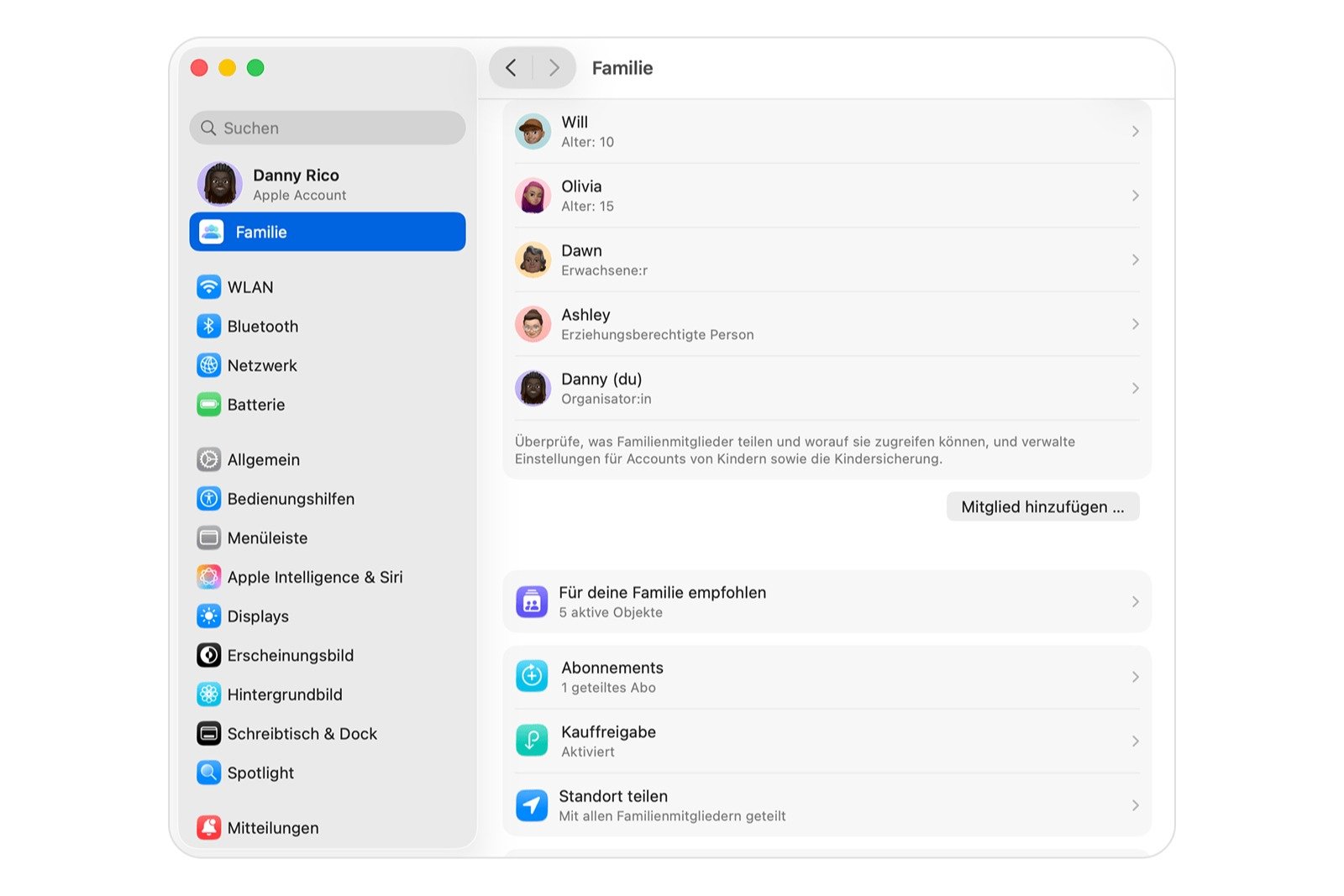
The account will then be assigned to the family group.
Connecting a child's device afterwards
When setting up a new iPhone or iPad, you can select an age group for children. If an account is created during this process, it can then be linked to the family group. Family Sharing automatically detects compatible accounts and offers to assign them.
Resetting the password of a child account
As an organizer or parent, you can reset the child's account password directly on the iPhone at any time. This is helpful if the password has been forgotten or accidentally changed. This ensures you always retain control over the account.
Special rules for children under 13 years old
Certain restrictions apply to children in this age group. An Apple account cannot be created without adult consent. Changes to the date of birth or important account settings can only be made by the responsible person in Family Sharing. Apple thus protects children's data and ensures that parents or guardians retain full control.
Apple Account for children: More structure in everyday family life with Family Sharing
A separate Apple account for a child creates a secure and clear structure in their digital life. Family Sharing keeps all devices and functions connected and ensures that purchases, content, and sharing remain controlled. With appropriate age settings, correct setup, and available management options, a system is created that combines protection and independence. By following the steps described, you can set up a reliable and flexible environment that is useful both in everyday life and in the long term. The best products for you: Our Amazon storefront offers a wide selection of accessories, including those for HomeKit. (Image: Shutterstock / Kaspars Grinvalds)
- Family Sharing offers clear control over purchases made by children
- Use Family Sharing to share apps and purchases
- Adjust family sharing and expand access to subscriptions
- Use Apple's Family Sharing to share content together
- iPhone tip: How alternative app distribution channels work
- iPhone tip: Access flight information directly in the system
- Family Sharing explained: Easily share and manage iCloud+
- Quickly set up Family Sharing on iPhone, iPad, and Mac
- iOS 26.2 explained: How the new AirDrop codes work
- iOS 26.2 enhances the Reminders app with alarm functionality
- Here's how to properly create a backup for iPhone and iPad
- Setting up and using Apple Car Key: All functions explained
- New iOS 26.2 feature: Screen flashes for notifications
- Longer battery life with iOS 26 – Adaptive Power explained
- Live translation with AirPods: Here's how the feature works
- iOS 26: The new focus mode „Reduce interruptions“
- iOS 26.1: Reactivate the classic stop button on the alarm clock
- iOS 26.1 brings a new lock screen setting for the iPhone
- iOS 26.1: Liquid Glass effects can be toned down
- watchOS 26 brings hints about the Apple Watch dial
- macOS 26 Update: Hidden Tools and Improvements
- New call history in iOS 26: All conversations at a glance
- iOS 26: iMessage not working? Apple announces the solution
- iOS 26 Tricks: 26 small innovations with a big impact
- iOS 26 solves the Bluetooth problem with AirPods in the car
Frequently asked questions about Family Sharing and Apple Accounts for children
Family Sharing brings together a family's devices, purchases, and settings in a single group. Each member has their own account but remains connected through shared content and management features.
A child account ensures that personal data remains protected and age-appropriate settings are applied. Family Sharing also allows for clear rules regarding content, purchases, and device settings.
The minimum age varies by country. It is usually 13, but in many countries it is 14, 15, or 16. Below this age, parents or guardians must create the account.
You can create a child account in the family settings. You'll need to provide the child's name, date of birth, and an email address. Once completed, the account will be automatically added to Family Sharing.
In the system settings under Family, a new family member can be added. There, a child account can be selected and set up step by step.
Yes. If a device has been set up as a child's device, the account can later be assigned to a family group. Family Sharing automatically recognizes compatible accounts.
Yes. The organizer or a parent can reset the password directly via the iPhone. This ensures that control over the account remains intact at all times.
Yes. Children under 13 cannot create their own account. Changes to the date of birth or key settings can only be made by the person responsible for the account in Family Sharing.
Children gain access to apps, messages, Game Center, iCloud, and other services. At the same time, content belonging to other family members remains protected.
The date of birth affects the available features. Changes are only possible to a limited extent and must be made by the person responsible for the family in Family Sharing.