
Anyone who owns an iPhone knows the problem: at some point, the message "Storage almost full" pops up, and suddenly you can no longer take new photos, update apps, or download files. However, full storage isn't inevitable; it's usually the result of a lack of oversight. iOS provides all the necessary tools to transparently monitor and selectively free up iPhone storage. You just need to know where to look.
Below we explain step by step how to retrieve the storage status of an iPhone or iPad, what the individual content categories mean, what optimization options exist, and why the storage information on the device sometimes differs from that on the computer.
What iOS does with storage
iOS and iPadOS continuously monitor device storage, tracking how much space each app is using. This isn't an optional feature, but an integral part of the operating system. This transparency is useful: it allows users to target specific areas where storage space is actually being wasted.
Furthermore, iOS has an automatic optimization mechanism. As soon as free storage space runs low, the system cleans up on its own: content that can be reloaded or is not currently needed is automatically removed. This includes unused apps and temporary files. The iPhone thus tries to help itself. In practice, however, this is not always sufficient, and it's worth checking the storage space manually on a regular basis.
Storage capacity can be checked in two ways: directly on the device via the settings, or via a connected computer using Finder, the Apple Devices app, or iTunes. Both methods provide useful information, but differ in their presentation and level of detail.
Check storage directly on the iPhone
Access the storage area in the settings
The most direct way is via the Settings app. Tap on "General" and then on "iPhone Storage" (or "iPad Storage", depending on your device). This opens a clear overview page: at the top, a bar shows the total available storage space and how much is currently used. Below this, you'll find two important sections: first, storage optimization recommendations that iOS automatically suggests, and second, a complete list of all installed apps, sorted by their storage usage.
This list gives you an immediate overview of which apps are using the most storage space. Tapping on an app's name displays a detailed view with further information about its storage usage.
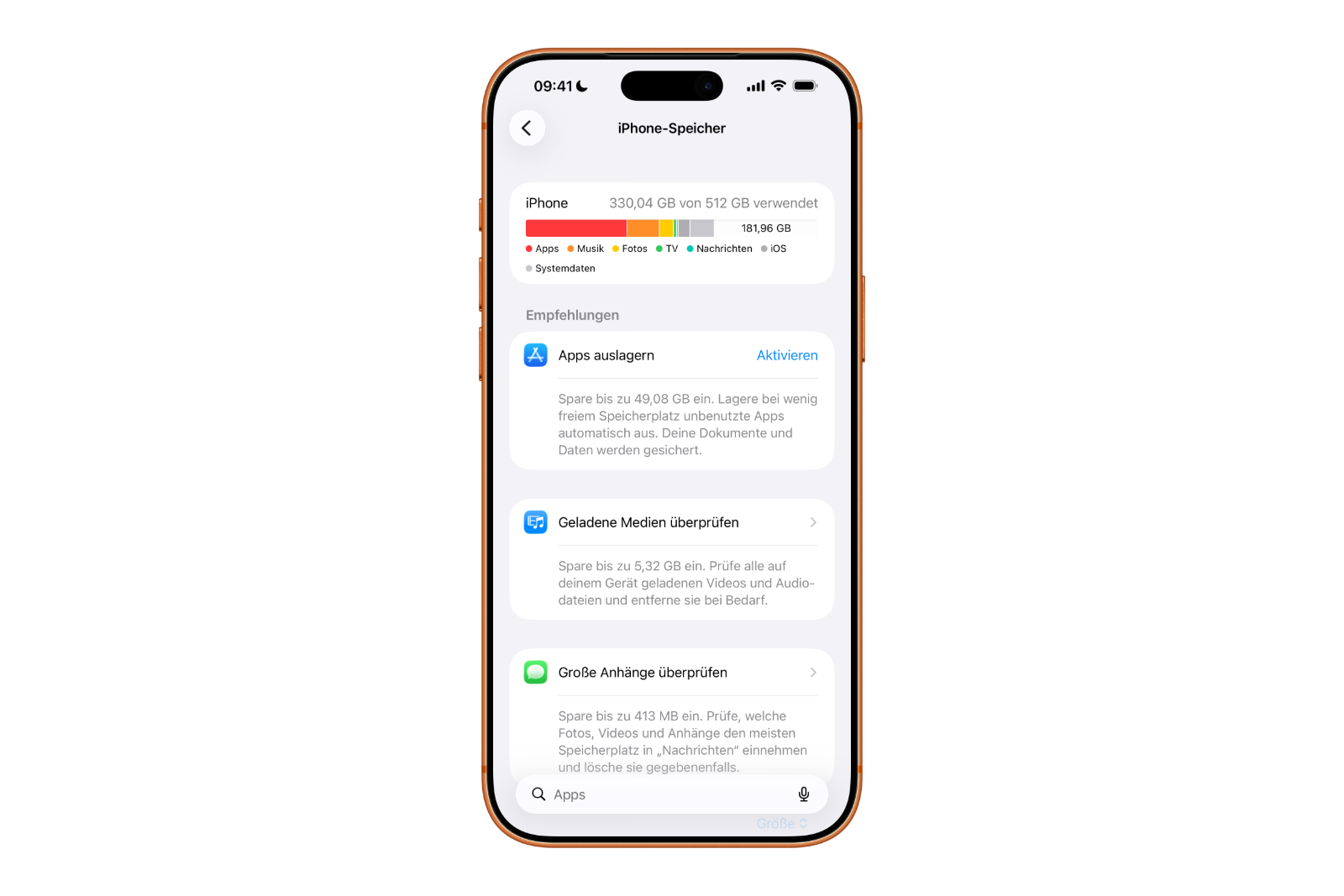
Important note: Cached data and temporary files may not be displayed as used storage space in this view. The actual storage used may therefore be slightly higher than the displayed value.
Offloading or deleting apps: What's the difference?
In the detailed view of an app, two options are available that are fundamentally different:
- Offload app: The app itself is removed from the iPhone, but its documents and data remain fully intact. Once the app is reinstalled from the App Store, all personal data is available again. This option is particularly suitable for rarely used apps whose data is still needed.
- Delete app: The app and all associated data will be completely and permanently removed from the device. This option usually frees up significantly more storage space, but cannot be undone unless a backup exists.
Depending on the app, there may also be the option to selectively delete individual associated documents or data without removing the entire app. Whether this option is available depends on the specific app.
What's taking up storage space? Content categories explained
iOS divides used storage into clearly defined categories. These categories appear both on the device and, in a slightly modified form, in the computer view. It's helpful to understand the meaning of each category to accurately assess storage usage.
Content categories on the iPhone
- Apps: This includes all installed apps and their content, files stored in the "On My iPhone" (or iPad or iPod touch) directory in the Files app, and Safari downloads.
- Photos: All photos and videos stored in the Photos app.
- Media: Music, videos, podcasts, ringtones, graphics and voice memos.
- Mail: All emails and their attachments.
- Apple Books: Books and PDF files in the Books app.
- Messages: Saved messages and all associated attachments such as images, videos and audio files.
- iCloud Drive: iCloud Drive content that has been downloaded locally to the device. Important: iCloud content cannot be automatically removed from the system.
- Other: This category includes items that cannot be removed: Siri voices, fonts, dictionaries, non-removable logs and caches, the Spotlight index, and system data such as the keychain and CloudKit database. Cached files in this category cannot be deleted by the system either.
- System: The storage space occupied by the operating system itself. This value varies depending on the device type and model.
Content categories in Finder, Apple device apps, and iTunes
Viewing the storage via a computer reveals a slightly different layout. The categories here are:
- Audio: Audio podcasts, audiobooks, voice memos and ringtones.
- Video: Movies, music videos and TV shows.
- Photos: Contents of the photo library, captured images and the photo stream.
- Apps: Installed apps. The subcategory "Documents & Data" also lists the saved app content.
- Books: iBooks books, audiobooks and PDF files.
- Documents & Data: The Safari offline reading list, files stored in installed apps, and app content such as contacts, calendars, messages, and emails with their attachments.
- Other: Settings, Siri voices, system data, and cached files.
- Synced content: Media content that was synced from your computer via Finder or iTunes. This data cannot be removed directly from the iPhone. To delete it, you must disable syncing for the corresponding content on your computer and then sync it again.
Use storage recommendations when space is running low
As soon as the iPhone's storage becomes low, iOS offers automatic optimization recommendations in the same settings area. These recommendations are tailored to the individual usage patterns of the device.
To see all recommendations, tap "Show all". Each recommendation can be read individually and either implemented immediately by tapping "Activate" or opened first to see which specific content can be deleted. The choice is yours.
Typical recommendations include automatically offloading rarely used apps, cleaning up old message attachments, or removing large video files. These recommendations are a useful starting point, but they don't replace regular manual checks.
Additionally, if the message "Storage almost full" is displayed, it is recommended either to use the storage recommendations or to selectively remove content such as videos and apps.
Check memory via computer
Finder, Apple device app or iTunes: What is needed?
Those who want to view their iPhone's storage via a computer have different options depending on the system:
- Mac with macOS Catalina or later: Use Finder.
- Windows PC with Apple Devices app installed: Use the Apple Devices app.
- Windows PC without an Apple Devices app or Mac with macOS Mojave or earlier: Use iTunes.
The iPhone is connected to the computer via cable. In Finder or the Apple Devices app, the device then appears in the sidebar. In iTunes, it can be selected in the upper left corner. In all three programs, a colored bar is displayed showing how much storage space each type of content is using. When the mouse pointer is moved over the individual sections of the bar, the exact amount of storage space for each type is displayed.
Why storage information on the device and on the computer can differ
It frequently happens that the storage information on the iPhone and the values in Finder, the Apple Devices app, or iTunes do not match. This is due to the different ways cached files are handled.
Finder, the Apple Devices app, and iTunes may categorize cached music, videos, and photos as "Other". These cache files are created automatically when streaming and viewing content so that the same content is available more quickly the next time it's accessed. Because these files appear under "Other" in the computer view, the reported usage for music or videos on the computer may appear lower than expected, while the "Other" usage appears correspondingly larger.
For an accurate and reliable overview of storage, it is therefore always recommended to view it directly on the iPhone under Settings, General, iPhone Storage.
What cache files are and whether you need to delete them manually
Many users wonder if they need to manually clear their iPhone's cache regularly. The answer is no, at least in most cases. iOS handles this automatically. As soon as more storage space is needed, the system automatically deletes cached and temporary files. The user doesn't have to do anything.
Cache files are created when streaming music and videos, and when viewing photos. The system creates them so that content loads faster the next time it's accessed. When the iPhone needs more storage space, these are the first files to be deleted.
A special case is the "Other" category on the device: It contains certain system caches and logs that the system cannot delete. These are permanently present and are part of the normal operation of the iPhone.
It's worth keeping an eye on your iPhone storage
The iPhone provides all the necessary tools for transparent storage management. The Settings app offers a detailed breakdown by app and content type, provides automatic recommendations, and allows targeted actions such as offloading or deleting apps. Finder, the Apple Devices app, and iTunes complement this view from a computer, although their categorization differs slightly.
Anyone who understands what the individual categories mean and how the system handles cache files can confidently manage their iPhone's storage. Regular checks pay off, because those who intervene early don't have to worry about the "Storage almost full" message.
Tip: Apple regularly updates iOS storage management. It's recommended to keep your iPhone or iPad up to date with the latest software to benefit from current optimization features. The best products for you: Our Amazon storefront offers a wide selection of accessories, including those for HomeKit. (Image: Shutterstock / Primestock Photography)
- Apple Account Purchase History: Review purchases, subscriptions & costs
- Apple Music: How to successfully migrate from Spotify & Co.
- AirTag 2 Factory Reset: How to Perform a Reset
- Apple Games App: Central hub for modern gaming
- Lockdown Mode: Maximum security for iPhone, iPad and Mac
- Apple Music: How to activate translated song lyrics in iOS 26
- Apple Creator Studio: Apps, subscription, and clear AI limits
- Is Apple Music taking up too much storage space? This will help immediately
- AirTag 2: Setting up Precision Finding on the Apple Watch
- How to turn texts into reminders with Apple Intelligence
- Precision Finding on the Apple Watch requires AirTag 2
- AirTag 2: Which airlines support baggage tracking
- AirTag 1 or AirTag 2: How to tell the difference
- AirTag 2: These iPhones are compatible with improved tracking
- iPhone alarm silent: Why the alarm suddenly stops working
- Safari at 120 Hz: How to activate smoother scrolling
- iOS 26 improves group chats with five new features
- Here's how to create Apple Music playlists with ChatGPT
- iOS 26: Change default apps on your iPhone
- Optimize your messaging app: Stop unwanted audio recordings
- iOS 26 turns photos into impressive 3D spatial scenes
- AirPods: Media no longer continues playing during sleep thanks to iOS 26
- Use Apple's Family Sharing to share content together
- iPhone tip: How alternative app distribution channels work
Frequently asked questions about iPhone storage
You can check your storage directly on your device under Settings, General, iPhone Storage. This will show you how much storage is available, how much is currently used, and which apps are using the most storage. Alternatively, you can also check your storage using Finder, the Apple Devices app, or iTunes on your computer.
If the storage is full, you can't take new photos, update apps, or download files. In this case, iOS displays the message "Storage almost full" and automatically suggests optimization measures.
Offloading only removes the app itself; the associated data and documents remain. Deleting completely and permanently removes the app and all associated data from the device.
Finder, the Apple Devices app, and iTunes categorize cached files - those automatically created temporary storage during streaming - as "Other". This can cause the displayed usage of music or videos on a computer to differ from the view on the device itself. The storage view directly on the iPhone always provides a more reliable overview.
No. iOS manages cache files automatically. As soon as more storage space is needed, the system automatically deletes temporary and cached files. Manual intervention is usually not necessary.
The "Other" category includes system elements that cannot be removed: Siri voices, fonts, dictionaries, logs, caches, the Spotlight index, and system data such as the keychain and CloudKit database. This data is part of the normal operation of the iPhone and cannot be deleted manually or automatically.
Synchronized content, meaning media transferred to the iPhone via Finder or iTunes, cannot be deleted directly on the device. To remove it, synchronization for that content must be disabled on the computer and then resynchronized.
No. iCloud Drive content that has been downloaded locally to the device is not automatically removed by the system. It must be deleted manually if needed.
It depends on the computer being used. On a Mac with macOS Catalina or later, Finder is used. On a Windows PC, the Apple Devices app is available. Those who don't have the Apple Devices app installed or are using a Mac with macOS Mojave or earlier use iTunes.
In this case, it's worth taking a look at the "System" and "Other" categories, which cannot be directly reduced. Additionally, restarting the device or updating the software can help, as iOS further optimizes storage management with each update.