Safari is the default browser on iPhone, iPad, and Mac and is deeply integrated into the Apple ecosystem. Despite modern hardware, scrolling in Safari often feels less smooth than expected on many devices. Especially compared to other browsers, movements sometimes appear slightly jerky. The reason for this isn't the device's performance, but a hidden setting that limits Safari to 60 frames per second by default.
Apple devices with ProMotion displays are technically capable of displaying content at up to 120 Hz. This high refresh rate already provides a very smooth user experience in many system animations. However, Safari doesn't automatically take advantage of this. The full potential can only be unlocked via a hidden menu. Below, we explain in detail why Safari is limited by default, what difference 120 Hz makes, and how to activate the feature on all supported Apple devices.
60 Hz vs. 120 Hz when surfing
At a refresh rate of 60 Hz, the screen is updated approximately every 16.7 milliseconds. Any movement, such as scrolling a webpage, remains visible for this duration. At 120 Hz, this interval is halved to around 8.3 milliseconds. Content is redrawn twice as often, resulting in smoother motion. This reduces perceptible blurring and minimizes minor stuttering, especially during fast scrolling or when moving large areas of content. The difference is particularly noticeable on text-heavy websites or pages with many fine details.
A direct comparison is possible via the "Motion Tests" website from Blur Busters. There, a refresh rate test allows you to see how much 60 Hz and 120 Hz visually differ – especially in Safari.
Why Safari is limited by default
Safari renders web pages at a maximum of 60 fps by default, even on devices with ProMotion displays. This limitation ensures more controlled energy consumption and more consistent compatibility with web content. Other browsers sometimes pursue higher frame rates more aggressively, which can subjectively appear smoother.
Those who have never perceived Safari as "strange" or sluggish before may only notice a slight difference after switching. However, anyone who regularly uses Chrome or Firefox on the same device will quickly realize why Safari feels less smooth in comparison.
Hidden Feature Flags in Safari
The 120Hz feature is hidden in the so-called Feature Flags. This is an internal settings menu for experimental or optional Safari features. On iPhone and iPad, this menu is directly accessible and doesn't require developer or special mode. On Mac, developer options must be enabled once. It's important to note that a higher refresh rate can increase battery consumption, especially during extended browsing sessions.
Activate 120 Hz Safari on iPhone and iPad
Activation is done directly via the system settings:
- Open the app settings
- Scroll down and select apps
- Tap Safari
- Open in expanded format
- Select Feature Flags
- Disable the option „Prefer Page Rendering Updates near 60fps“.
- Completely close and reopen Safari
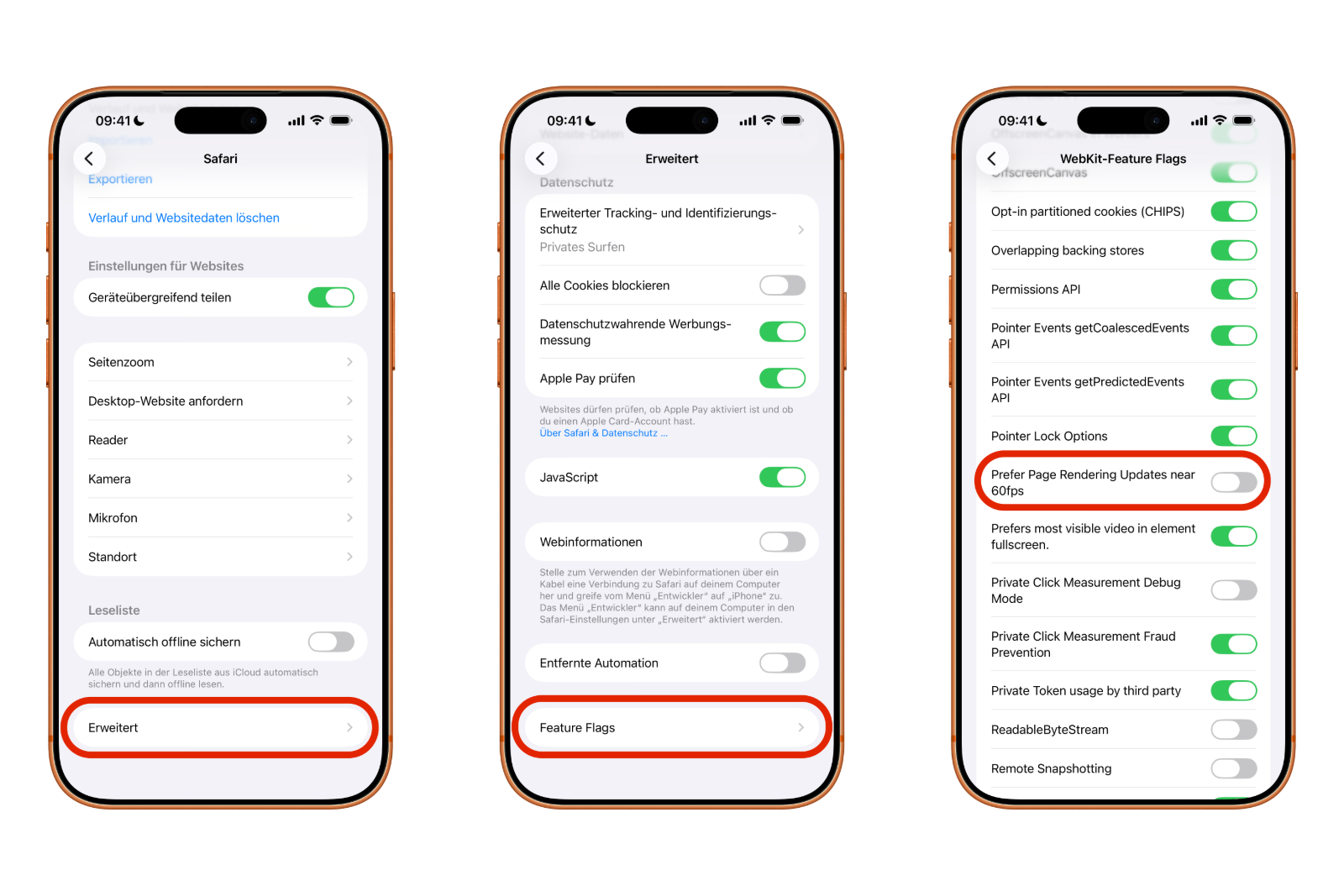
After disabling this option, Safari renders web pages at up to 120 Hz on all supported devices with a ProMotion display. This includes, among others, the iPhone 13 Pro and newer models, as well as iPad Pro devices with the corresponding display technology.
How to enable 120 Hz Safari on Mac
On a Mac, a few additional steps are needed to make the Feature Flags menu visible:
- Open Safari
- In the menu bar, select Safari → Preferences…
- Switch to the Advanced tab
- Activate the "Show features for web developers" checkbox.
- Open the new Feature Flags tab in the settings bar.
- Enter "60 fps" in the search field in the upper right corner.
- „Disable "Prefer Page Rendering Updates near 60fps"
- Completely close and restart Safari
This method works on all Macs with a ProMotion display, including the 14- and 16-inch MacBook Pro models from 2021 onwards. External monitors with a 120 Hz refresh rate can also benefit from the change, provided they are supported by the system.
120 Hz in Safari: Small change, big difference
Enabling 120Hz makes Safari significantly smoother without installing any additional software. Scrolling feels more fluid, content responds more directly, and the browsing experience is better suited to the performance of modern Apple hardware. The feature is intentionally hidden but reliably usable. Those who want to get the most out of Safari can use this setting to unlock the full potential of ProMotion – developed by Apple, but limited by default for efficiency reasons. The best products for you: Our Amazon storefront offers a wide selection of accessories, including those for HomeKit. (Image: Shutterstock / sdx15)
- iOS 26 improves group chats with five new features
- Here's how to create Apple Music playlists with ChatGPT
- iOS 26: Change default apps on your iPhone
- Optimize your messaging app: Stop unwanted audio recordings
- iOS 26 turns photos into impressive 3D spatial scenes
- AirPods: Media no longer continues playing during sleep thanks to iOS 26
- Use Apple's Family Sharing to share content together
- iPhone tip: How alternative app distribution channels work
- iPhone tip: Access flight information directly in the system
- iOS 26.2 explained: How the new AirDrop codes work
- iOS 26.2 enhances the Reminders app with alarm functionality
- Here's how to properly create a backup for iPhone and iPad
- Setting up and using Apple Car Key: All functions explained
- New iOS 26.2 feature: Screen flashes for notifications
- Longer battery life with iOS 26 – Adaptive Power explained
- Live translation with AirPods: Here's how the feature works
- iOS 26: The new focus mode „Reduce interruptions“
- iOS 26.1: Reactivate the classic stop button on the alarm clock
- iOS 26.1 brings a new lock screen setting for the iPhone
- iOS 26.1: Liquid Glass effects can be toned down
- watchOS 26 brings hints about the Apple Watch dial
- macOS 26 Update: Hidden Tools and Improvements
- New call history in iOS 26: All conversations at a glance
- iOS 26: iMessage not working? Apple announces the solution
- iOS 26 Tricks: 26 small innovations with a big impact
Frequently Asked Questions about 120 Hz in Safari (FAQ)
Safari can display web pages at up to 120 Hz, but only on Apple devices with a ProMotion display. This includes certain iPhone, iPad, and Mac models. Without ProMotion, Safari remains limited to 60 Hz.
Safari is limited to 60 Hz by default to control power consumption and ensure stable display of all web content. This limitation is a deliberate design choice by Apple.
The difference is most noticeable when scrolling. Movements appear smoother, text remains sharper, and content responds more directly. The effect is particularly noticeable on text-heavy or long websites.
This setting is located in the so-called Feature Flags. These are considered experimental, but in practice they work reliably. Apple deliberately hides them from the normal settings.
Yes. A higher refresh rate can increase energy consumption, especially during longer browsing sessions. The extent of this effect depends on usage patterns and the specific device.
Yes. Safari must be completely closed and reopened for the change to take effect. Simply switching tabs is not enough.
If an external monitor supports 120 Hz and is correctly controlled by the system, Safari can also benefit from the higher refresh rate there.
Generally not. Most modern websites handle 120 Hz without any problems. In rare cases, very old or poorly optimized sites may exhibit minor display differences.
Yes. The option can be reactivated at any time to limit Safari to 60 Hz again. A restart of Safari is also required afterward.
The higher refresh rate doesn't make Safari faster in a technical sense, but it provides a subjectively smoother and more direct surfing experience that feels significantly more modern.