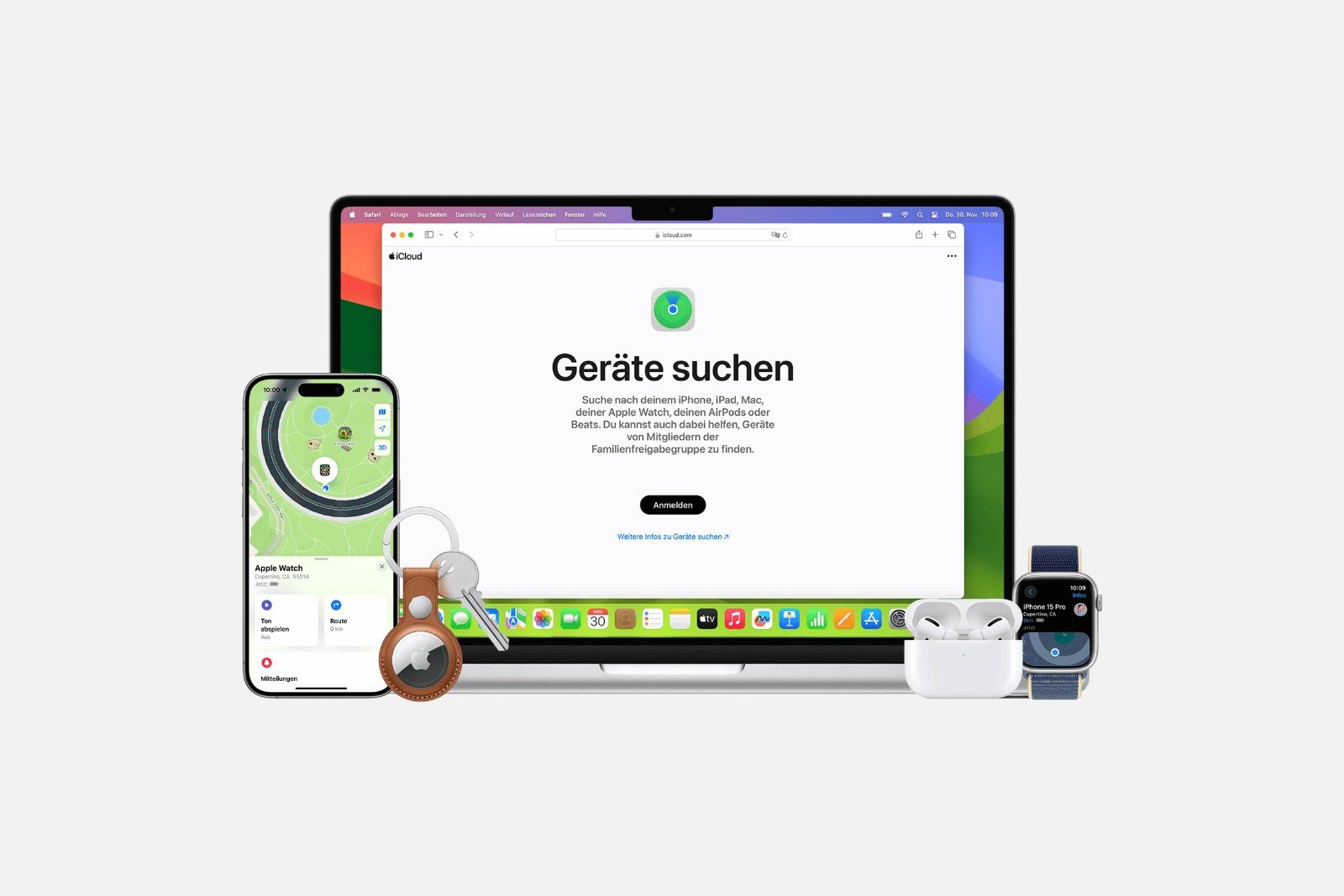
Find My serves as a central solution for locating lost Apple devices, AirTags, or objects within the Find My network. The service combines location data, secure locking capabilities, and remote wiping to recover valuables and protect personal information. Features range from simple map searches to precise tracking via ultra-wideband.
In everyday life, things can easily get misplaced or lost. An iPhone might be left in a bag in the car, an AirTag attached to a backpack forgotten on the train, or a MacBook at the office. "Find My" exists precisely for these situations. The network is based on hundreds of millions of Apple devices that anonymously and securely transmit location data. This protects privacy while still allowing devices to be located.
Search for devices and objects with "Find my"
Find my allows you to search on a map, get directions via the Maps app, and play a sound when the object is nearby. On devices with ultra-wideband, such as modern iPhones, AirTags and certain AirPods models can even be located with centimeter-level accuracy using distance and direction information.
Search process:
- „Open "Find my".
- Select devices or objects.
- Select the lost device or object to view its location on the map.
- Select a route to get directions via the maps app.
- „Use "Play sound" if the device needs to be nearby.
- Enable "Find Nearby" if the iPhone supports Ultra Wideband.
Without your own Apple device, you can use iCloud.com/find. This website displays devices, marks them as lost, or deletes them. If the device is turned off, the battery is dead, or no location data has been transmitted for more than 24 hours, no current location will be displayed.
Mark device or object as lost
Lost Mode locks the device via the Apple account, thus protecting personal information. On devices with Apple Pay, stored cards and tickets are deactivated. Additionally, a message with contact information can be displayed so that finders can get in touch.
This is how a device is marked as lost:
- Select the device or object in "Find my".
- Scroll to the Lost Device or Lost Object section.
- Select "Start Lost Mode" or "View Contact Details".
- Enter your phone number and message.
With AirTags, it is possible to display the location without marking them as lost.
Use "Find my" without your own Apple device
If you don't have your own iPhone or iPad, there are two options available:
- Devices can be located, locked, and erased via the website: iCloud.com/find. If a verification code is requested during login, but no trusted device is available, the "Find My Device" button can be selected instead. If the device is turned off, its location will not be displayed. If theft protection is enabled and the Apple account password was changed in an unknown location, devices may not appear in the location history.
- Family member's device: Devices become automatically visible via family sharing as soon as your location is shared with the family.
If "Find my" doesn't show a location
The app displays different messages depending on the situation:
- No location found: The device has not sent any data for more than seven days.
- Offline: The device is switched off, the battery is empty, or it cannot transmit its location for other reasons.
- Location not being shared – Online: The device is online but is blocking location services or has another local problem.
The "Find my" network operates in encrypted and anonymous form. Devices in the vicinity send the location of a missing device, even if it is offline. This allows the search to continue even without an active connection.
Delete a device
Erasing a device is permanent and should only be done after all other options have been exhausted. Without two-factor authentication enabled, erasure is only possible via iCloud.com. Starting with iOS and iPadOS 15, a device remains locatable via "Find my" even after erasure. This is not possible with older versions. Macs and Apple Watches can sometimes still be located if they are near a previously known Wi-Fi network.
Delete a "Find my" device:
- Open devices.
- Select lost device.
- Select delete this device.
- Confirm deletion.
Delete a device via iCloud.com:
- Sign in at iCloud.com/find.
- Select lost device.
- Select delete device and confirm.
Functions of "Find my" depending on the device type
Availability varies depending on the model and system version. Here's an overview:
iPhone and iPad
- Show location
- Play sound
- Lost Mode
- Delete via remote access
- Notify me if found
- Notify me when I leave you behind
Mac
- Show location
- Play sound
- Lost Mode (Lock Mac)
- Delete via remote access
- Notify me if found
- Notify me when I leave something behind (MacBooks with Apple chip only)
Apple Watch
- Show location
- Play sound
- Lost Mode
- Delete via remote access
- Notify me if found
Apple Vision Pro
- activation lock
AirPods 3, AirPods 4 ANC, AirPods Pro 1 and 2, AirPods Max
- Show location
- Search nearby
- Play sound
- Lost Mode
- Notify me if found
- Notify me when I leave you behind
AirPods 1, 2 and 4 as well as Beats products
- Show location
- Play sound
AirTag
- Show location
- Search nearby
- Play sound
- Lost Mode
- Notify me if found
- Notify me when I leave you behind
Apple Pencil Pro
- Show location (iPad only)
- Search nearby (iPad only)
iPhone Wallet with MagSafe
- Show location
- Show phone number
- Notify me upon acceptance
Non-Apple devices
- Show location
- Lost Mode
- Additional features depend on the specific product.
Key advantages of Find my?
„"Find My" brings together all the tools needed to locate Apple devices, AirTags, and compatible objects. The system works reliably, protects sensitive data, and enables both simple and precise tracking. The combination of Lost Mode, location display, sound playback, remote wiping, and the anonymous "Find My" network ensures that lost devices have a good chance of being recovered. The best products for you: Our Amazon storefront offers a wide selection of accessories, including those for HomeKit. (Image: Apple)
- Change your date of birth in your Apple account securely and easily
- Family Sharing: Safely share your location with your family
- Share age group with apps and better filter content
- Activate parental controls and manage your iPhone securely
- Screen time explained: Overview, limits and time-outs
- Setting up an iPhone for children using Family Sharing and Quick Start
- Change your Apple account password via device and web
- Create an Apple account for children & use Family Sharing
- Family Sharing offers clear control over purchases made by children
- Use Family Sharing to share apps and purchases
- Adjust family sharing and expand access to subscriptions
- Use Apple's Family Sharing to share content together
- iPhone tip: How alternative app distribution channels work
- iPhone tip: Access flight information directly in the system
- Family Sharing explained: Easily share and manage iCloud+
- Quickly set up Family Sharing on iPhone, iPad, and Mac
- iOS 26.2 explained: How the new AirDrop codes work
- iOS 26.2 enhances the Reminders app with alarm functionality
- Here's how to properly create a backup for iPhone and iPad
- Setting up and using Apple Car Key: All functions explained
- New iOS 26.2 feature: Screen flashes for notifications
- Longer battery life with iOS 26 – Adaptive Power explained
- Live translation with AirPods: Here's how the feature works
- iOS 26: The new focus mode „Reduce interruptions“
- iOS 26.1: Reactivate the classic stop button on the alarm clock
Frequently asked questions about Find my?
Find My uses location data and an anonymous network of Apple devices to locate lost devices, AirTags, and objects. The last known or current location appears on the map, and depending on the device, audio playback and precise location tracking are available.
Lost Mode locks a device via the Apple account, protects personal data, and disables Apple Pay cards. Additionally, a message can be displayed so that finders can make contact.
Yes. The Find My network can also locate offline devices. Nearby Apple devices send anonymously encrypted location data to iCloud, so the missing device remains visible.
This can have several reasons. The device is switched off, has no battery, is blocking location services, or has not sent any data for more than seven days. In these cases, "No location found" or "Offline" will appear.
With iOS or iPadOS 15, a deleted device remains visible. Older devices disappear from Find My after deletion. Macs and Apple Watches can sometimes be located via known Wi-Fi networks.
Location tracking, Lost Mode, and remote wipe are available via iCloud.com/find. Alternatively, a family member's device can be used if location sharing is enabled.
Yes. Depending on the model, location tracking, sound playback, a lost mode, and precise location tracking via ultra-wideband are available. AirTags also offer a very accurate search function and notifications when the tag is found.
Yes. The network operates fully encrypted and anonymously. Neither device owners nor surrounding devices learn anything about the devices or people involved.
The app allows you to select the device and remove it via "Erase This Device." The process also works via iCloud.com/find. Deletion is permanent and should only be performed as a last resort.
Almost all current Apple devices are compatible: iPhones, iPads, Macs, Apple Watch, AirPods, AirTags, Apple Pencil Pro, MagSafe Wallets, and some products from other manufacturers that support the network.