
Parental controls on iPhones and iPads play a crucial role in ensuring safe, age-appropriate, and controlled device use. Screen Time features, combined with Family Sharing, provide clarity on what content is available, how long a device is used, and what data remains protected. The wide range of settings allows for flexible customization of a child's device to their age, maturity, and usage patterns.
Parental controls are an integral part of the Apple ecosystem, connecting devices, settings, and family accounts. They are managed through Screen Time and require Family Sharing to be set up and the child's account to be part of the group. Once restrictions are activated, numerous options become available to regulate access to apps, purchases, media, privacy, web content, and more.
Activate parental controls and screen time basics
Setup begins in the Settings app under Screen Time. There, the child's account and restrictions are selected. After entering the Screen Time passcode, the restrictions are activated. Deactivating them later temporarily overrides the parental controls without deleting any saved settings.
To ensure parental controls work synchronously across all devices in the Family Sharing network, iPhones, iPads, and Macs should be running the latest software version. Depending on the child's age, some protection features are enabled by default.
Some Screen Time features can be used even without restrictions enabled. These include screen distance to protect your eyes, communication limits for contacts, and communication security to detect inappropriate photos and videos.
Prevent purchases in the App Store
Purchases are controlled via the screen time settings of the child's profile. Under iTunes and App Store purchases, you can specify whether apps can be installed or deleted and whether in-app purchases are allowed. Additionally, you can determine whether a password is always or never required.
Starting with iOS 26 and iPadOS 26, it's possible to request exceptions. Children can submit a request if they want to perform an action blocked by limits. The request appears on the supervisor's device and can be accepted or denied.
In countries or regions with alternative app providers, there are additional settings options for app installation.
Integrated apps and features allow
Integrated Apple apps can be individually disabled. This is done via Allowed Apps and Features. Disabled apps are not deleted, but temporarily disappear from the Home screen. Re-enabling them makes them visible again. This feature is useful if you only want to use selected system functions.
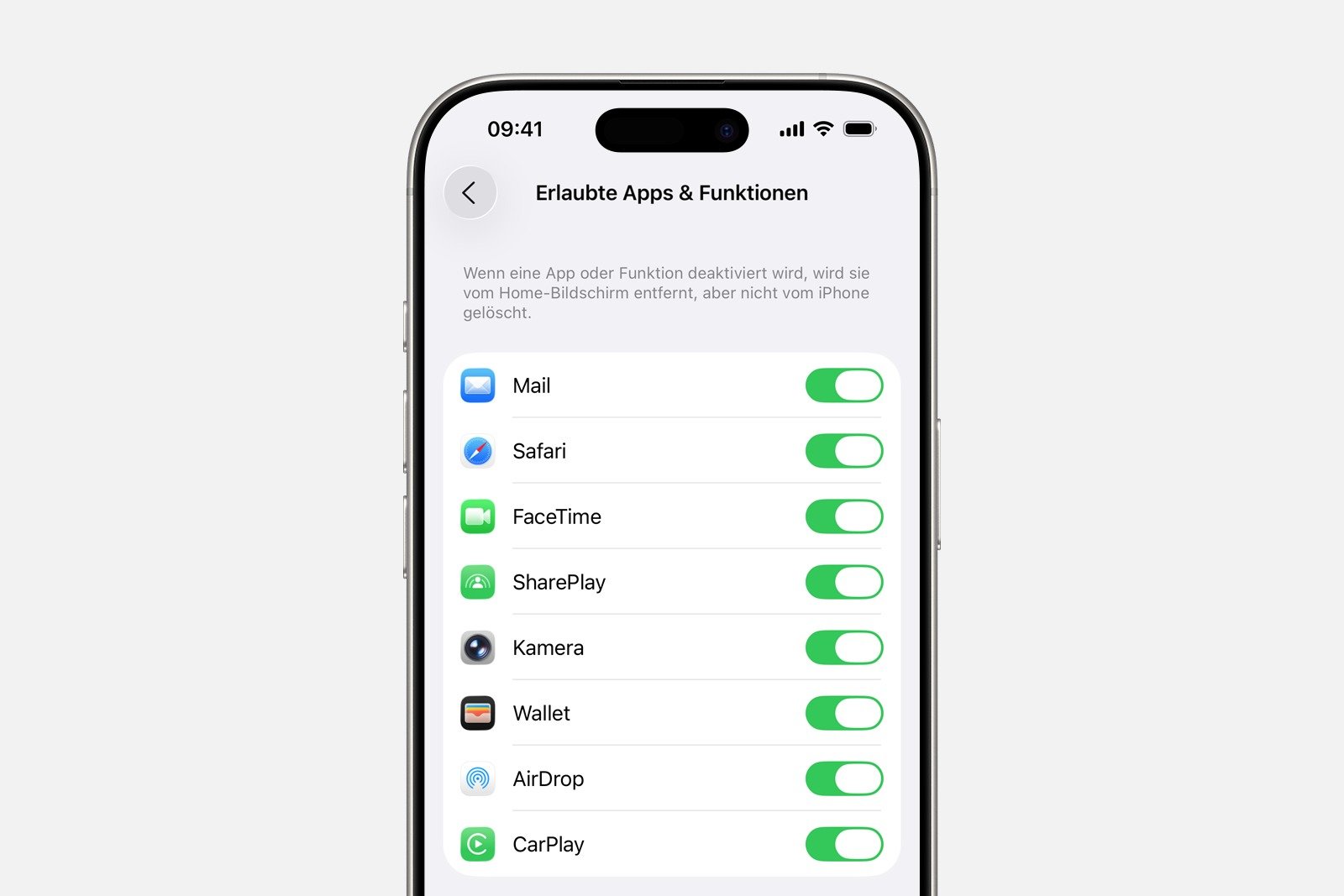
Manage offensive content and age-restricted content
In the App Store, Media, Web, and Games sections, content can be filtered or blocked according to age ratings. The following categories are available:
- Music, podcasts, news, fitness: Prevent playback of offensive content
- Music videos: Disable search and display
- Music profiles: Disable sharing of your music activity
- Movies: Restrict playback according to age ratings
- TV programs: Restrict playback by age group
- Books: Preventing content with certain age ratings
- Apps: Restrict app usage based on defined age groups
- App Clips: Block usage
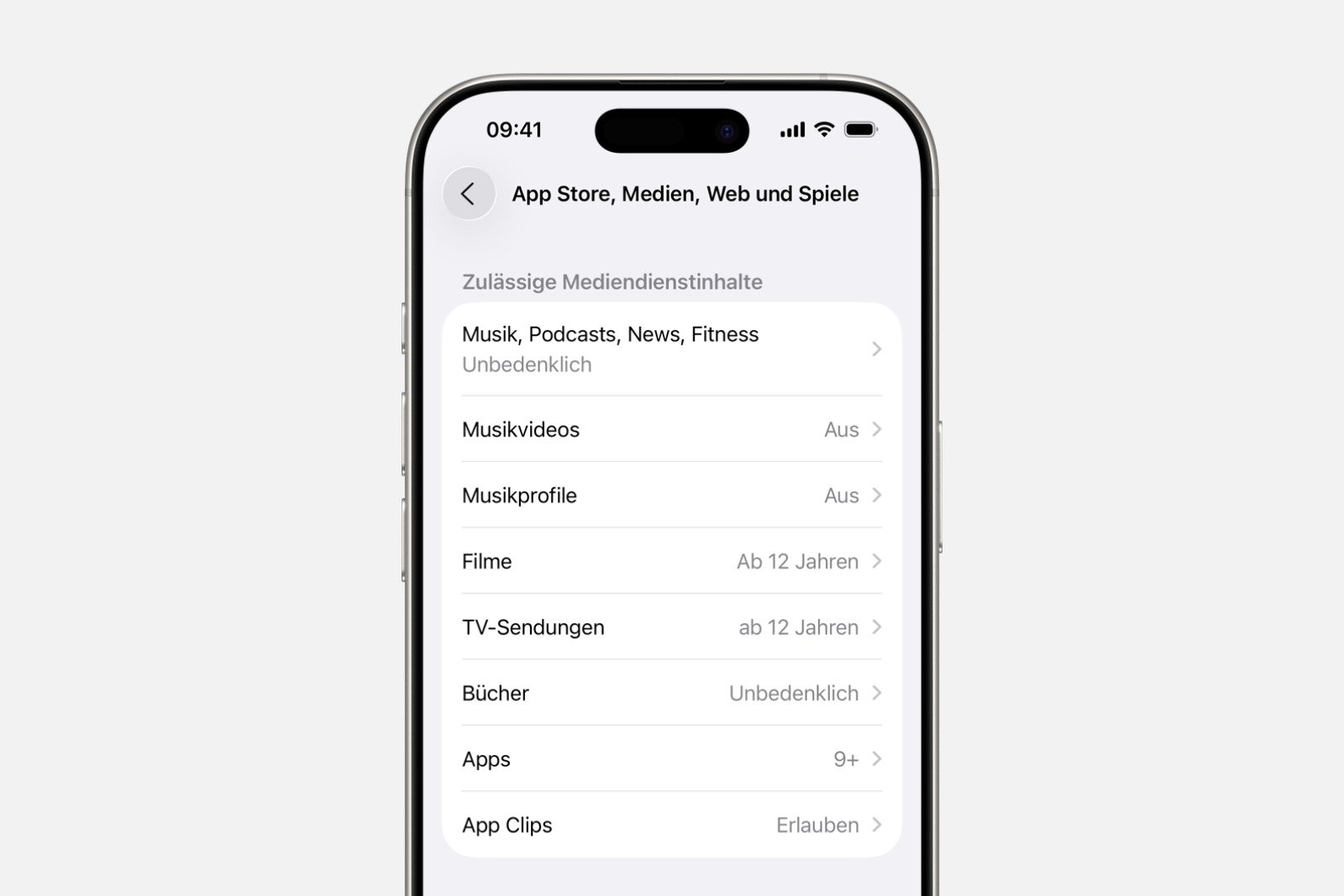
Each category can be customized individually.
Filter inappropriate web content
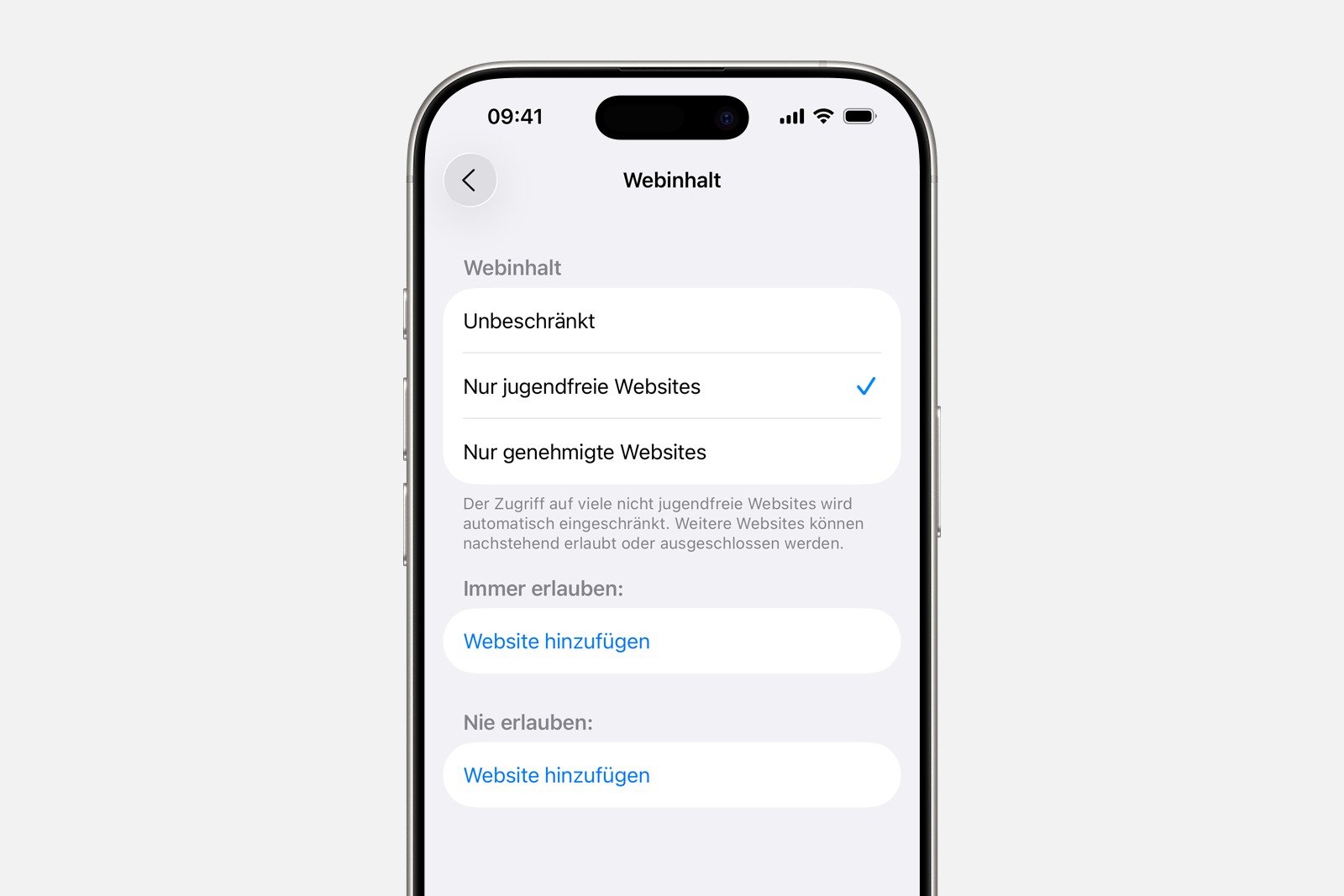
Website access is controlled under Web Content. The options are Unrestricted, "Only age-appropriate websites," and "Only approved websites." Depending on the selection, websites must be added or blocked manually. Certain combinations are set automatically based on the child's age.
Restrict Game Center functions
Additional restrictions are available for games that use Game Center. These include:
- Multiplayer games only with friends or not at all
- Prevent adding friends
- Prevent connecting with friends
- Block screen recording
- Disable nearby multiplayer
- Turn off private messages
- Prevent changes to profile privacy settings
- Block changes to avatars and nicknames
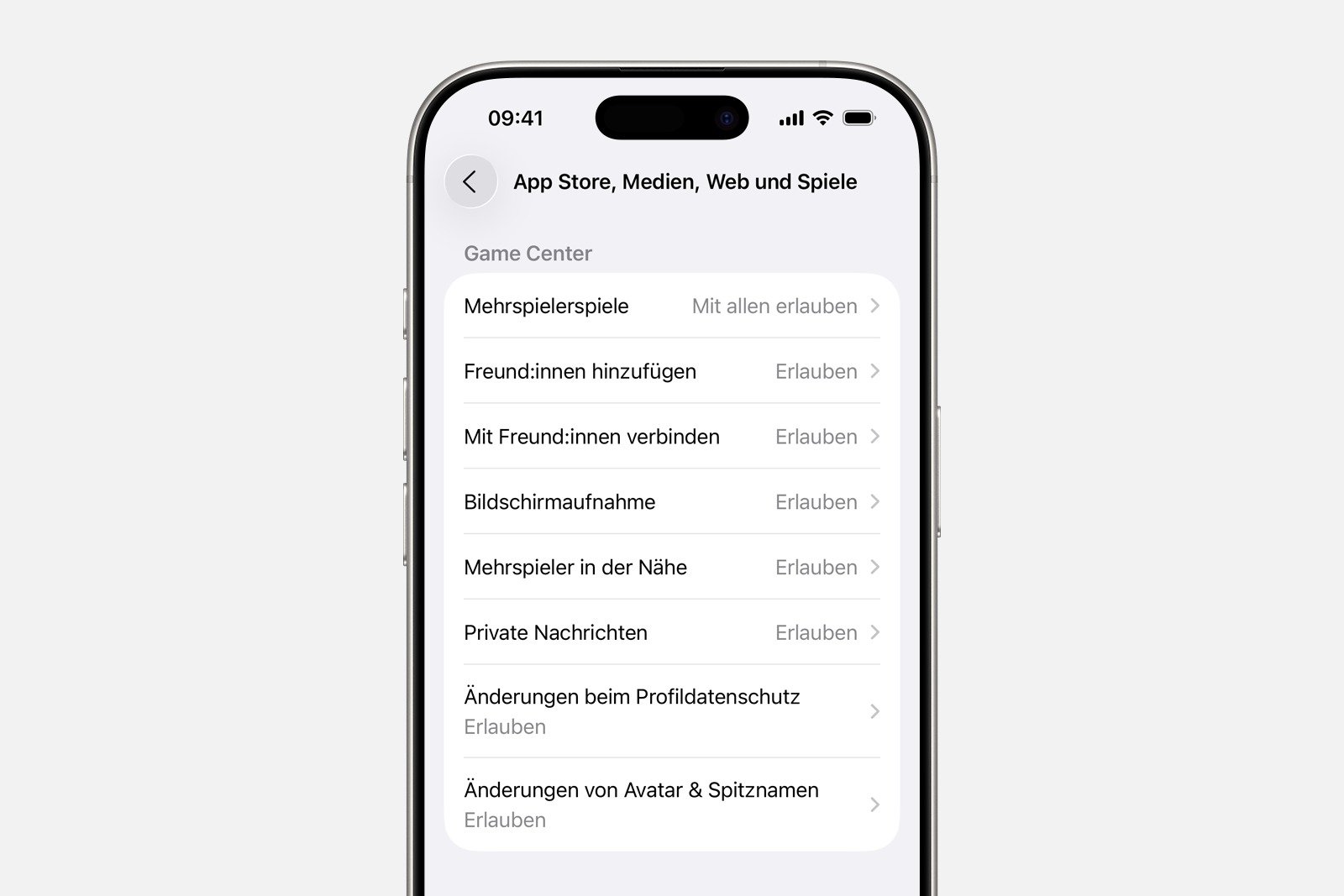
These settings control both social and security-related functions within the game.
Limit Intelligence and Siri functions
Apple Intelligence and Siri can be customized via the Intelligence and Siri section. The following options are available:
- Image creation
- Writing tools
- Intelligence Extensions
- Siri and Dictation
- Web search results
- Explicit language
- Math results
Each function can be individually enabled or disabled.
Protect privacy settings
Parental controls can prevent apps from accessing personal data or hardware functions. The following areas can be controlled:
- Location services
- contacts
- calendar
- Memories
- photos
- Share location
- Bluetooth sharing
- microphone
- Speech recognition
- Apple advertising
- Tracking requests
- Media and Apple Music
This ensures control over which data can be shared or requested via apps.
Prevent or allow changes to device functions
Allowing changes allows you to protect further settings. These include:
- Code and Face ID
- accounts
- mobile data
- reduce loud noises
- Maximum speaker volume
- Driving focus
- TV provider
- App background activities
These options prevent settings from being changed accidentally or intentionally.
Health and safety features for children
Child accounts in Family Sharing have additional safeguards. These include enhanced screen time features and assessments that review content and warn before anything is viewed or sent. These features are designed to protect a child's privacy and safety without unnecessarily restricting their daily device use.
Parental controls on iPhone & Co.: A complete protection system for everyday digital life
Parental controls on iPhone and iPad offer a comprehensive set of tools to fully configure devices in an age-appropriate and secure manner. The combination of screen time limits, restrictions, content filters, privacy options, and additional safeguards creates a system that is flexible, controllable, and reliably secure. All settings work together to enable safe and controlled use of the digital environment. The best products for you: Our Amazon storefront offers a wide selection of accessories, including those compatible with HomeKit. (Image: Shutterstock / ImageFlow)
- Screen time explained: Overview, limits and time-outs
- Setting up an iPhone for children using Family Sharing and Quick Start
- Change your Apple account password via device and web
- Create an Apple account for children & use Family Sharing
- Family Sharing offers clear control over purchases made by children
- Use Family Sharing to share apps and purchases
- Adjust family sharing and expand access to subscriptions
- Use Apple's Family Sharing to share content together
- iPhone tip: How alternative app distribution channels work
- iPhone tip: Access flight information directly in the system
- Family Sharing explained: Easily share and manage iCloud+
- Quickly set up Family Sharing on iPhone, iPad, and Mac
- iOS 26.2 explained: How the new AirDrop codes work
- iOS 26.2 enhances the Reminders app with alarm functionality
- Here's how to properly create a backup for iPhone and iPad
- Setting up and using Apple Car Key: All functions explained
- New iOS 26.2 feature: Screen flashes for notifications
- Longer battery life with iOS 26 – Adaptive Power explained
- Live translation with AirPods: Here's how the feature works
- iOS 26: The new focus mode „Reduce interruptions“
- iOS 26.1: Reactivate the classic stop button on the alarm clock
- iOS 26.1 brings a new lock screen setting for the iPhone
- iOS 26.1: Liquid Glass effects can be toned down
- watchOS 26 brings hints about the Apple Watch dial
- macOS 26 Update: Hidden Tools and Improvements
- New call history in iOS 26: All conversations at a glance
FAQ about parental controls on Apple devices
Parental controls only work if Family Sharing is set up and the child's account is part of the group. Only then can restrictions be activated and all functions used.
Activation is done via Settings, Screen Time, and the child's profile. There, restrictions are selected and the Screen Time passcode is entered. After that, all protective features are active.
Through the App Store, Media, Web and Games sections, movies, apps, music, books, TV shows, web content and music videos can be filtered or blocked according to age ratings.
Yes. Under Purchases in iTunes and the App Store, you can specify whether apps can be installed, deleted, or purchased. You can also make a password mandatory.
In the area of data privacy, apps can be prevented from accessing location, camera, photos, microphone, contacts, and other data. This allows you to control what information is shared.
Under Web Content, the options Unrestricted, Only age-appropriate websites, and Only approved websites are available. Depending on the selection, websites must be allowed or blocked.
Yes. Children's accounts receive automatic protection features such as communication security or age-dependent filters that detect and block inappropriate content.
The "Allow Changes" option allows you to lock or allow settings such as Face ID, accounts, mobile data, volume limits, driving focus, or background activity.
In the Intelligence and Siri area, functions such as image creation, writing tools, web search, explicit speech or dictation can be blocked or allowed.