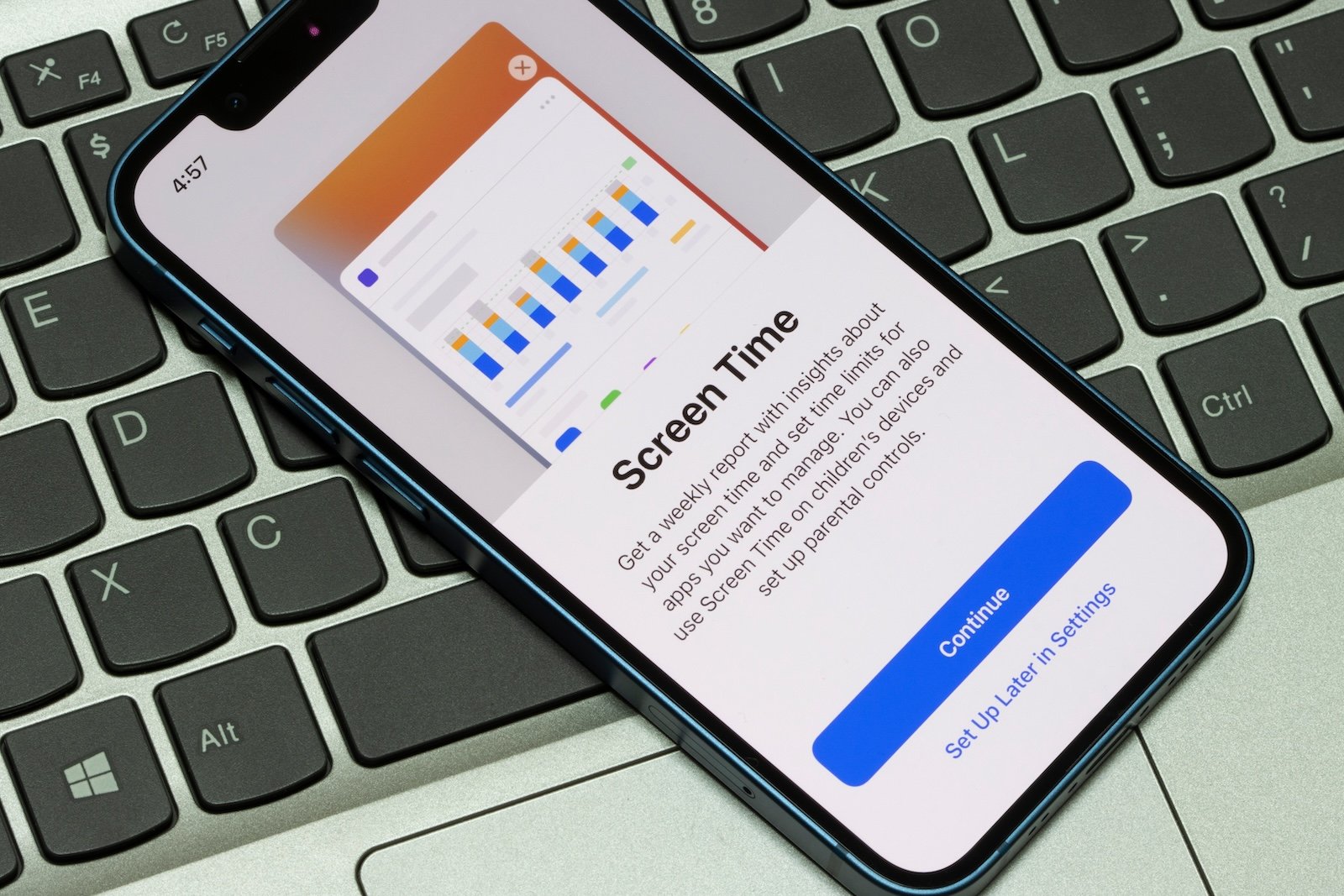
The Screen Time feature on the iPhone provides detailed insights into device usage. It reveals which apps and websites consume the most time, how often the device is picked up, and how many notifications are received. Screen Time thus offers a simple way to better understand one's digital behavior and adjust it as needed.
Digital habits often develop unconsciously. Screen Time provides reliable data and practical tools to give these routines more structure. The feature helps set boundaries, allows breaks, and helps define apps and contacts that should remain accessible even during restricted times. Screen Time is particularly beneficial in everyday family life, providing greater clarity and establishing clear rules.
Activate Screen Time
Activation is done via the iPhone's settings. In the "Screen Time" section, you'll find the "App and Website Activity" option. After tapping "Activate," usage tracking begins. From this point on, all relevant data is collected, including app activity, website usage, device pickups, and notifications.
Use Screen Time on all devices
To keep all devices synchronized, usage can be shared across devices. The "Share Across Devices" option can be activated under Settings > Screen Time. All Apple devices must be signed in to the same Apple account. Afterward, all reports and settings will appear uniformly on every device.
View screen time report
Once activated, Screen Time displays a detailed report at any time. Under Settings > Screen Time, you can access "View all app and website activity." There, you can select individual devices. The view can be switched between week and day, depending on whether you need a quick summary or a detailed daily overview. The reports include information on time spent in apps, the number of device pickups, and the number of messages received.
Monitor device usage via the Screen Time widget
For a quick overview, a screen time widget on your home screen is ideal. The larger the widget, the more data is displayed directly. If Family Sharing is enabled, you can use the widget to open a list of family members and view their reports. Additionally, a notification summarizing your screen time appears once a week. If it's no longer visible, you can find it in the Notification Center.
Set a screen timeout
„"Downtime" blocks apps and notifications for a selected period. This is useful, for example, for mealtimes or bedtimes. Two options are available under Settings > Screen Time > Downtime: either activate Downtime until tomorrow or schedule a downtime. If scheduled, the device will send a reminder five minutes before it starts. This reminder can be ignored or used to start Downtime immediately. During Downtime, only calls, messages, and apps that have been previously defined as allowed remain accessible.
Set limits for app usage
„"App Limits" restrict the daily use of specific categories or individual apps. To set an app limit, go to Settings > Screen Time > App Limits. There, you can create a new app limit. After selecting one or more categories, you can view and select individual apps within that category. The set limit applies to everything that has been selected. Next, you define the allowed time period. Under "Customize days," you can enter individual limits for each day of the week. After confirming with "Done," the limit takes effect immediately.
Select always allowed apps and contacts
Some apps and contacts should remain fully accessible even during screen timeouts or app limits. This selection can be found under Settings, Screen Time, and "Always Allow." In the "Contacts" section, you can specify certain people with whom you can communicate at any time. You can choose from existing contacts or create a new one. The "Allowed Apps" section maintains a list where entries can be added or removed. This ensures that important applications remain accessible at all times.
iPhone Screen Time: A clear overview of your digital habits
Screen Time provides a clear overview of your usage patterns and offers tools to consciously manage your digital routines. From detailed reports and widgets to cross-device usage, downtime, limits, and exceptions, every detail remains flexibly customizable. The feature provides guidance, supports structure in daily life, and creates a more digitally controlled environment without sacrificing essential access. The best products for you: Our Amazon storefront offers a wide selection of accessories, including those compatible with HomeKit. (Image: Shutterstock / Tada Images)
- Setting up an iPhone for children using Family Sharing and Quick Start
- Change your Apple account password via device and web
- Create an Apple account for children & use Family Sharing
- Family Sharing offers clear control over purchases made by children
- Use Family Sharing to share apps and purchases
- Adjust family sharing and expand access to subscriptions
- Use Apple's Family Sharing to share content together
- iPhone tip: How alternative app distribution channels work
- iPhone tip: Access flight information directly in the system
- Family Sharing explained: Easily share and manage iCloud+
- Quickly set up Family Sharing on iPhone, iPad, and Mac
- iOS 26.2 explained: How the new AirDrop codes work
- iOS 26.2 enhances the Reminders app with alarm functionality
- Here's how to properly create a backup for iPhone and iPad
- Setting up and using Apple Car Key: All functions explained
- New iOS 26.2 feature: Screen flashes for notifications
- Longer battery life with iOS 26 – Adaptive Power explained
- Live translation with AirPods: Here's how the feature works
- iOS 26: The new focus mode „Reduce interruptions“
- iOS 26.1: Reactivate the classic stop button on the alarm clock
- iOS 26.1 brings a new lock screen setting for the iPhone
- iOS 26.1: Liquid Glass effects can be toned down
- watchOS 26 brings hints about the Apple Watch dial
- macOS 26 Update: Hidden Tools and Improvements
- New call history in iOS 26: All conversations at a glance
FAQ: Frequently asked questions about Screen Time on the iPhone
Activation is done in the settings under Screen Time. There, "App and Website Activity" can be turned on to start collecting data immediately.
Yes. With "Share Across Devices," reports and settings are synchronized across all Apple devices signed in with the same account.
The report includes usage times of apps and websites, device pickups, and received messages. This view can be accessed daily or weekly.
Once added to the home screen, the widget displays important usage data. More details are shown depending on the widget size.
Downtime blocks apps and notifications for a specified period. Only authorized apps and contacts remain accessible during this time.
Under Settings and Screen Time, you can select categories or individual apps. Then, you set a daily limit that takes effect immediately.
Yes. In the "Always allow" section, you can specify apps that will remain accessible without restriction, even during downtime or app limits.
Under "Always allow", specific contacts can be selected or new ones created so that messages and calls remain possible at all times.
Screen Time automatically sends a weekly report. It shows usage trends from the past week and can be reopened at any time.
Often, app and website activity is disabled. This function must be enabled for full usage data collection.