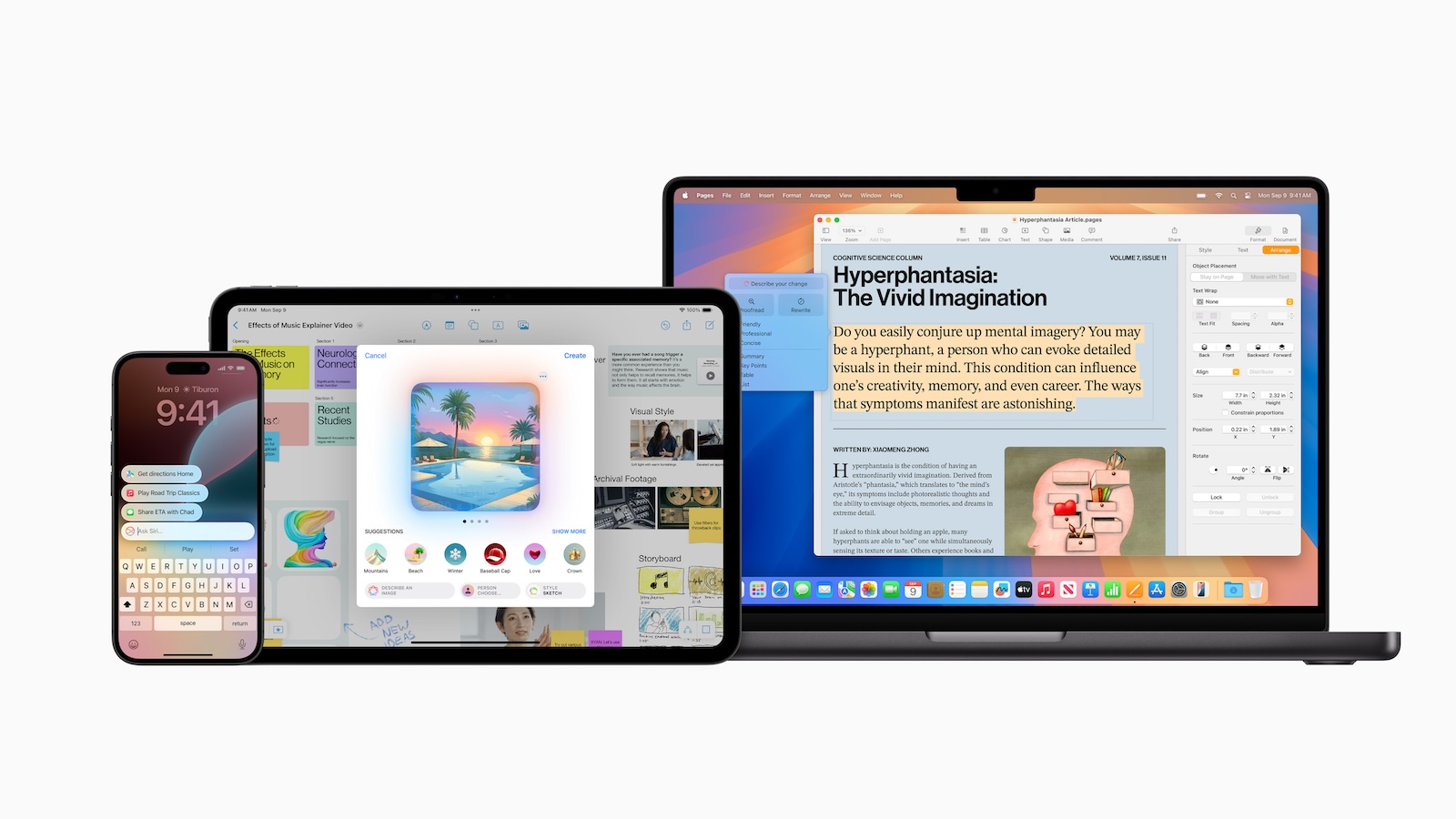
Apple Intelligence brings generative tools like writing tools, image creation, and ChatGPT integration directly into the system - convenient, but not desirable in every situation or on every device. Screen Time allows you to individually block each of these functions, secure it with a passcode, and restrict access to children's devices. In iOS 27, this becomes the most important control because the central Apple Intelligence switch is no longer available. There are separate ways to access these settings on iPhone, iPad, and Mac - with small but significant differences between iOS 26 and iOS 27.
Generative AI features have been an integral part of iPhone, iPad, and Mac since Apple Intelligence. Writing tools rewrite text, Image Playground and Genmoji generate images, and ChatGPT can be integrated via the AI extension. This isn't desirable in every context - whether to reduce distractions, prevent generated content on work devices, or limit usage on a child's iPhone. Screen Time offers fine-grained control for precisely these situations: instead of disabling AI entirely, individual features can be selectively blocked. Those who want to activate and set up Apple Intelligence in the first place will find the basics elsewhere - this section focuses on targeted restrictions, feature by feature, tailored to your specific needs.
These devices support Apple Intelligence
Apple Intelligence doesn't run on every device; it requires an Apple chip from the A17 Pro or M1 generation onwards. The following are supported:
- iPhone 15 Pro and iPhone 15 Pro Max
- the entire iPhone 16 series including the iPhone 16e
- the entire iPhone 17 series including iPhone Air
- iPad mini (A17 Pro) and iPad models with M1 chip or newer
- Mac models with M1 chip or newer
A compatible device doesn't automatically mean all features are available: The AI features require significantly newer hardware than a simple operating system update. Users of older models simply won't see the screen time options described here because the necessary functions are missing.
What's different between iOS 26 and iOS 27
iOS 26 and iOS 27 differ significantly in their control of Apple Intelligence.
iOS 26 still features a central toggle: In Settings under "Apple Intelligence & Siri," the entire AI can be switched off with a single tap. Screen Time is a more granular alternative if only specific functions should be disabled—or if the screen lock should be protected with a passcode to prevent subsequent changes.
In iOS 27, this central switch is removed. Apple Intelligence is enabled by default, and the settings entry is now simply called "Siri." There is no longer a complete off switch for the generative features. This makes Screen Time the primary location for disabling writing tools, image creation, and AI extensions.
Block writing tools
The writing tools summarize texts, proofread, and rephrase. To disable this function, go to the restrictions settings:
- Open the settings and tap on "Screen Time".
- Select "Restrictions" and activate them – enter the Screen Time passcode if required.
- Tap on "Intelligence & Siri" and then on "Writing Tools" (in some versions "Writing Tools").
- Set the setting to "Do not allow".
A note regarding iOS 27: Outside the EU, the writing tools are integrated into "Write with Siri." On iPhones and iPads in the EU, the classic writing tools menu remains – and this is precisely what controls the restriction.
Block image creation
Apple groups its creative image features under "Image Creation": Image Playground, Genmoji, and Image Creation. Here's how to lock them:
- Open the settings and tap on "Screen Time".
- Activate the "Restrictions" if you haven't already done so.
- Tap on "Intelligence & Siri" and then on "Image Creation".
- Select "Do not allow".
This means that both the standalone Image Playground app and the keyboard-based Genmoji creation will disappear. Existing, saved images will remain unaffected.
Block ChatGPT and other AI extensions
Apple Intelligence can integrate external AI models – currently ChatGPT, with other providers planned for the future. This third-party integration works via the AI extension and can be disabled separately.
- Open the settings and tap on "Screen Time".
- Activate the "Restrictions".
- Tap on "Intelligence & Siri" and then on the AI extensions option (depending on the version, "Intelligence extension" or "ChatGPT extension").
- Set the setting to "Do not allow".
Requests will subsequently no longer be forwarded to ChatGPT or other external services. The system's own functions remain unaffected unless they have also been individually blocked.
Here's how it works on a Mac
On a Mac, the same switches are located in a slightly different place:
- Open the Apple menu and then select "System Preferences" > "Screen Time".
- Click on "Content & Privacy" and activate the content and privacy restrictions.
- Select "Intelligence & Siri" and specifically disable writing tools, image creation, or the ChatGPT extension.
Unlike on the iPhone, the writing tools on the Mac remain usable as "Write with Siri" even under macOS 27 – the restriction applies accordingly to the new version.
Securing restrictions for children
Screen time settings become truly powerful when used in conjunction with Family Sharing. If restrictions are set via a child's account and protected with a Screen Time passcode, they cannot simply be removed on the child's device. Furthermore, the settings are synchronized across all devices in the Family Sharing group, provided they are all running the latest software.
Starting with iOS 26 and iPadOS 26, your child can request an exception when a feature is blocked—the request goes directly to you and can be approved or denied with a tap. Setting up and managing screen time, content filters, and restrictions for a child's account is a separate topic.
Apple Intelligence in the EU
For users in Germany and the EU, most AI features have been available since iOS 18.4 – including image creation, Genmoji, and ChatGPT integration. The restrictions described here apply accordingly. The only exception concerns the writing tools in iOS 27: On iPhones and iPads in the EU, the classic menu remains because the new "Write with Siri" option will not be available there for the time being. Which Apple features are missing or delayed in the EU changes with each software update.
Control Apple Intelligence effectively: The most important points at a glance
Screen Time is the most reliable way to disable individual Apple Intelligence features instead of disabling AI across the board. Using "Intelligence & Siri," you can separately block writing tools, image creation, and AI extensions - on iPhone, iPad, and Mac. This method is particularly relevant in iOS 27 because the central AI toggle is gone, leaving restrictions as the only remaining control. Combined with Family Sharing and a Screen Time passcode, this creates a lock that works reliably even on children's devices.
The best products for you: Our Amazon Storefront offers a wide selection of accessories, including for HomeKit. (Image: Apple)
- Using Apple Intelligence in the Messages app
- Apple Intelligence: The best tips for your Photos app
- With Apple Intelligence: Focus and notifications under control
- Apple Intelligence: Quickly summarize web pages
- Apple Intelligence in the Mail app: All functions at a glance
- Apple Intelligence: How the writing tools work
- Setting up Apple Intelligence: Instructions for iPhone, iPad and Mac
- Shortcuts in iOS 27: How to easily create automations using descriptions
- Which USB-C Cable Does Your Mac Need?
- Apple Silicon: How Much RAM Do You Really Need?
- How many external displays does your Mac support?
- iOS 27: Finally Set Alarm and Notification Volumes Separately
- Create a Pass in iOS 27: Create Your Own Wallet Passes
- iOS 27, iPadOS 27 and macOS Golden Gate: These Apple devices are compatible
- How to install the iOS 27 Developer Beta: guide, risks and troubleshooting
- Setting Up Apple Family Sharing Securely: What Parents Need to Know
- iCloud Private Relay vs. VPN: What Actually Protects You?
- How to protect Apple devices from malware
- Configuration Profiles on the iPhone: When They Help, When They Become Dangerous
- HomePod Plays Music on Its Own: How to Stop Ghost Touches
Frequently Asked Questions: Limiting Apple Intelligence
Under Settings > Screen Time > Restrictions > "Intelligence & Siri". There you will find the switches for writing tools, image creation and AI enhancements.
Without a passcode, a set restriction in the settings can be lifted at any time. Only with a Screen Time passcode is it protected against subsequent changes.
Yes, in iOS 26 – via the central switch under "Apple Intelligence & Siri". In iOS 27, this switch is no longer available because AI is enabled by default; there, you can disable the functions individually via Screen Time.
Writing tools, image creation (Image Playground, Genmoji and image creation) and third-party AI such as ChatGPT – each separately.
Yes, via Family Sharing. The settings sync across the family group and can be protected with a Screen Time passcode. From iOS 26 onwards, the child can request an exception if needed.
Yes, since iOS 18.4 – including image creation, Genmoji, and ChatGPT integration. The only exception concerns the writing tools in iOS 27, which remain as the classic menu on iPhones and iPads in the EU.
Existing content will be preserved. Only new content created via Image Playground, Genmoji, and the keyboard is blocked.