Contacts, location, microphone, camera, photos – these permissions are granted as a package during installation, and afterwards, no one asks for them again. iOS provides a toggle for each individual category, along with a report that reveals the silent data flows in the background. The biggest lever, however, isn't in the permissions themselves, but one level deeper.
Apple has gradually tightened the iPhone's permission system over the years: iOS 14 introduced limited photo sharing, iOS 14.5 added app tracking transparency, iOS 15.2 introduced the app privacy report, and iOS 18 introduced selective contact sharing. All of this is now consolidated under "Settings" – "Privacy & Security," where virtually every app's access is now individually controlled. All menu paths and labels in this guide were verified on my own iPhone, and the screenshots are from the same device. If you encounter any inconsistencies beyond an overly inquisitive app, you can find the appropriate steps to check in the guide to the real warning signs of a hacked iPhone.
Key Facts at a Glance
- All app access settings are centrally located under "Settings" – "Privacy & Security", sorted by data category.
- When it comes to location, the "Precise Location" switch is often more effective than disabling the permission itself.
- Contacts and photos can be shared individually, instead of handing over the entire collection.
- The app privacy report is the only one that shows which advertising and analytics domains an app contacts in the background.
- App tracking transparency cannot be activated for managed accounts and child accounts – the rejection applies automatically in these cases.
- Siri AI accesses messages, emails, and photos system-wide, but will not initially launch on iPhones in the EU.
Where the permissions are located on the iPhone
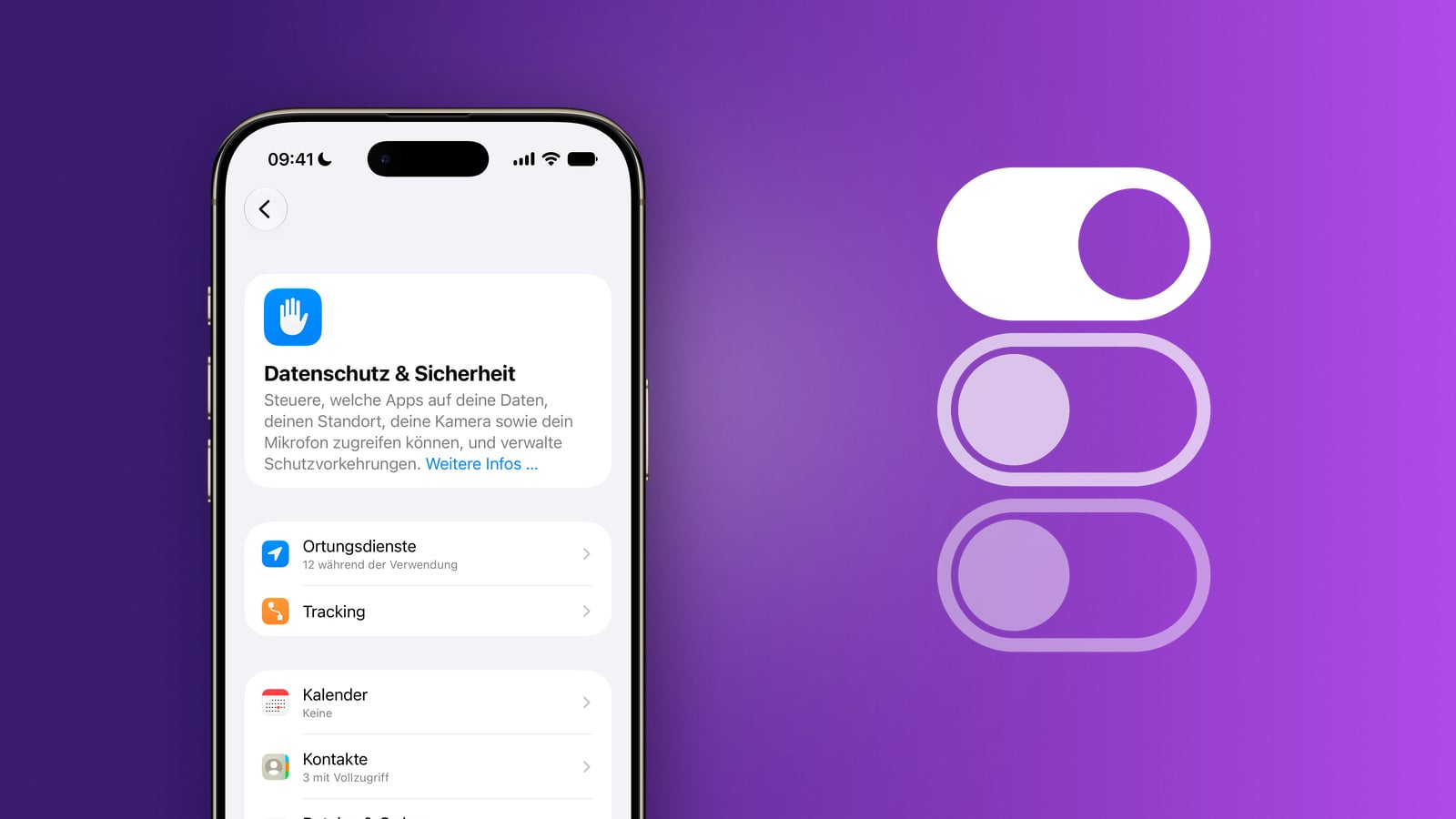
Apple consolidates privacy settings under "Settings" – "Privacy & Security". This section is organized by data categories: Location Services, Tracking, Contacts, Calendar, Photos, Bluetooth, Microphone, Speech Recognition, Camera, Health, and others. Each entry lists the apps that have requested permission for that category.
The reverse approach leads to the same result: In "Settings", scroll all the way down and tap directly on the name of an app. There you will find all the permissions for that one app.
Both views have their purpose. The app-centric view is suitable when there is a specific suspicion. The category-centric view is suitable for a systematic review because outliers become apparent in direct comparison – the flashlight app among a host of navigation apps in the location list immediately stands out.
Location services: five levels and a second switch
Location data is the most sensitive category because it creates a movement profile over time. iOS offers five levels per app:
| Level | What the app sees | What is useful for |
|---|---|---|
| Never | Nothing | Games, flashlights, note-taking apps, calculators |
| Ask next time or when sharing. | Only with explicit permission | Apps that require location data only once |
| When using the app | Only when the app is open | Retail, restaurant search, photo services |
| When using the app/widgets | Additionally, for the widget on the home screen | Weather and maps with widget |
| Always | Even in the background | Navigation with route recording, delivery services during an order |
The fourth level only appears in apps that include a widget – for example, it's the default setting in the weather app. For the vast majority, the first three levels are sufficient. "Always" is the exception, not the rule.
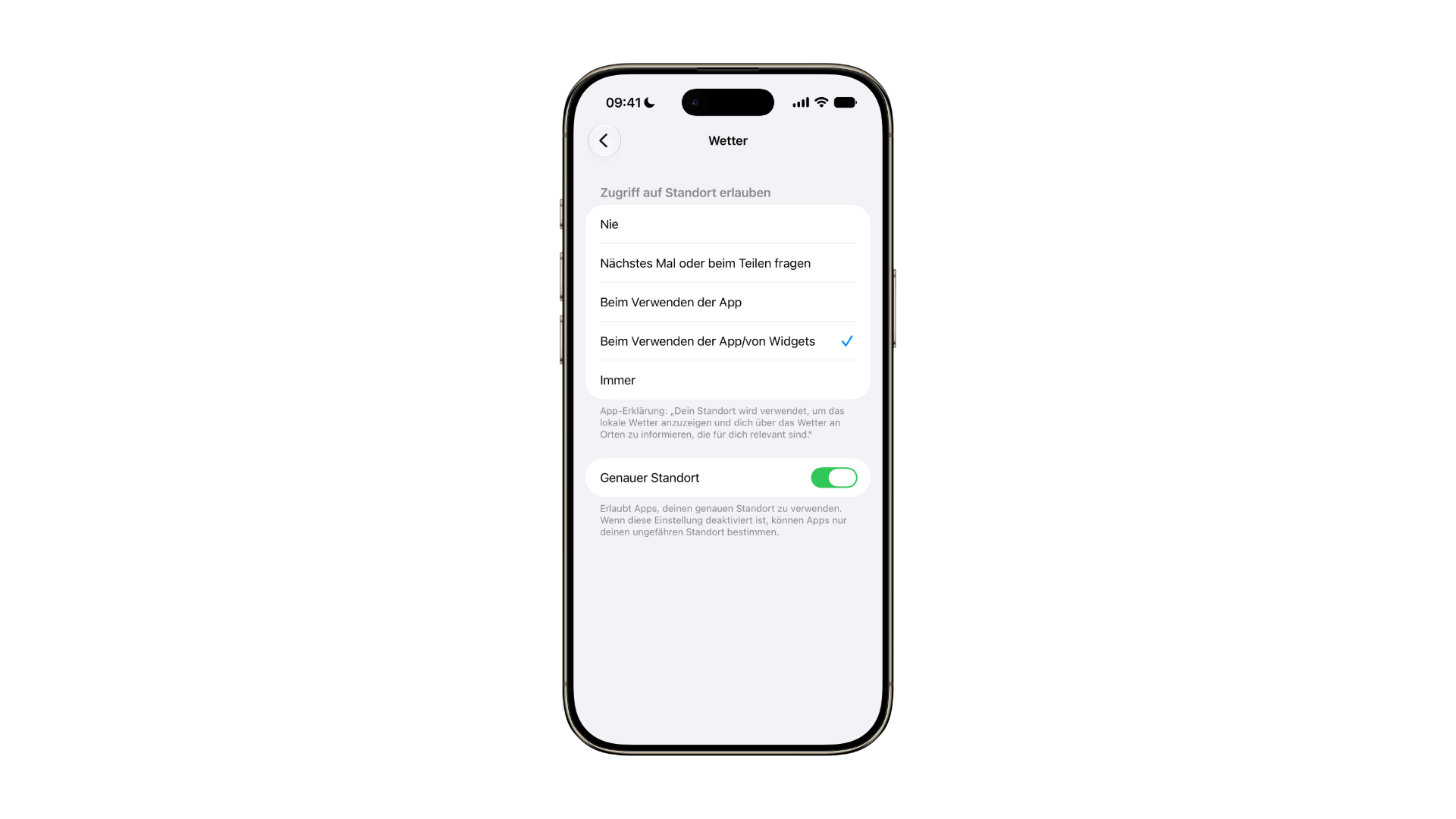
Below that is a second switch that often provides more benefit than the setting itself: "Precise Location." When switched off, the iPhone only transmits an approximate location instead of the exact coordinates. This is perfectly adequate for weather, news, and local offers, but not for pinpoint tracking.
What's behind the system services
Under "Location Services," at the very bottom, is the entry "System Services." This is where location data transmitted by iOS itself is collected - including "Significant Locations," a list of frequently visited addresses maintained on the device. Apple describes the basics of this in its support document on privacy and location services.
This list isn't just a convenience feature. It also informs the protection against stolen devices, which applies different rules to familiar locations than to unfamiliar ones. Disabling "Significant Locations" grants maximum location privacy but eliminates this distinction.
Location data isn't only shared with apps, by the way. With iOS 26.3, Apple restricted the sharing of data with network operators – a channel that can't even be accessed via the app settings.
App tracking transparency and its limits
Under "Settings" – "Privacy & Security" – "Tracking," you'll find all apps that have requested cross-app tracking. Permission can be toggled on and off for each app individually or completely disabled via "Allow apps to request tracking." Apple states in its support document on app tracking that any app requesting tracking when the main option is disabled will be treated as if the request had been denied.
One detail from the same document regularly stands out in practice: The main option cannot be activated at all in certain situations – for children's accounts and for people under 18, for accounts managed by a school or company, for devices with a restrictive configuration profile, and for accounts created less than three days ago. In these cases, the grayed-out switch is not an error, but rather the stricter setting.
The key factor is reach: App tracking transparency concerns advertising tracking beyond the advertising ID. It doesn't stop all data flows from an app, but rather the matching of usage data with external advertising networks.
Release contacts individually
Since iOS 18, contact sharing has been a two-step process. The first step allows or denies access in general, while the second defines the scope. Users who select the desired contacts only share the app's entries – the rest of the address book remains invisible.
This can be adjusted later under "Settings" – "Privacy & Security" – "Contacts" and then in the details view of the respective app. The options are "None," "Limited Access," and "Full Access"; at the middle level, "Edit Selected Contacts" leads to the selection list, and iOS displays below it how many contacts are currently shared. Apple describes the process in the user manual chapter on accessing contacts.
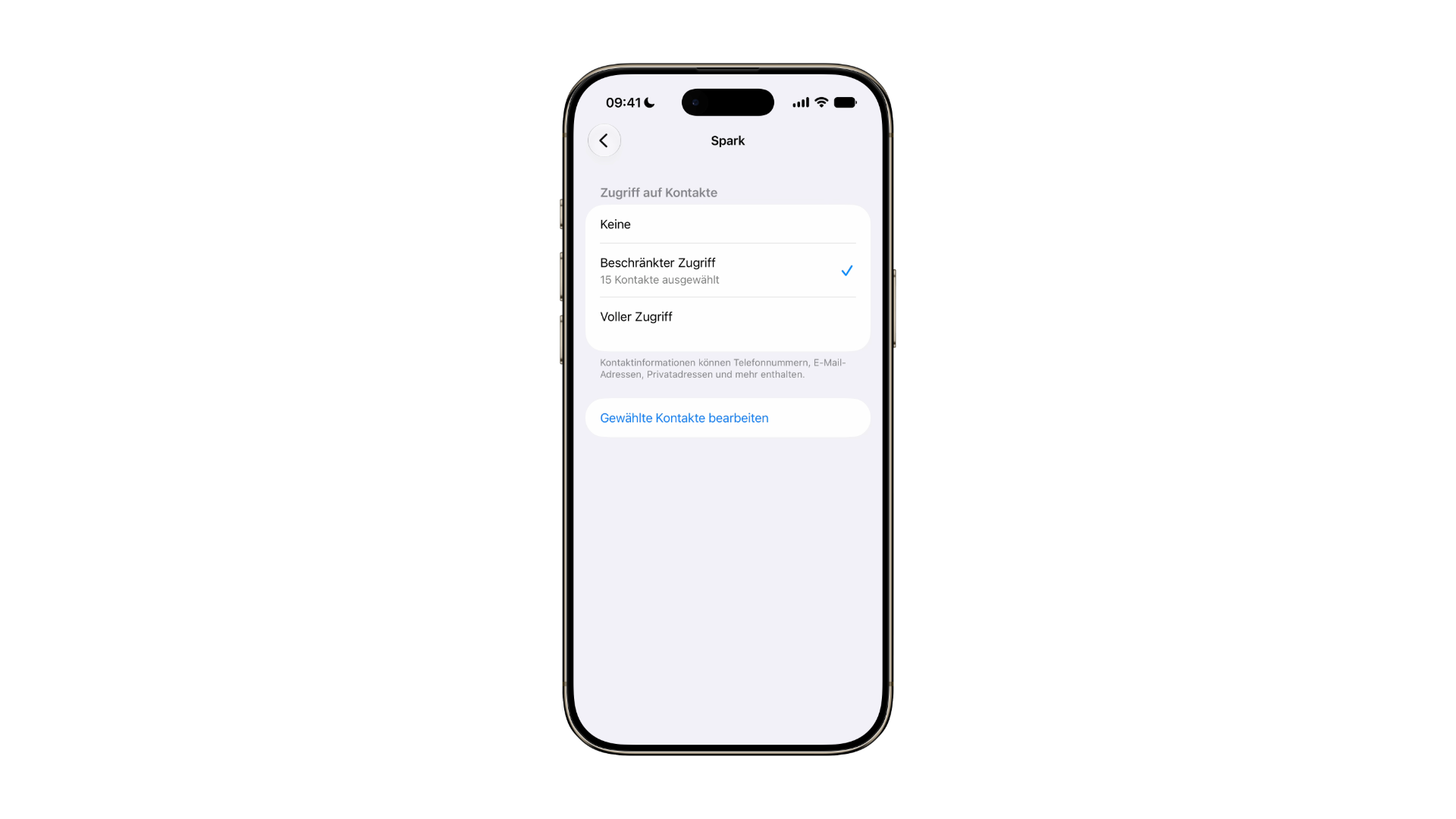
The difference is greater than it sounds. An address book contains the names and numbers of people who have never consented to the app's use – clients, patients, business partners, relatives. With a messenger app, the handful of contacts with whom you actually communicate are usually sufficient.
Photos, microphone and camera
What iOS 18 brought to contacts has been available for photos since iOS 14. Access can be completely denied, restricted to selected images, or extended to the entire photo library. Some apps also request the lower level of access, allowing them to write images to the photo library but not read them.
For most apps, the limited option is sufficient. A social media app doesn't need to access ten years' worth of photos to upload a single image. The selection can be expanded or reduced later via "Settings" – "Privacy & Security" – "Photos" and the respective app.
The microphone and camera are simple on/off switches for each app. iOS also indicates active access in the status bar: an orange dot for the microphone, a green one for the camera. This indicator is the only real-time control – it's worth checking as soon as a dot appears, even if you're not currently taking a photo or speaking.
Under "Speech Recognition" you'll find apps that are allowed to use Apple's dictation function. This allows speech data to be transmitted to Apple for processing, which goes beyond simply accessing the microphone locally.
The app privacy report shows the network page
The report is activated under "Settings" – "Privacy & Security" – "App Privacy Report". Apple explicitly points out in the support document that the data collection only begins after activation – the view is empty immediately afterwards.
After a few days of use, two sections become available. The data and sensor access section shows for each app when and how often it accessed location, photos, camera, microphone, contacts and other categories in the last seven days, broken down to the timestamp.
Network activity is the more interesting part. Under "Domains directly contacted by the app," it shows which addresses an app has visited, with frequency and timestamp; this also includes domains from websites opened within the app, and a list of the most frequently contacted addresses overall. Apple also lists the owner of each app—for Facebook, for example, Meta Platforms.
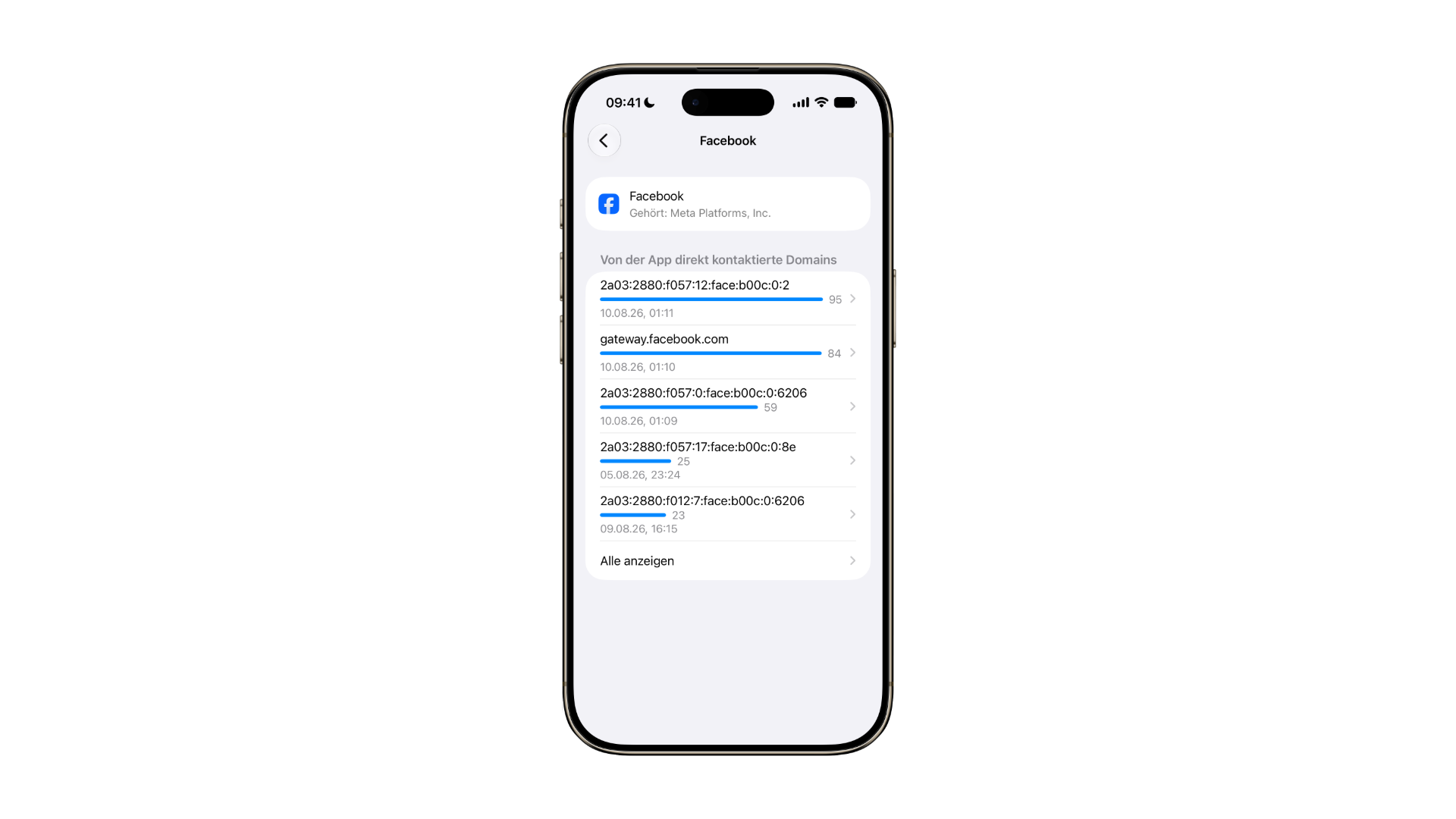
An observation on my own device puts this expectation into perspective: For large apps, the list predominantly shows proprietary addresses, sometimes as a pure IPv6 address rather than a readable domain name. The report thus reliably shows how much traffic an app generates and where it roughly goes – it's not a complete tracker list. It becomes particularly revealing with smaller apps, in whose list third-party analytics services suddenly appear.
Two limitations apply: Network activity from private browser sessions in web browser apps does not appear in the report, while activity from non-browser apps using private mode does. And those interested in the network aspect should be aware that Apple's own protection layer offers only limited protection – the differences between iCloud Private Relay and a VPN are significant in this regard.
The report data is stored encrypted on the device. Disabling the report will delete it.
If the report reveals anything unusual
Three reactions are possible. Revoking or restricting permission is the most direct approach. The app's privacy label on its product page in the App Store shows which data the developer states is being collected – a discrepancy between the label and actual behavior is a strong indicator. And if an app's purpose and data appetite don't align, deleting it is the cleanest solution.
There comes a point where the issue moves beyond the permissions level. Anyone who suspects that someone has deliberately gained access to their device can find the necessary steps in the guide to stalkerware on the iPhone. For urgent cases, Apple has also included a security check that resets all permissions granted to people and apps in one go – intended for situations where individual settings are too slow.
What Siri AI changes regarding access rights
With iOS 27, a new data access level is introduced that cannot be represented by the category list. In its presentation of Siri AI, Apple describes how the new assistant uses personal context to search messages, emails, and photos, performs system-wide actions in apps, and answers questions about the content on the screen.
This isn't app access in the traditional sense, but rather system access across all apps. The Siri app's conversation history is also synchronized between devices via iCloud.
However, there is a significant caveat for German-speaking regions. Apple states in the same announcement that Siri AI will initially not be available in the EU on iPhone, iPad, and Apple Watch – only on Mac and Apple Vision Pro. Furthermore, the launch will be as a beta version and exclusively with English as the system language, while Apple Intelligence also supports German.
In practical terms, this means that in Germany and Austria, the access situation on the iPhone remains unchanged for the time being, because the function doesn't even start there. Switzerland is not part of the EU and therefore not subject to this restriction – there, access depends solely on the device and system language. The reasons for the EU block are explained in the article about why the DMA stops Siri AI on iPhone and iPad.
Apple's own data sharing settings
Two settings don't affect third-party apps, but Apple itself. Under "Apple Advertising," you can disable personalized advertising in the App Store, Apple News, and the Stocks app. This only affects Apple's own advertising network.
Under "Analysis & Improvements," you can decide whether diagnostic and usage data is sent to Apple. According to Apple, this data is anonymized; it can be disabled without any loss of functionality.
Users of Apple Intelligence will also find an overview of requests sent to Private Cloud Compute under "Apple Intelligence Report". The technical details of this process are explained in the overview of Apple Intelligence and data privacy.
A routine that can be completed in half an hour
Permissions accumulate. An app that was granted all permissions two years ago upon its initial launch still retains these rights today – even if it's rarely opened anymore. Two to three clean runs per year keep the permissions manageable.
- Open the app privacy report and note any suspicious access attempts and unexpected domains.
- Go through the categories location, microphone, camera, contacts and photos individually.
- Delete unused apps – their permissions will disappear with them.
- Set restricted contact and photo sharing for new apps from the start.
The process takes fifteen to thirty minutes per pass. Anyone taking advantage of this opportunity should also run the data leak check in their password app at the same time – this covers the account page, which remains unaffected by permissions.
Why the network component is the real lever
The permission switches are the visible part, but they only answer the question of what an app is allowed to access. The question of how much data an app actually transmits externally, and to whom, is answered solely by the network activity in the app's privacy report.
This is precisely the most practically useful part in everyday life. An app that has no permissions whatsoever, but contacts half a dozen unknown addresses every time it's launched, is undetectable via the category list.
For you, this means: If you activate only one thing from this text, make it the app privacy report. Review it after a week of normal use before changing any settings – only then will you have the basis to decide which app is actually causing a problem and which one was simply asking for too much.
App Permissions on the iPhone – The Key Points at a Glance
The central overview in the privacy settings, the app tracking transparency, the restricted contact and photo sharing, and the app privacy report together cover virtually every access method. Three adjustments are most effective: disabling precise location tracking for each app, restricting contact and photo sharing instead of sharing it completely, and activating the app privacy report to view the network page after one week. Everything else is fine-tuning the categories, which can be done in half an hour twice a year. (Image: Apfelpatient)
- Detecting AirTag Stalking and Protecting Yourself
- iPhone and MacBook while traveling: The security checklist
- iCloud Costs: All storage plans, prices, and which one is worth it
Frequently Asked Questions: App Permissions on the iPhone
It indicates that an app is currently using the microphone. A green dot represents the camera – or both the camera and microphone simultaneously, for example, during a video call. The Control Center reveals which app is behind it: swipe down from the top right corner, and the name of the last accessed app will appear at the top.
Usually, an app is stuck in the background. First, check the Control Center to see which app is listed, close it from the app switcher, and restart your iPhone. If no app is listed there, or only "Unknown," check "Settings" – "Privacy & Security" – "Microphone" and revoke permission for anything that doesn't need access. If the problem persists, a more thorough examination of your device is warranted.
Not without microphone permission. And even with permission, access isn't invisible, because iOS displays every use with an orange dot – this indicator cannot be suppressed by apps. Anyone who wants to be absolutely sure should review the microphone list in the privacy settings and enable the app privacy report, which logs every access with a timestamp.
This isn't a bug, but rather the stricter default setting. Apple cites several scenarios: child accounts and users under 18, accounts managed by a school or company, devices with a restrictive configuration profile, and accounts created less than three days ago. In all these cases, tracking is automatically declined.
Generally, yes, but the affected part is no longer accessible. A messenger app without contact access won't automatically find contacts, but messaging will still work. Apple even has a guideline regarding tracking: an app's functionality must not depend on whether you allow tracking. If an app doesn't start at all after you revoke tracking, that's more a cause for skepticism than a reason to grant permission again.
The section is currently called "Privacy & Security" and is located quite far down in the "Settings". In older iOS versions, it was simply called "Privacy", which is why many older guides use the shorter name. It refers to the same section.
The content itself isn't visible, but the recipients are. The network activity in the app's privacy report lists the domains an app has contacted in the last seven days – this reveals advertising and analytics servers. iOS doesn't show exactly what data was transmitted; the app's privacy label on its product page in the App Store provides a clue.