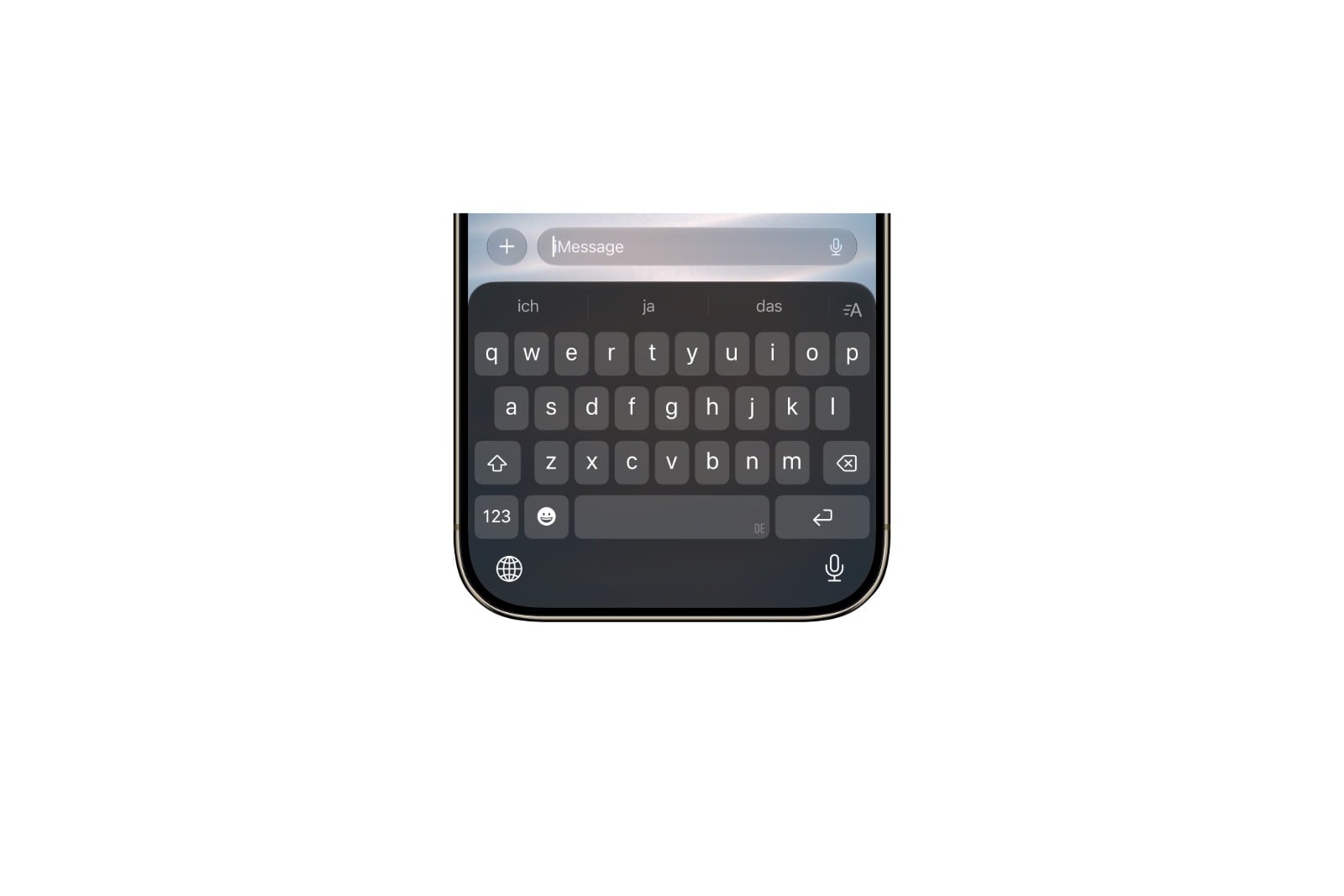
The icon on the right side of the Messages app's input field has been located right next to the send arrow for years – and is therefore constantly being tapped accidentally. The music stops, the iPhone listens, and the message that was actually sent is long gone. In iOS 27, the icon can finally be turned off.
It's one of those little things that gets disproportionately annoying in everyday life: your thumb lands a centimeter too far to the right after sending a message, and instead of a sent message, a voice recording or dictation starts. Until now, there was little you could do about it because the icon was permanently integrated into the input field. With iOS 27 and iPadOS 27, Apple introduced a separate setting for this, which is easily overlooked amidst the larger new features in Phone and FaceTime. The following instructions show how to remove the icon – and how to keep voice messages and dictation accessible nonetheless.
Why this mistake happens so often
The reason lies in the layout. The send arrow and the audio/microphone icon are located directly next to each other on the right edge of the input field; both are small, and the thumb naturally moves to this corner while typing. A misclick requires little attention but has immediate consequences: playback pauses, the microphone activates, and the screen switches to an uninvited mode.
The problem was publicly discussed, among other reasons, after a musician complained about the same screen corner being used twice, and the post gained wider circulation. iOS 27 now offers a solution.
Turn off the icon in the settings
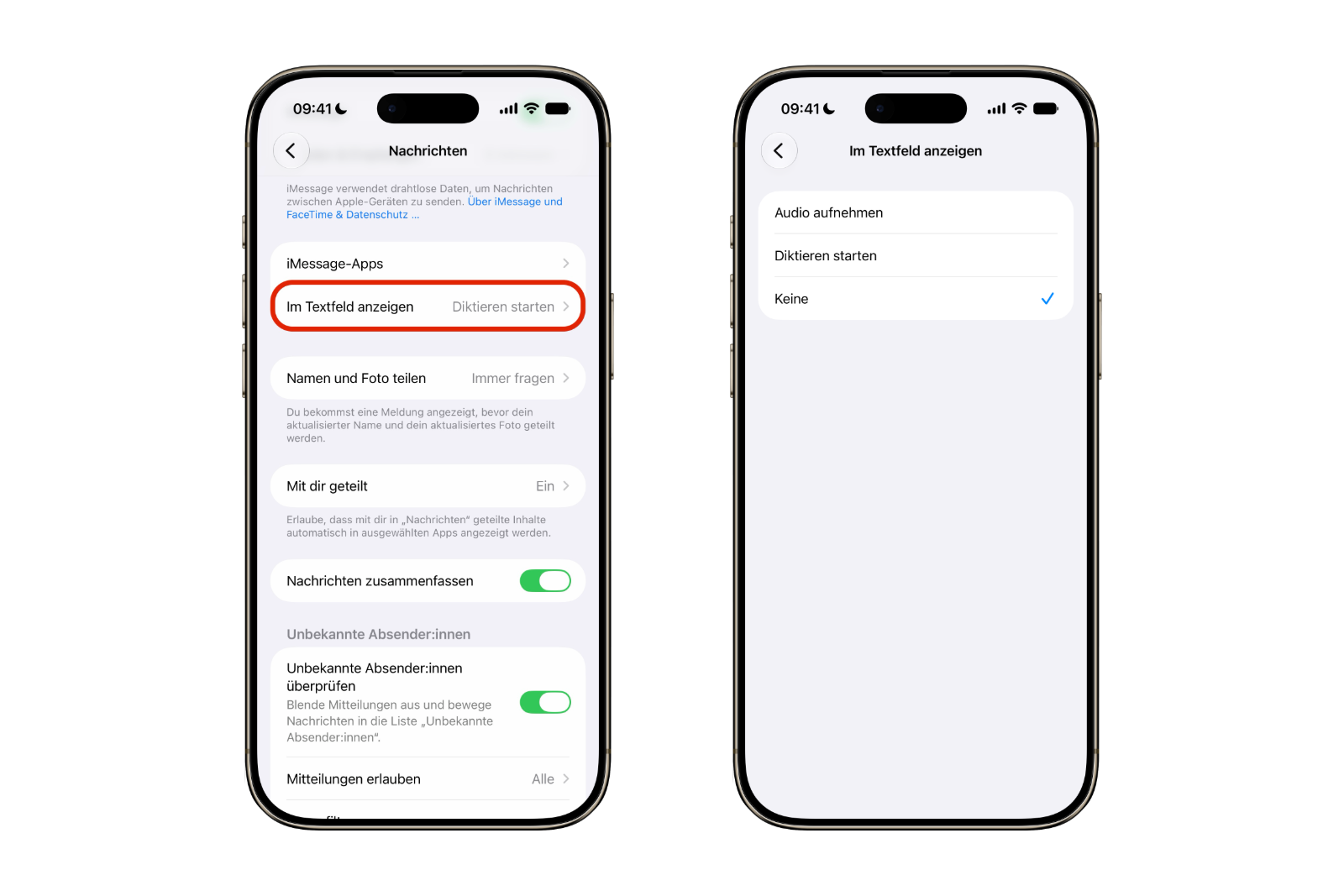
The new option is not in the keyboard settings, but directly in the messaging app:
- Open the app settings.
- Tap Apps at the very bottom of the list.
- Select Messages.
- Tap on Show in text box.
- Choose between Record audio, Start dictation and None.
To permanently clear the field, select "None". Afterwards, only the submit arrow will remain on the right side of the input field, and any incorrect selection will have no further effect. The other two options determine which of the two functions triggers the symbol – useful for those who regularly use one function and never need the other.
Continue recording voice messages
Hiding the shortcut only removes the function, not the shortcut itself. Voice messages can still be sent via the plus button to the left of the input field: tap it, select Audio from the menu, and record. The process is one step longer than before, but it's no longer accidental.
For those who rarely send voice messages anyway, this is the better compromise – the rare deliberate recording costs an extra tap, while the frequent accidental recording is completely eliminated.
Dictate without the symbol in the text field
Dictation data remains fully intact. The microphone button in the bottom right corner of the on-screen keyboard is independent of this and functions in messages just like in any other app.
If this key is missing, the dictation function is disabled system-wide. It can be enabled under Settings → General → Keyboard via the "Enable dictation" switch. Conversely, if you don't want to see the microphone icon on the keyboard, disable this option – however, this will affect all apps, not just Messages.
What remains possible on older iOS versions
This setting is new and tied to iOS 27 and iPadOS 27. On iOS 26 and earlier, the icon cannot be selectively removed from the input field – even the major redesign of the Messages app in iOS 26 did not change this.
Anyone wanting to prevent accidental recordings has only one system-wide solution: Settings → General → Keyboard → Enable Dictation. This disables the dictation function of the icon, but it applies everywhere. The audio version remains available on older systems. An update to iOS 27 is therefore the only clean solution; the final version is expected in September.
Audio and dictation icons in messages – the most important information at a glance
| Goal | How to get there |
|---|---|
| Remove symbol completely | Settings → Apps → Messages → Show in text field → None |
| Keep only voice recording | same setting → record audio |
| Keep only the dictation | same setting → start dictation |
| Voice message despite hidden symbol | Plus button to the left of the input field → Audio |
| Dictation despite hidden icon | Microphone button on the on-screen keyboard |
| Disable dictation system-wide | Settings → General → Keyboard → Enable dictation function |
This setting is an example of how much a single option can change: it doesn't alter the function, but only what the input field offers. For anyone who has accidentally clicked this icon for years, it will likely be one of the most noticeable improvements in the update – regardless of how unspectacular it may seem on paper. (Image: Apfelpatient)
- Detecting stalkerware on the iPhone
- iMessage contact key verification explained
- Installing iOS 27 Public Beta: Instructions, risks and troubleshooting
- Disable Apple Intelligence: How to turn off the AI
- Apple Notes: Record audio and convert it to text
- Apple Intelligence and Data Privacy: How Apple Protects Your Data
- Create iPhone ringtones – without GarageBand
- Create Genmoji: Custom emojis with Apple Intelligence
- Image Playground: Create unique images on your iPhone
Frequently Asked Questions: Audio and dictation icon in the Messages app
Settings → Apps → Messages → Show in text field.
Yes, via the plus button to the left of the input field and the Audio option.
No. The microphone button on the on-screen keyboard remains unaffected.
Then the dictation function is disabled system-wide. To enable it, go to Settings → General → Keyboard → Enable dictation function.
Yes, the setting is in the same location in iPadOS 27.
No, this option is new in iOS 27. On older systems, the only solution is to disable the dictation function system-wide.