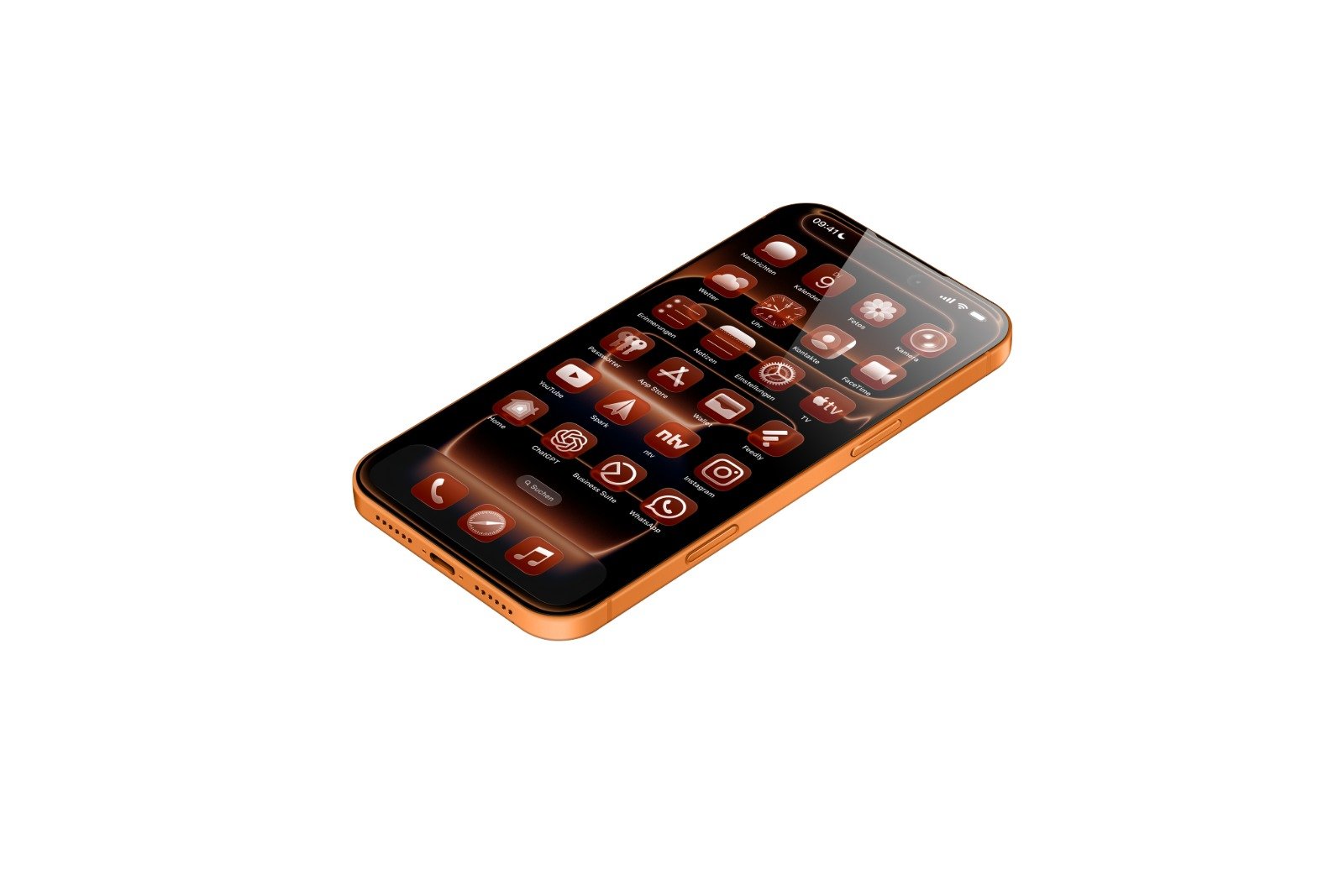
With iOS 26, Apple introduced a new feature that makes the iPhone home screen even more customizable. For the first time, it's possible to color-match app icons to the device's case. This marks another step toward personalization, building on the familiar tint options first available with iOS 18.
Customizing the iPhone plays a major role for many. With iOS 18, Apple introduced color-tinted app icons that could influence the entire appearance of the system. With iOS 26, this idea is continued and refined. Instead of simply applying color filters to icons and the user interface, the appearance is now coordinated with the color of the iPhone case. This is made possible by a small NFC chip built into official Apple MagSafe cases, which transmits color variations directly to the system.
Color-coordinated app icons in iOS 26
The feature only works with original Apple MagSafe cases. These contain a chip that stores the color variant and transmits it to the iPhone. Once the case is attached, iOS 26 acquires this information and applies the corresponding color to app icons, widgets, and even parts of the system interface. Those without such a case don't have to miss out. iOS 26 also offers a new tint option that allows app icons to match the color of the iPhone's body.
How the adjustment works
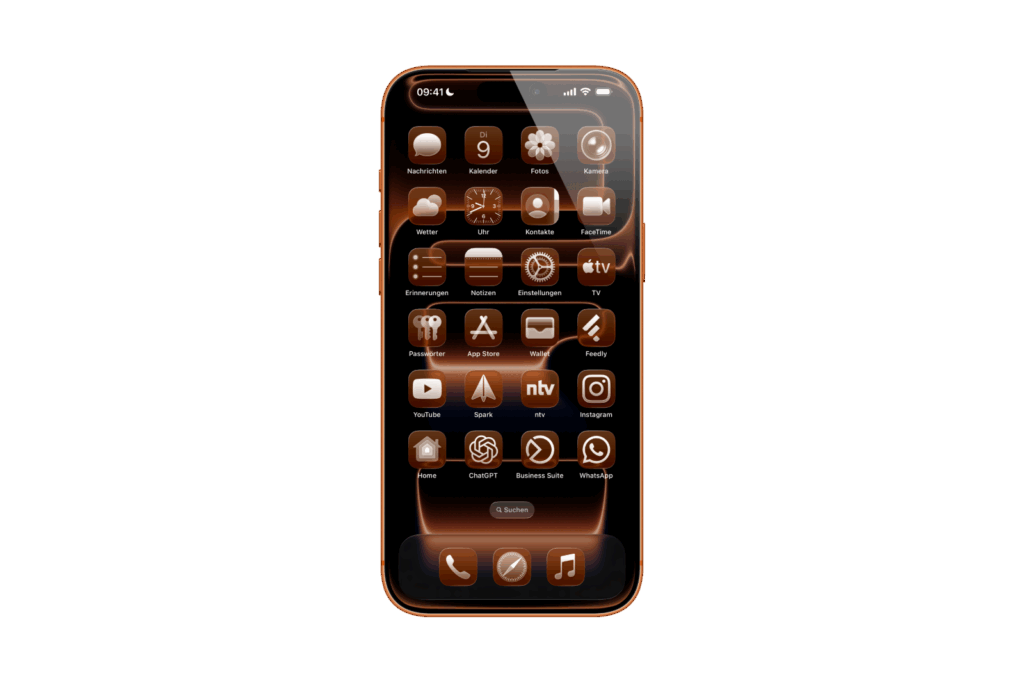
The basis is the case color, which is automatically detected. iOS 26 then adjusts the brightness, saturation, and contrast. The goal is to ensure the icons remain legible while simultaneously reflecting the color of the case. The adjustment is done in just a few steps:
- On the home screen, long press an empty space between the app icons.
- Select “Edit” in the top left corner and tap “Customize” in the menu.
- Select “Colored” from the options box and then tap the envelope button, which is the second button from the left below the two horizontal color sliders.
- Select “Light,” “Dark,” or “Auto” depending on your preference.
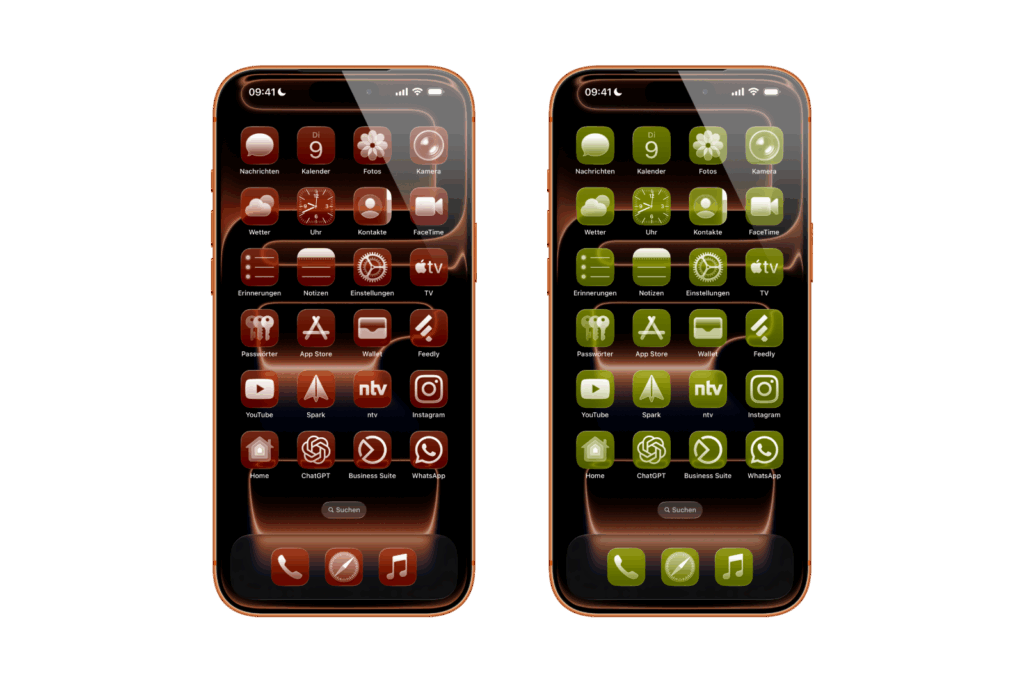
Differences between iOS 18 and iOS 26
The appearance of the tinted icons differs significantly from the version in iOS 18. While that version used a black background with colored graphics, the icons in iOS 26 appear more modern and clearer.
- In light mode, the icons appear in the selected full color with white graphics.
- In dark mode, the backgrounds are significantly darkened, but remain colorful and are not completely black.
- In Auto mode, the display automatically switches between light and dark depending on the environment.
With this, Apple goes beyond the pure color filter idea and integrates the adjustment directly into the interaction between hardware and software.
iOS 26: MagSafe case and software in harmony
iOS 26 brings a small but effective innovation that makes the iPhone design more individual. The close connection between MagSafe cases and the system interface creates a harmonious overall look, with app icons automatically harmonizing with the case color. Even without a suitable case, the option to customize icons to match the iPhone's body color remains. With this further development of icon tinting, Apple demonstrates how even small details can enhance the user experience. iOS 26 combines practical customization with aesthetic consistency, making the home screen more flexible than ever before. The best products for you: Our Amazon Storefront offers a wide selection of accessories, including those for HomeKit. (Image: Apfelpatient)
- What options does the USB-C port offer in the iPhone 17?
- iOS 26: Apple Intelligence makes reminders even smarter
- Preview App: Everything about PDF and image functions on the iPhone
- iPhone 17: How iOS 26 colors your app icons
- iOS 26: Use polls directly in the Messages app
- New iOS 26 feature: Use live translation with AirPods
- Discover and manage games with the Apple Games app
- iPhone 17: Tips for using the Center Stage front camera
- iPhone 17 Dual Capture explained: Using the front and rear cameras
- iOS 26 Screenshot Disable full screen and enable old view
- iPhone 17: Disable or customize the camera control button
- iPhone Tip: Live Translation in Messages, Phone & FaceTime
- Setting up your iPhone correctly: Check, block, and filter calls
- Keep an eye on your blood pressure: How the iPhone Health app helps
- Apple explains Apple Watch high blood pressure warnings
- Setting up Apple Music transitions: AutoMix or Crossfade
- macOS 26: Automatically connect iPhone hotspot
- Find and adjust the camera flash in iOS 26 – here's how
Frequently Asked Questions about iOS 26
iOS 26 expands iPhone personalization. New is the ability to automatically adjust app icons to the color of official MagSafe cases or, alternatively, to the iPhone's body color.
The customization is based on an NFC chip in MagSafe cases. This transmits the case color to iOS 26, which automatically colors app icons, widgets, and system elements.
Yes, an original Apple MagSafe case is required for automatic adjustment. However, without a case, you can use the new tint option, which is based on the iPhone's case color.
In iOS 18, app icons were simply colored. With iOS 26, icons appear in full color, dynamically adapting to MagSafe cases or the "Light," "Dark," and "Auto" modes.
On the home screen, long-pressing opens the "Edit" menu. Under "Customize," you can select "Colored" mode and activate the skin option.
This feature creates a coherent overall look between the iPhone case and home screen. Icons remain legible and adapt visually, creating more individuality and consistency.