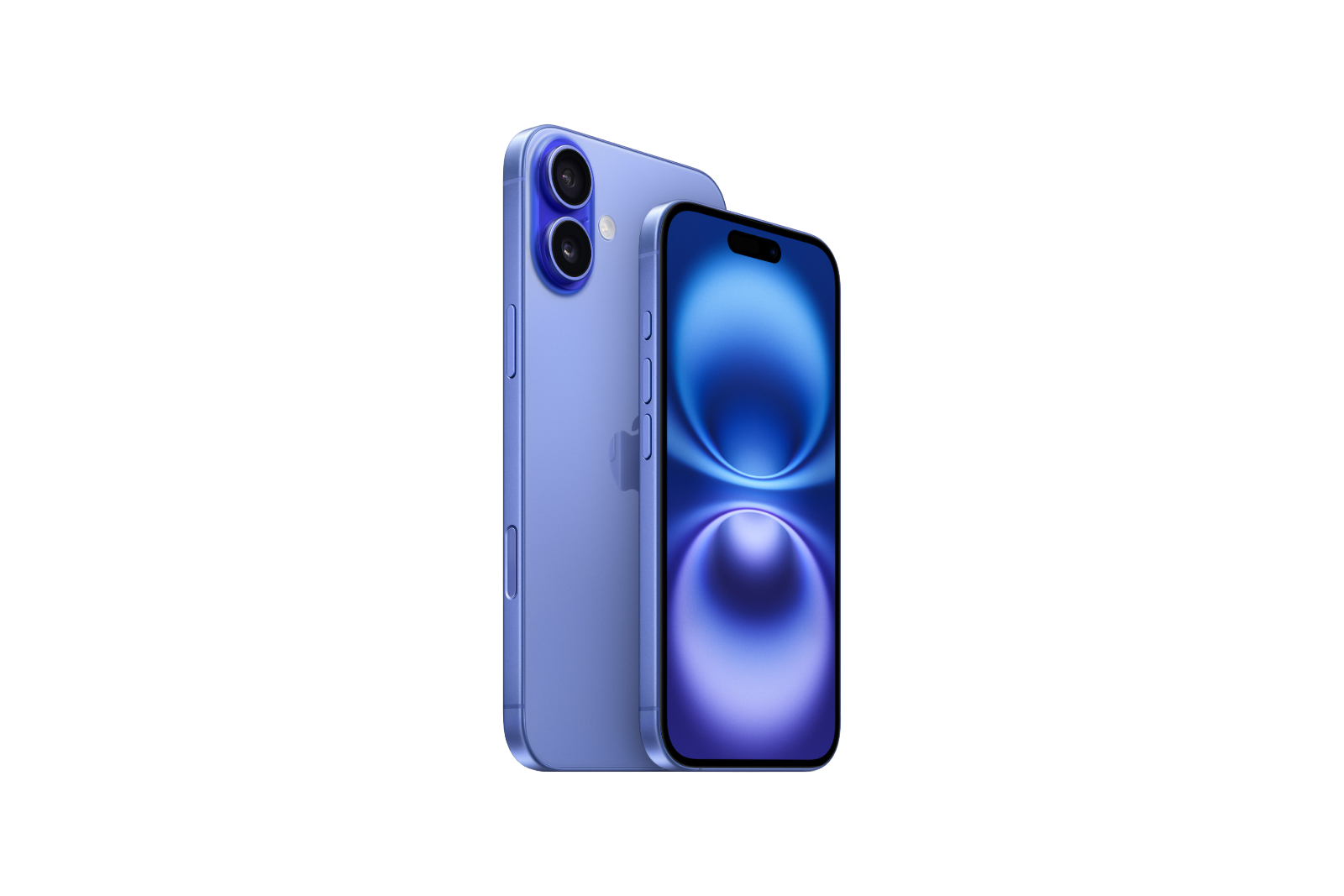
The iPhone 16 is Apple's latest product and brings with it a host of new features and improvements. One of the most notable new features is the introduction of the camera control button. Located on the bottom right when the iPhone is held in portrait mode, this is designed to make it easier for you to adjust photo settings - both in portrait and landscape mode. But the function of this button goes far beyond photography. Did you know that you can also use it as a practical QR code scanner? Below you will find out how to make the most of this function and why it offers real added value in many everyday situations.
The use of QR codes has become an integral part of our daily lives. Whether in restaurants, retail stores or business processes - QR codes offer a quick and easy way to share information or optimize processes. With the iPhone 16, Apple has found an elegant solution that makes dealing with QR codes even easier. The new camera control button in particular stands out here. If you deal with QR codes a lot, be it in a professional or private environment, this function could be a real time saver for you. But how does it work exactly? Let's take a closer look.
The Camera Control Button: More than just a photo aid
The iPhone 16's camera control button was designed primarily to make taking photos easier. It's ideally placed and allows you to quickly adjust camera settings without having to navigate through menus. This lets you quickly and easily switch between different shooting modes or adjust the zoom - all with just the touch of a finger. But Apple wouldn't be Apple if they didn't include another useful feature in this button. In addition to its role as a camera aid, you can also use the camera control button as a QR code scanner. This gives you an easy and quick way to scan QR codes directly without having to open a separate app. With just a tap, you're ready to capture the information hidden in a QR code.
Camera control and QR code scanner: A practical combination
What makes the camera control button even more impressive is that it retains its original function as a camera zoom controller even while scanning QR codes. This means you can still use the zoom function to capture a QR code more accurately if it is further away or difficult to read. This way, you are always in full control and can scan accurately even in challenging environments.
To set up the QR code scanning function:
- Open the Settings on your iPhone 16.
- Scroll down and select the menu item Camera.
- In the camera settings you will find the option Customize camera control button.
- There you can select which function the button should perform. Select QR code scanner.
- Enable: Make sure the QR code scanning feature is enabled.
You have now configured the camera control button so that you can use it to quickly scan QR codes.
Smart solutions with the iPhone 16: Scan QR codes without detours
With the iPhone 16, Apple is not only bringing another smartphone onto the market, but is also focusing on smart and useful innovations that make your everyday life easier. The new camera control button is more than just a tool for photography - it opens up new possibilities for you, especially when dealing with QR codes. Whether in professional or private situations, the function as a QR code scanner is a real asset that saves you a lot of time and simplifies processes. Looking for the best accessories? Visit our Amazon Storefront and discover a variety of products from top providers, including for HomeKit! (Image: Apple)
- iPhone 16: How to disable the "Preview" feature
- iPhone 16: Adjust pressure sensitivity of camera controls
- iPhone 16 Camera: How the new camera control button works
- iPhone 16 cases from Pitaka: Slim design, strong protection