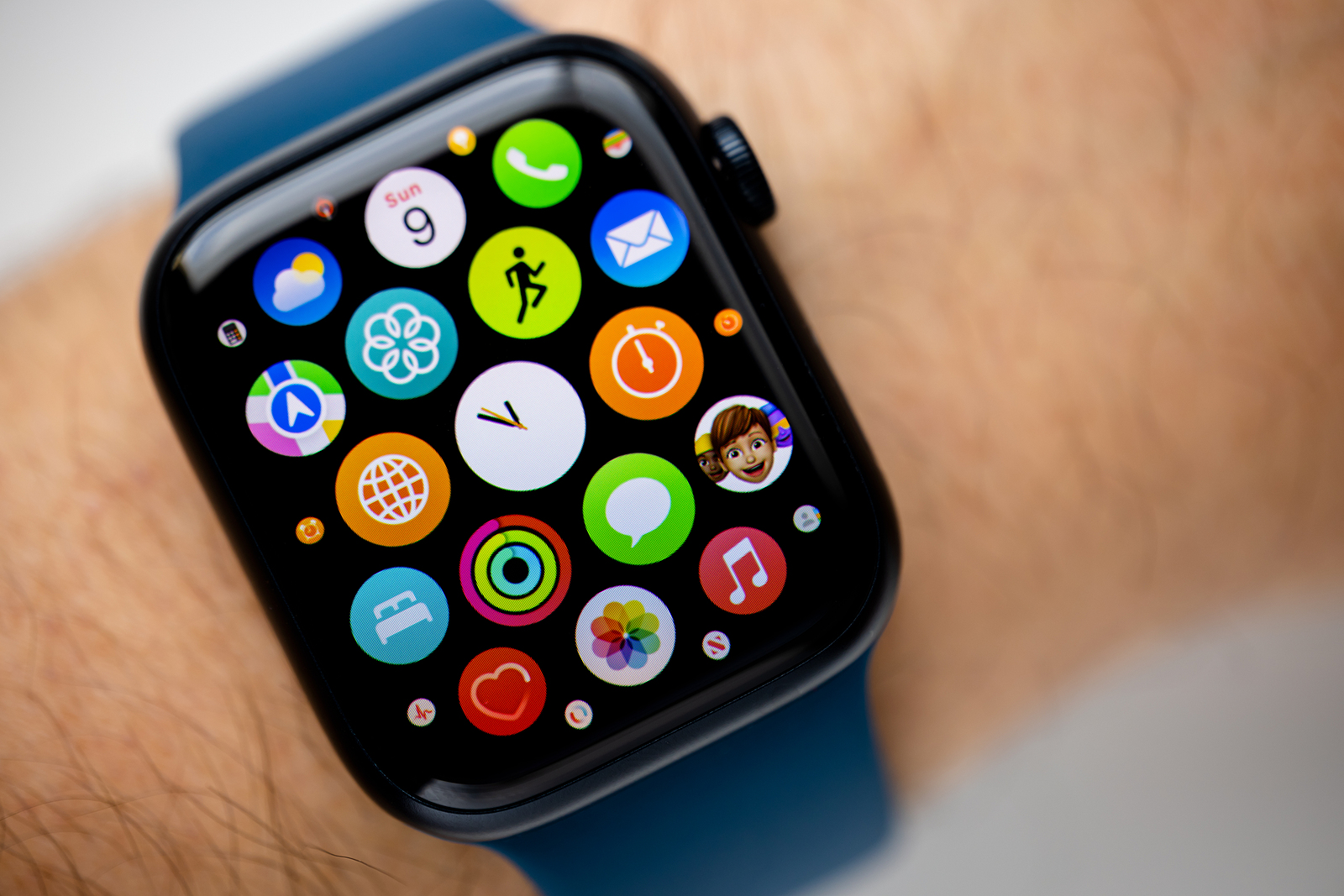
Imagine you're out and about, checking your steps, wanting to send a message via your Apple Watch or access an important reminder and suddenly - nothing works. Your smartwatch no longer responds to touches or side presses. Before you panic, take a deep breath. In many cases there is a simple solution: force restarting your Apple Watch. In this article we'll show you how to solve this problem quickly and easily so that your watch works as usual again.
Restarting your Apple Watch can work wonders, especially if your watch is acting up again. It's a quick and safe way to solve many common problems without losing any data. Whether you're a new Apple Watch owner or have been using the smart helper on your wrist for a while, this guide will help you get your watch working again in an emergency. We'll not only explain how to force a restart, but also when this step is the best solution.
When a forced restart is necessary
There are times when your Apple Watch no longer responds to the usual inputs, apps won't close, or the device simply freezes. In such cases, a normal restart is often not enough. However, a forced restart should not be your first reaction to every problem. Use it if:
- A normal reboot didn't work.
- Your watch is frozen and no longer responds to anything.
- Apps cannot be closed or continually cause problems.
A force restart is a powerful tool that should be used with caution. It is similar to turning a computer off and on again when nothing else works.
How to force restart your Apple Watch
Follow these steps to restart your Apple Watch if it stops responding:
- Press and hold the side button and the Digital Crown at the same time for at least 10 seconds.
- Release both buttons as soon as the Apple logo appears on the screen.
- Wait until the watch restarts and is ready for use again.
- You won't lose any data during this process, but it's important that you don't perform this step while an update is installing as it may cause complications.
What to do if restarting doesn't help?
Sometimes even a forced restart may not solve the problem. In such cases, you should:
- Check if a software update is available and install it.
- Check the connection between your watch and iPhone and re-establish it if necessary.
- For persistent problems, the reset to factory settings be an option before contacting Apple Support.
Force Restart: The Ultimate Solution to Apple Watch Problems
A force restart of your Apple Watch is a quick way to fix many problems yourself. Although it is an effective method to get your watch working again, it is important to only use this step as a last resort. If you continue to have problems with your Apple Watch, do not hesitate to contact Apple Support for further assistance. Armed with this knowledge, you are now able to quickly and safely restart your Apple Watch if necessary. Are you interested in the Apple Watch Ultra 2? The device is currently priced from 779 euros available. (Photo by oasisamuel / Bigstockphoto)